
Useful search filters in Entra ID you might not know (yet)
I learn new stuff every day. And so do you by reading this post.
The other day, I was scrolling through the Entra admin center and discovered some useful search filters in the Users section that I had not seen before. That could just be my ignorance, but since I did not know about them, I figured more folks should be enlightened. Hence, this short, informative post. I was surprised that such a handy filter was available by the click of a button. No fancy PowerShell scripts or MCP servers, just plain UI stuff today!
1. Guest Invitation state#
If you want to search for guest users with a specific invitation state, this filter is for you! You can either pick “Pending Acceptance” or “Accepted”.

2. Last sign-in time#
You can easily find inactive users or guests by using the filter for Last interactive sign-in time or Last non-interactive sign-in time. Use the date picker to select a date.

When filtering on last sign-in time, counts, other filters, and sorting are not supported.
3. Manager#
Quickly want to find a specific user’s direct reports? Use the Manager filter. Super handy!

4. Custom security attributes#
When you use Custom security attributes for users, this filter is a game-changer! The filter simply lists all your attributes and values to pick from.

5. Password profile#
Easily find all users that are pending password change on next login with the password profile filter!

Bonus#
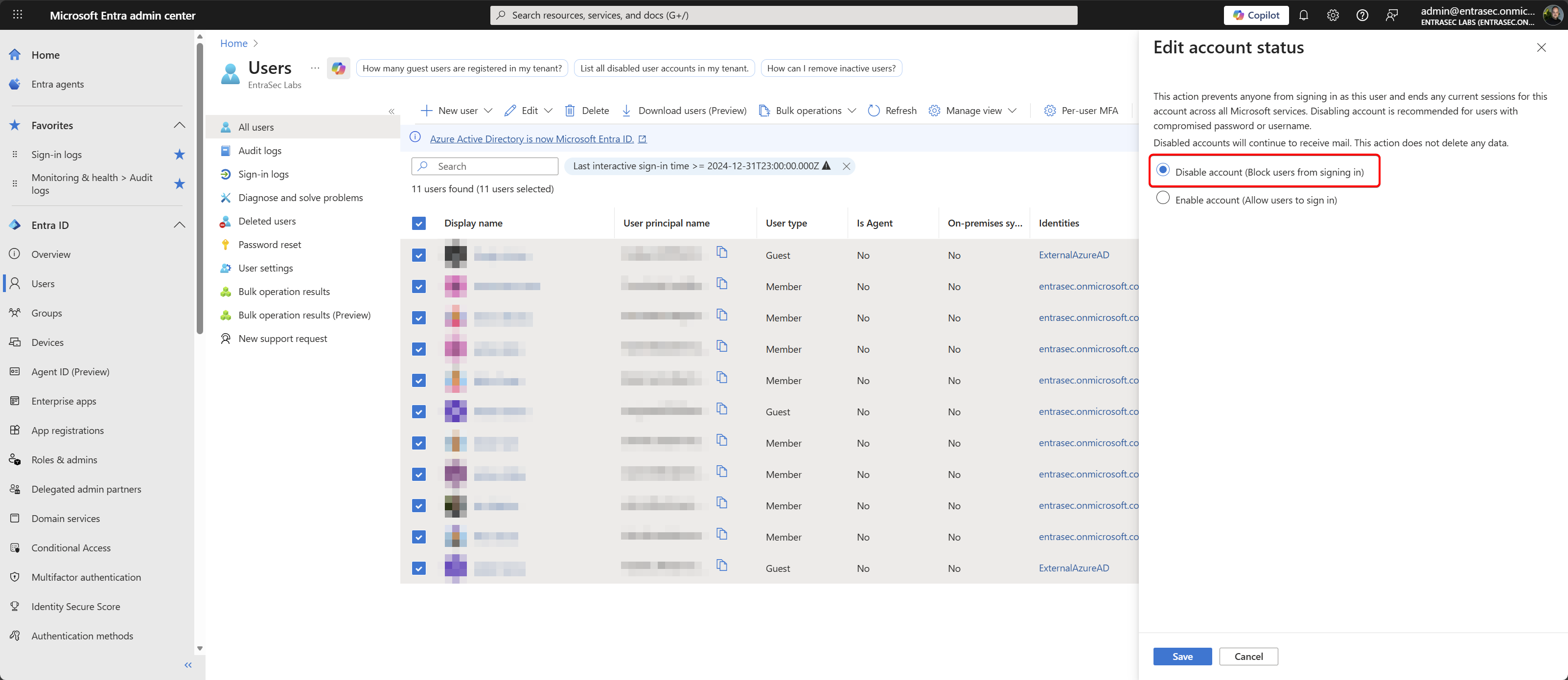
So, let’s say you want to disable all inactive users or guests in your tenant. Simply use the Last interactive sign-in time filter, and use the bulk-select tool to change the account status to Disable Account (Block users from signing in). You can also use it to revoke all the sessions.
Brilliant. Basic IAM hygiene tasks in two clicks!
Hope that was helpful!
Stay safe.
Comments
Comments load when you scroll here.