
Things you should know before rolling out device-bound passkeys in Microsoft Authenticator App
On this page
As passkeys get more traction in Microsoft 365, more and more companies are looking to strengthen their identity posture by enrolling passkeys for their workforce. Most of the time, starting with IT pros/DevOps workers, but also for their Information and Frontline Workers. Microsoft even has specific guidance for each persona: Considerations for specific personas in a phishing-resistant passwordless authentication deployment in Microsoft Entra ID - Microsoft Entra ID | Microsoft Learn
But as you get started, you’ll quickly discover that this passkey thing is not a done deal. There are still many caveats and unsupported scenarios that will easily get you confused. This blog post will point out a few things that seem obvious at first but are often misunderstood regarding passkey rollouts.
Requirements#
Let’s start with the requirements for passkeys in the Microsoft Authenticator app.
- Android 14 and later or iOS 17 and later
- User must have MFA(claim)
- If cross-device registration is used:
- Both devices need Bluetooth
- Internet connectivity to specific endpoints must be allowed
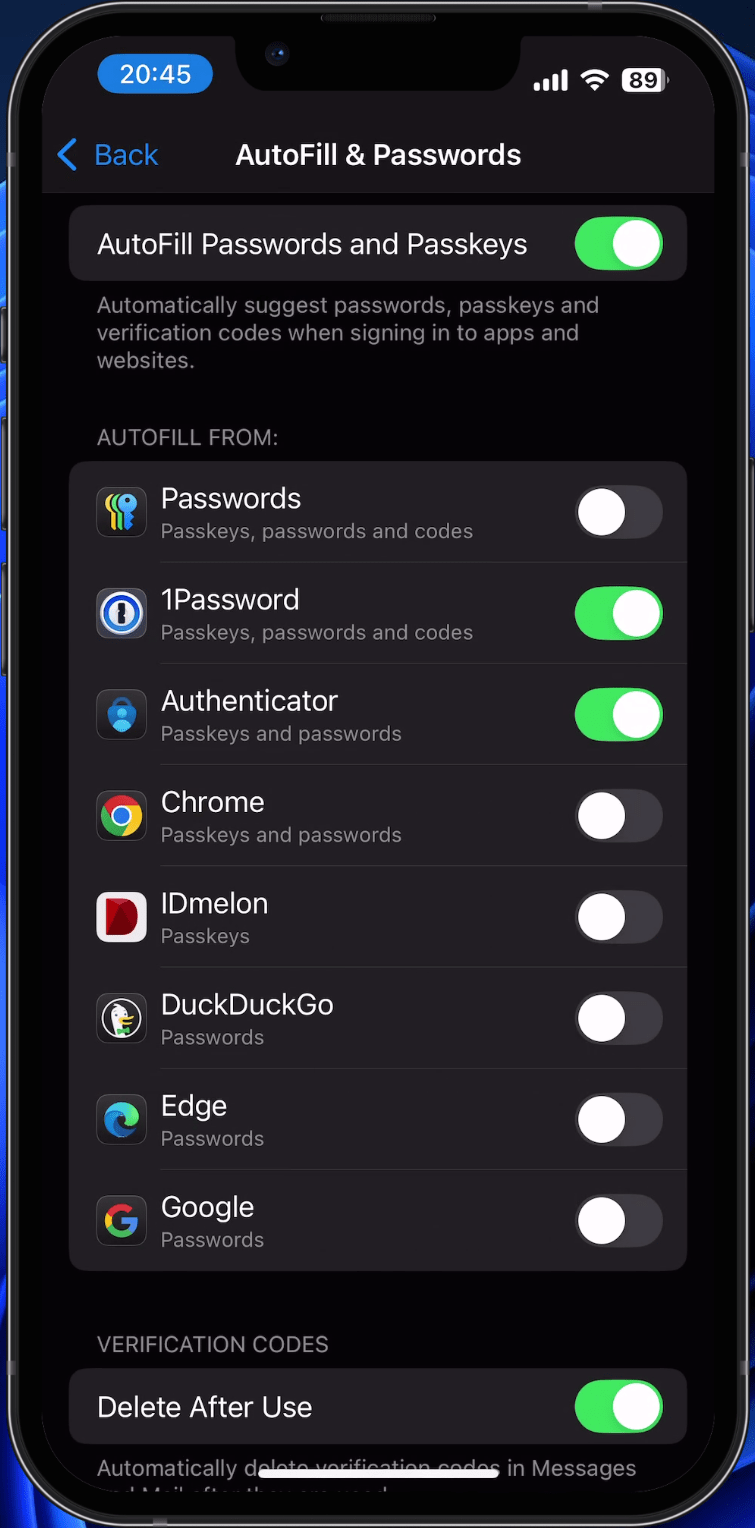
- Microsoft Authenticator App needs to be installed on the phone, and enabled as a credential provider
With these few requirements, we already have many things to consider.
MFA is required#
Before enrolling a passkey in Microsoft Authenticator, the user needs to have MFA in place or an equivalent claim. If the user is greenfield, consider using a Temporary Access Pass for onboarding. Otherwise, they can use their existing MFA method to do step-up authentication just before the passkey is registered. You might need to think of a way to deliver the Temporary Access Pass to the users beforehand.
Android & iOS#
I’ve done a couple of rollouts myself, and most issues are related to Android users. Not to brag about Apple, but the Android ecosystem is just too diverse to get a manual that works for every Android phone. Some users report back passkey is not working for them despite having the latest OS and app installed, whereas others struggle to find the passkey provider setting to allow Authenticator App to do autofill for passkeys. This FAQ item and notes from the Microsoft docs speak for themselves:
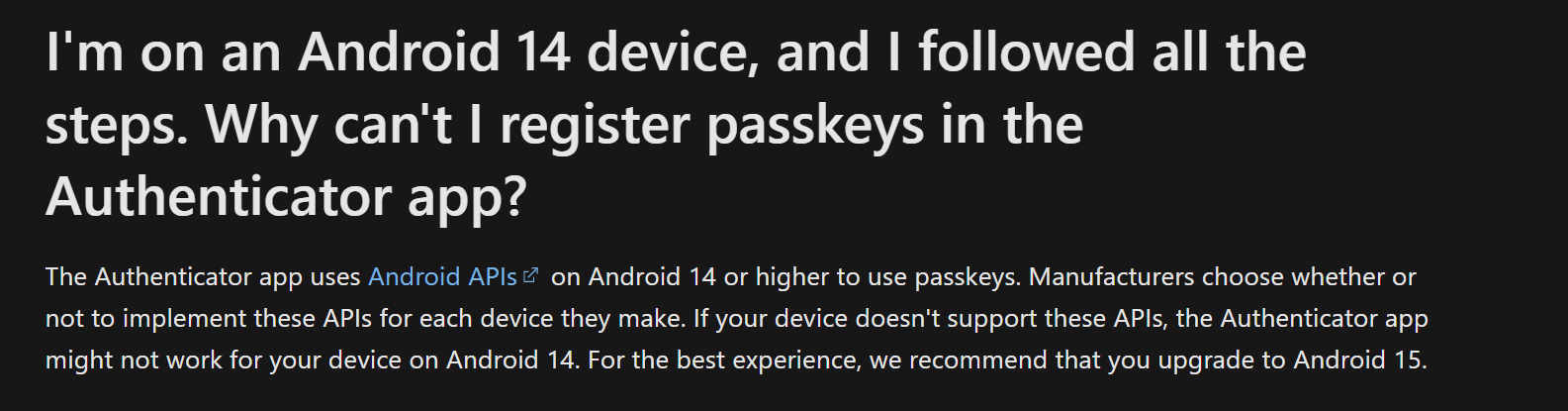
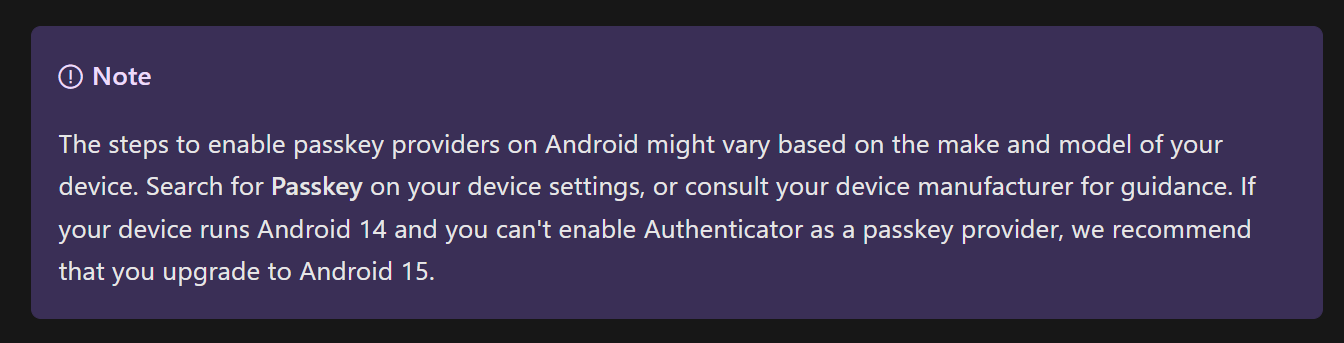
Another caveat with Android is when users have both an Android Work profile and an Android Personal profile. Microsoft recommends to register two passkeys in that case. Support passkeys in Authenticator in your Microsoft Entra ID tenant - Microsoft Entra ID | Microsoft Learn
All or nothing#
This a small but important note for organizations that already use FIDO2 passkeys and want to add a passkey in Authenticator App to that. Today, it is not possible to enable passkeys in Authenticator app for a small group of users only. Using restrictions, you can distinguish between AAGUIDS, but that will be for all users enabled in the general policy.
Passkey registration#
Microsoft recommends to use same-device registration:
“The easiest and fastest way to add a passkey is to add it directly in the Authenticator app.”
This would also be my advice, but it does not stop there. There are many things to keep in mind.
Bring your own device#
Prior to passkeys, users could register for MFA using the Microsoft Authenticator App on their personal mobile device to use push or TOTP. In some cases, organizations also allowed device registration so users could use passwordless phone sign-in (PSI). Although that method is not phishing-resistant, this was a good step in the right direction.
Even if Conditional Access enforced a compliant device, users could still register their mobile phone with push notifications or TOTP, as users would use cross-device registration.
Fast-forward to passkeys: When you follow Microsoft’s advice and let users add their passkey directly from the Microsoft Authenticator app, having a compliant device as a requirement for all apps will break the enrollment.
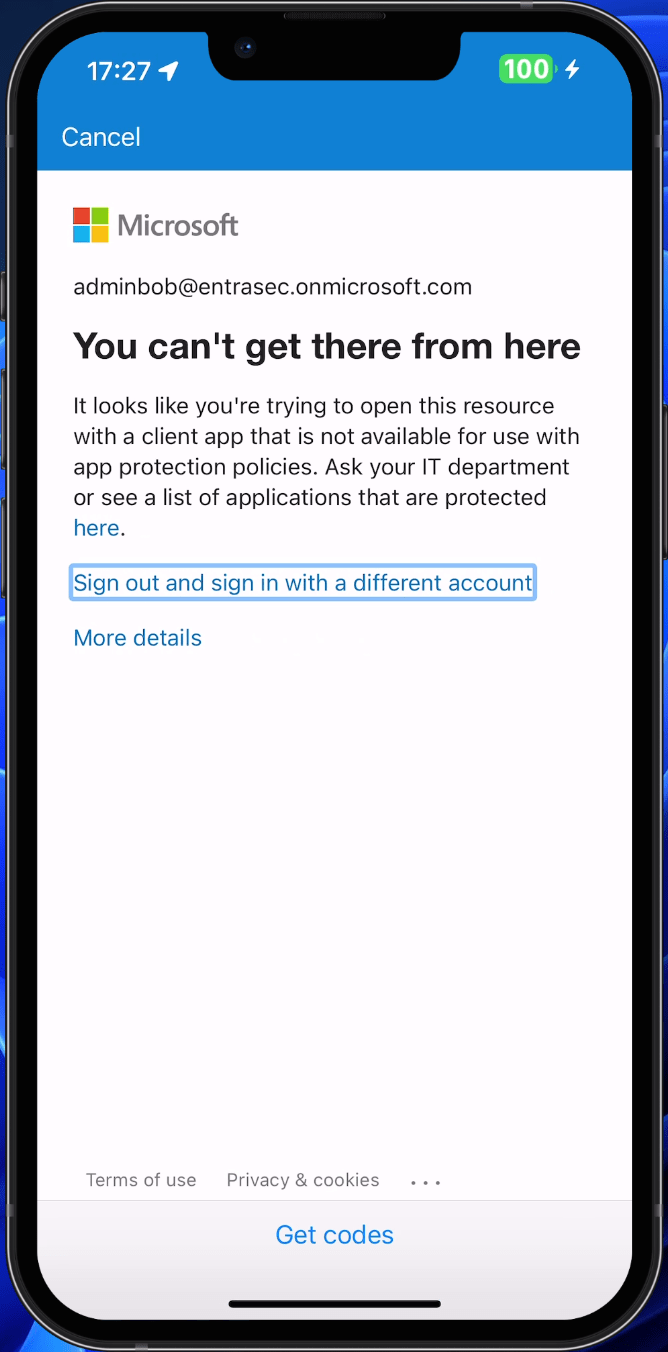
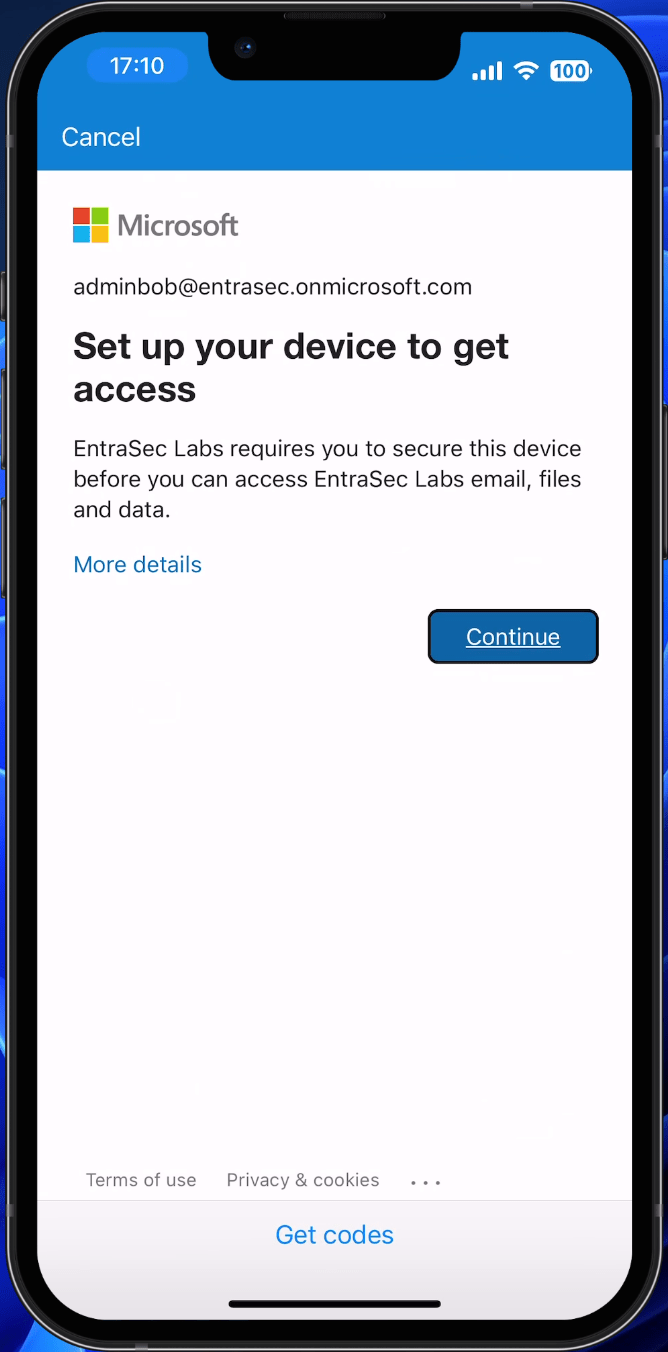
The same goes for companies that have enforced Mobile Application Management (MAM) for all apps. As stated here, the Microsoft Authenticator app can be used as the broker app but doesn’t support being targeted as an approved client app.
To echo Microsoft:
Users can’t register passkeys in Authenticator if they’re included in the following Conditional Access policy:
Grant control: Require approved client app or Require app protection policy
Condition: All devices (Windows, Linux, macOS, Windows, Android)
Targeted resource: All resources (formerly ‘All cloud apps’)
I’ll leave this here for the Google bots to pick up some keywords:
**You can’t get there from here**It looks like you’re trying to open this resource
with a client app that is not available for use with
app protection policies. Ask your IT department
or see a list of applications that are protected
here.
Set up your device to get
access
<ORGNAME> requires you to secure this device
before you can access <ORGNAME> email, files
and data.
If you are doing some attack surface reduction like blocking specific platforms, please keep in mind you’ll have to allow iOS and Android.
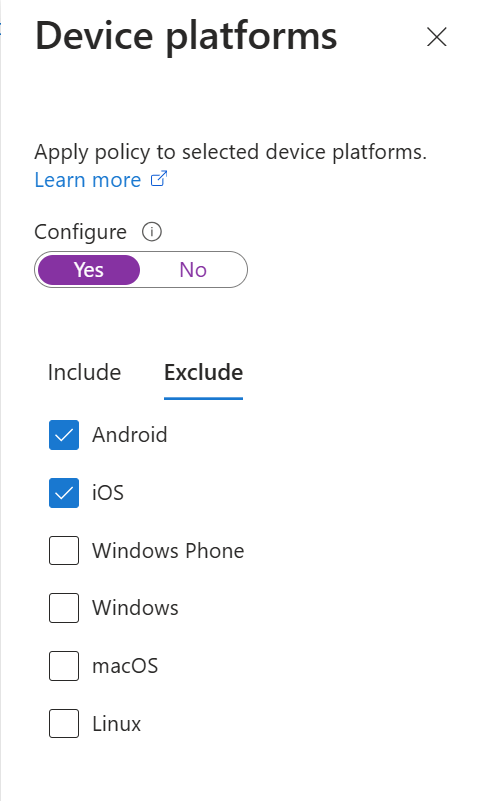
So, what are your options here? Microsoft provided some workarounds for this, but none of these are optimal, as they will (temporarily) lower your security policies. Read for yourself: https://learn.microsoft.com/en-us/entra/identity/authentication/how-to-support-authenticator-passkey#users-who-cant-register-passkeys-because-of-require-approved-client-app-or-require-app-protection-policy-conditional-access-grant-controls
Another thing with BYOD is the fact that they might have more then one credential provider. Keep that in mind when writing your manuals. Passkey in Microsoft 365 (as of today) can only be stored in the Microsoft Authenticator App.
All the methods!#
Another thing to consider is that using the Microsoft Authenticator app for same-device registration automatically enables all available authentication methods for that user. So, in addition to a passkey, the user will also have other methods like passwordless phone sign-in (PSI), TOTP, and push notifications.
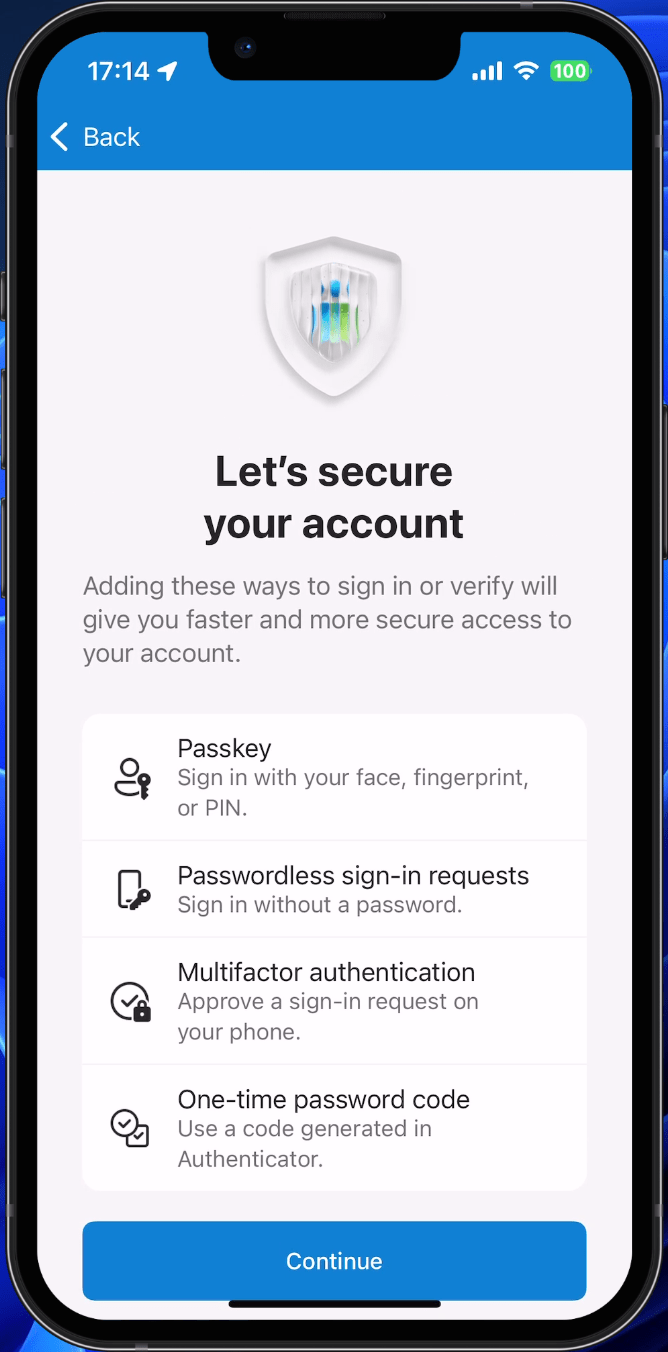
Related to that, Passwordless Phone Sign-in will also trigger device registration, whereas passkey does not require device registration by nature.
That said, it is recommended that you carefully review the enabled and available methods before you push your users towards passkeys, as this will determine what the registration process will look like for the end users.
Upgrade to Passkey from an existing method#
If your users already have MFA enrolled using push, TOTP, or PSI, you can simply log into the Authenticator app and enroll a passkey from there. This will require a fresh sign-in, so users need to have a password + MFA or Temporary Access Pass.
Last resort: cross-device registration#
If none of this fits your use cases, you could also opt for cross-device registration. For this, the user needs to go to My Sign-Ins | Security Info | Microsoft.com and add a new method. But surprise, surprise, Microsoft instructs the user to go to the Authenticator app and start from there.
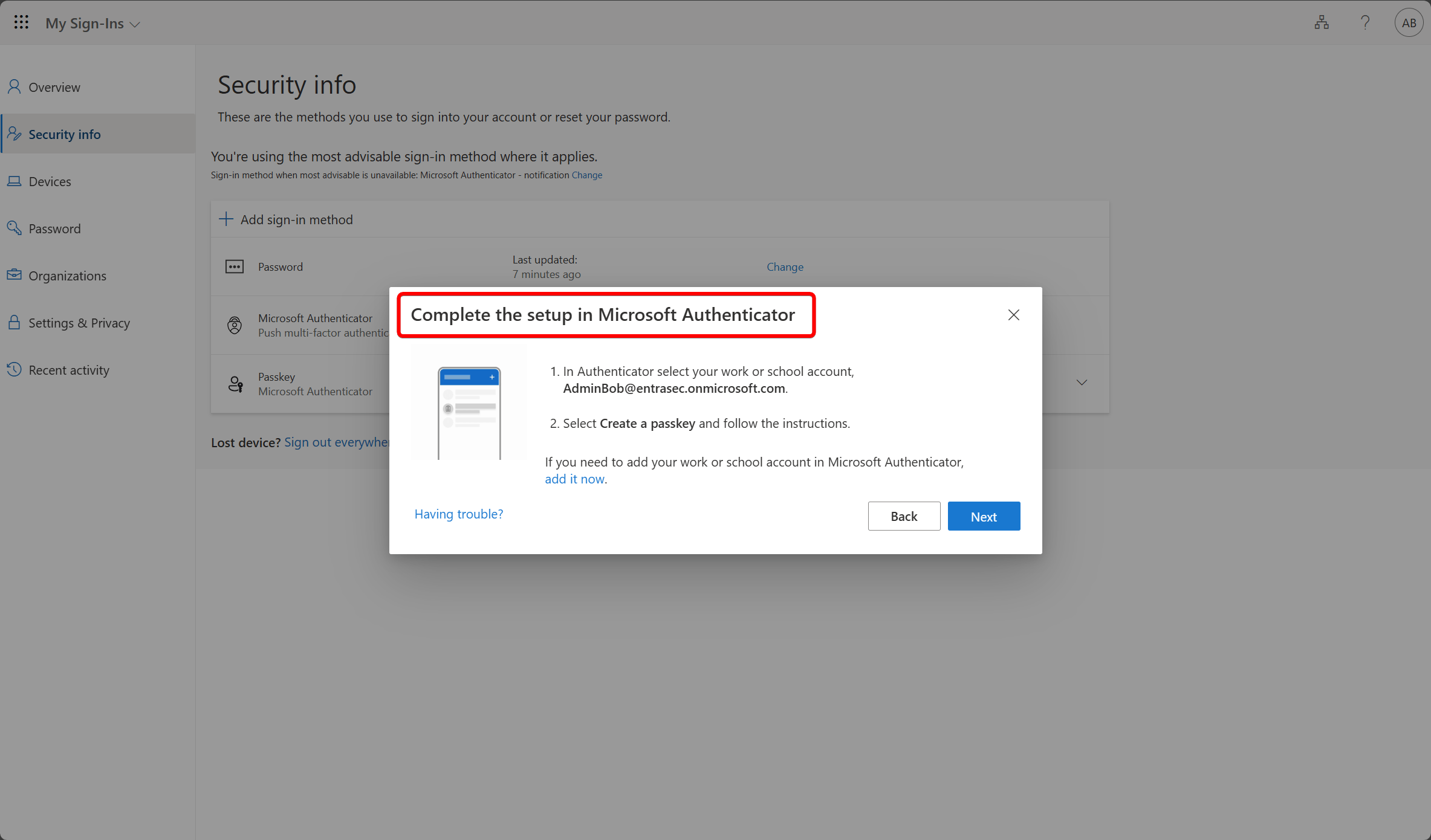
So, now what? Here comes the tricky part. You can use the “old WebAuthn wizard” by clicking “Having trouble?”, which will bring you to another wizard.
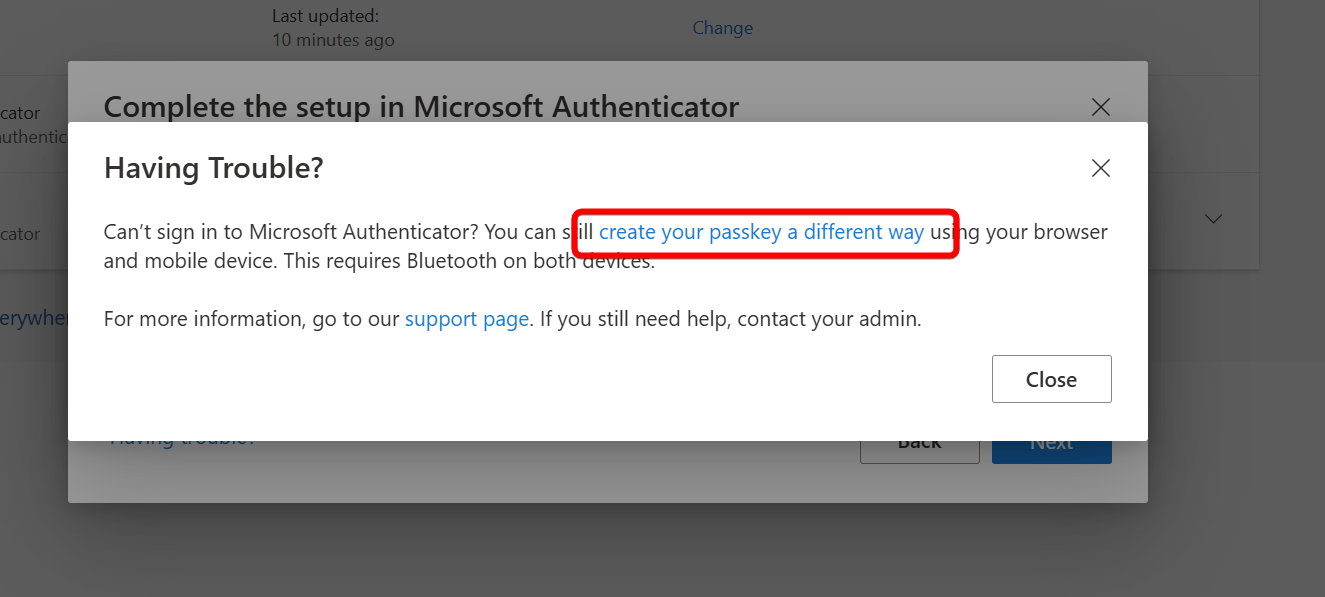
The old wizard looks like this:
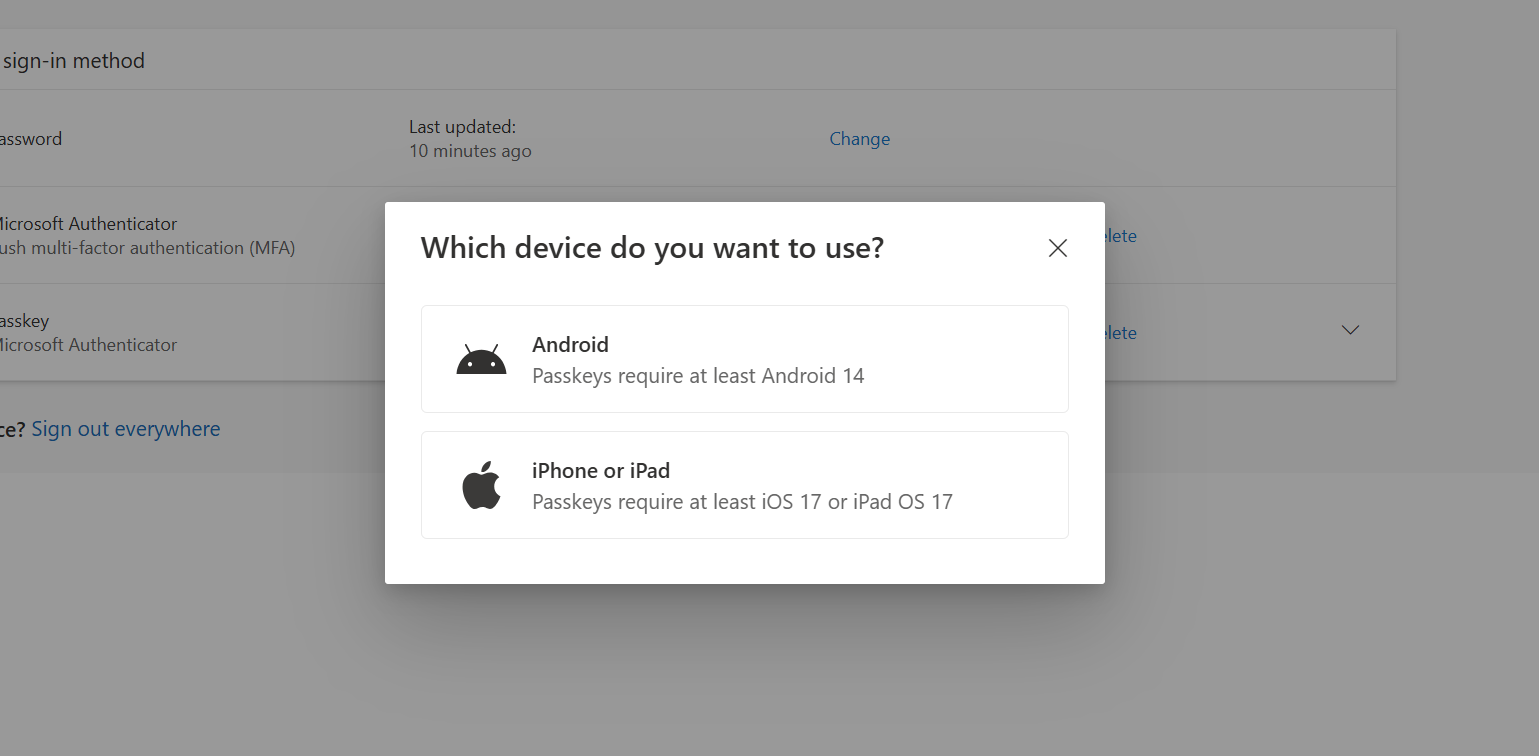
Here comes the caveat:
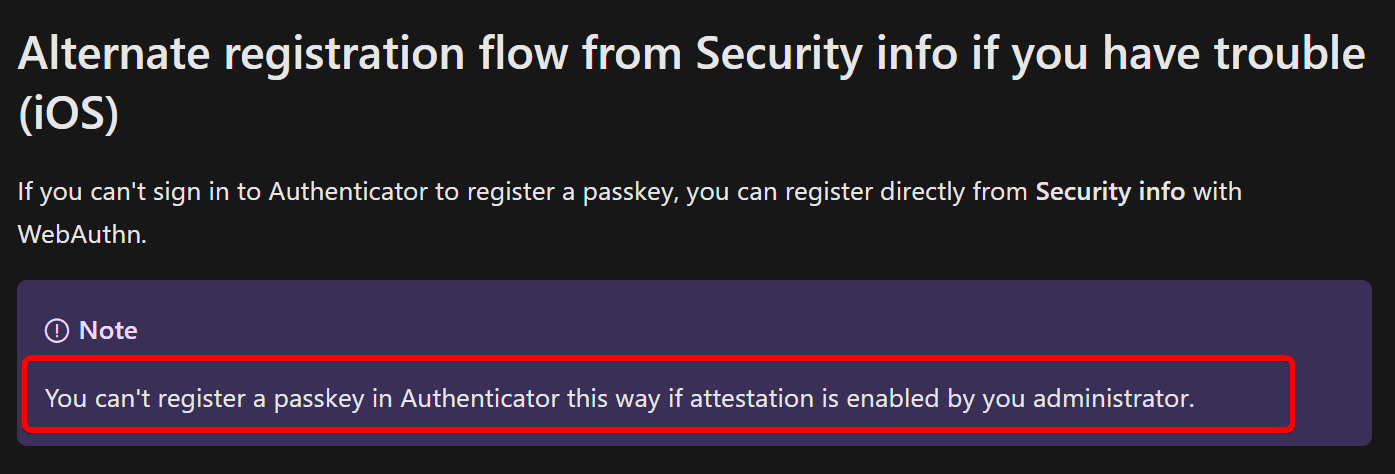
The legacy wizard does not support attestation. So if you have attestation enforced (generally a good idea) you cannot use this wizard unless you disable it. (please don’t!)
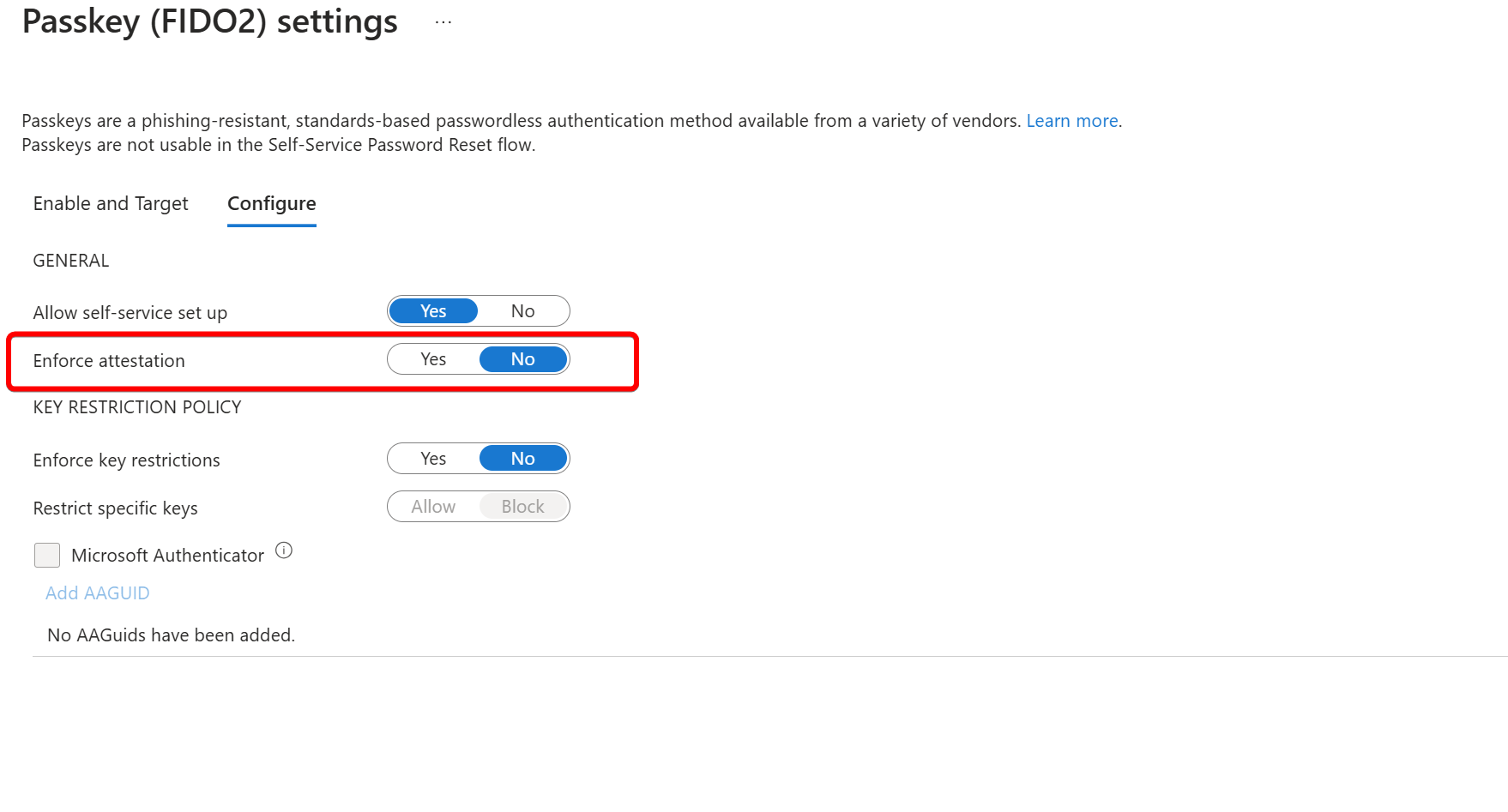
Adding a passkey using the old wizard while attestation is enabled will result in an error.
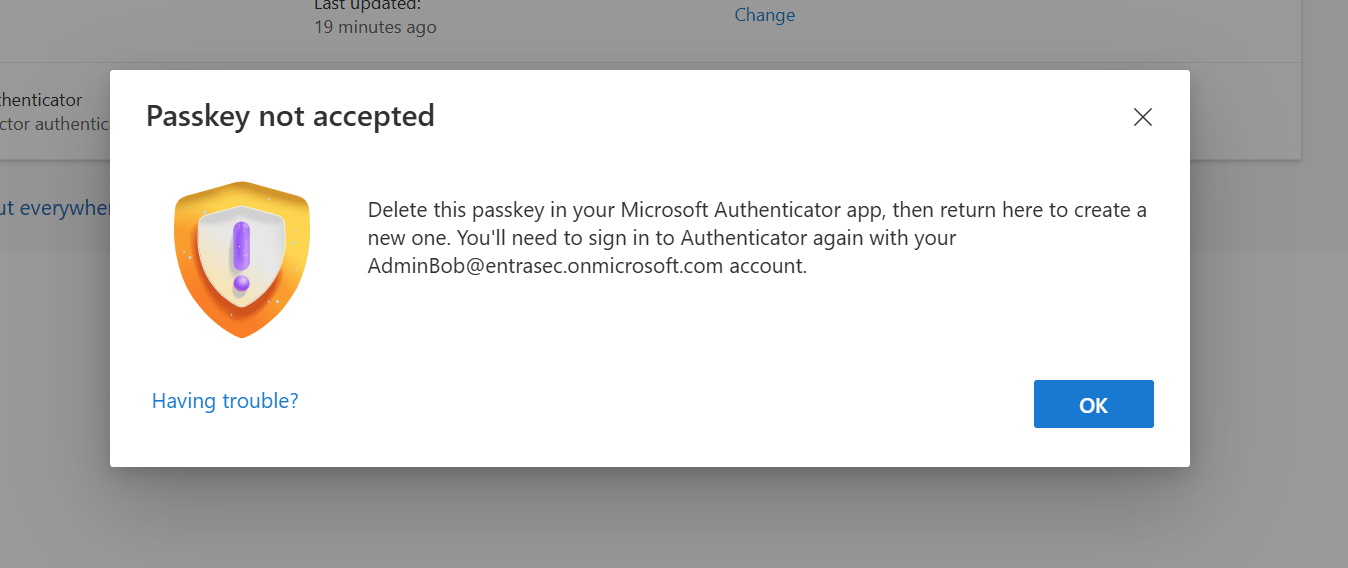
Delete this passkey in your Microsoft Authenticator app, then return here to create a new one. You’ll need to sign in to Authenticator again with your <USERNAME> account.
Fun fact:
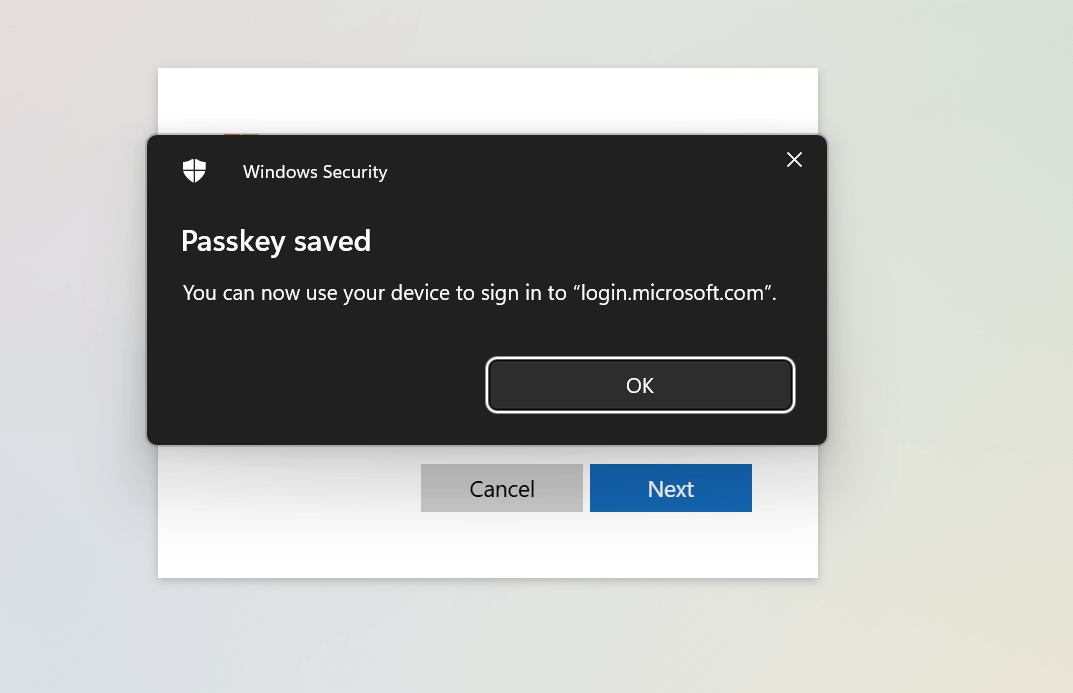
When this happens, the passkey is actually created in the Authenticator app, but Entra ID simply refuses it. Enter: more confused users.
Chicken & Egg problem#
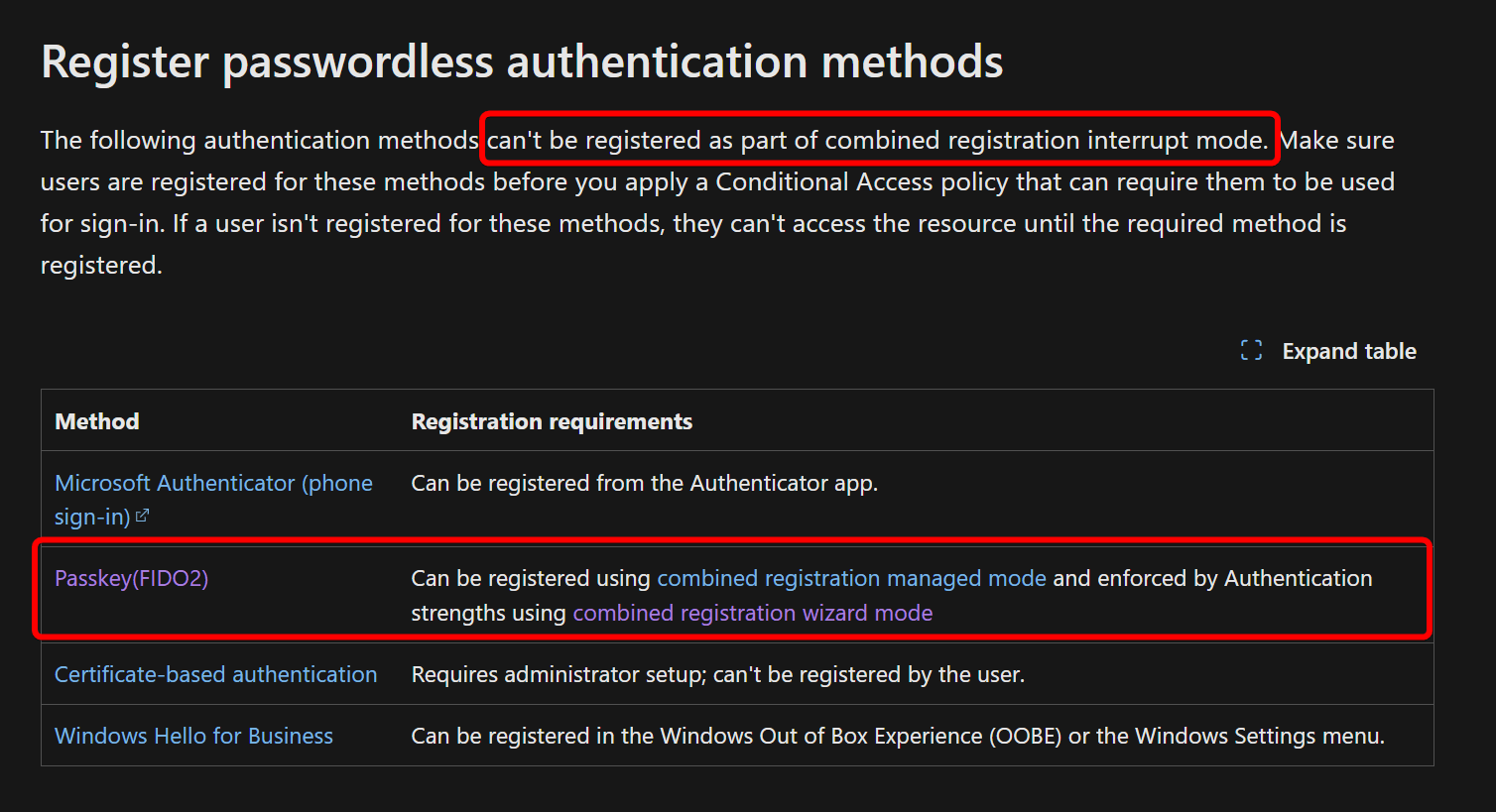
One other thing to consider is the chicken and egg problem. If you enforce passkeys before your users register them, they might end up in a loop because passkey registration is not supported in interrupted mode, only in wizard mode. Also, I found that these experiences might change overnight, so please test this frequently and keep me posted.
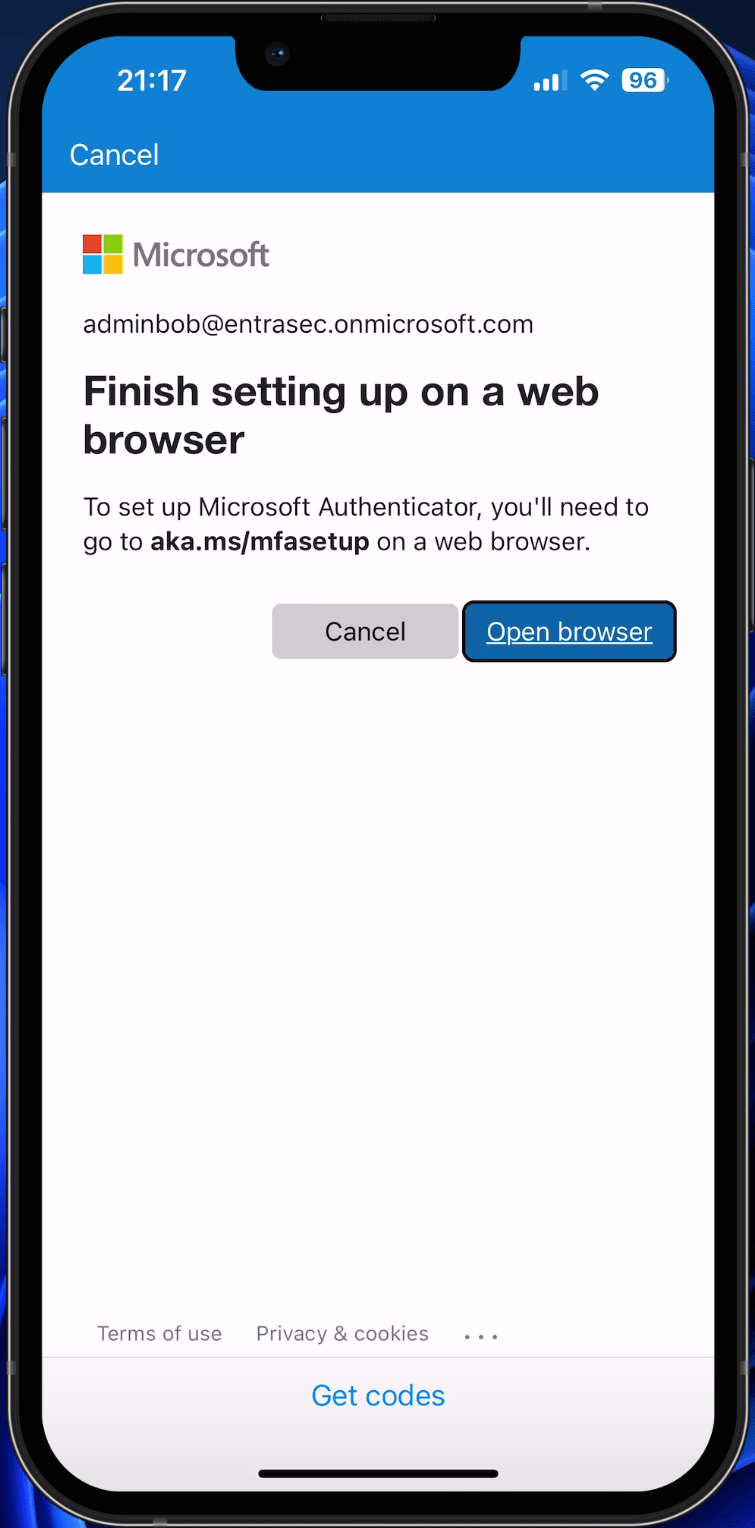
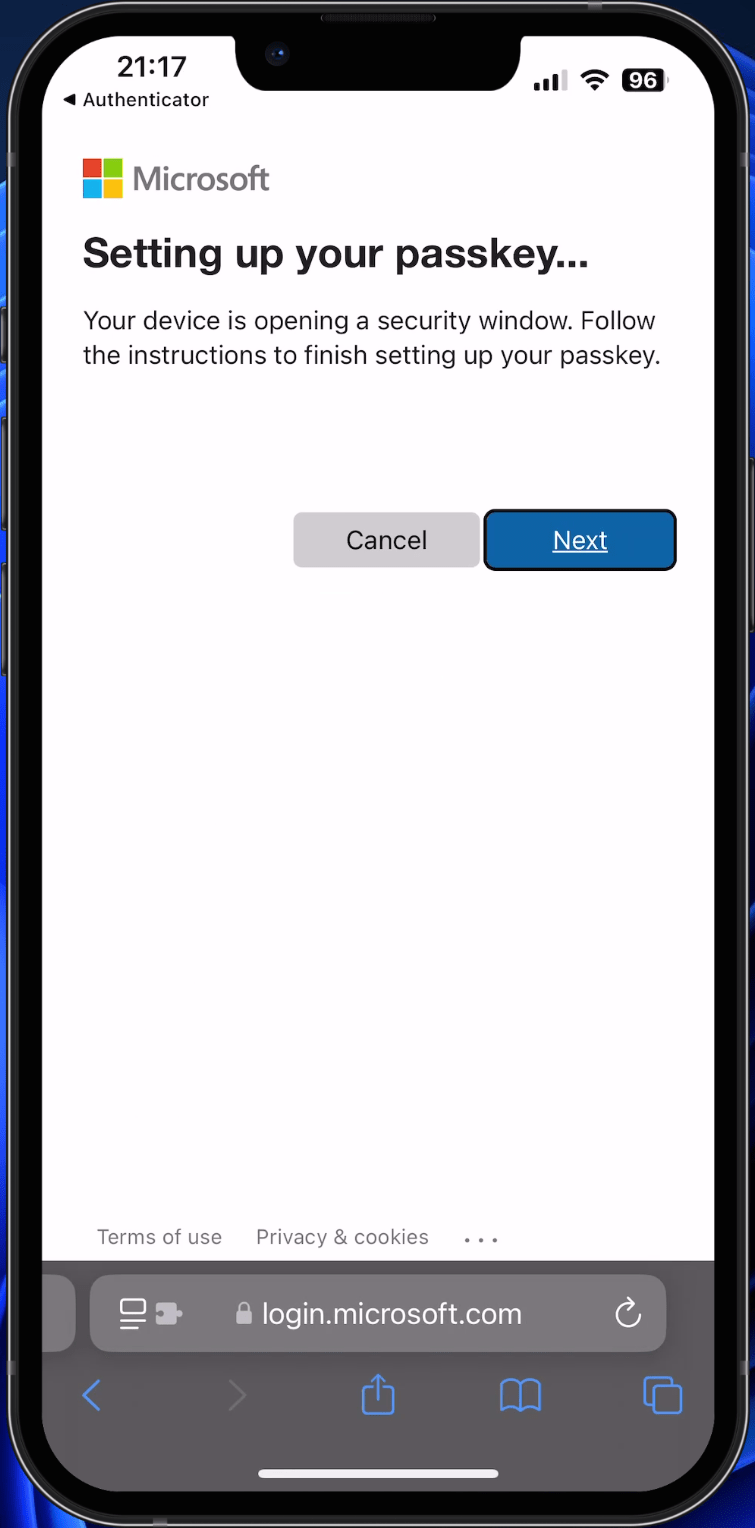
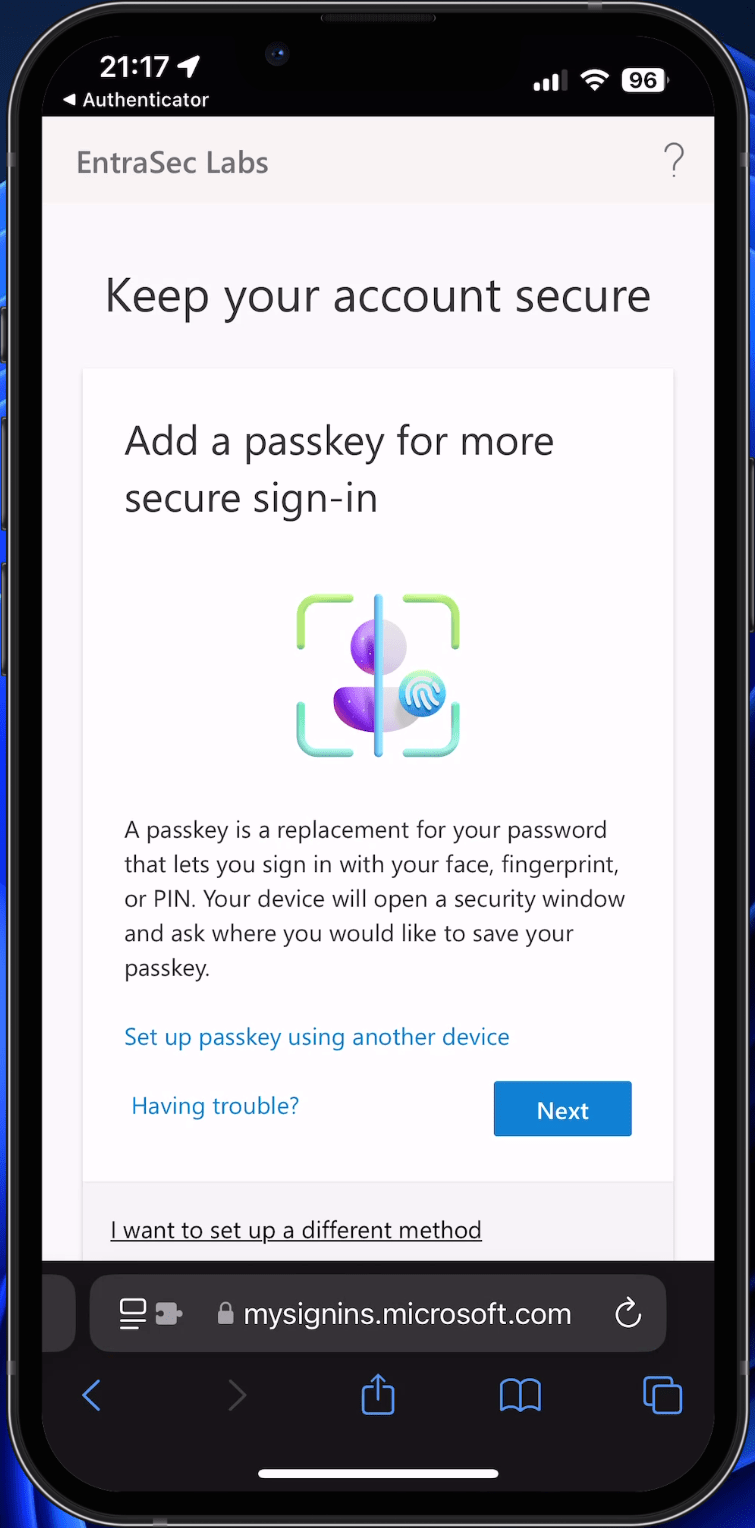
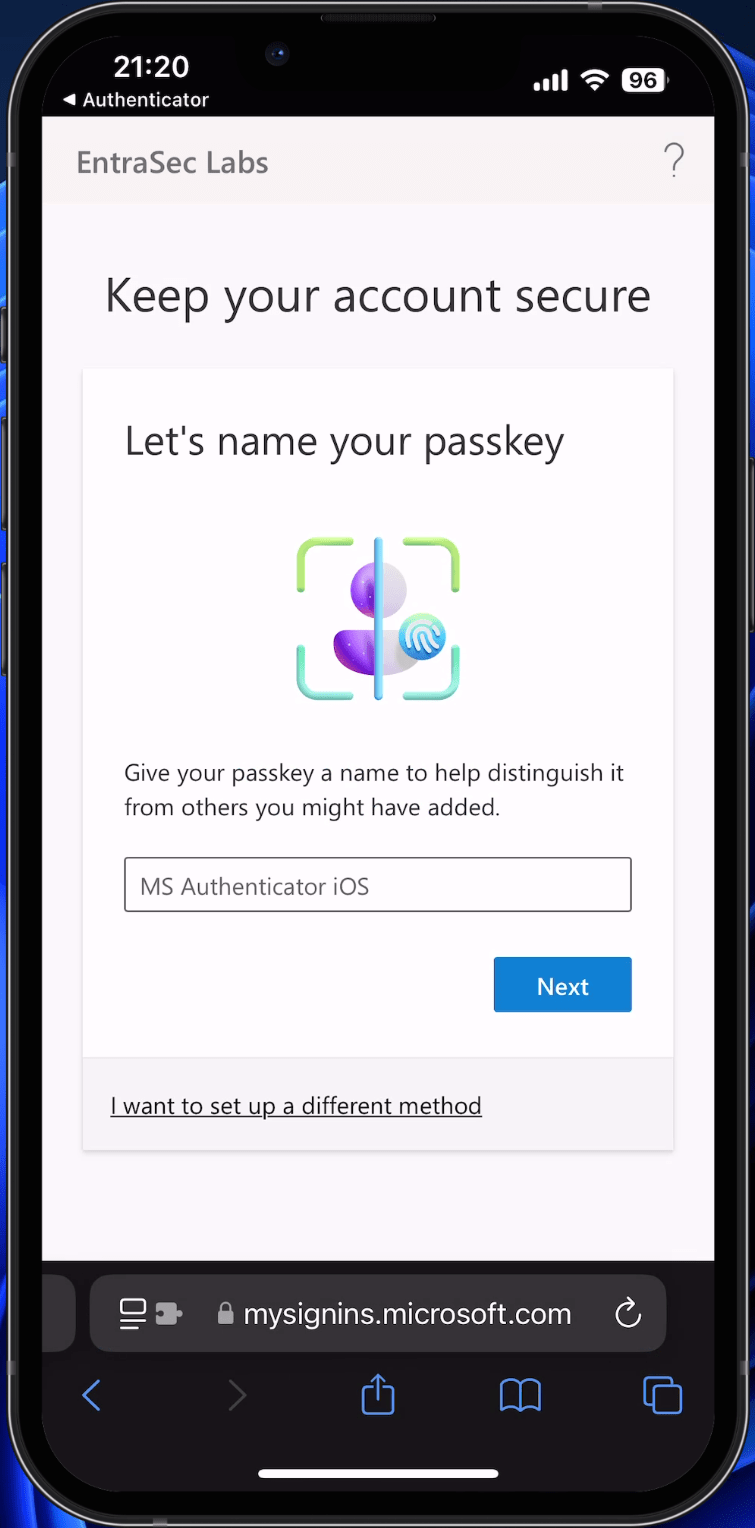
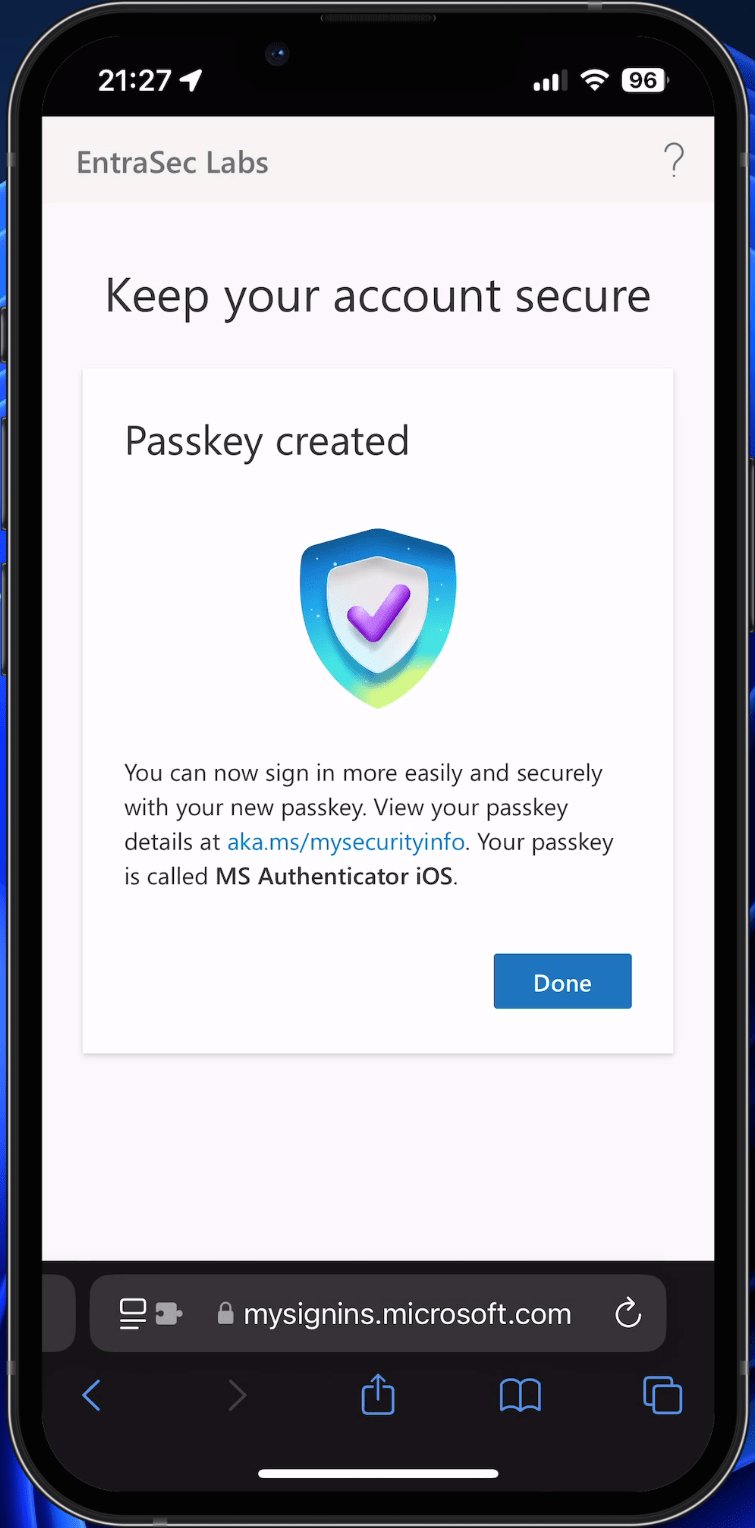
I ran a quick test using iOS while phishing-resistant MFA was enforced with Conditional Access. With attestation disabled, I was able to register a passkey using the web browser on my iPhone, as the Authenticator app was pointing me in that direction. (need to run more tests on this later)
Need for improvement#
Needless to say, passkey enrollments can be a real pain, and there is a lot to consider. Rolling out passkeys to admins might be pretty straightforward, but for the broader audience, it’s a different game.
As of now, if you require either a compliant device or Mobile Application Management, you have to make security concessions. Also, when you want to use cross-device registration, you’ll need to disable attestation. That should be improved.
I think it is time for a Temporary Access Pass that satisfies both MFA and compliant device requirements.🙂
For now, I hope you’ve gotten something out of this post, helping to get everything in place for your first passkey rollout. Because, let’s face it, we need phishing-resistant MFA for every user!!
Stay safe.
Comments
Comments load when you scroll here.