
Store your Microsoft 365 passkeys in 1Password
Syncable passkeys in Microsoft 365 and Entra ID are here, so we are no longer limited to the Authenticator app and FIDO2 keys for storing passkeys. Passkeys can now be synced up “into the cloud”, so we can enjoy them on all our devices without the hassle of recovering each time we get a new phone or lose our YubiKey.
This post will show both the admin side and the user experience for using 1Password as your credential provider in Microsoft 365. If this topic is new to you, please reach out to Microsoft Learn to see what type of passkey fits your use case: Passkeys (FIDO2) authentication method in Microsoft Entra ID - Microsoft Entra ID | Microsoft Learn
Enable syncable passkeys#
From an admin perspective, you need to make sure that passkeys can be synced and stored with a 3rd-party credential provider. Each provider has its unique identifier (AADGUID). This way, admins can easily configure where passkeys can be stored.
In the Entra admin center, go to Entra ID -> Authentication methods -> FIDO2 (passkeys). Here, you need to configure a new profile that allows synced passkeys. If you do not see this screen, you need to opt in to the public preview. Your current configuration will be copied as the default passkey profile. Next to the default profile, you can configure up to three profiles.
For now, we’ll stick with these two profiles, one for device-bound, and one for synced passkeys.
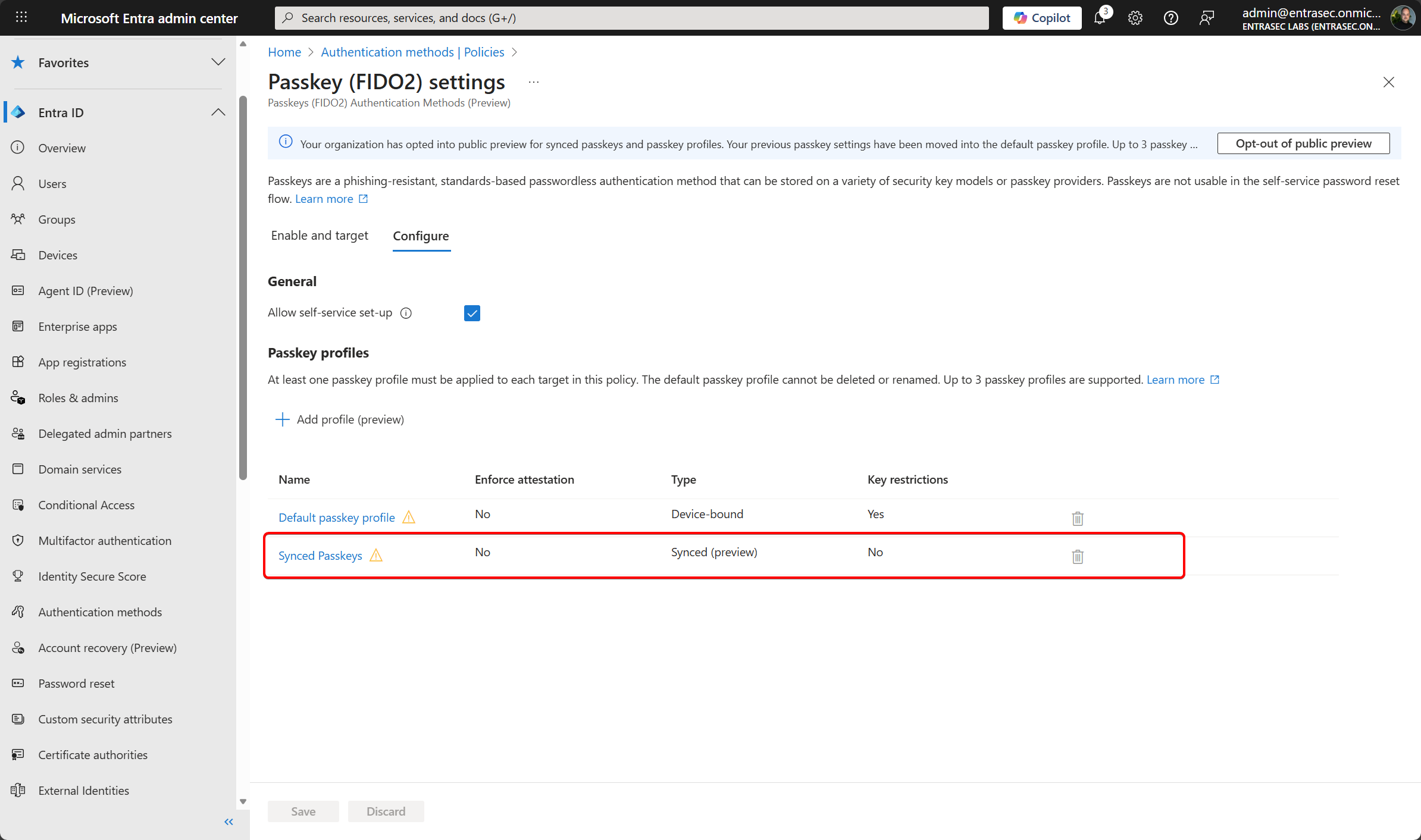
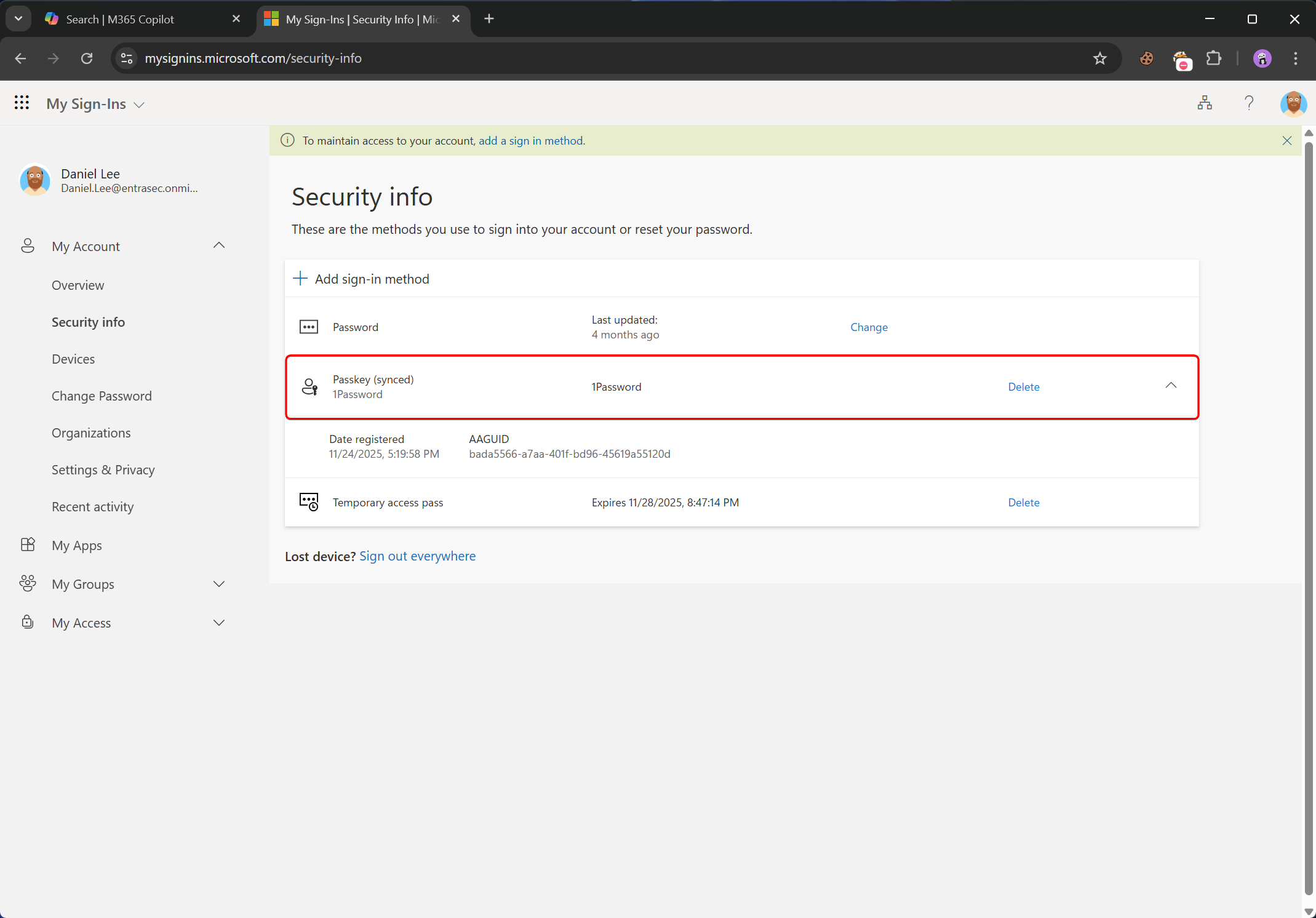
If you want, you can ONLY allow 1Password as your synced passkey provider by adding the bada5566-a7aa-401f-bd96-45619a55120d AAGUID.
By leaving the setting defaul, ANY passkey provider is allowed.
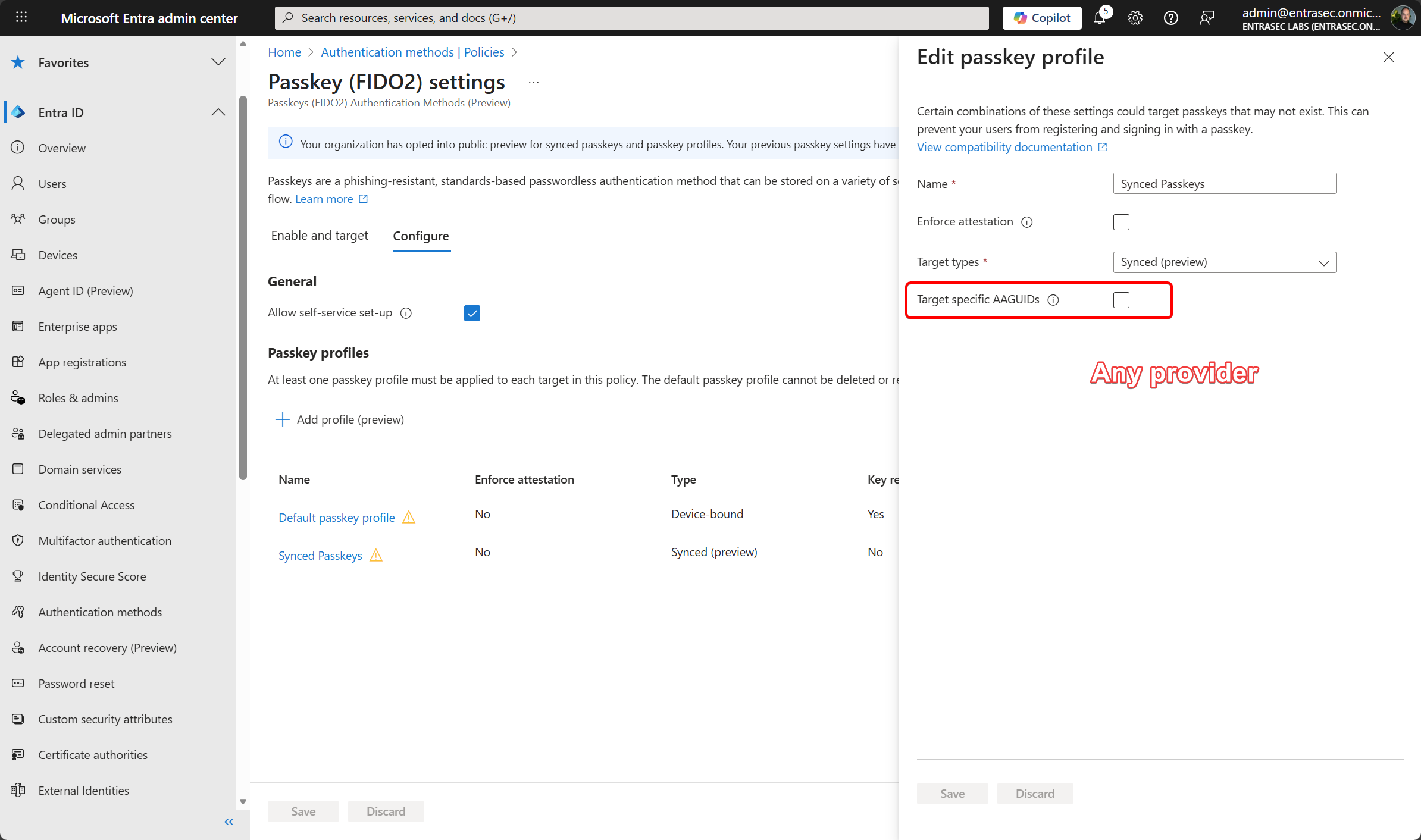
A list of passkey providers and their corresponding AAGUIDs can be found here: [ Passkeys Authenticator AAGUID Explorer]( https://learn.microsoft.com/en-us/entra/identity/authentication/concept-authentication-passkeys-fido2#types-of-passkeys)
That’s it for the admin side of things. Now we move over to the end-user.
Register a new passkey using 1Password for Windows#
To register a new passkey and store it in 1Password, you need software and access to your vaults. For most use cases, that might be a browser extension (more on that later), but many users may rely on the desktop software. 1Password can now be registered as a passkey provider in Windows, so that the user experience is pretty smooth.
It all starts here: https://mysignins.microsoft.com/security-info
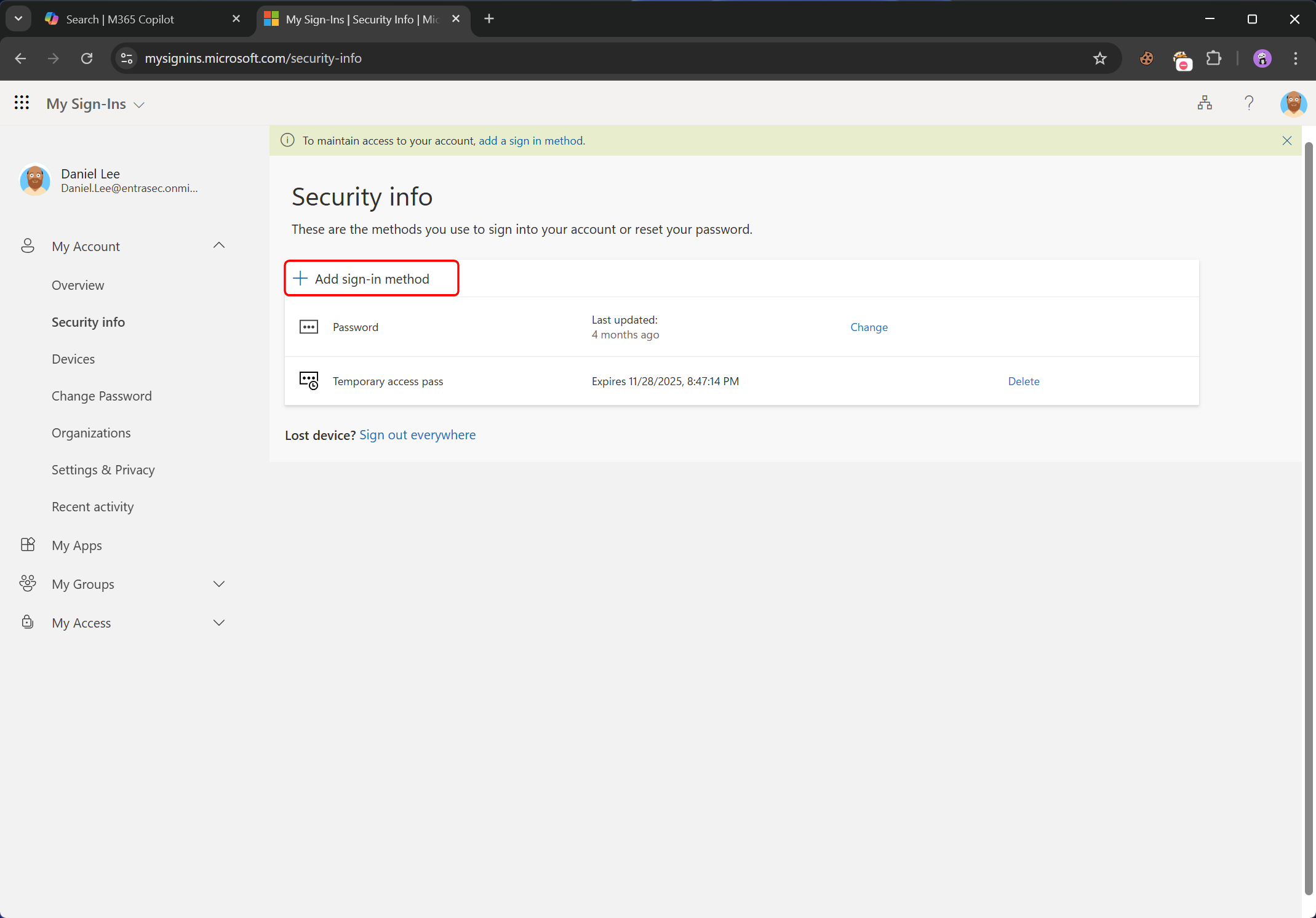
The user adds a new sign-in method, and selects Passkey.
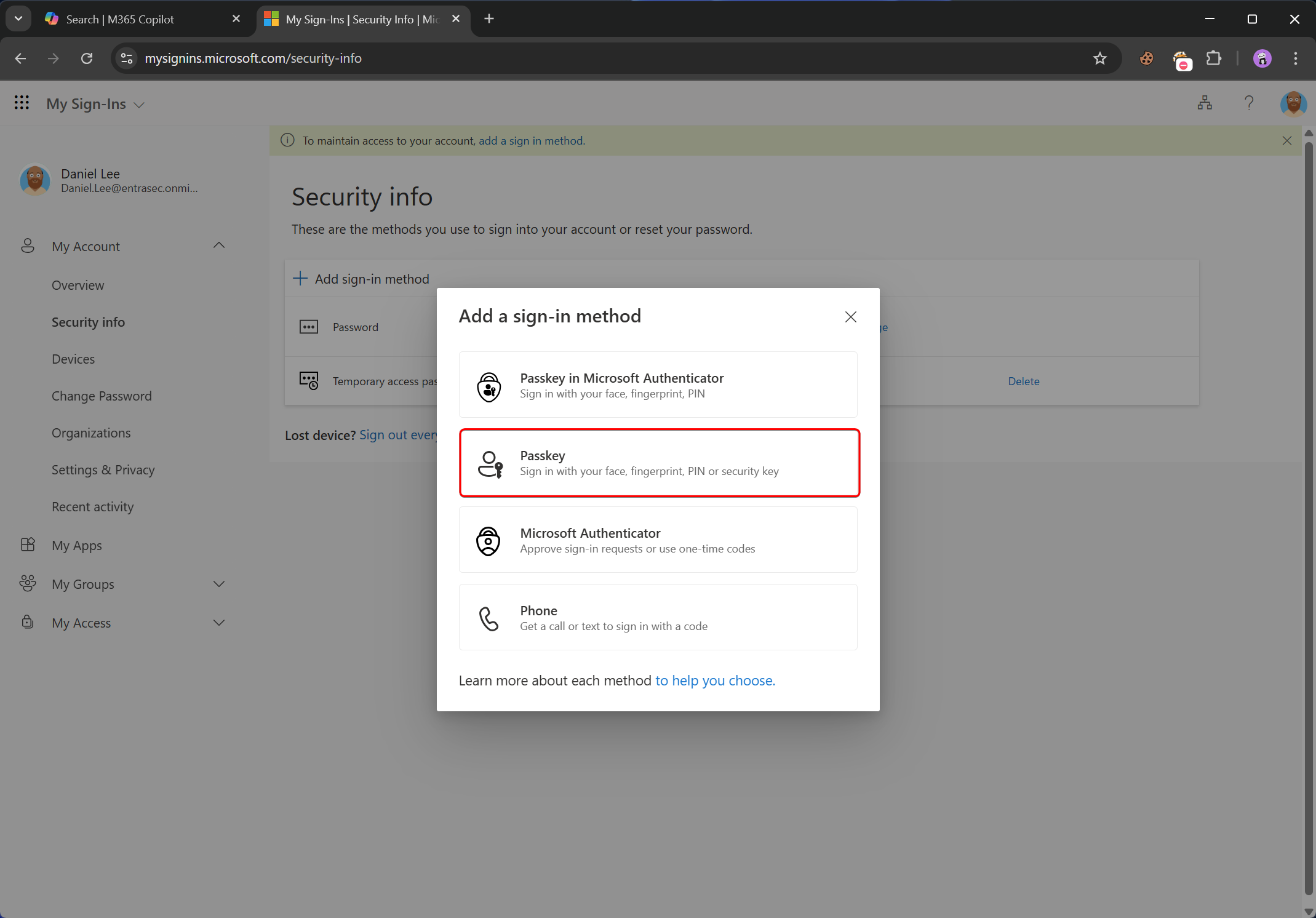
Then, click Next.
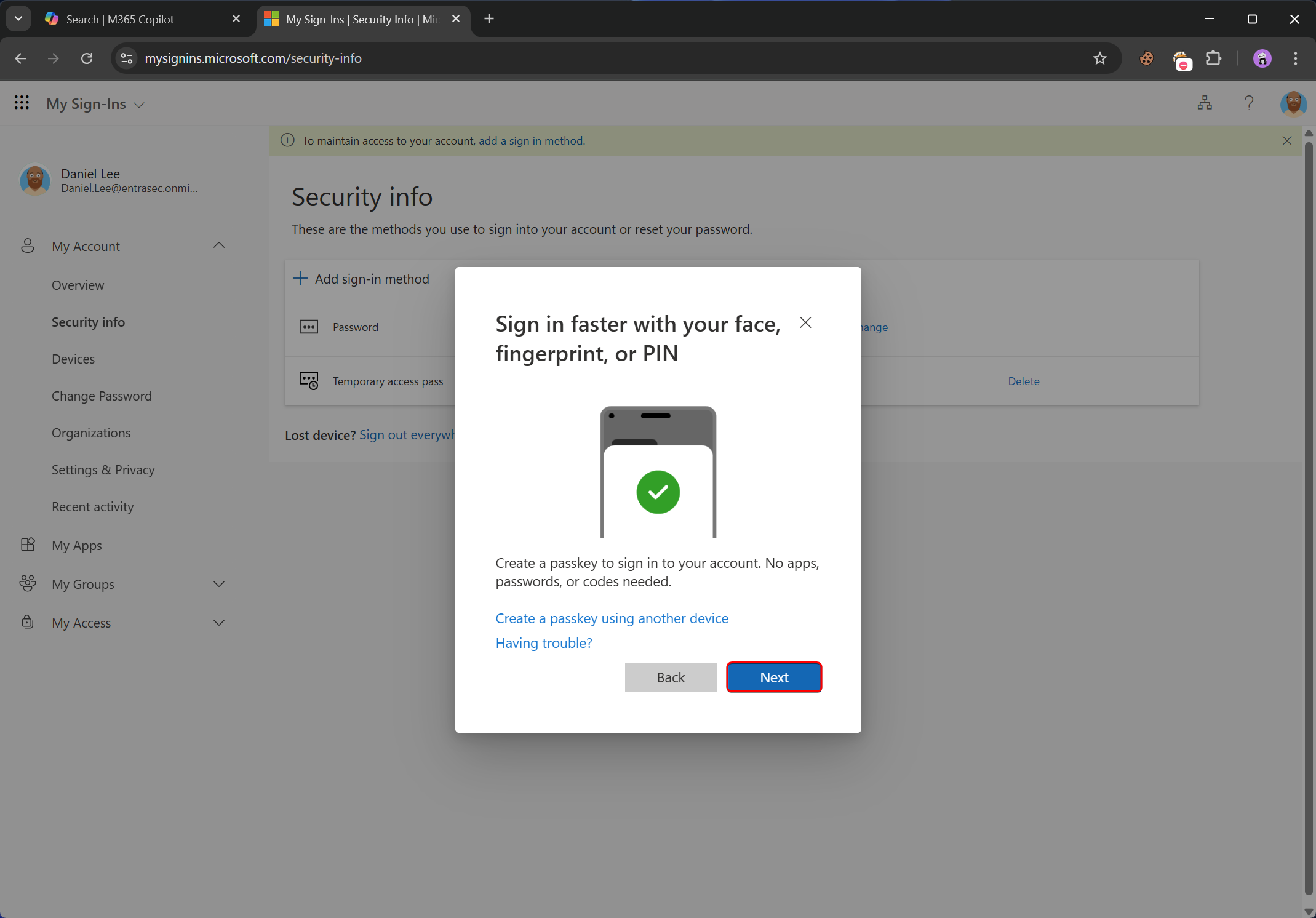
Depending on your Windows version, 1Password desktop version, a similar screen is shown.
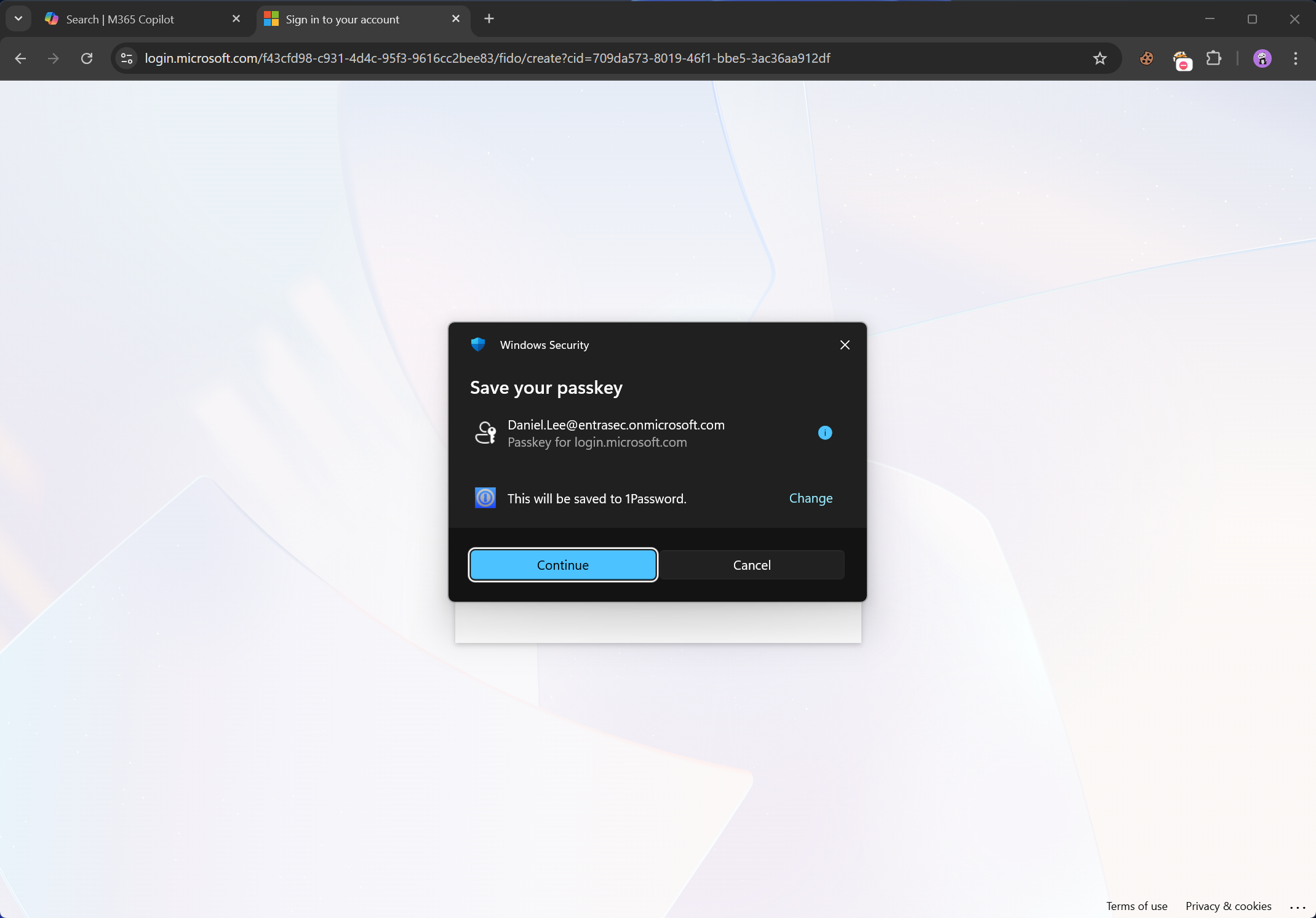
A new passkey will be stored in 1Password.
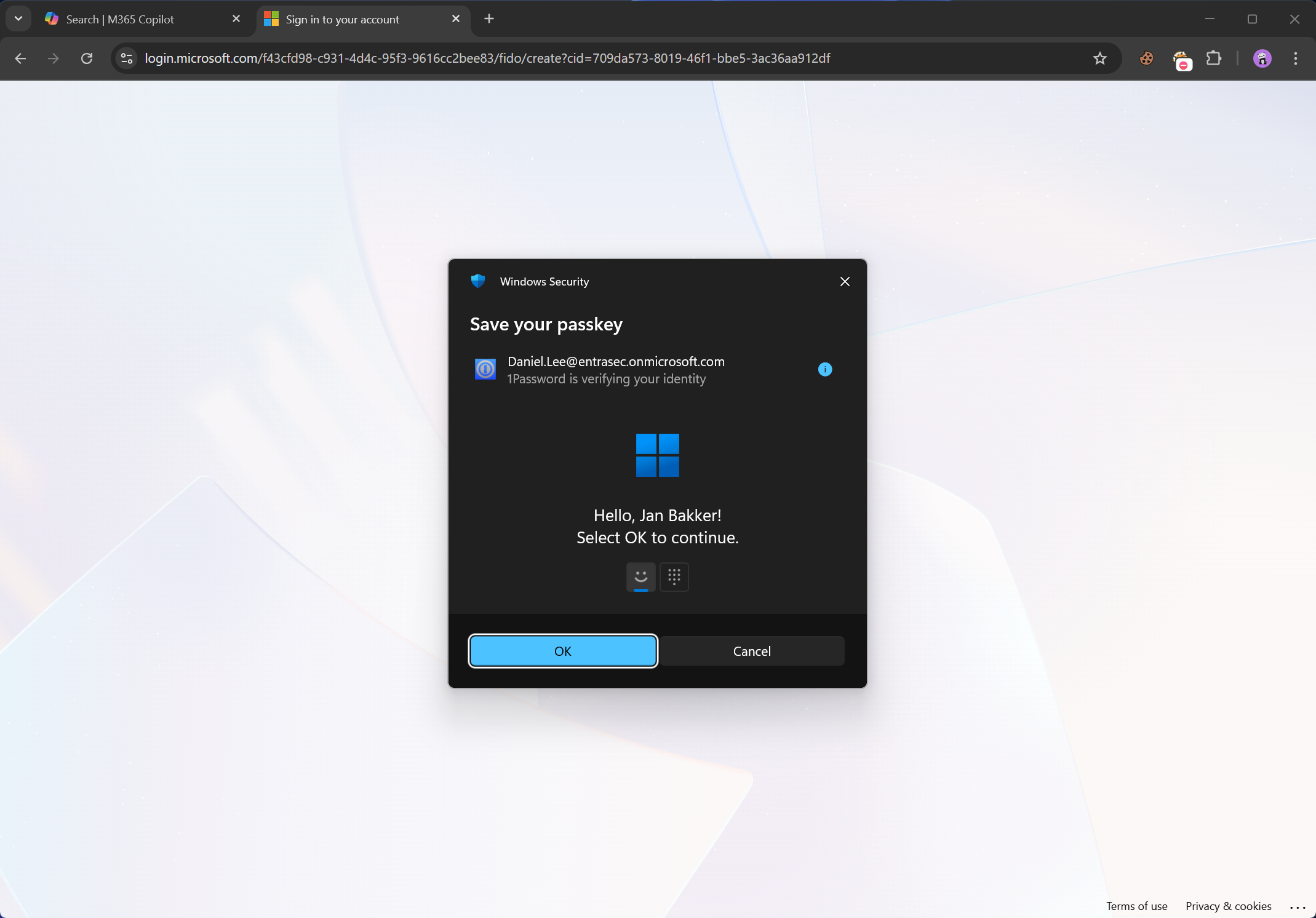
I have 1Password integrated with Windows Hello, so I need to verify my identity before the passkey can be stored.
After the passkey is created, give it a proper name.
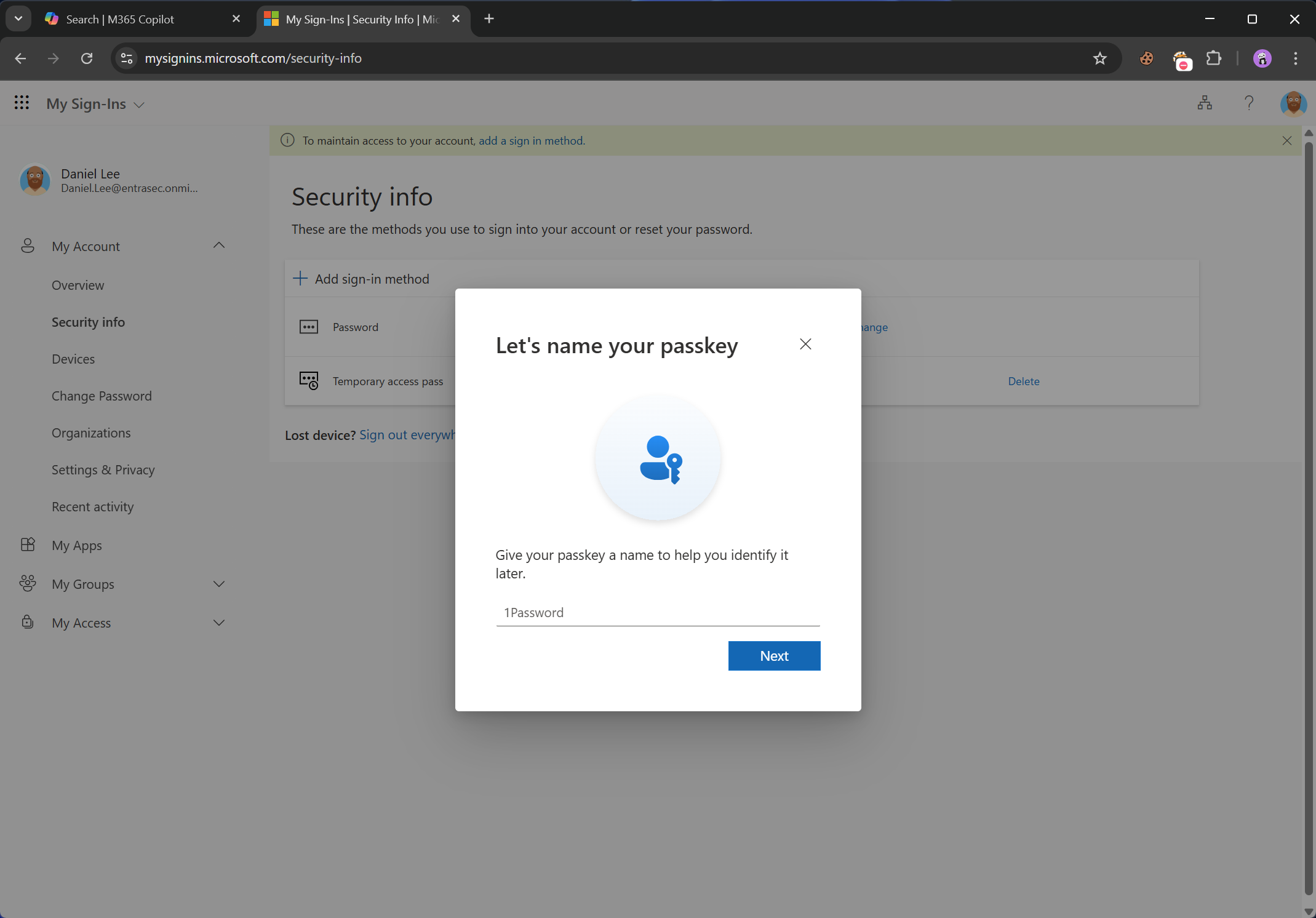
The passkey is now created.
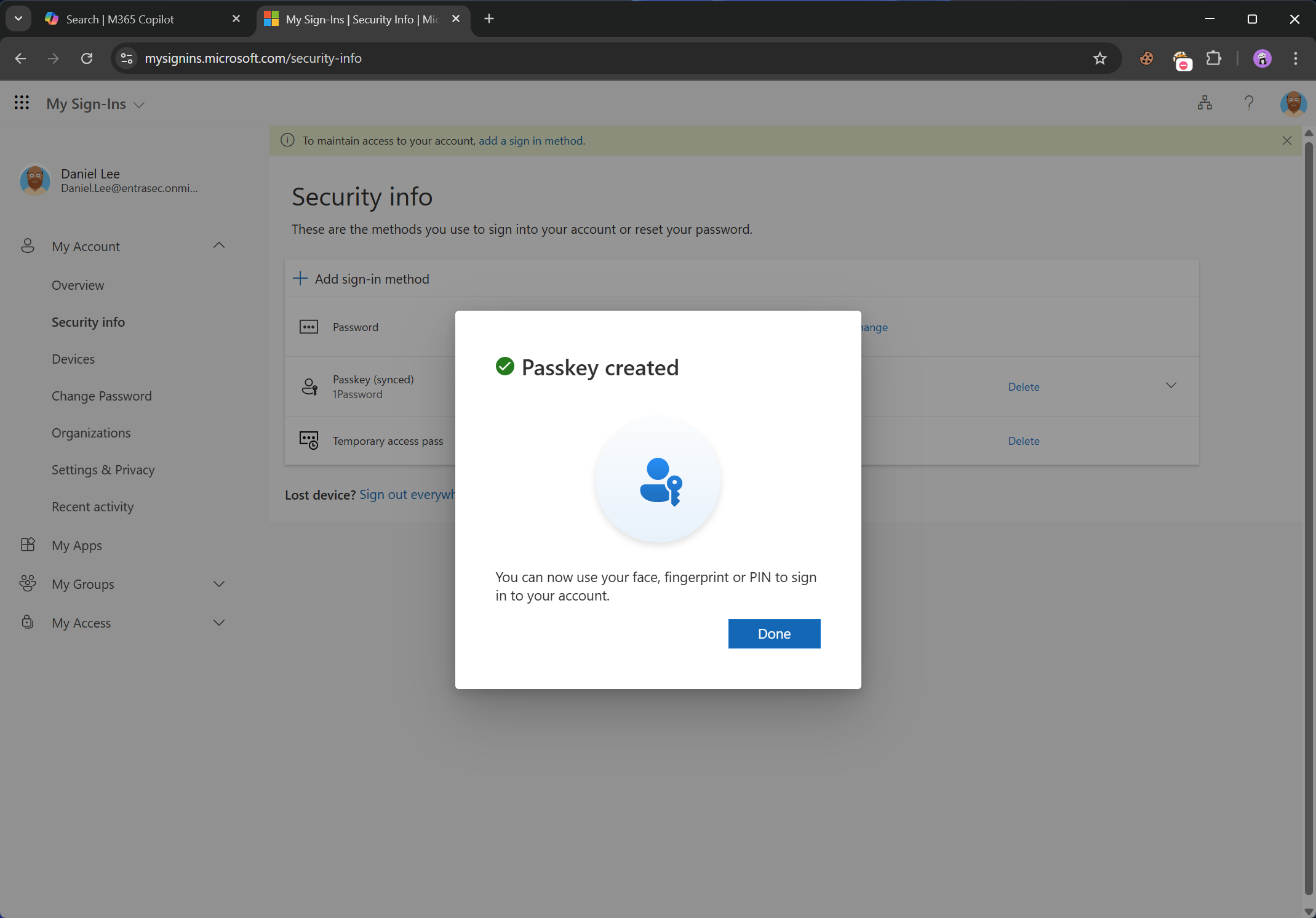
You can see the synced passkey in the overview, ready to use.
Register a new passkey using 1Password browser extension#
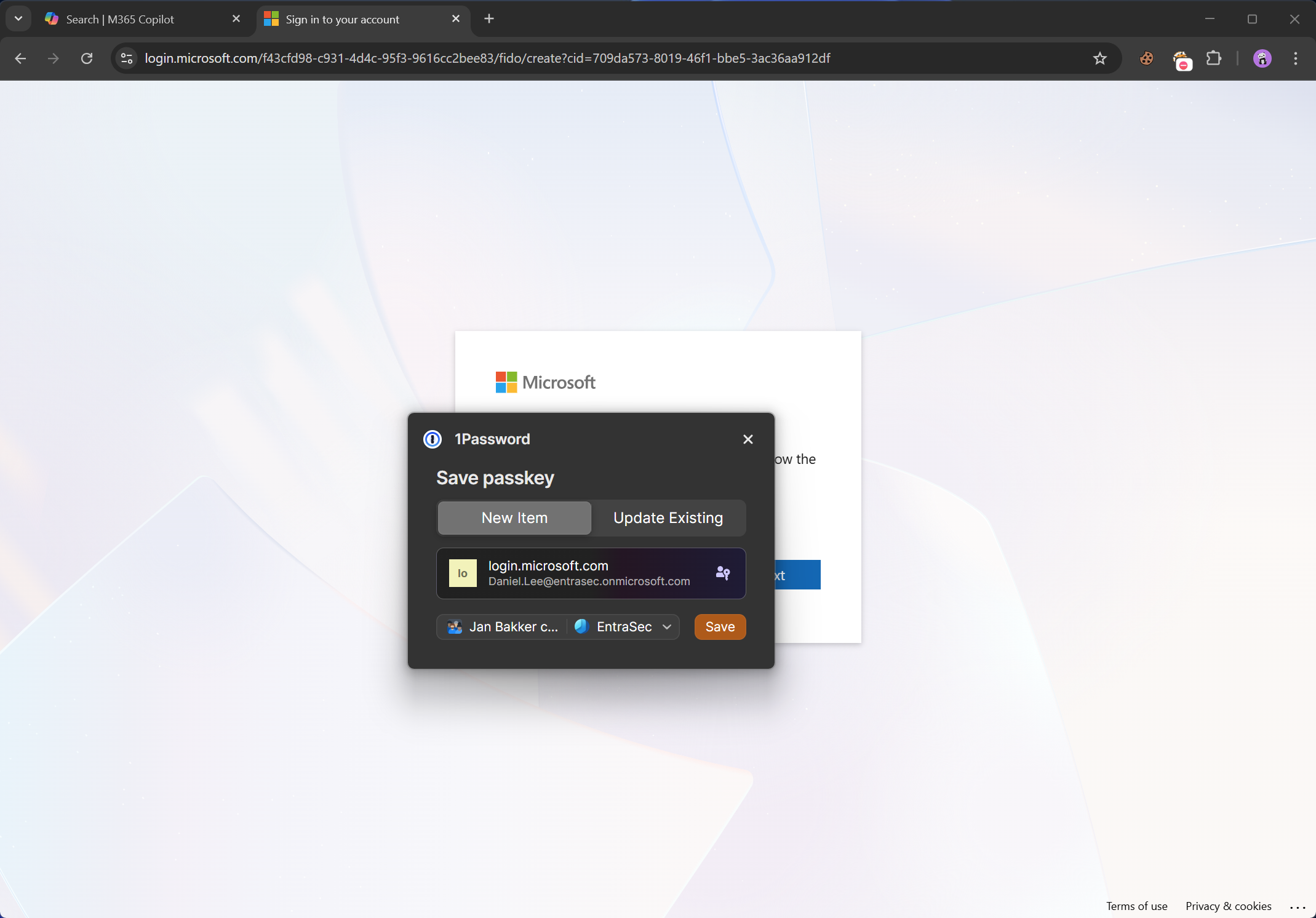
In case you are using a browser extension, the process looks somewhat similar. You will be prompted inside the browser.
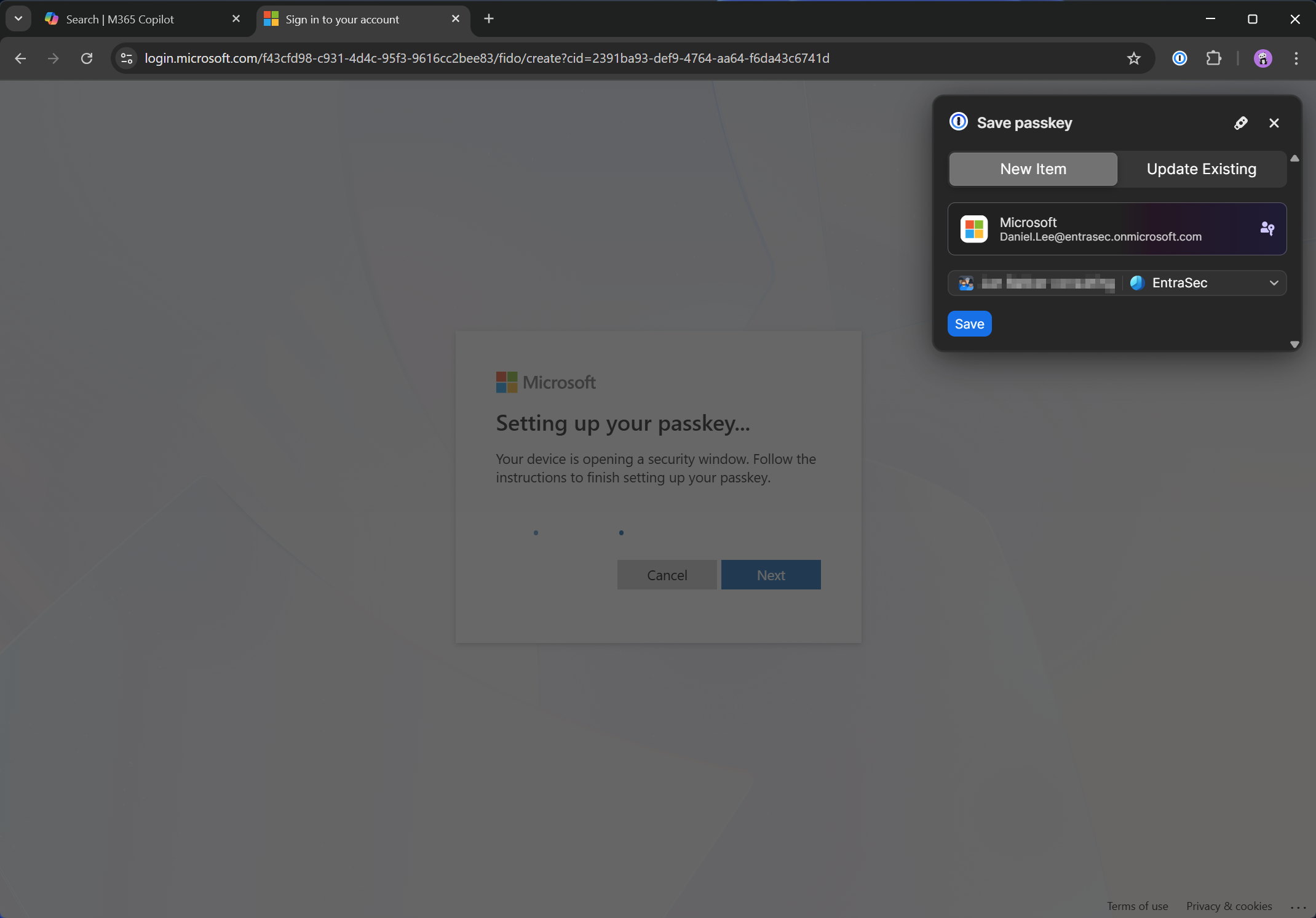
You can still skip out of that by selecting the ‘security key icon’.
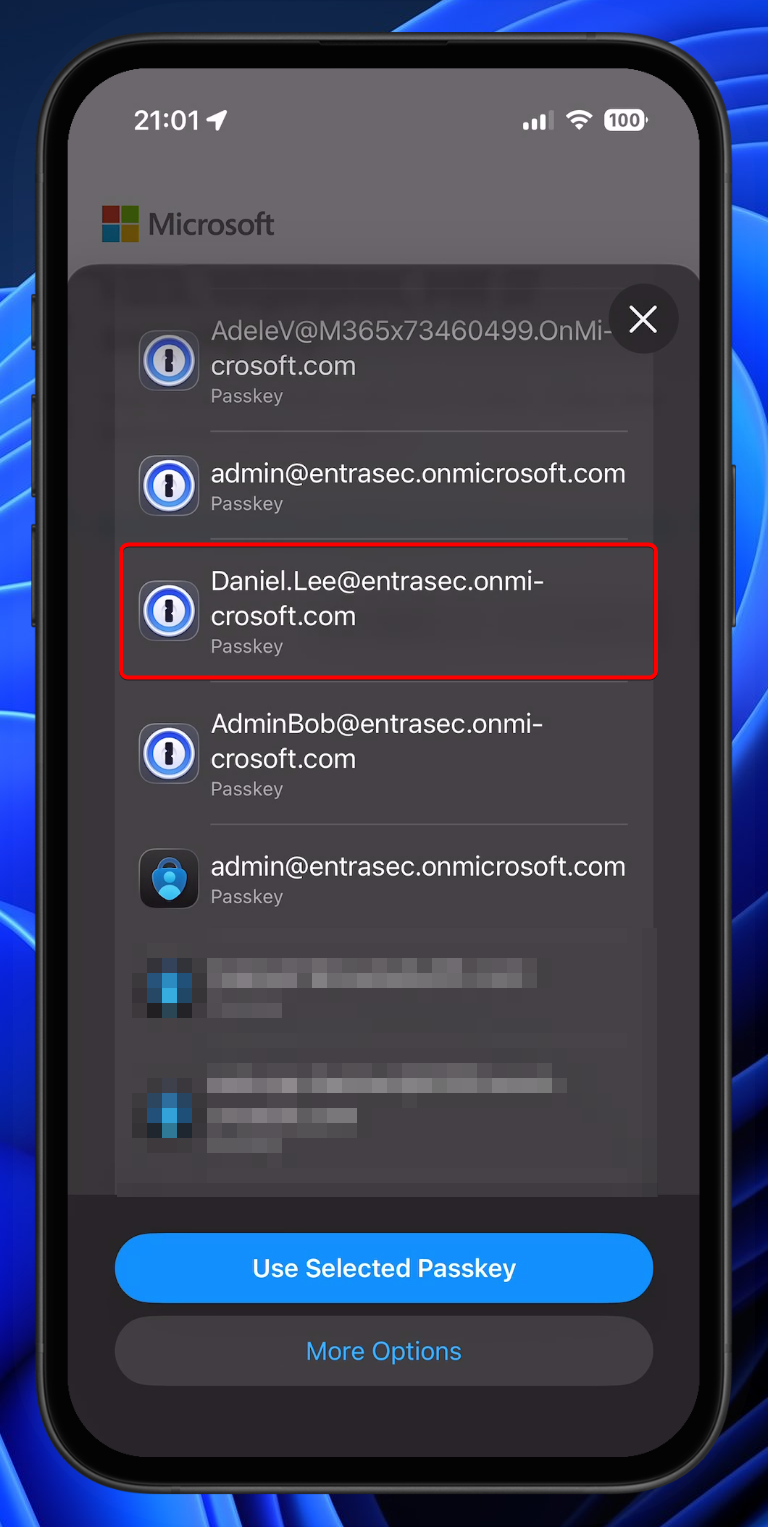
Now the passkey is saved in 1Password, it can be easily used on other devices as well, like your mobile phone.
Hope this post was helpful to you.
To learn more about syncable passkeys and passkey profiles in Microsoft 365, see:
How to Enable Synced Passkeys (FIDO2) in Microsoft Entra ID (Preview) - Microsoft Entra ID | Microsoft Learn
How to Enable Passkey (FIDO2) Profiles in Microsoft Entra ID (Preview) - Microsoft Entra ID | Microsoft Learn
Comments
Comments load when you scroll here.