
Entra · Knowledgebase · Security
Security Info Registration. Entra ID's rabbit hole.
On this page
This blog post needs a brief introduction. Bear with me.
Five years ago, I spent a significant amount of time creating a blog post about the Combined Registration Wizard in Entra ID. It took many hours to capture the screenshots, as every change in the settings took 20 minutes to take effect. However, I’m glad I took that effort, because it has helped me to this very day.
Today, it’s time for a revisit on this topic, as we have another essential feature these days that heavily impacts the user experience for security info registration: Conditional Access Authentication Strengths. As more and more admins switch to authentication strengths, I see an uptick in questions around this topic.
Another post related to this topic is the one about a smooth rollout for passkeys, where I also explained how authentication strengths play a crucial part in the user experience around passkey registration.
Last but not least, the post from 2020 primarily uses the old, legacy MFA settings. We now have the new converged authentication methods in Entra ID, which offer a single point of configuration for authentication methods such as SMS-based sign-in, the use of third-party software authenticators, hardware tokens, passkeys, and SSPR methods. How to migrate to the Authentication methods policy - Microsoft Entra ID | Microsoft Learn
Please migrate your authentication methods off the legacy MFA and SSPR policies by September 2025 to avoid any service impact
That said, the security info registration is probably one of the most disruptive features in Entra ID for end-users, so it is very important to have a deep understanding of all the settings that can have an impact on the end-user experience, and the errors that they might face at some point. From my experience, the error pages are not always intuitive, so they might confuse both end-users and admins at some point. For users who have registered one or more methods and can satisfy the policy, the experience is pretty smooth. But the issue starts when users are greenfield and have no methods registered. Here is where the ‘fun’ begins.
Caveat 1: SSPR and Authentication Strengths#
This issue was first brought to my attention by Danny van Zon. He contacted me with a strange issue where Conditional Access Authentication Strengths was causing the Self-service Password Reset registration wizard to break.
To reproduce, I had configured the following settings in SSPR:
| Setting | Value |
|---|---|
| Self-service password reset enabled | All Users |
| Number of methods required to reset | 2 |
| Require users to register when signing in? | Yes |
In Conditional Access, I have one policy configured that enforces MFA for all apps, using the “legacy” MFA access control.
When the user signs in for the first time, they are prompted to register for MFA and SSPR, as expected.
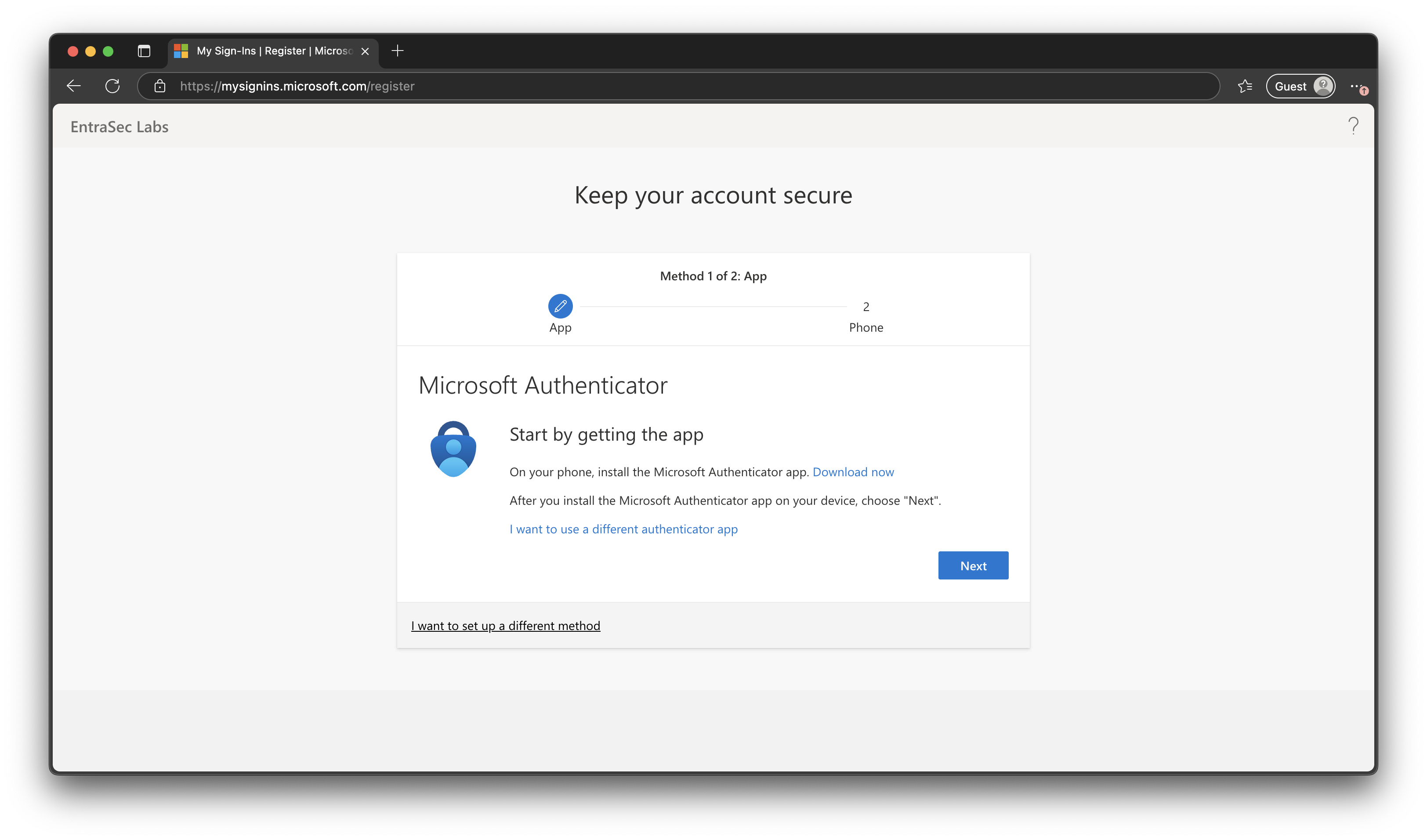
However, the user can only register MFA methods. Password reset methods like email and security questions are not shown.
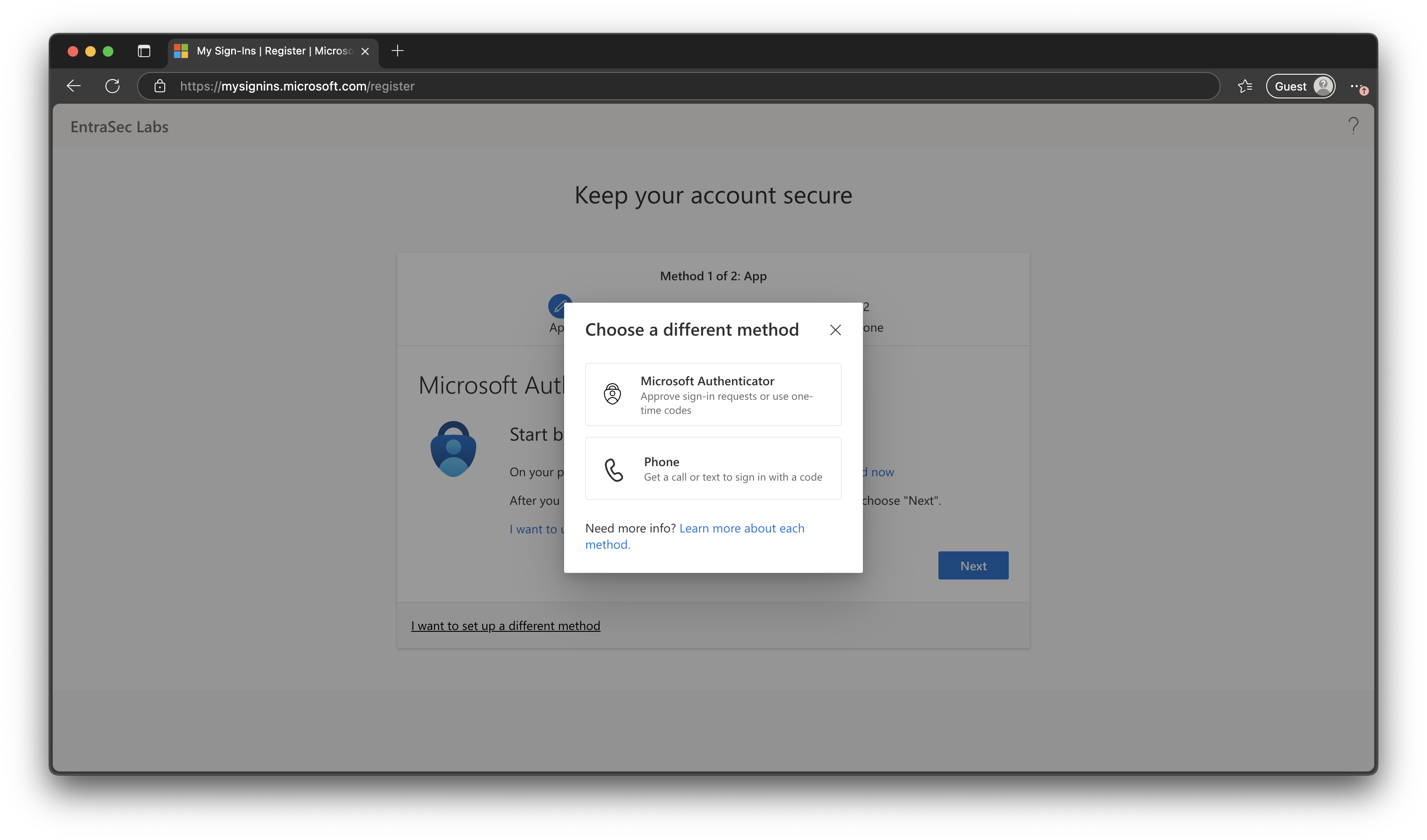
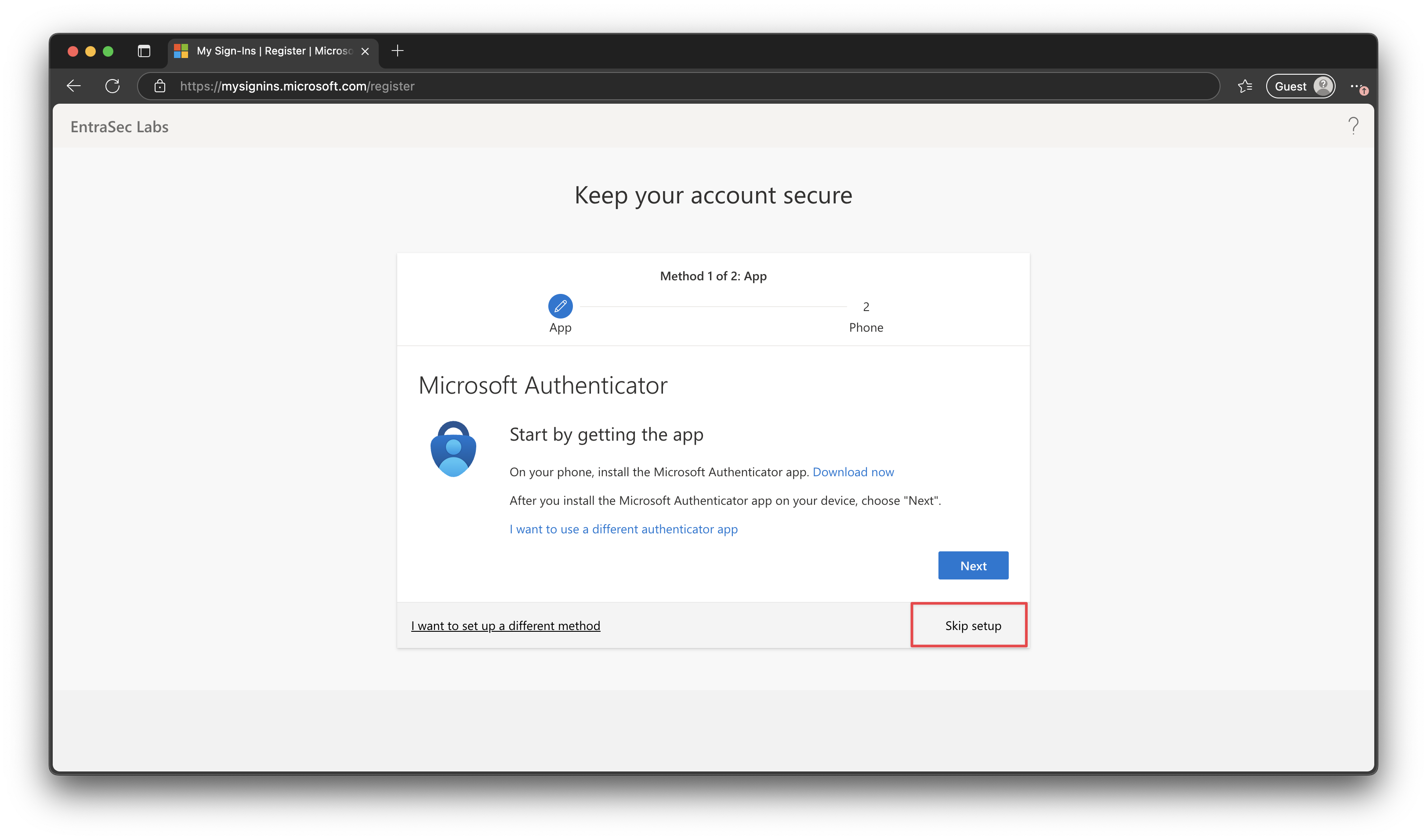
Now, let’s switch off the Conditional Access policy. We now see that the SSPR wizard ’takes over’, and the user can now select more options to register, using the interrupt wizard.
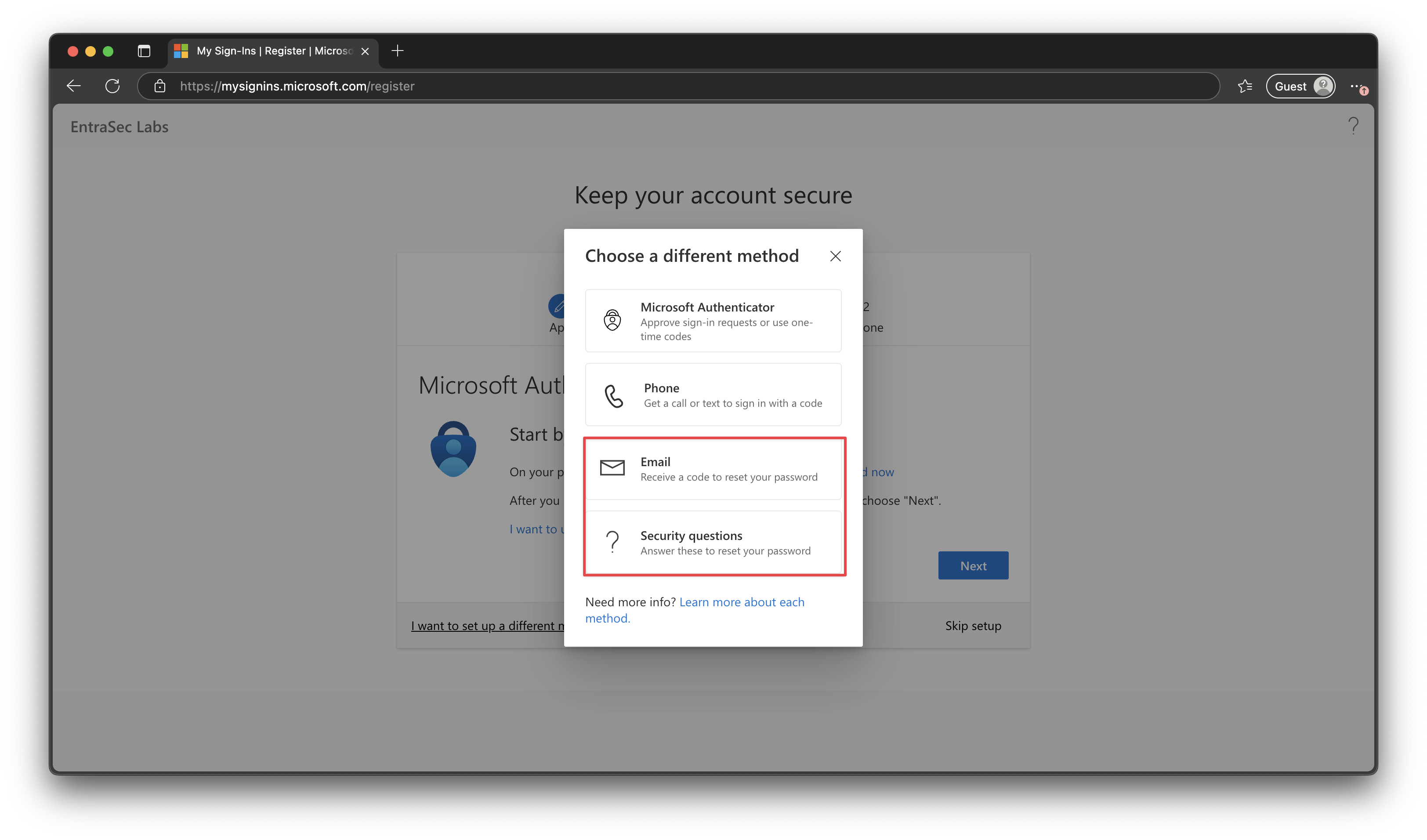
Also, note that the wizard can now be skipped, since CA is no longer enforced.
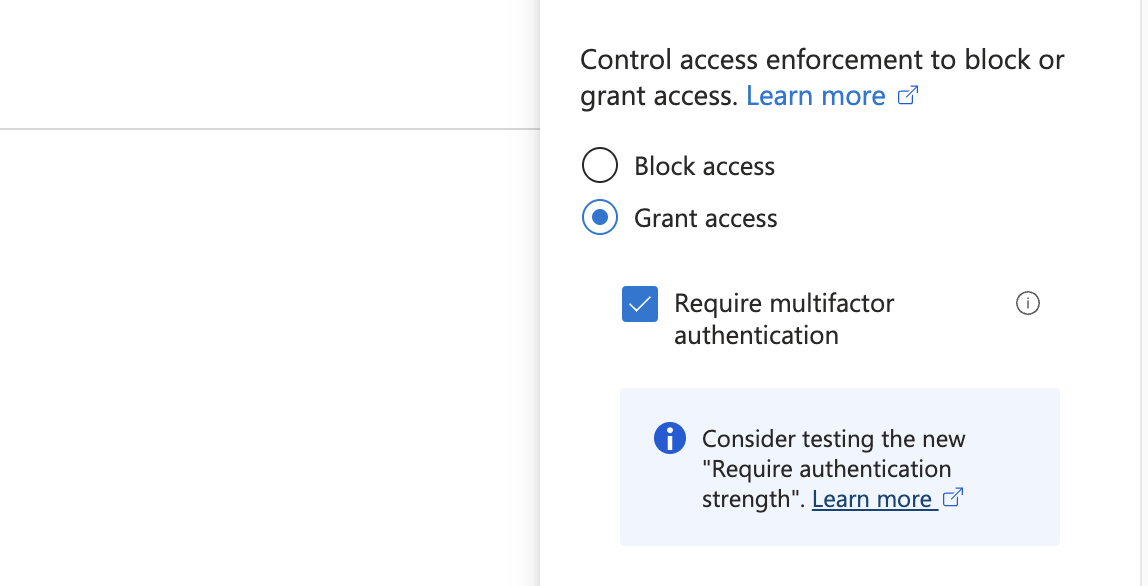
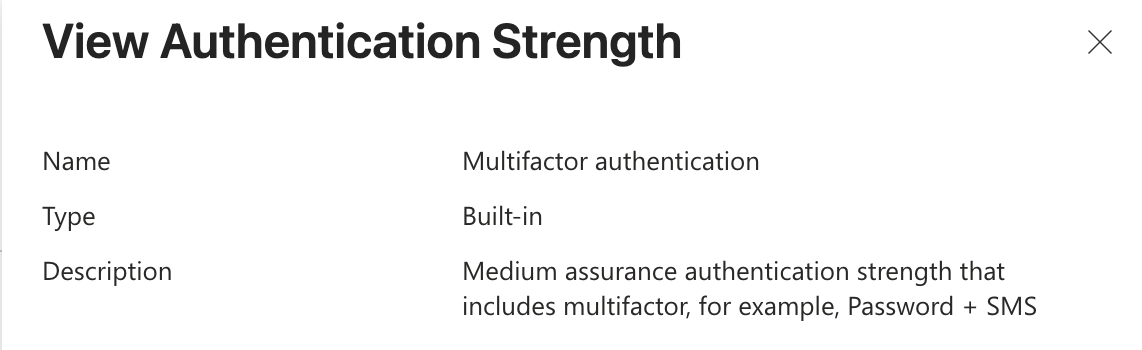
Now, let’s switch the Conditional Access policy back on, but instead use Authentication Strengths to enforce MFA. I use the built-in strength for Multifactor authentication.
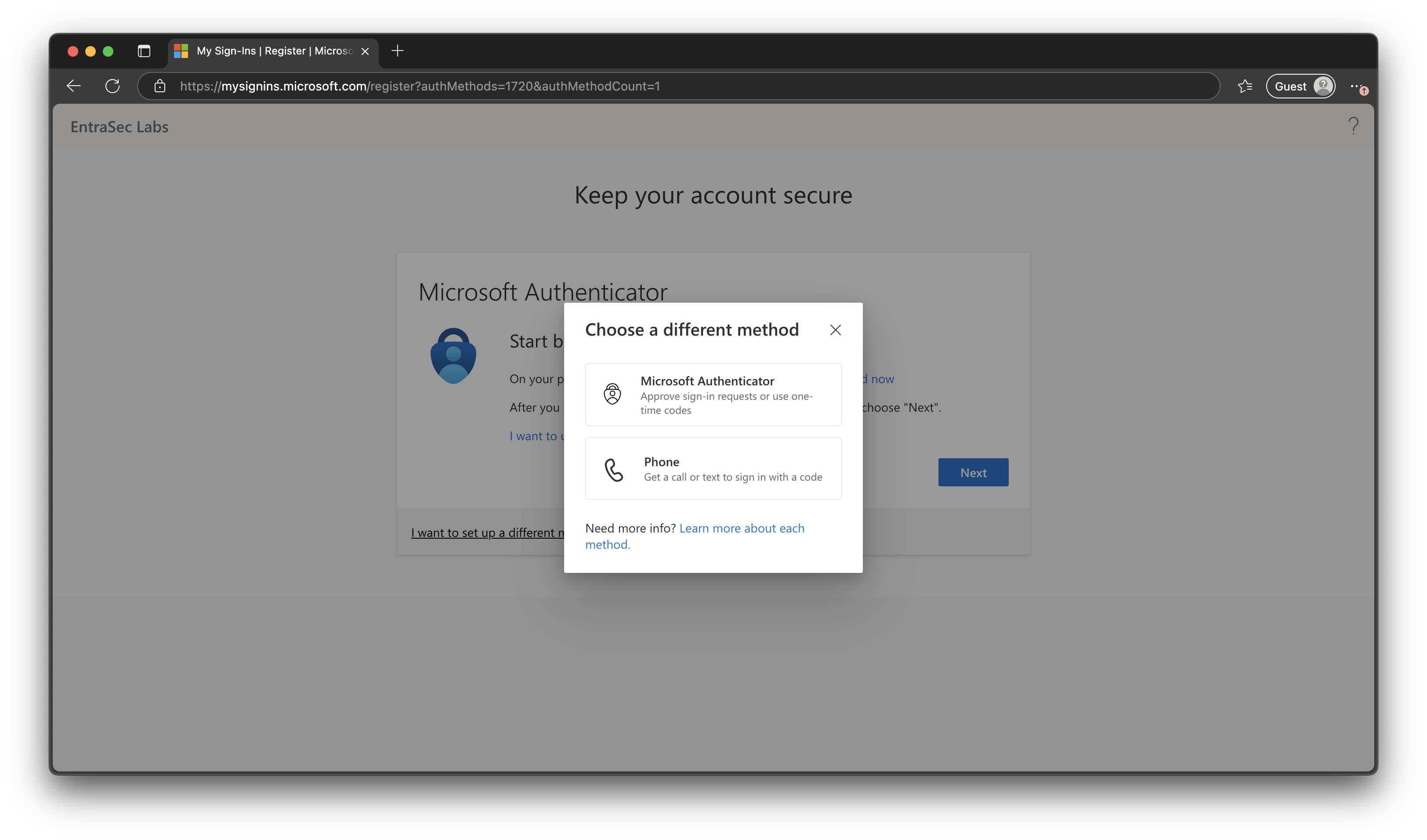
Now here’s the result. The user is now prompted to register one method (despite the SSPR policy asking for two), and the phone is always prompted first (unless you have disabled these methods). The user can choose a different method, but again, the SSPR methods are no longer available.
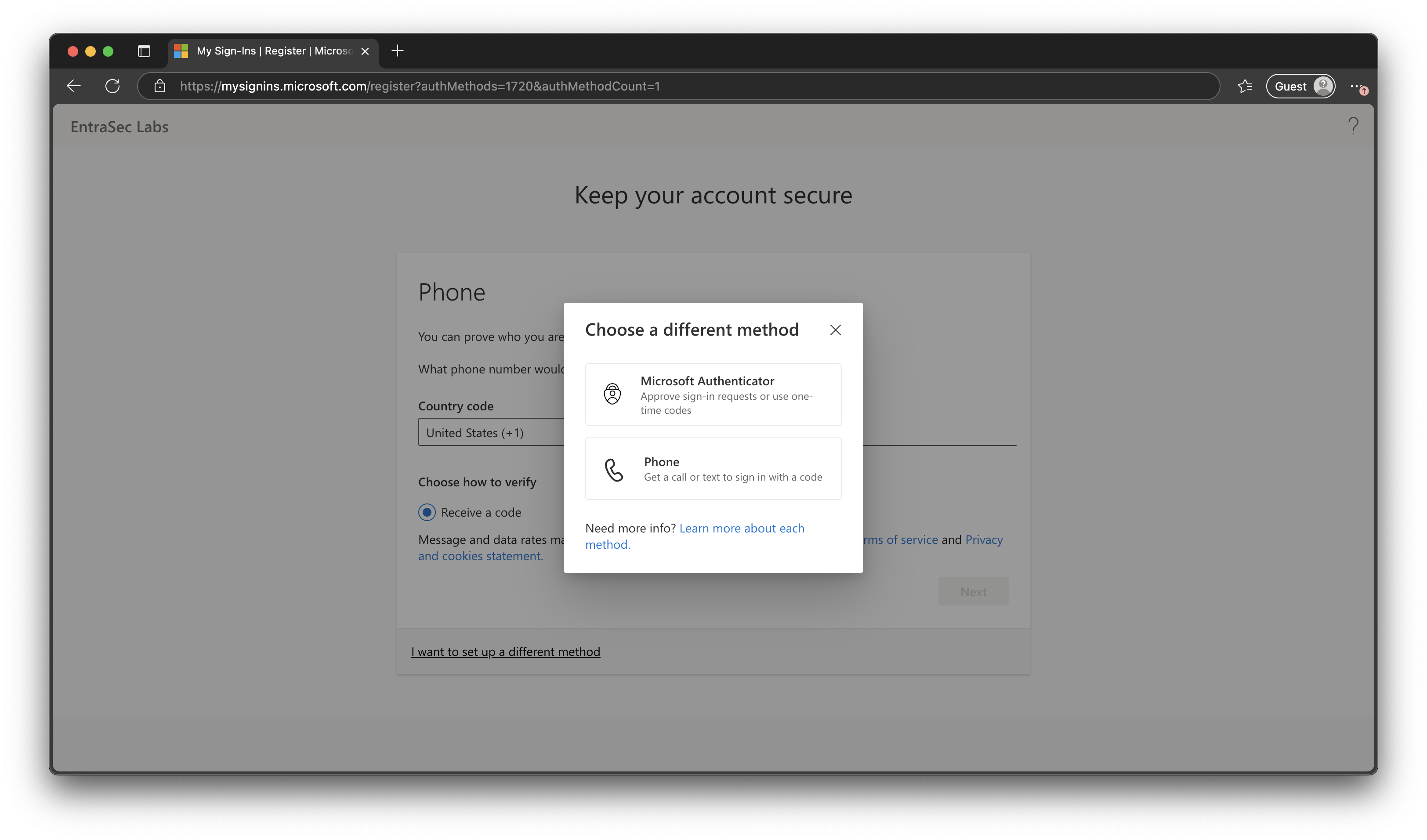
Note that the URL for the interrupt wizard changes from “ https://mysignins.microsoft.com/register" to “ https://mysignins.microsoft.com/register?authMethods=xxxx&authMethodCount=1"
Fun trick, you can simply change the authMethods value, and the wizard will change. Check the video.
Here is the list with ‘supported’ method values, but I also found some undocumented versions like 1720, 1960, and 1976.
| ID | Authentication Method |
|---|---|
| 0 | none |
| 1 | password |
| 2 | voice |
| 4 | hardwareOath |
| 8 | softwareOath |
| 16 | sms |
| 32 | fido2 |
| 64 | windowsHelloForBusiness |
| 128 | microsoftAuthenticatorPush |
| 256 | deviceBasedPush |
| 512 | temporaryAccessPassOneTime |
| 1024 | temporaryAccessPassMultiUse |
| 2048 | |
| 4096 | x509CertificateSingleFactor |
| 8192 | x509CertificateMultiFactor |
| 16384 | federatedSingleFactor |
| 32768 | federatedMultiFactor |
Fun trick part two: just strip the URL, and you’re back in the other wizard.
When I change the SSPR - Number of methods required to reset to 1, the interrupt wizard seems to work as intended, but I’m still unable to register security questions or email methods. The SSPR settings appear to be completely ignored.
To this day, neither Danny nor I has come to an acceptable solution for this issue. The above info is just to make sense of it all, if you bump into these weird issues yourself someday. Hang in there. For now, there are a few workarounds you can consider:
- Switch to one method for SSPR.
- Instruct your users to strip the URL, so they’ll end up in the correct wizard. (please don’t)
- Stay away from authentication strengths altogether. Stick with the ’legacy MFA’ access control setting.
- First, let the users register, using the SSPR wizard, and then enforce with CA and Authentication Strengths.
Caveat 2: Authentication Strengths, MFA trust, and B2B External Users#
The second use case where Authentication Strengths might stand in the way is where you have MFA trust enabled in cross-tenant access settings. This is very common in a B2B scenario, as it essentially offloads the MFA hassle back to the home tenant of the user. The second win is that you can support more methods, such as Windows Hello, CBA, and passkeys for your external users.
Here’s a snip from the docs to explain the user experience:
If MFA trust is enabled, Microsoft Entra ID checks the user’s authentication session for a claim that indicates MFA was fulfilled in the user’s home tenant. See the preceding table for authentication methods that are acceptable for MFA when completed in an external user’s home tenant. If the session contains a claim that indicates the MFA policies are already met in the user’s home tenant, and the methods satisfy the authentication strength requirements, the user is allowed access. Otherwise, Microsoft Entra ID presents the user with a challenge to complete MFA in the home tenant using an acceptable authentication method. How Conditional Access authentication strength works for external users in Microsoft Entra ID - Microsoft Entra ID | Microsoft Learn
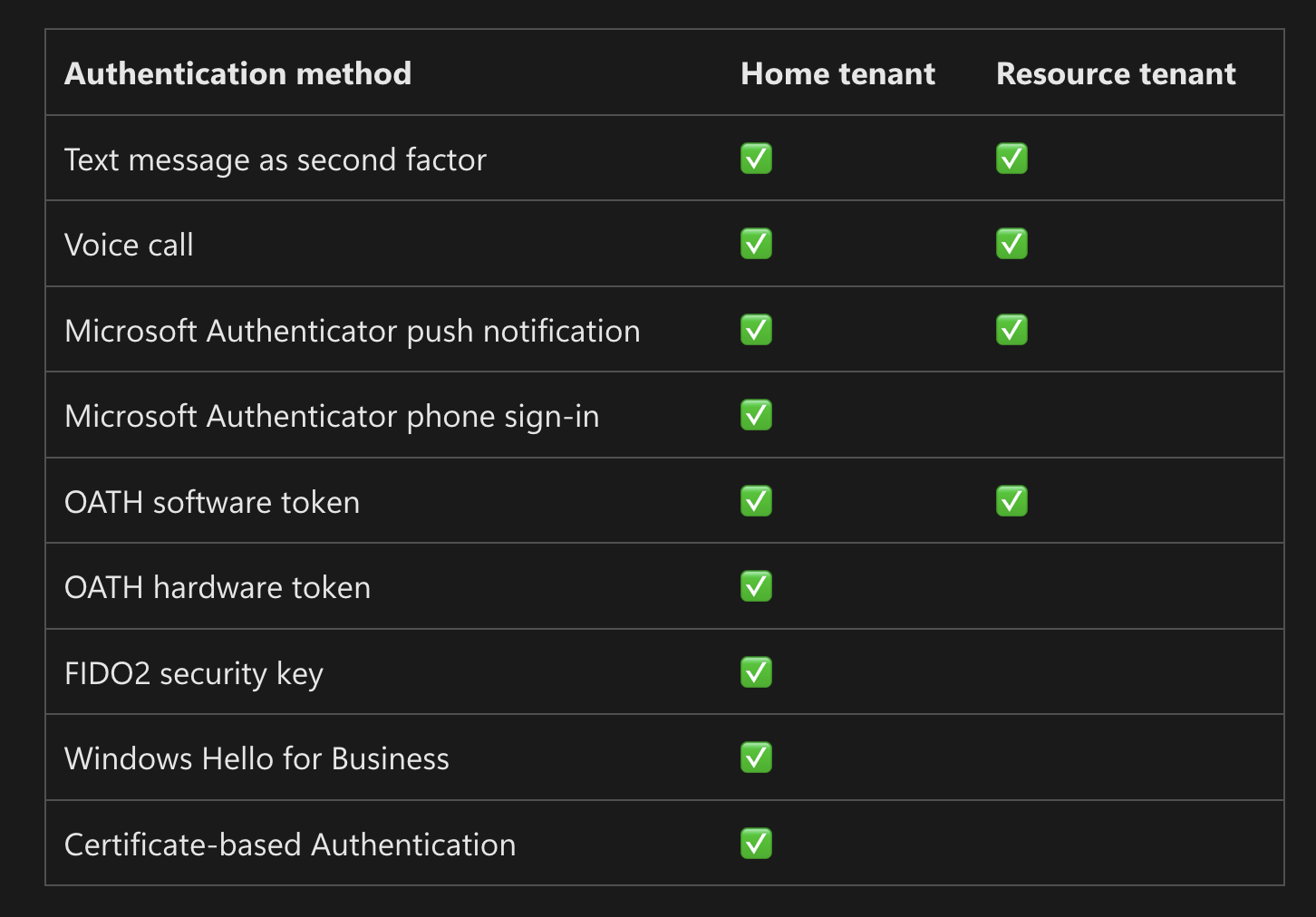
All good for now. But what to do in a greenfield scenario, where your guest user might not have set up MFA in the home tenant? When the user tries to access an MFA-protected resource, and MFA trust is enabled, the user is redirected to their home tenant. The only thing you (resource tenant) care about is an MFA claim. (This can be a topic on its own, but for now I’ll keep it simple)
Depending on your Conditional Access policy, the user experience will be impacted. To be clear: the CA policy in the resource tenant will impact the interrupt wizard in the home tenant. This can lead to a lot of confusion, so it is good to understand the implications.
So, imagine you have configured the following CA policy for your guest users:
| Setting | Value |
|---|---|
| Assignment | Guest or external users |
| Target Resources | All resources (formerly ‘All cloud apps’) |
| Access Control | GRANT |
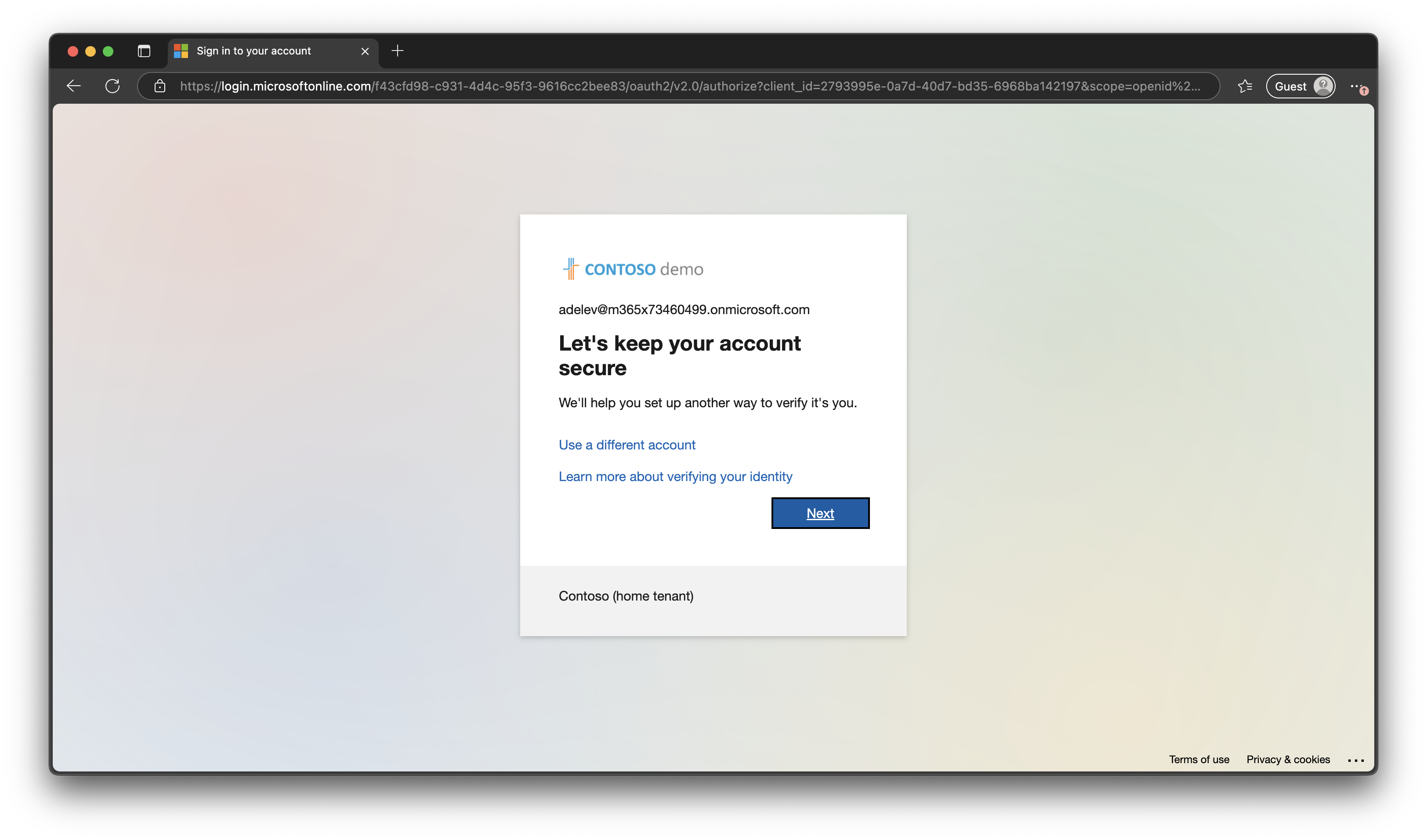
After first-factor authentication, the user is sent back to their home tenant and ends up in the interrupt wizard for the combined registration. The user experience will depend on the home tenant’s settings, such as the available methods, and whether they have to register one or two methods (depending on SSPR). Not much you can do about this as the resource owner.
So, our test user Adele (Contoso) is signed in with single-factor authentication in her home tenant and switches to the resource tenant.
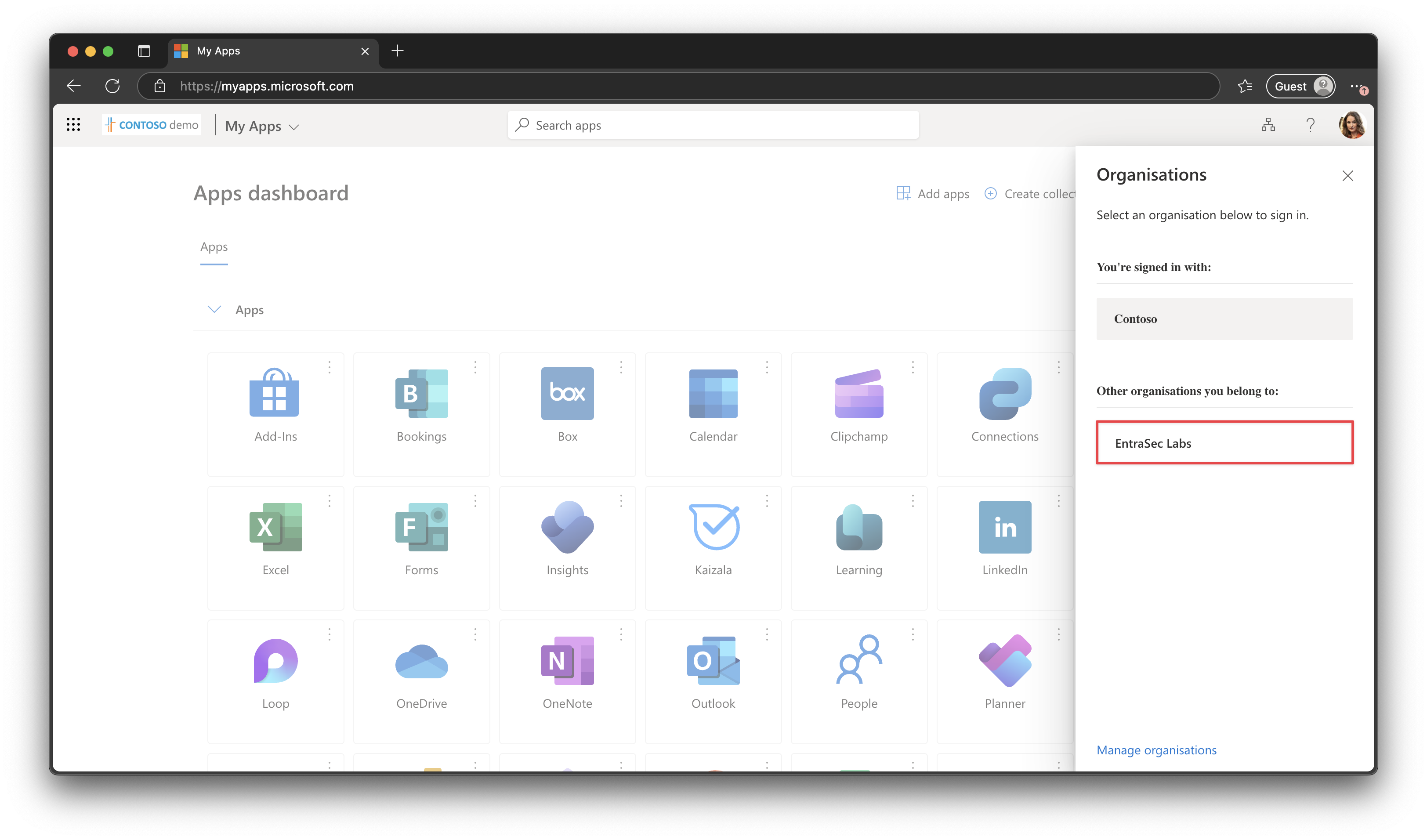
She is now prompted to register security information from the home tenant side.
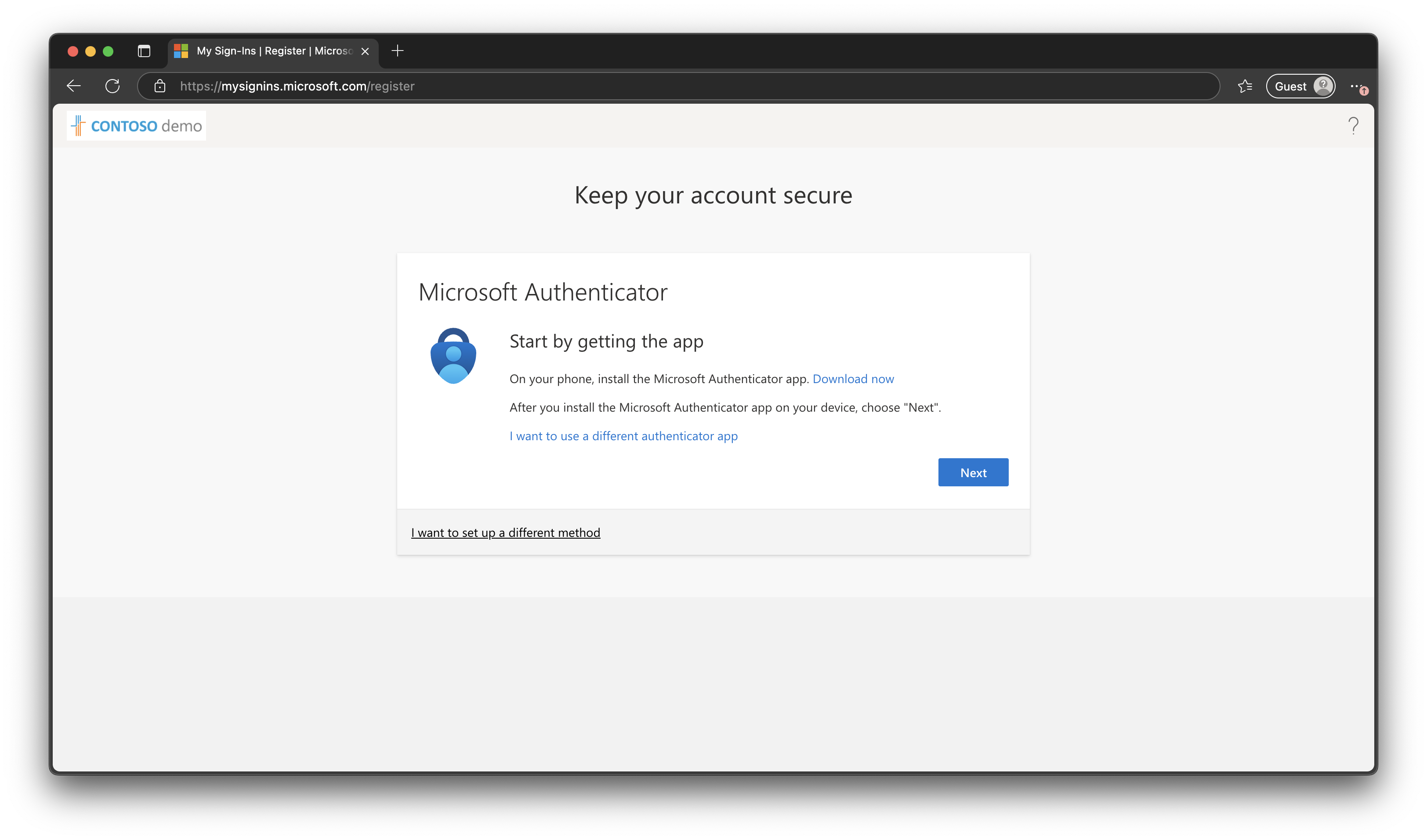
Adele can now register new methods, depending on the home tenant settings for MFA and SSPR. Note that Adele can select another method to register, and can even register a third-party authenticator app like Google Authenticator or 1Password.
Now, let’s slightly change our policy and use Authentication Strengths instead. Assume we want to enforce phishing-resistant MFA for all B2B guest users.
| Setting | Value |
|---|---|
| Assignment | Guest or external users |
| Target Resources | All resources (formerly ‘All cloud apps’) |
| Access Control | GRANT |
To register a strong, phishing-resistant method, MFA is required, so Adele is not able to register any method.
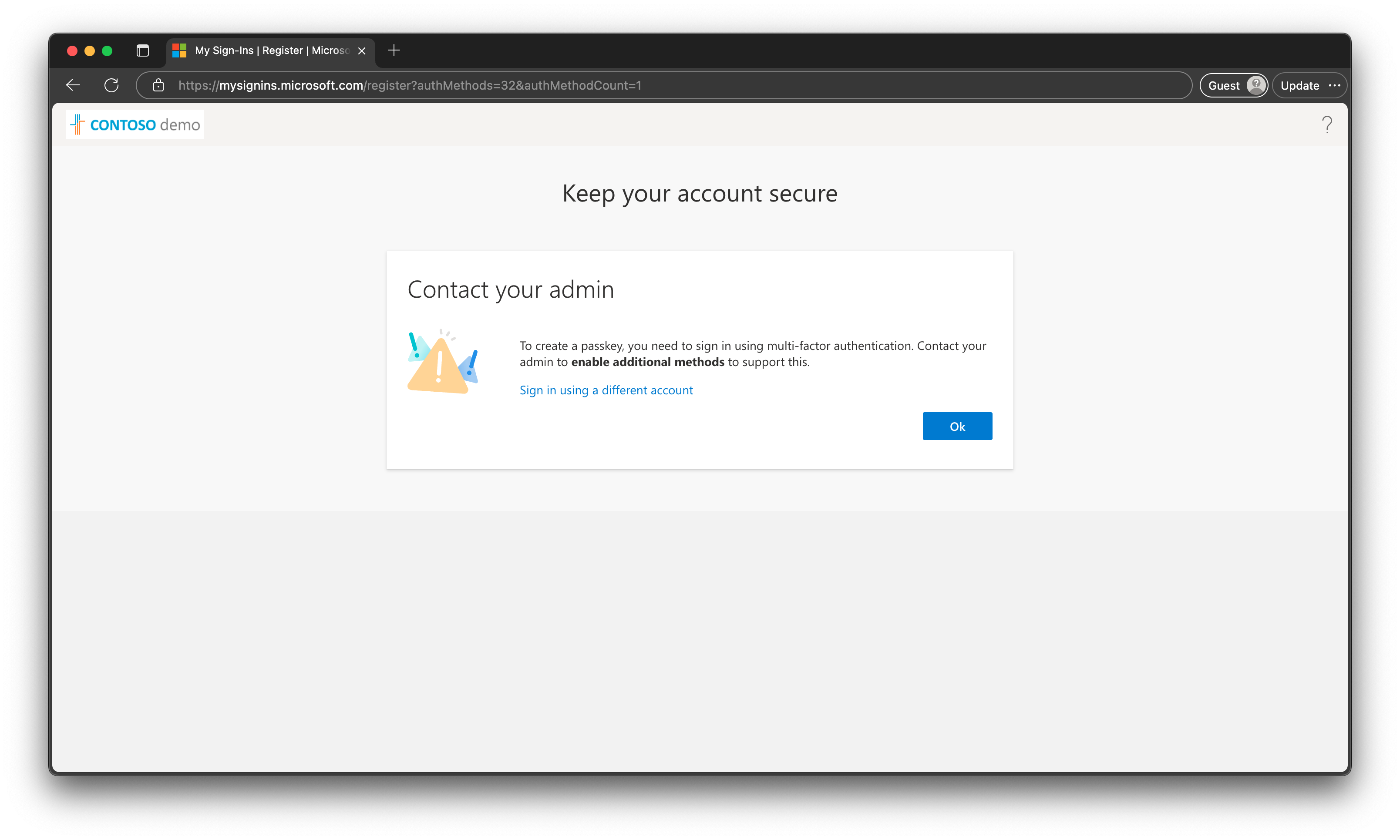
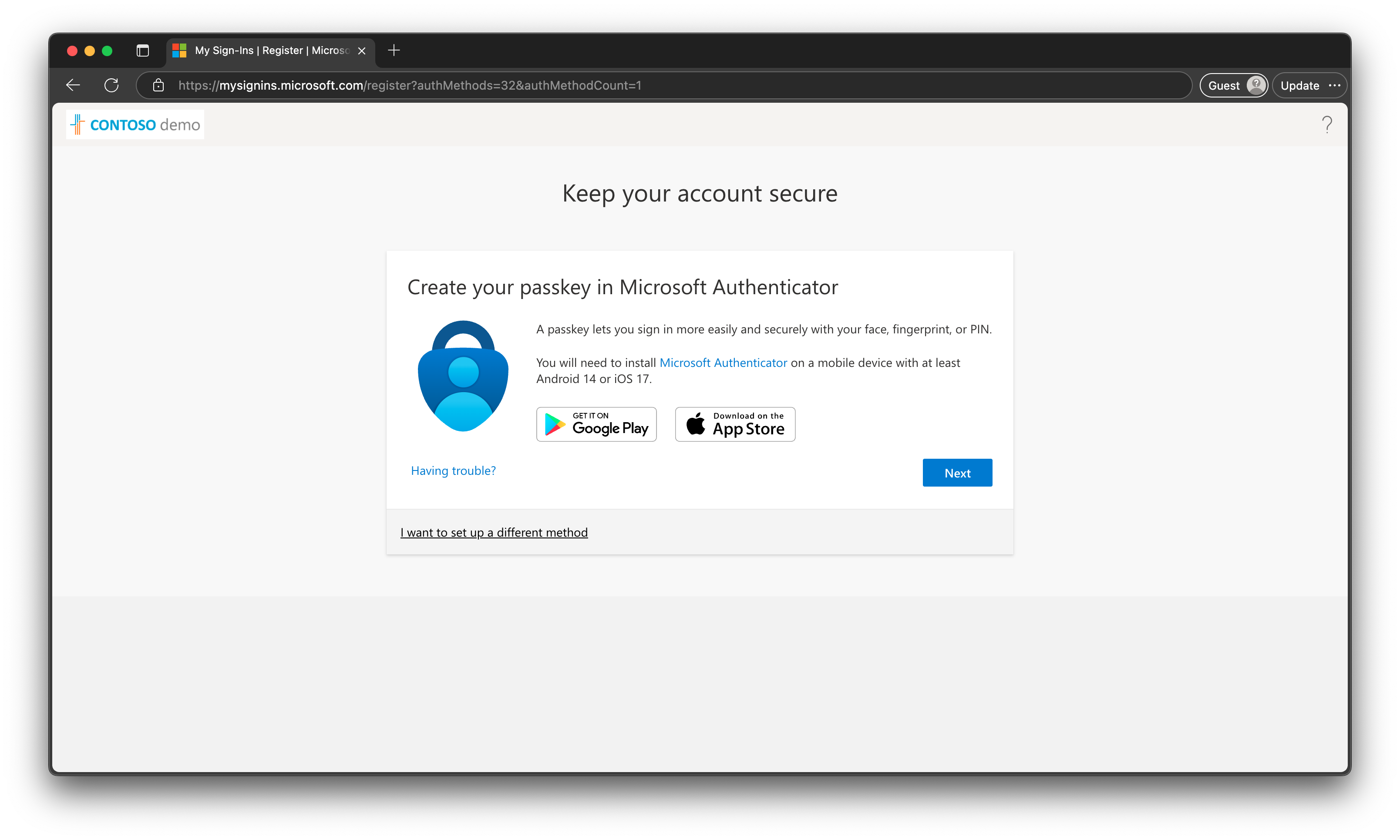
When Adele has already registered for “legacy” MFA or used a Temporary Access Pass to sign in, she would be prompted to register a passkey or security key.
Enforcing MFA for guest users is a good practice, but things can become complicated when MFA trust is enabled. Be aware that some controls are no longer within your control, and exercise caution when using authentication strengths, as these methods may not be enabled in the home tenant.
Caveat 3: Interrupt wizard, passkeys, and the Windows App (macOS and Windows)#
The third pending issue I’ve encountered is that it’s impossible to register a FIDO2 security key from the interrupt wizard when using the Windows App (to access Cloud PC and Azure Virtual Desktop). Here are my passkey settings:
| Setting | Value |
|---|---|
| Enabled | All Users |
| Allow self-service set up | Yes |
| Enforce attestation | No |
| Enforce key restrictions | No |
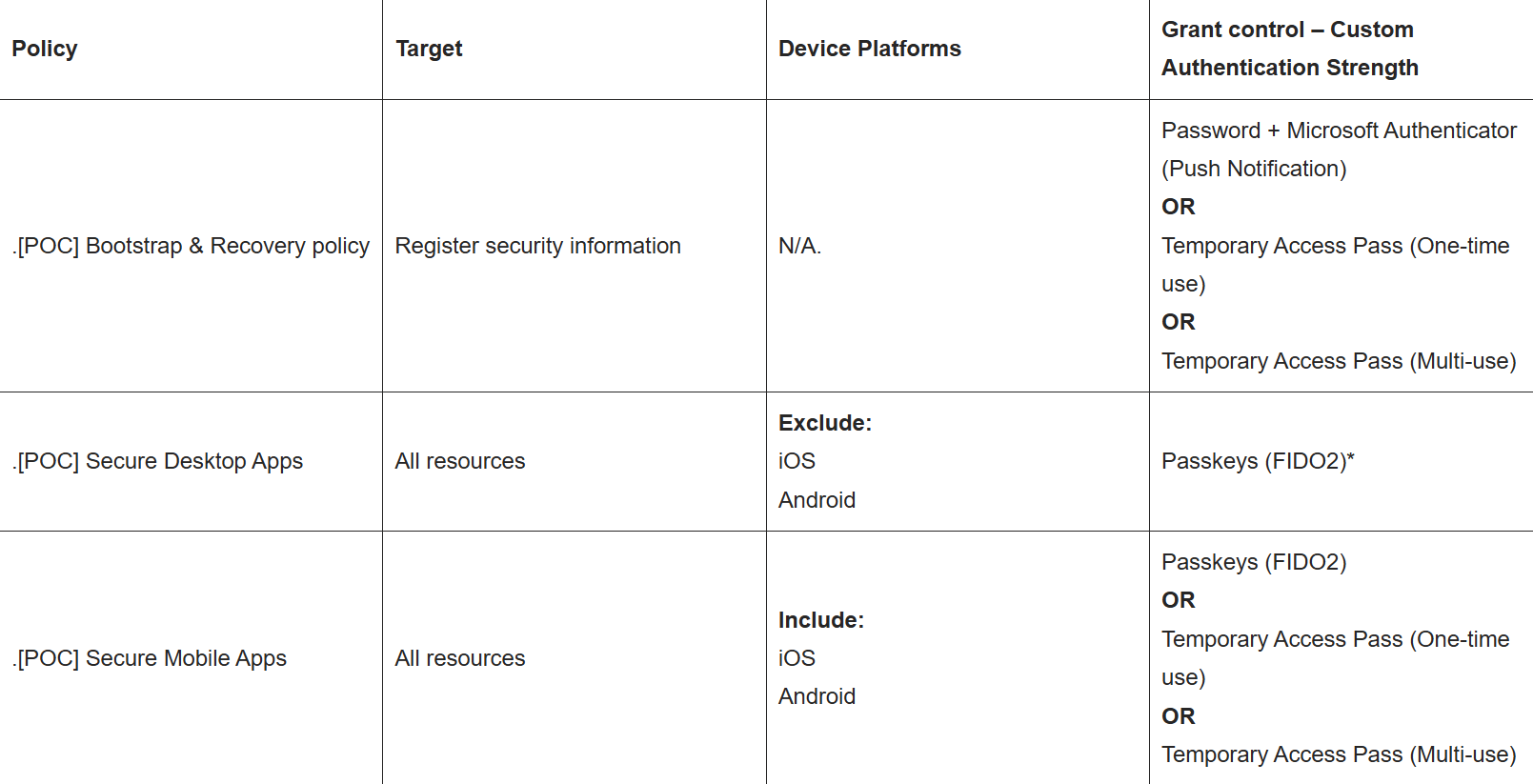
To have a smooth onboarding for new users, I have set three Conditional Access policies: (explained here)
On macOS, I’m prompted to register a passkey (when I use Temporary Access Pass), but the wizard will be stuck when I hit next. I’ve seen this on Windows as well, and I cannot figure out what causes this. To me, this is very random behaviour.
On Windows, the wizard ends with an error: “Passkey not registered. This might be due to a timeout, a canceled request or a private browsing window.”
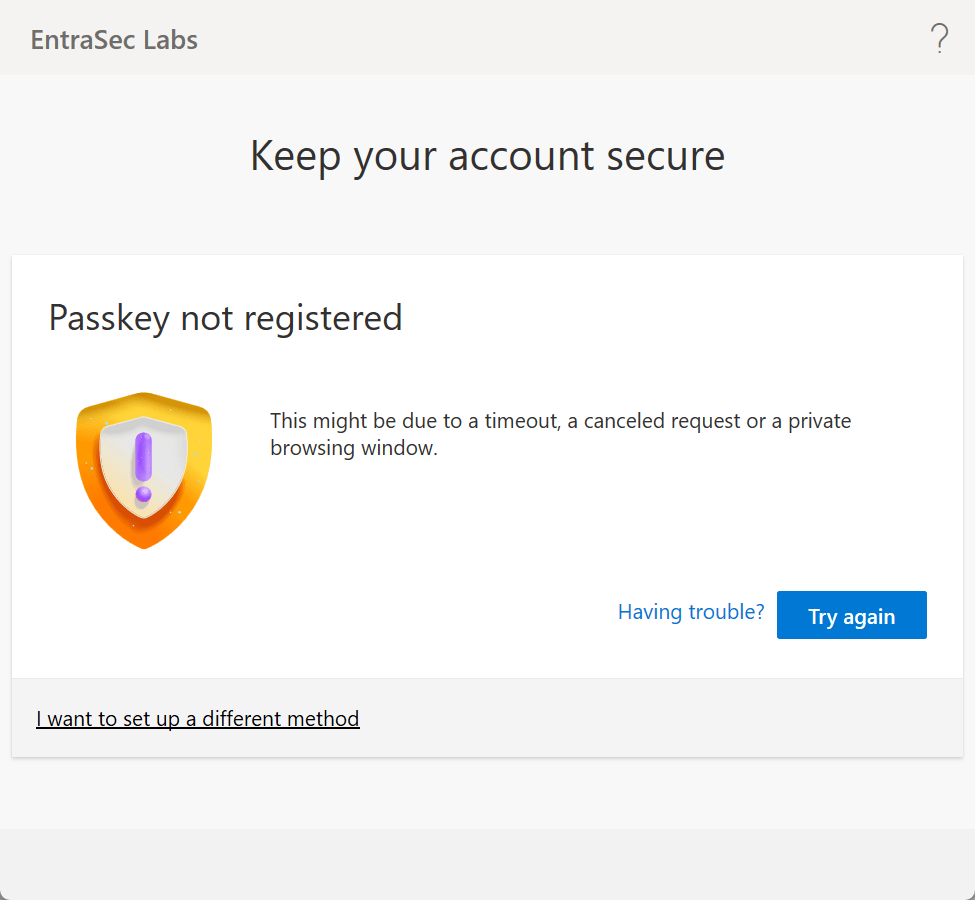
When I use a browser, the process goes smoothly without any error.
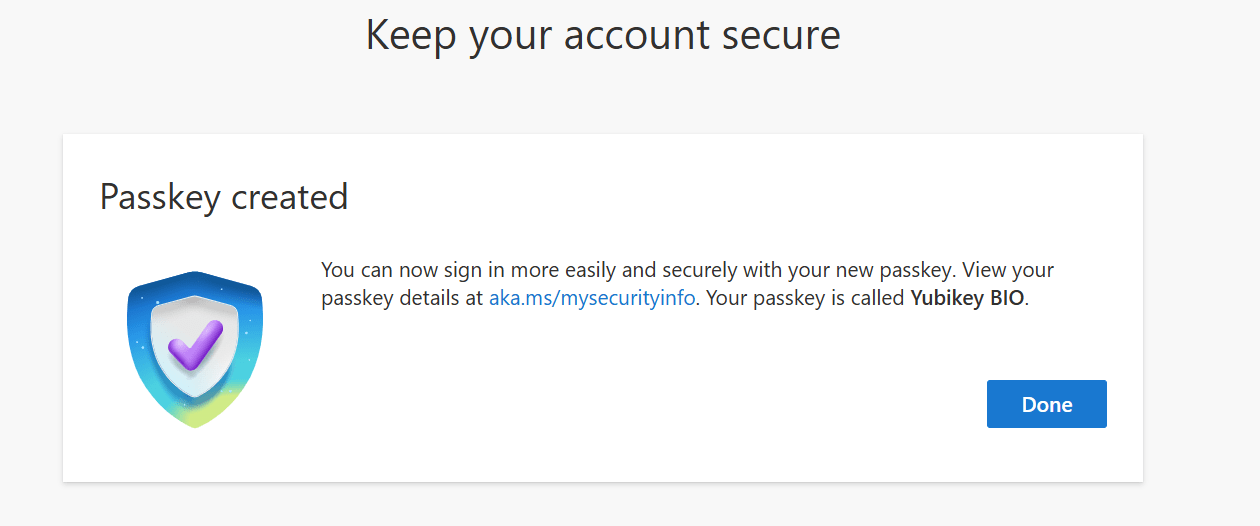
So, using the Windows app, it seems impossible to register a security key. Some organizations might heavily rely on this app, so this app will be used for onboarding and recovery of authentication methods. As of now, organizations using FIDO2 keys can have a challenging onboarding when enforcing passkeys for new starters.
Let’s wrap up#
As you can see, onboarding and recovery of authentication methods is not always easy. It might be confusing for end-users, but I see that admins also struggle with all the different settings and caveats. Hopefully, my posts are bringing some light into the darkness. \
Feel free to reach out if you experience any unusual behavior with the security information registration wizard. Happy to add them to this list.
Stay safe.
Comments
Comments load when you scroll here.