
Prevent AiTM with Microsoft Entra Global Secure Access and Conditional Access
Microsoft Entra Global Secure Access brings a new control to Conditional Access. By installing the Global Secure Access Client on (hybrid) Entra joined devices and enabling Global Secure Access signaling for Conditional Access, admins can now work with a new condition: All Compliant Network locations (Preview)
That means we can add another layer to our tenant to prevent token theft and replay. Let’s have a first look.

Prepare the lab#
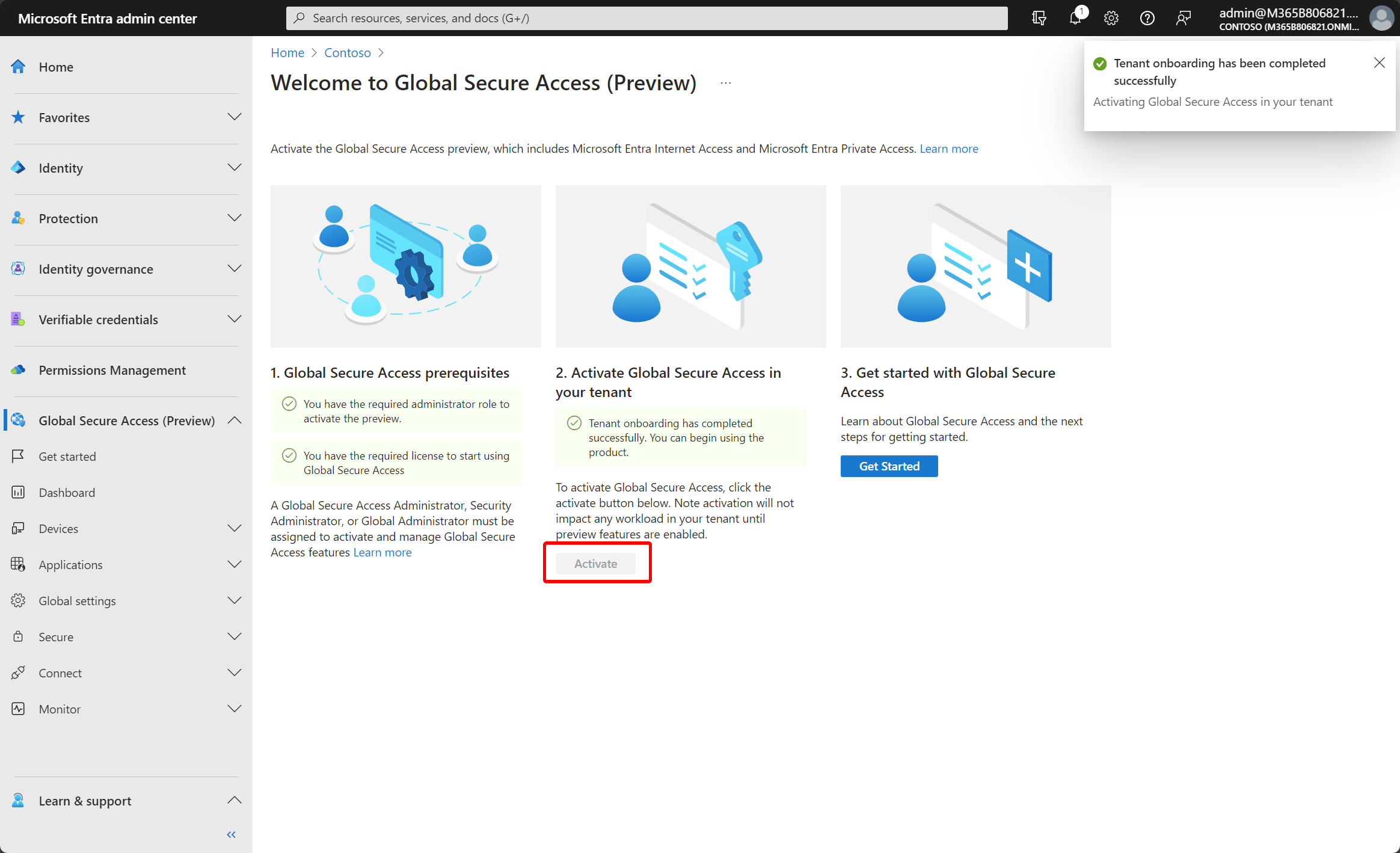
The first step is to activate Global Secure Access in your tenant.
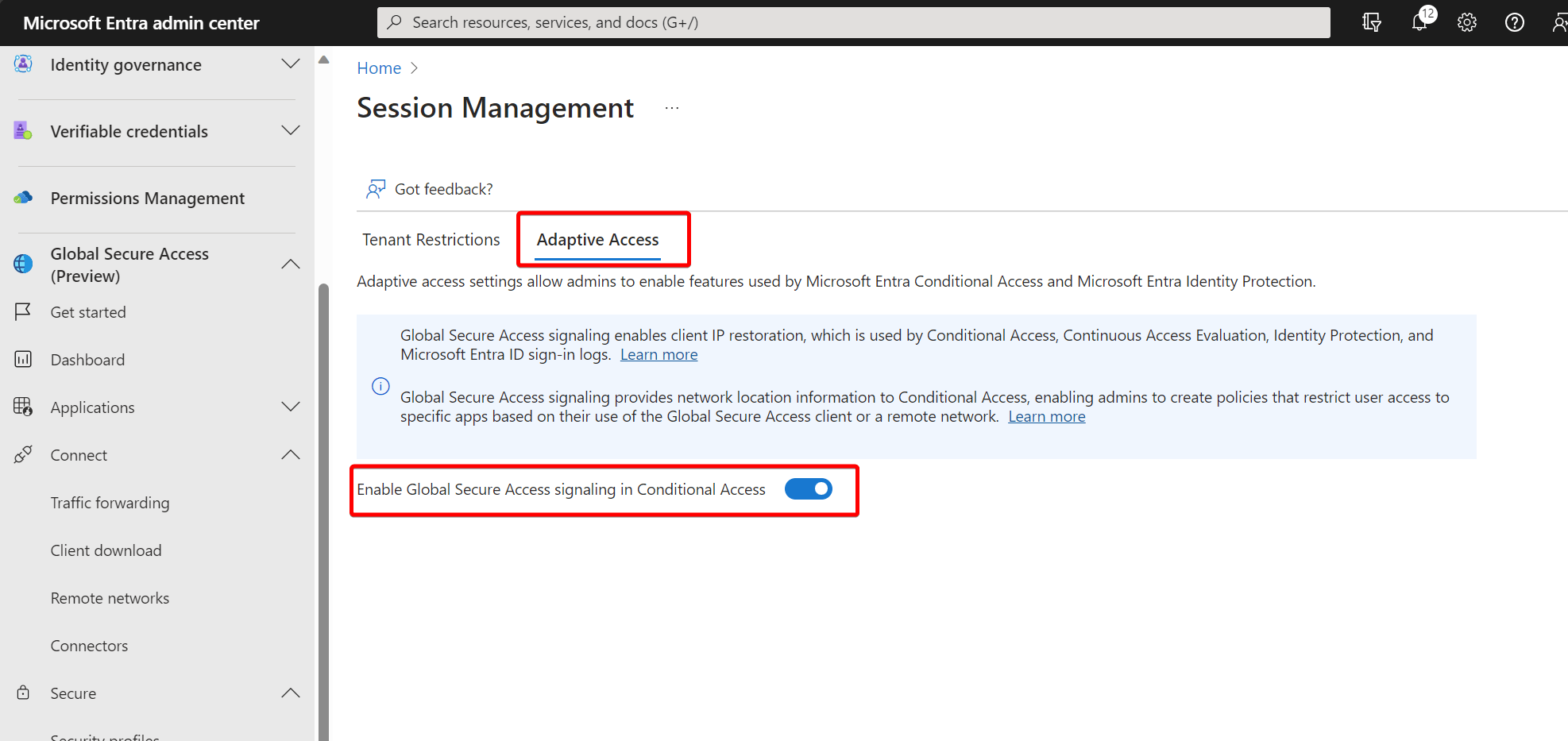
Next, we need to enable Global Secure Access signaling for Conditional Access. Using the Entra admin center, browse to Global Secure Access (Preview) > Global settings > Session management Adaptive access.
Select the toggle to Enable Global Secure Access signaling in Conditional Access.
In the Entra admin center, browse to Protection > Conditional Access > Named locations.
Confirm you have a location called All Compliant Network locations with location type Network Access. Organizations can optionally mark this location as trusted.
You can also check if the new condition is created as a Named Location using Graph Explorer.
GET https://graph.microsoft.com/beta/identity/conditionalAccess/namedLocations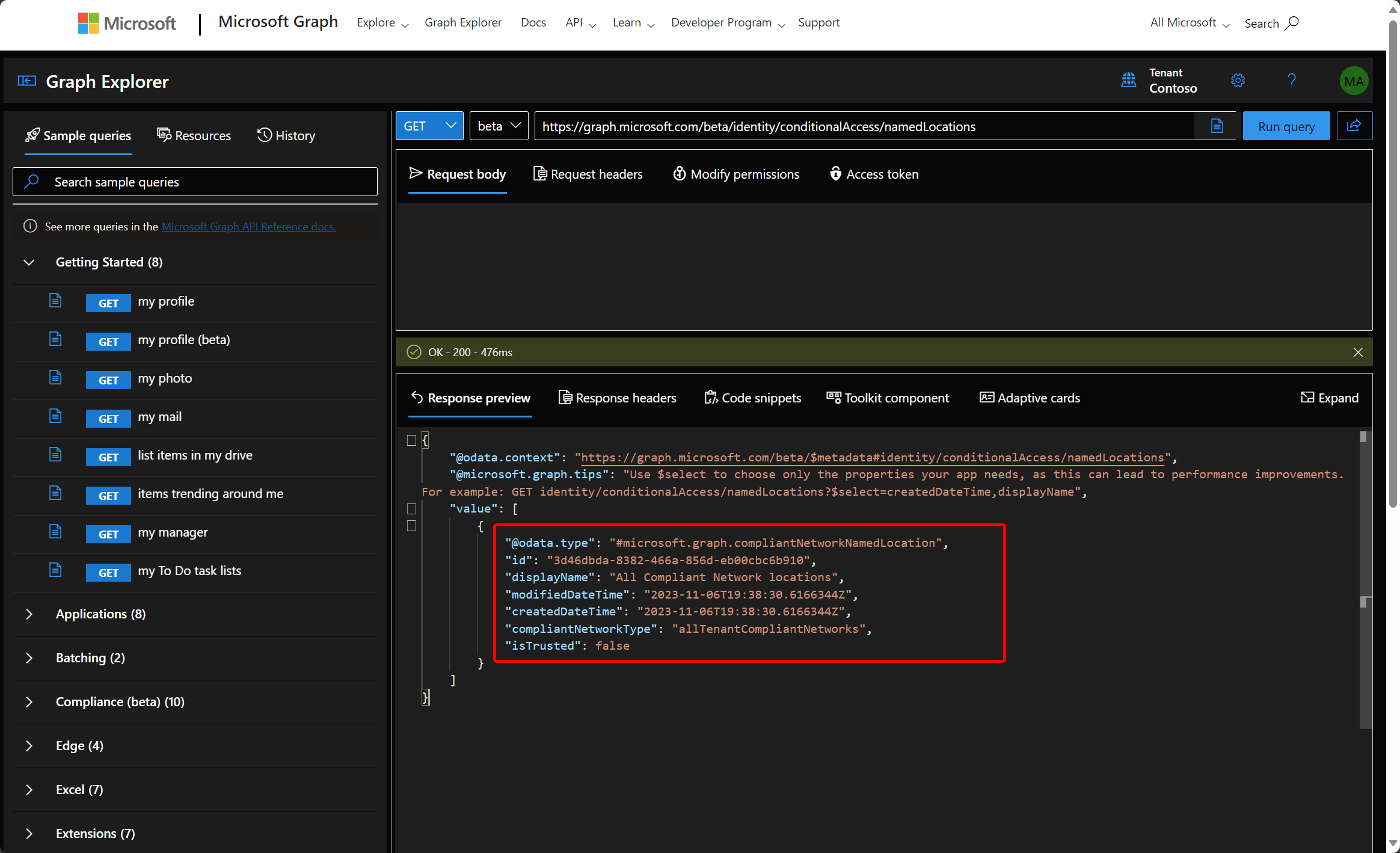
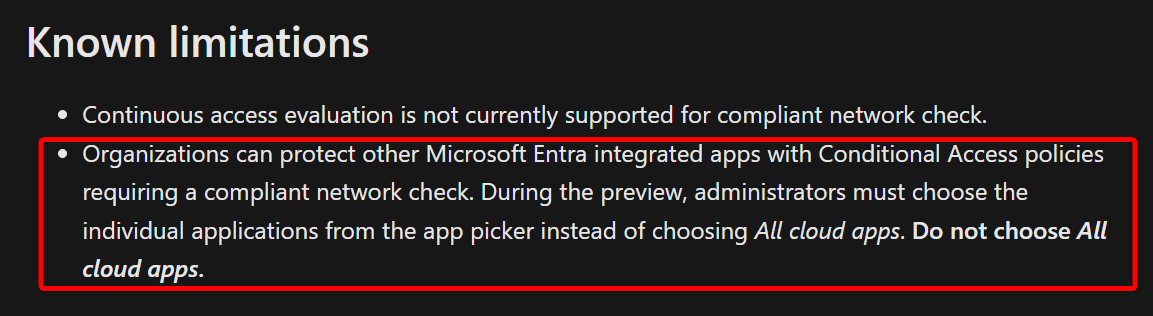
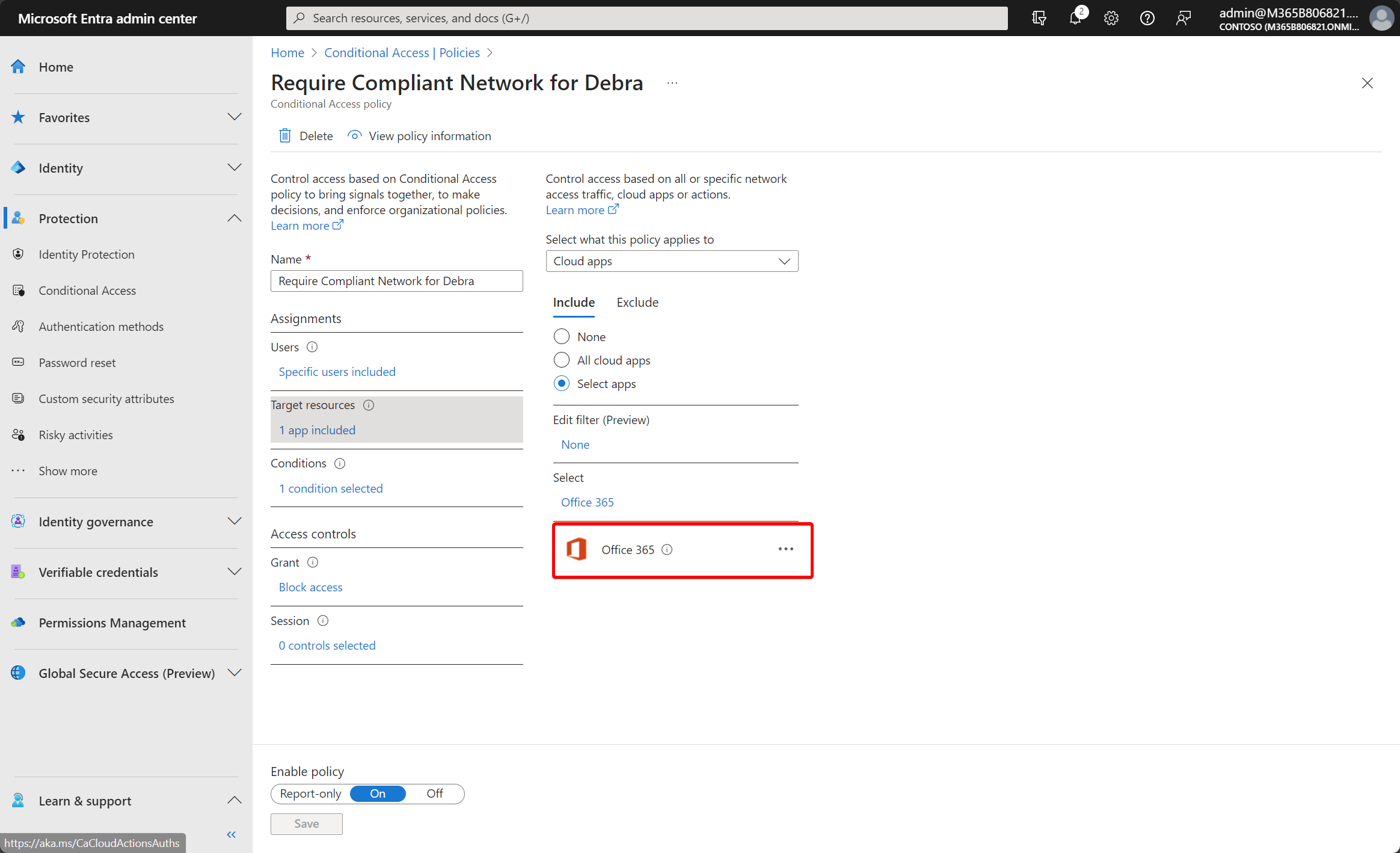
Next, let’s create a new Conditional Access policy to require a compliant network for Office 365. Note that during the preview, you cannot use all apps. In this demo, I picked Office 365, but you can also select Exchange Online or SharePoint.
Scope the policy to a test user/group. Don’t lock yourself out!!!!
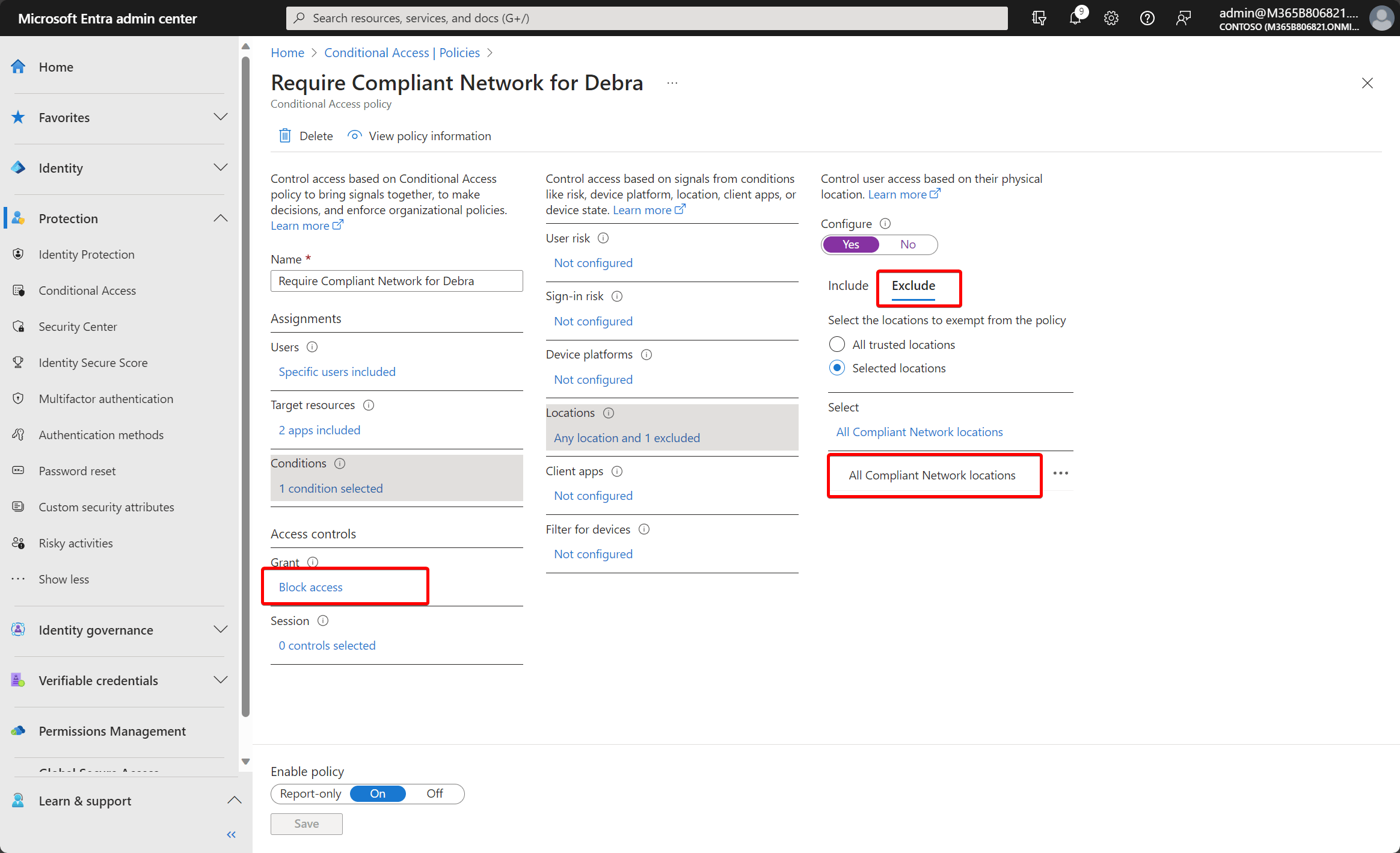
Include all locations, and exclude All Compliant Network locations. Under access controls, select Block Access.
For a more detailed tutorial, check this post on Microsoft Learn: Enable compliant network check with Conditional Access | Microsoft Learn
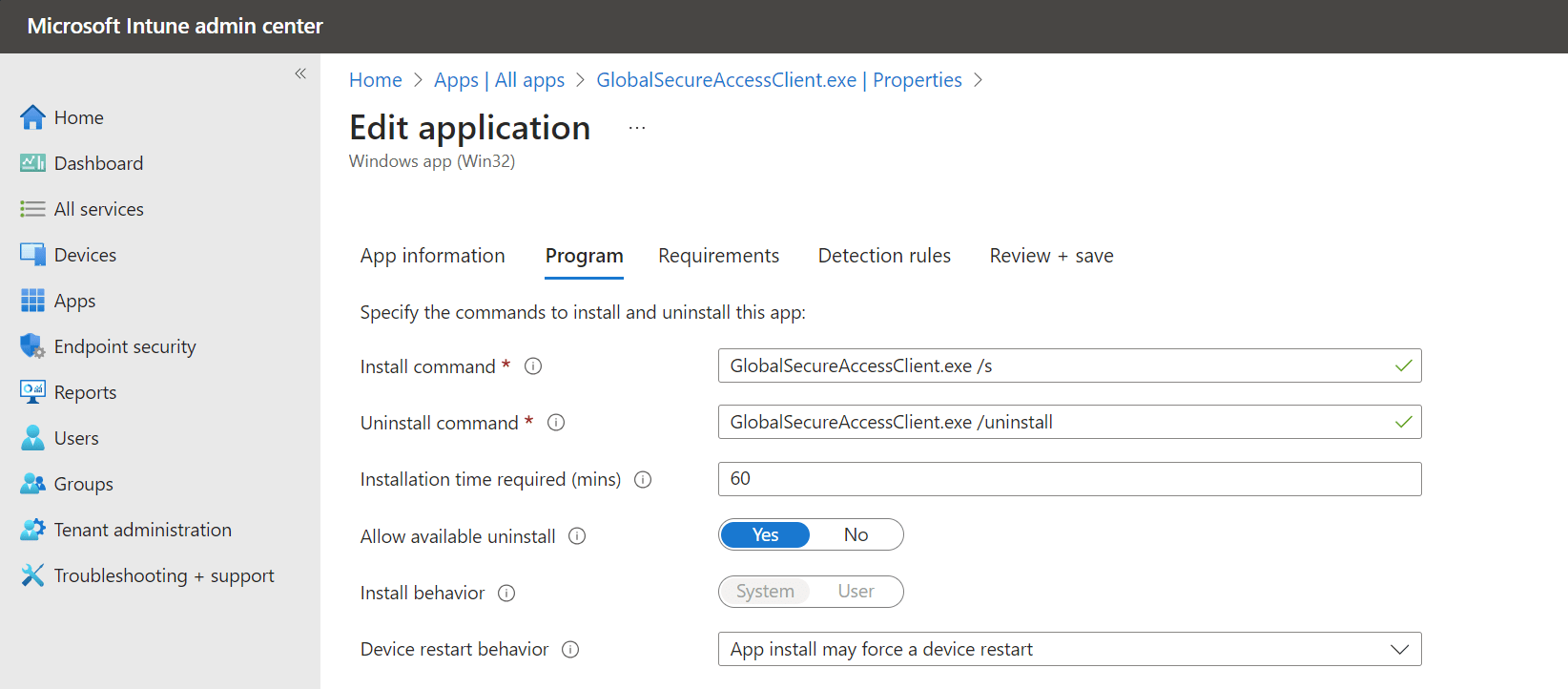
Next, I installed the Global Secure Access Client on a Microsoft Entra joined device. As this requires local admin rights, I used Microsoft Intune to push the installation package. That worked like a charm.
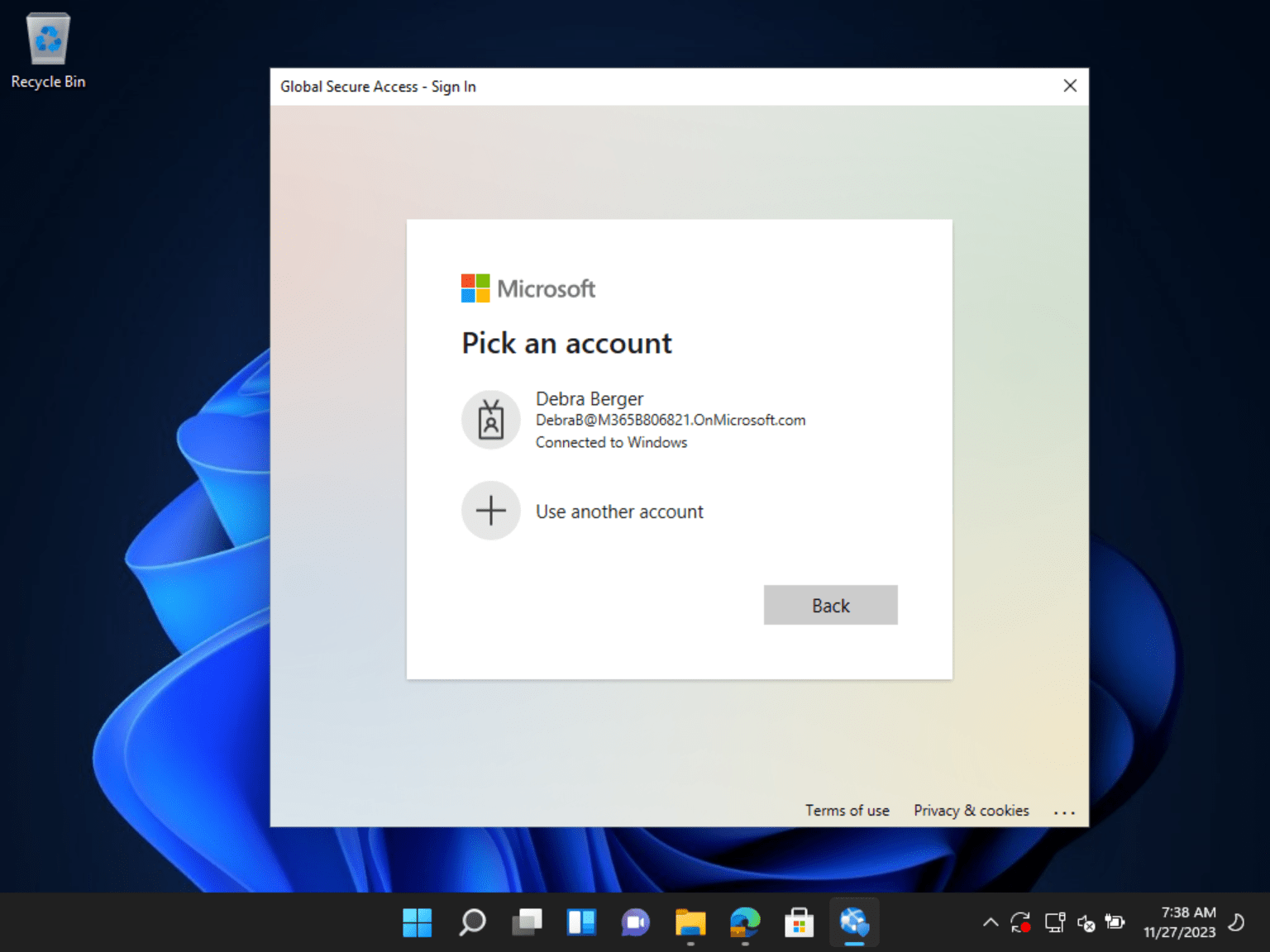
After the client is installed, the user is prompted to sign in.
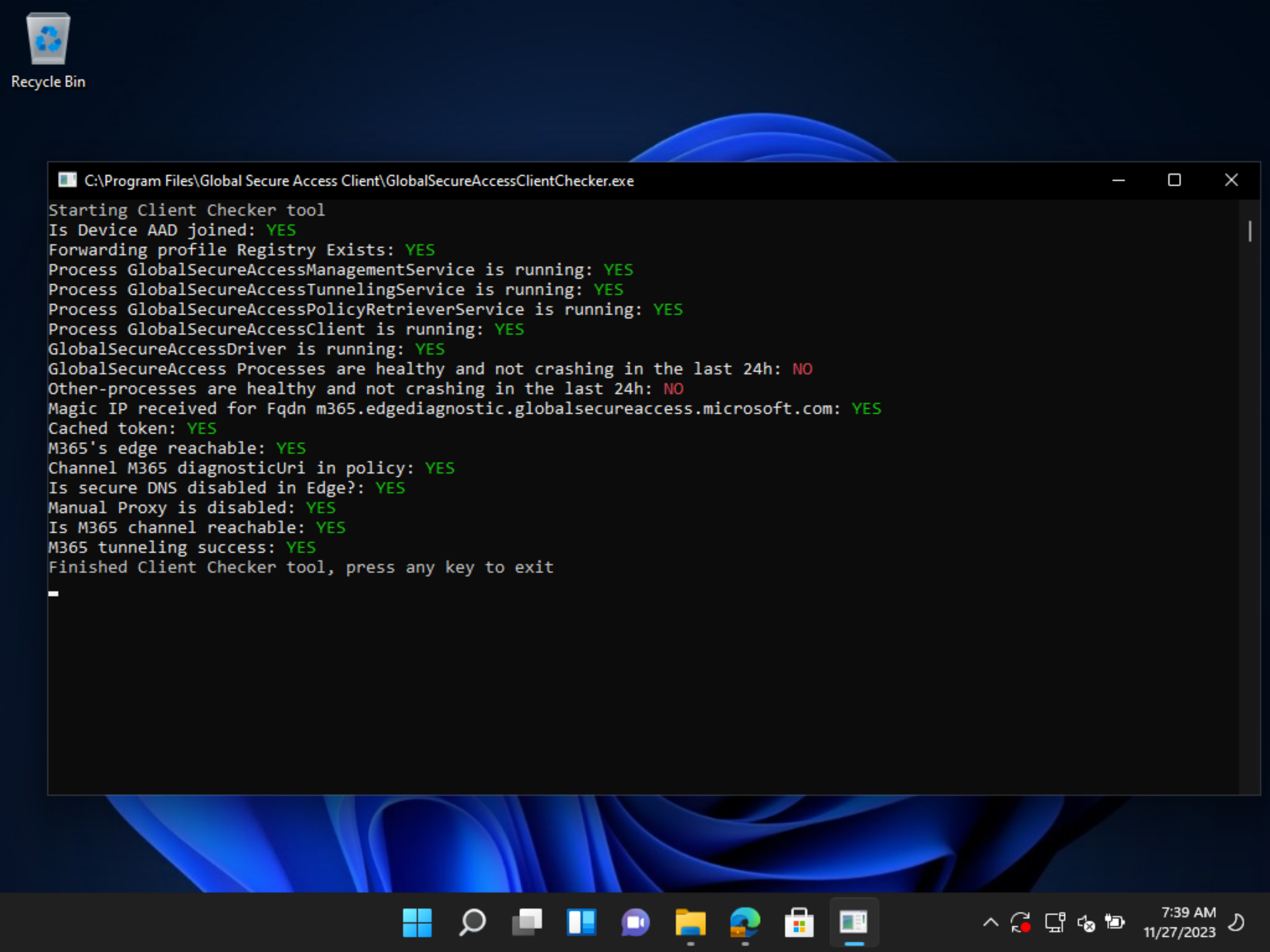
If we run the Client Checker tool, everything looks (almost) good.
We can also check if the Conditional Access policy works as expected. With the GSA client running, access to Microsoft 365 is granted, but when the connection is paused, the access is blocked.
Secure Global Access v.s. Evilginx#
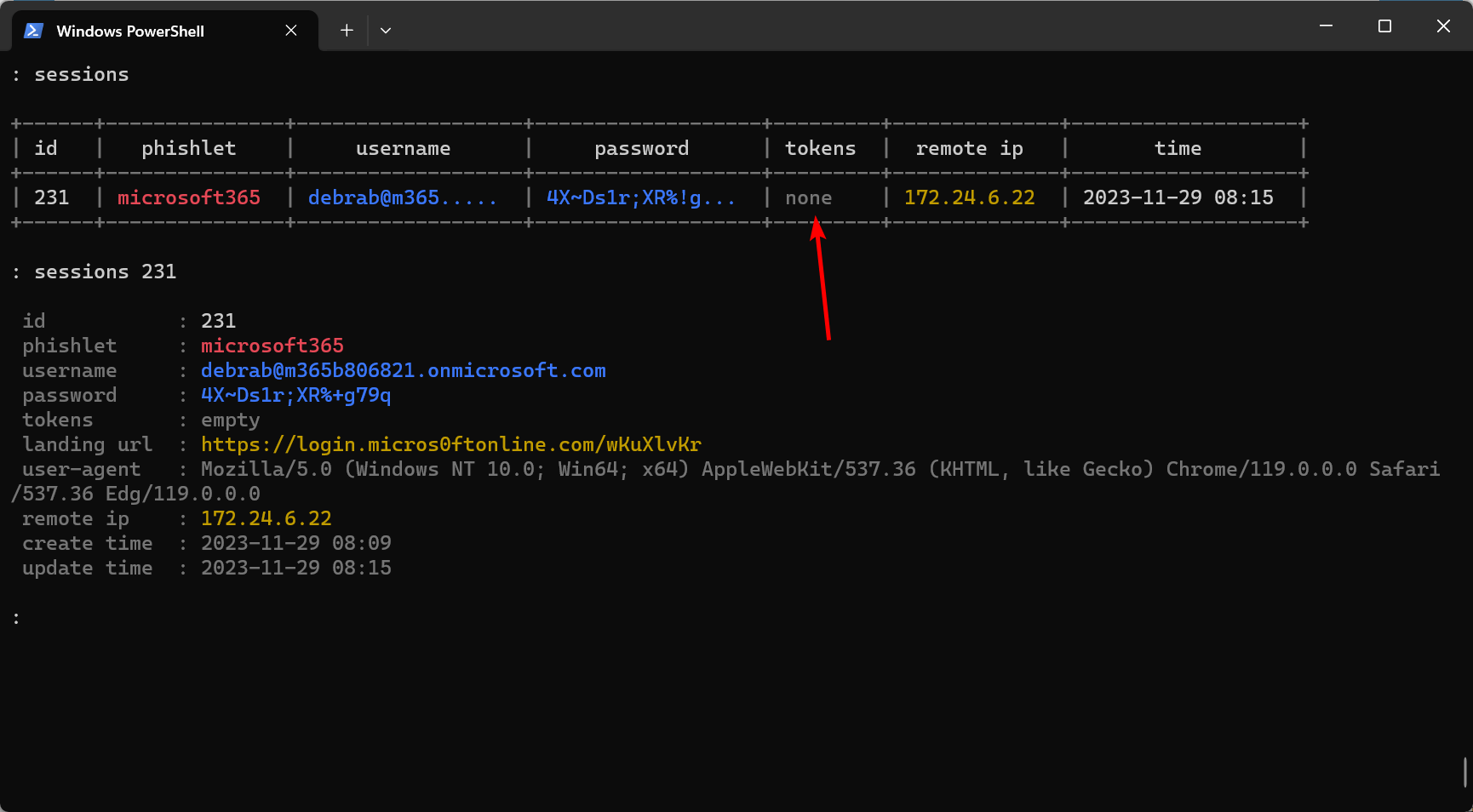
Okay, now we have the setup in place, let’s try to steal Debra’s token. For this attack, I used Evilginx. Debra clicks the lure and enters her credentials, but access is blocked due to Conditional Access and Global Secure Access.
Evilginx was able to steal the password but not the cookies/token.
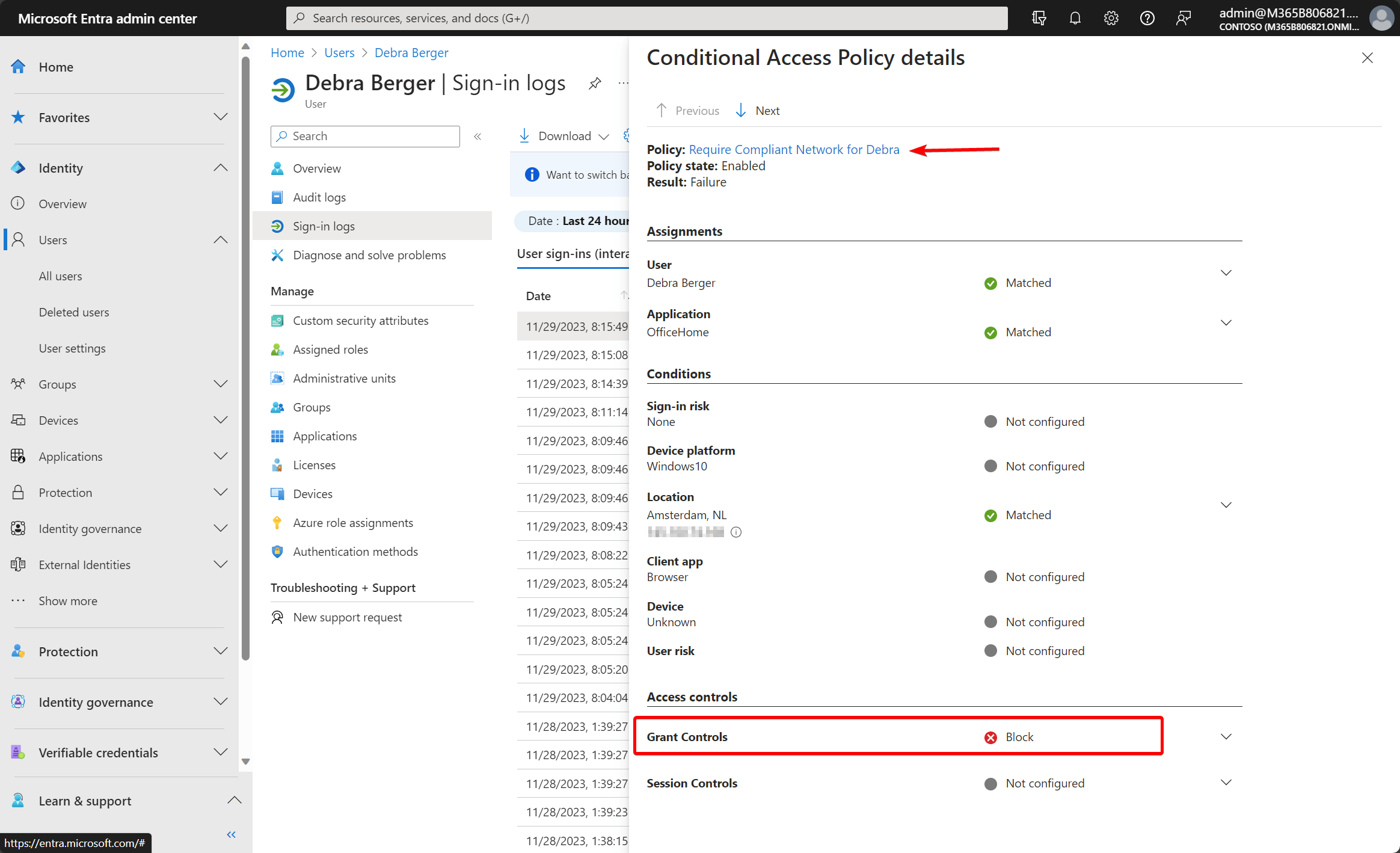
We can also check the Entra ID logs to confirm the session was blocked.
Replay the token#
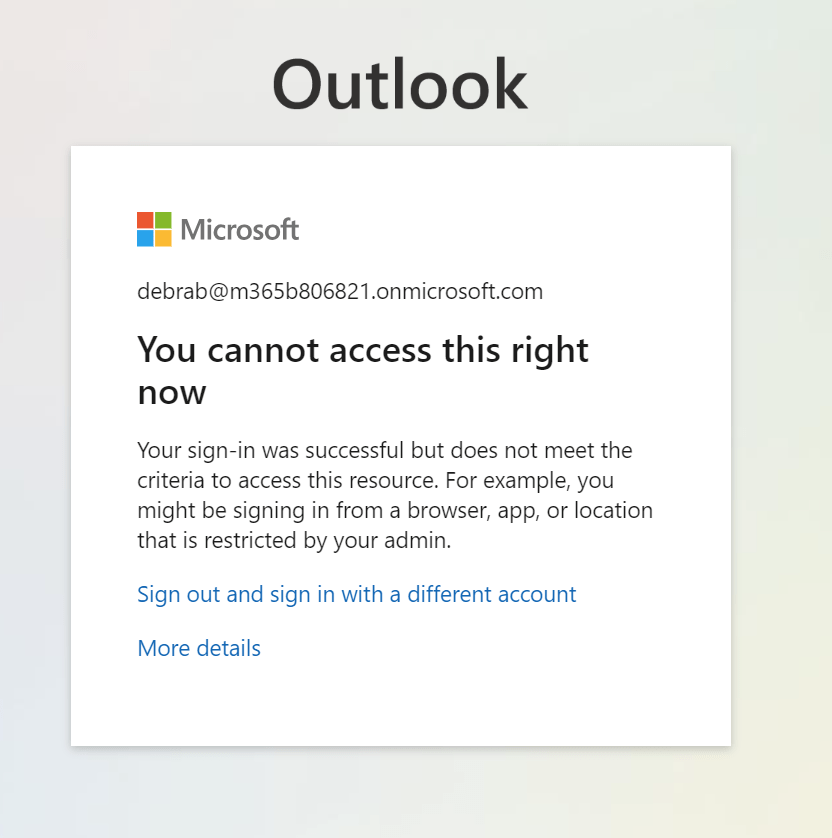
If you manage to steal the token otherwise, the token replay is also blocked by Conditional Access.
As expected, Conditional Access kicks in as this session does not come from a compliant network.

First thoughts#
In this example, we used the resource-based approach with Conditional Access, but do know that Global Secure Access will also bring Universal Conditional Access to the table. Learn about Universal Conditional Access through Global Secure Access | Microsoft Learn. Policies can be applied to network traffic, not just cloud applications. Exciting stuff.
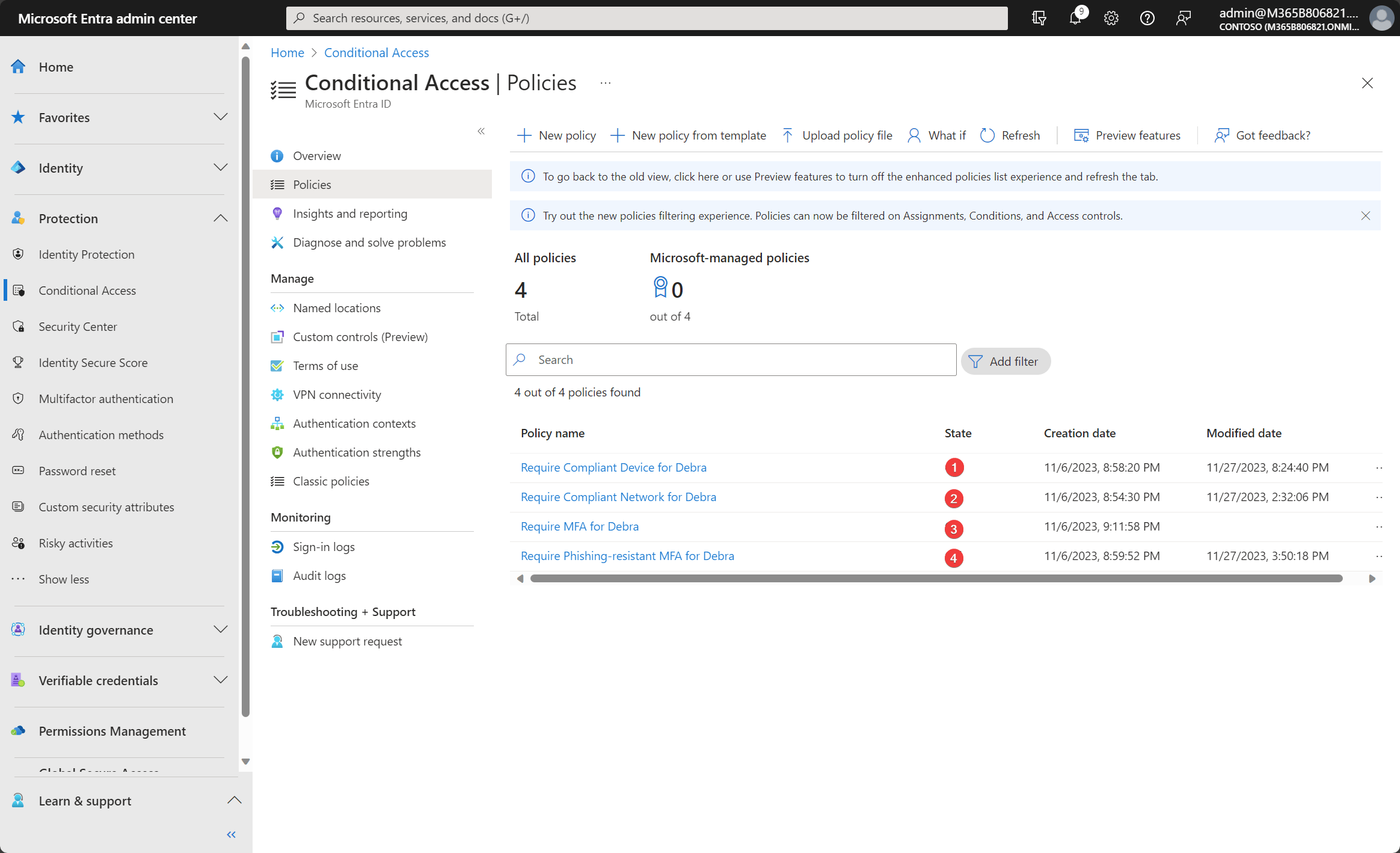
Being able to use a compliant network as a condition will add another layer to the defense line. Together with the other layers, this will definitely reduce the attack factor for AiTM attacks.
- Require compliant device. Devices not (hybrid) Entra joined, or compliant with Intune, will be blocked.
- Require a compliant network. This is the policy we just configured. Will prevent token theft and replay.
- Require MFA. Baseline protection for all apps.
- Require phishing-resistant authentication. Will enforce passkeys (FIDO2 and Windows Hello) or certificate-based authentication.
Learn more:
What is Global Secure Access (preview)? | Microsoft Learn
Learn about Universal Conditional Access through Global Secure Access | Microsoft Learn
The Global Secure Access Client for Windows (preview) | Microsoft Learn
Global Secure Access (preview) traffic forwarding profiles | Microsoft Learn
Stay safe!
Comments
Comments load when you scroll here.