
Poor man's IGA: Revoke all refresh tokens for user
On this page
This post is part of the “Poor Man’s IGA” series. The idea is simple: we pick one feature from the Entra ID Governance stack, and think of an alternative, cheap(er) way to get it done. Why?
- Every organization deserves proper IAM tools.
- Entra ID Governance is excellent, but too expensive for most organisations.
- Get the most out of your existing license and built-in features.
Most of all, making solutions as outlined in the post is like playing with LEGO. You will have different building blocks that can also be (re)used in other processes. Working with Logic Apps, managed identities, and Graph API will give you great flexibility to create your own creative solutions.
That being said, this post does not offer free services. I assume most organisations will have at least Entra ID Plan 1 licenses and are willing to spend a couple of dollars on Azure resources per month.
Here’s the full list of items that have been previously published:
- Poor man’s IGA: Revoke all refresh tokens for user
- Poor man’s IGA: Generate Temporary Access Pass for joiners
- Poor man’s IGA: Monitor and clean up stale guest accounts
- Your idea here (let me know!)
Today’s challenge#
Today, we look at Microsoft Entra ID Lifecycle Workflows. Microsoft has recently introduced a new task that revokes a user’s refresh token. Consider scenarios where the account is disabled and you also want to revoke all tokens, so the resources can no longer be accessed, or in cases where you need to terminate the account due to a compromise.
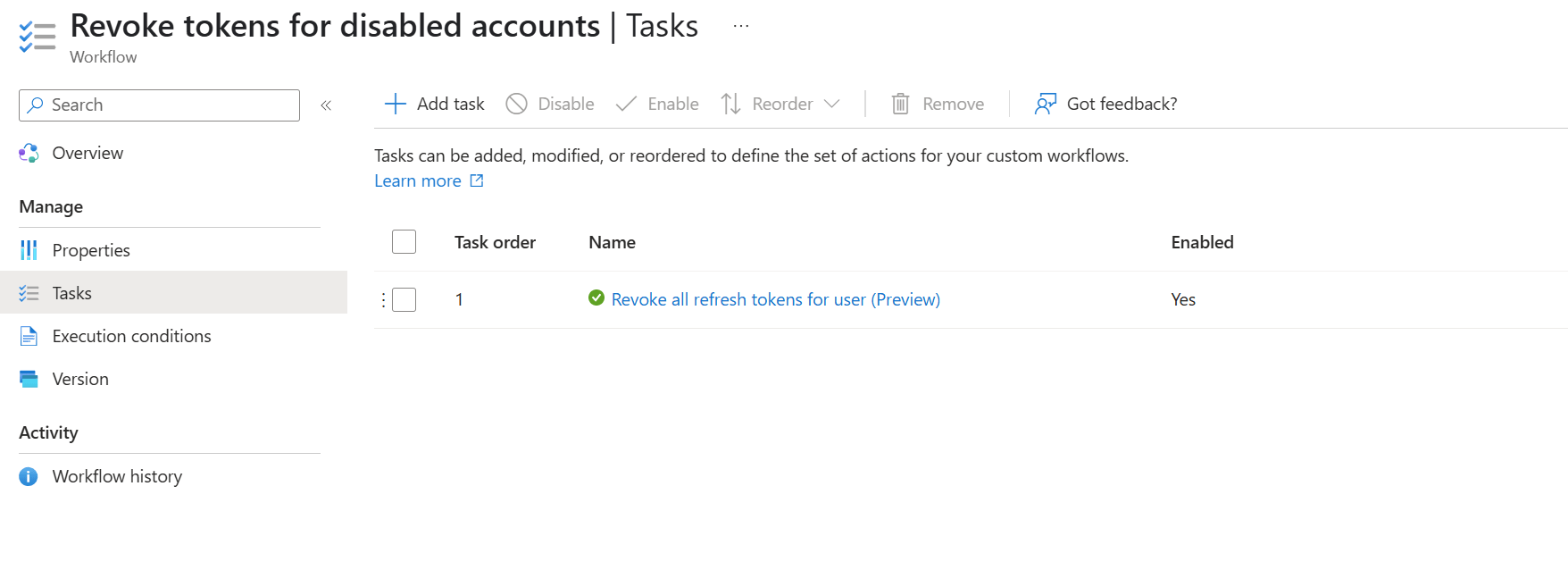
For this case, I will work out the following:
- The user account is disabled (trigger)
- The user account is added to a dynamic group
- A Logic App polls the Graph API for group membership changes
- When the Logic app is triggered, the refresh token is revoked using a Graph API call
The dynamic group#
First, let’s create a dynamic group in Entra ID with this membership rule:
(user.accountEnabled -eq false) and (user.userType -eq "Member")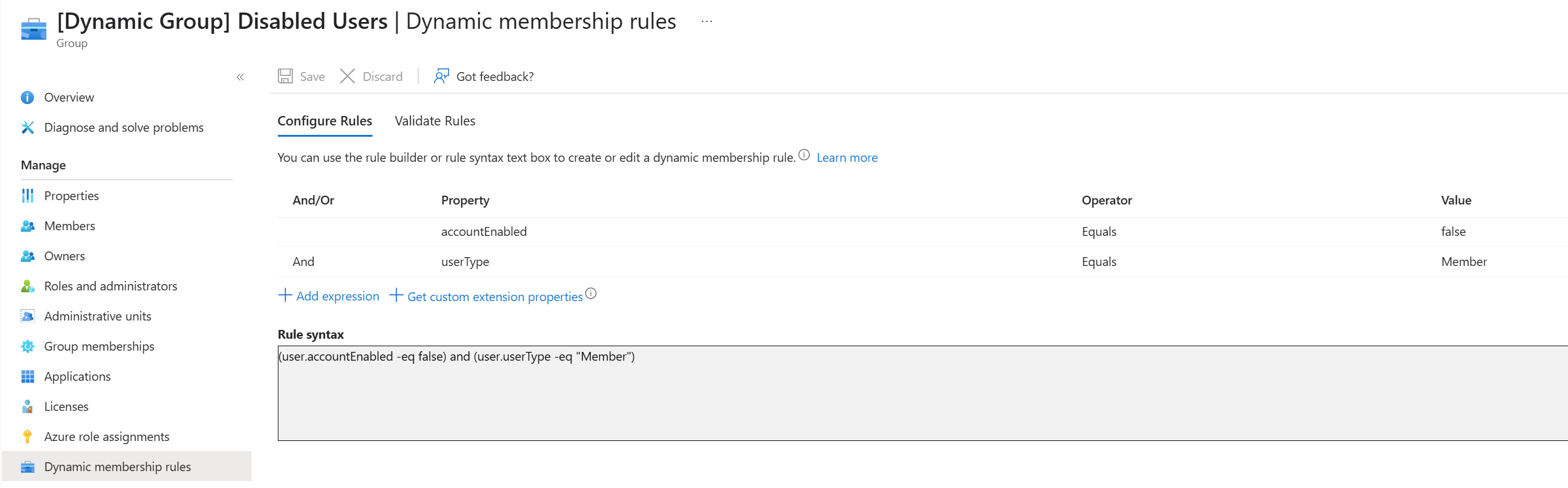
You guessed it, this group will automatically hold all disabled member accounts. When a user gets disabled, they will be automatically added to this group. This group will be used as our starting point.
The Logic App#
This blog post won’t dive into every step—that would be way too detailed! The complete Logic App is available on my GitHub page:
LogicApps/RevokeRefreshTokensForDisabledUsers.zip at main · BakkerJan/LogicApps
The next building block is the Logic App. In your Azure subscription, create a new (consumption-based) Logic App. Since the Logic App will also need to talk to the Graph API, we also attach a new managed identity to the Logic App.
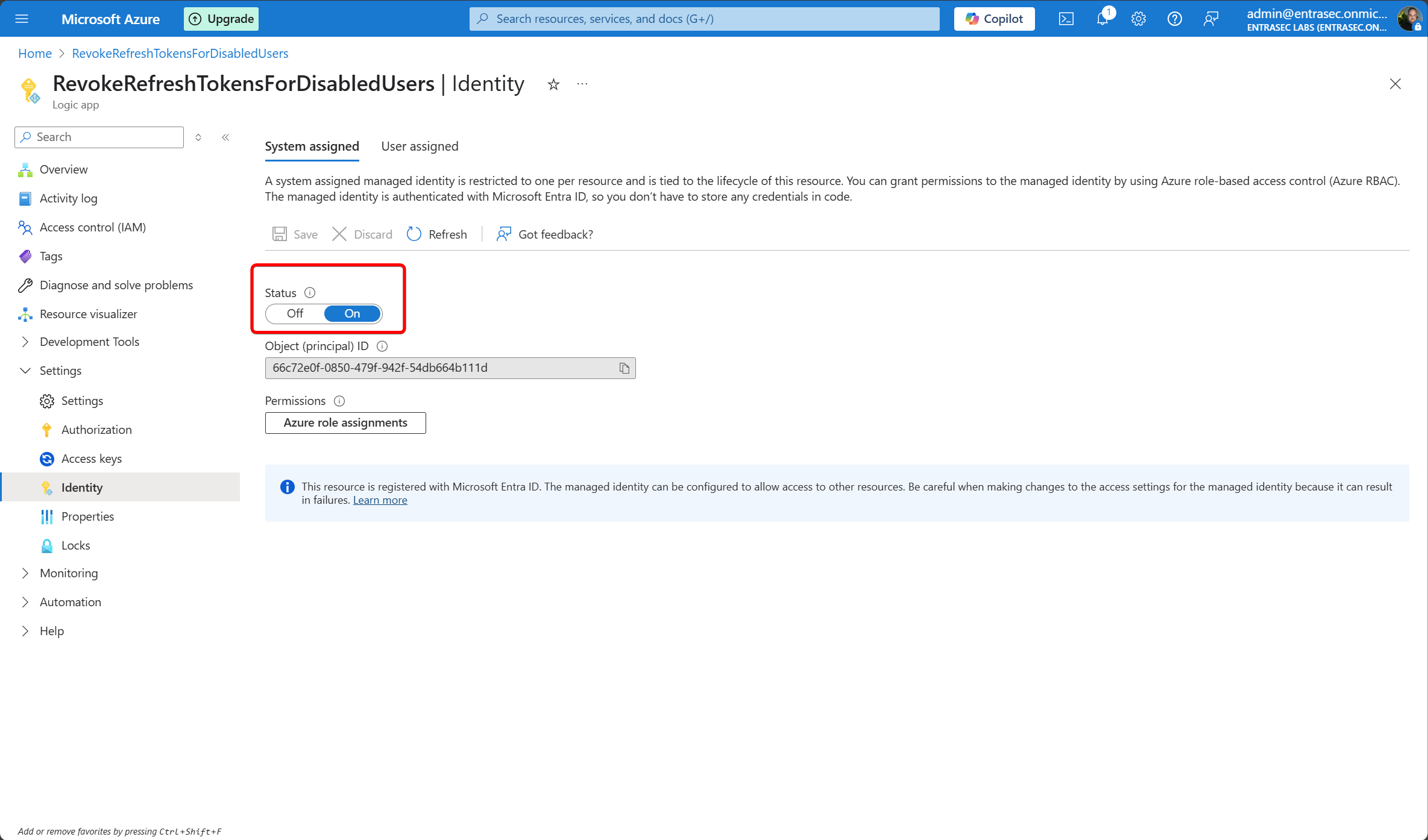
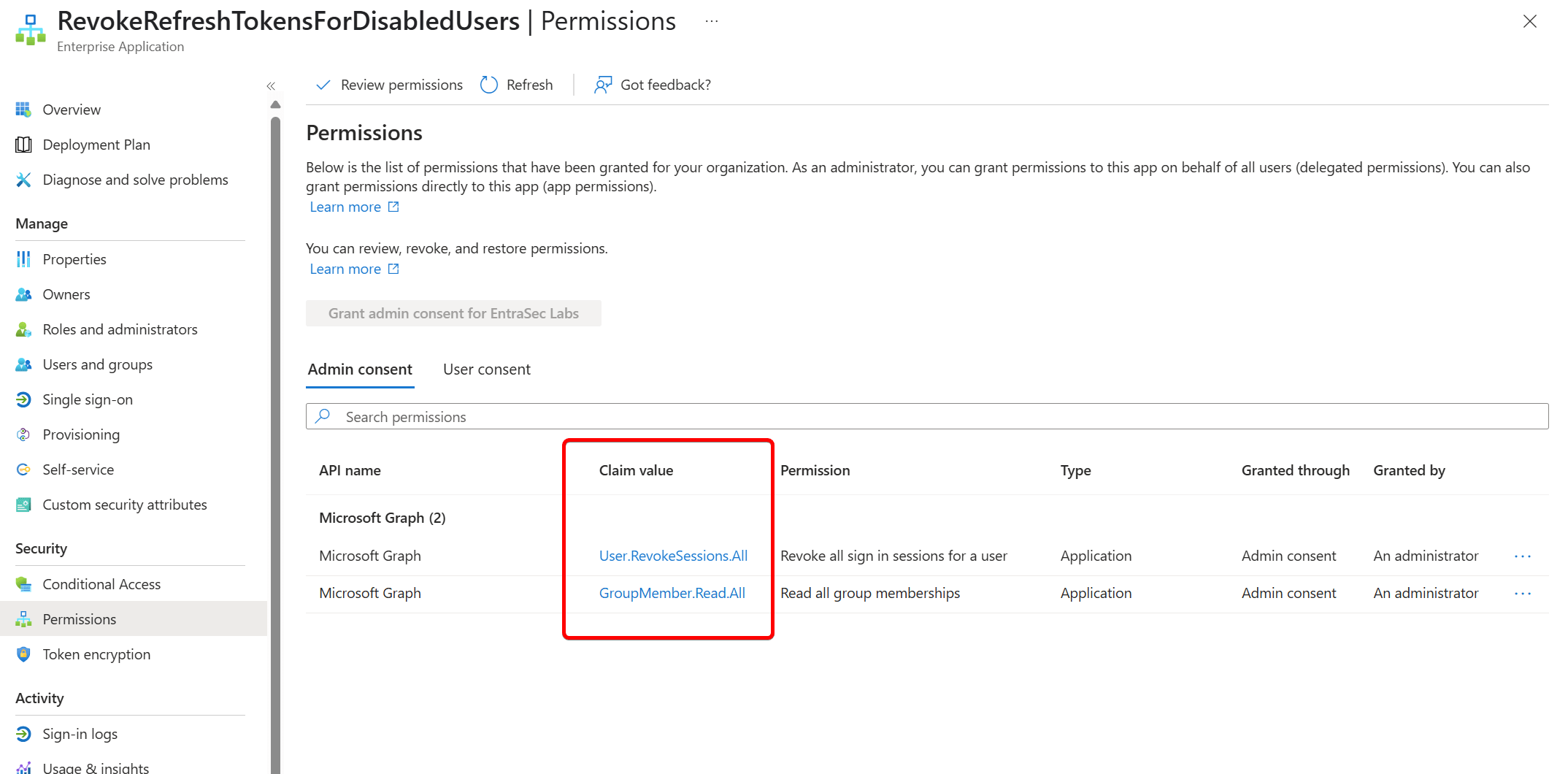
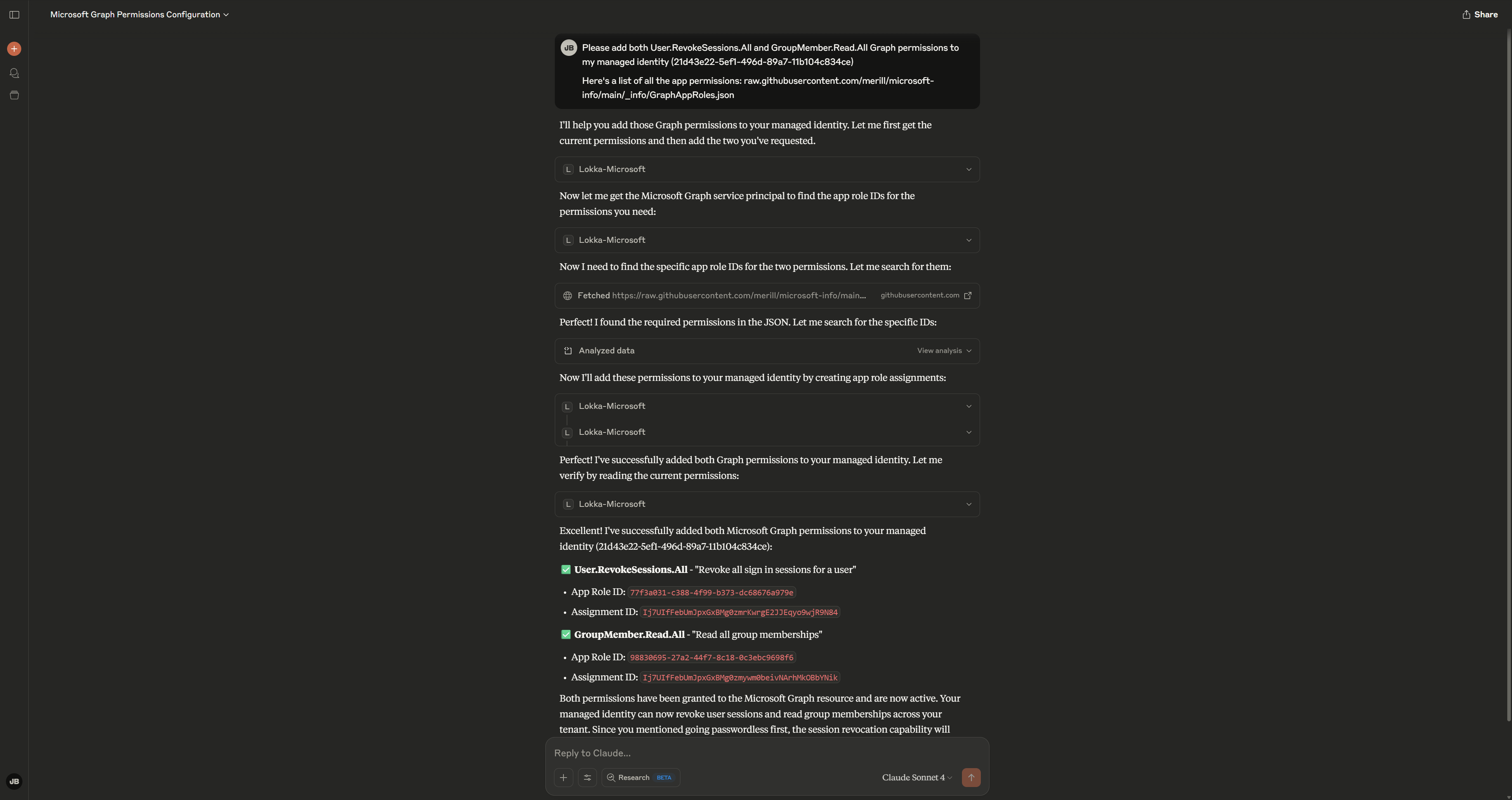
Setting the permissions for the Managed Identity is likely the most challenging part of this solution, as there is currently no way to do this via the Entra admin center or Azure portal. For our Logic App to work, the managed identity needs two permissions:
- GroupMember.Read.All (to read the group membership changes)
- User.RevokeSessions.All (to revoke the token)
The easiest way to do it is using Graph Explorer. This post was and still is my go-to source for this (thanks Jan).
Alternatively, if you totally lost me (I understand, been there as well), there is another option that you can use that is doable through the UI:
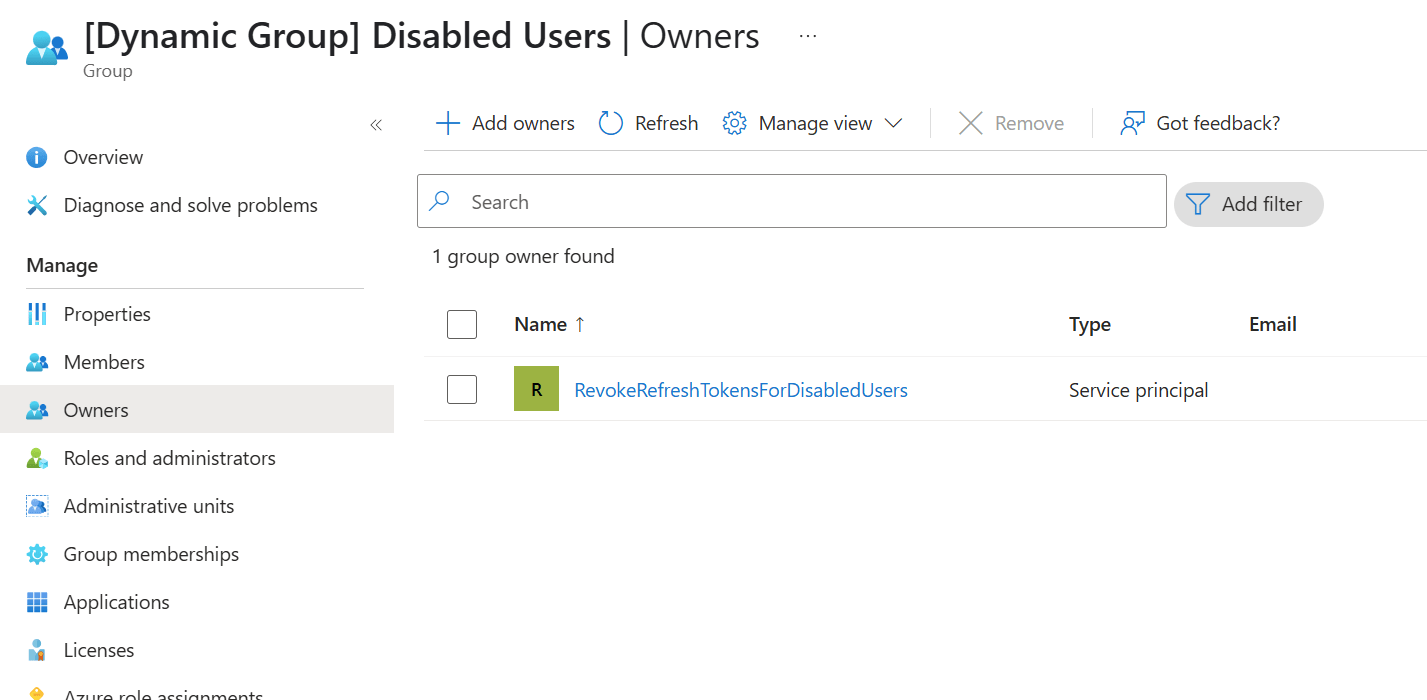
- Make the managed Identity the owner of the dynamic group
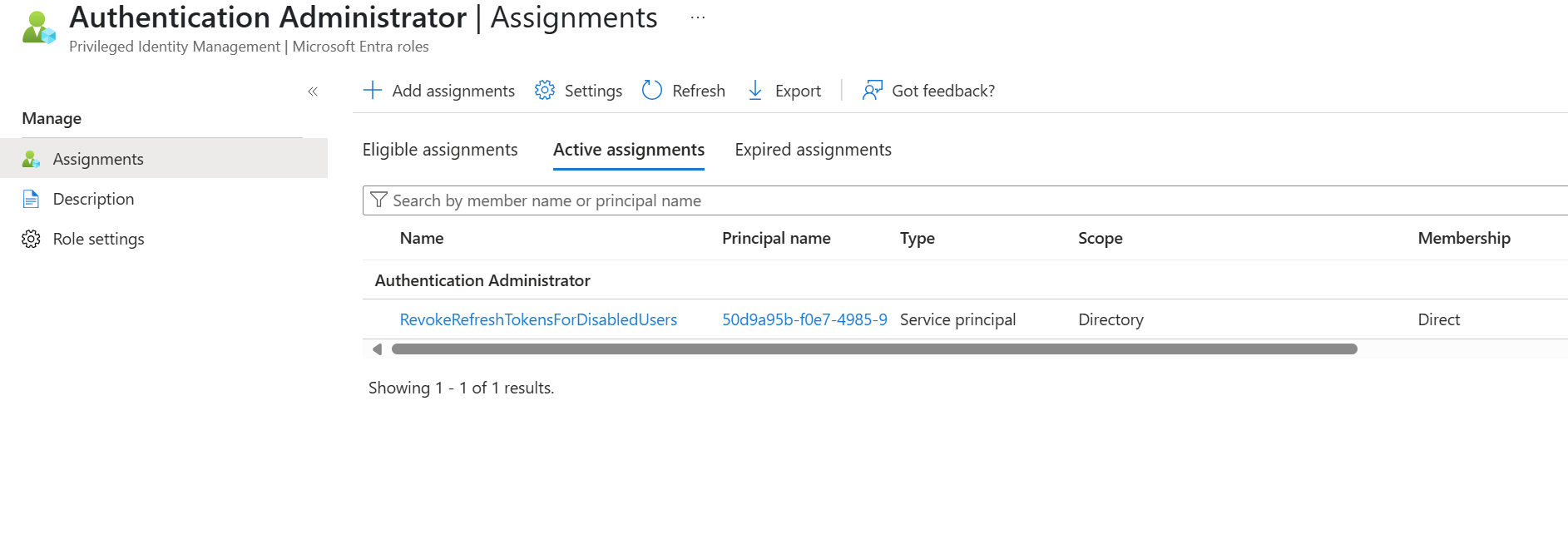
- Assign the Authentication Administrator role to the managed Identity
If you feel really fancy, ask Lokka to do it for you:
Okay, let’s move forward. Now that we have prepared the Logic App and managed identity, we can work on the parameters.
Please add two parameters with string type to the Logic App:
- GroupID: the ID of your dynamic group
- Audience: https://graph.microsoft.com
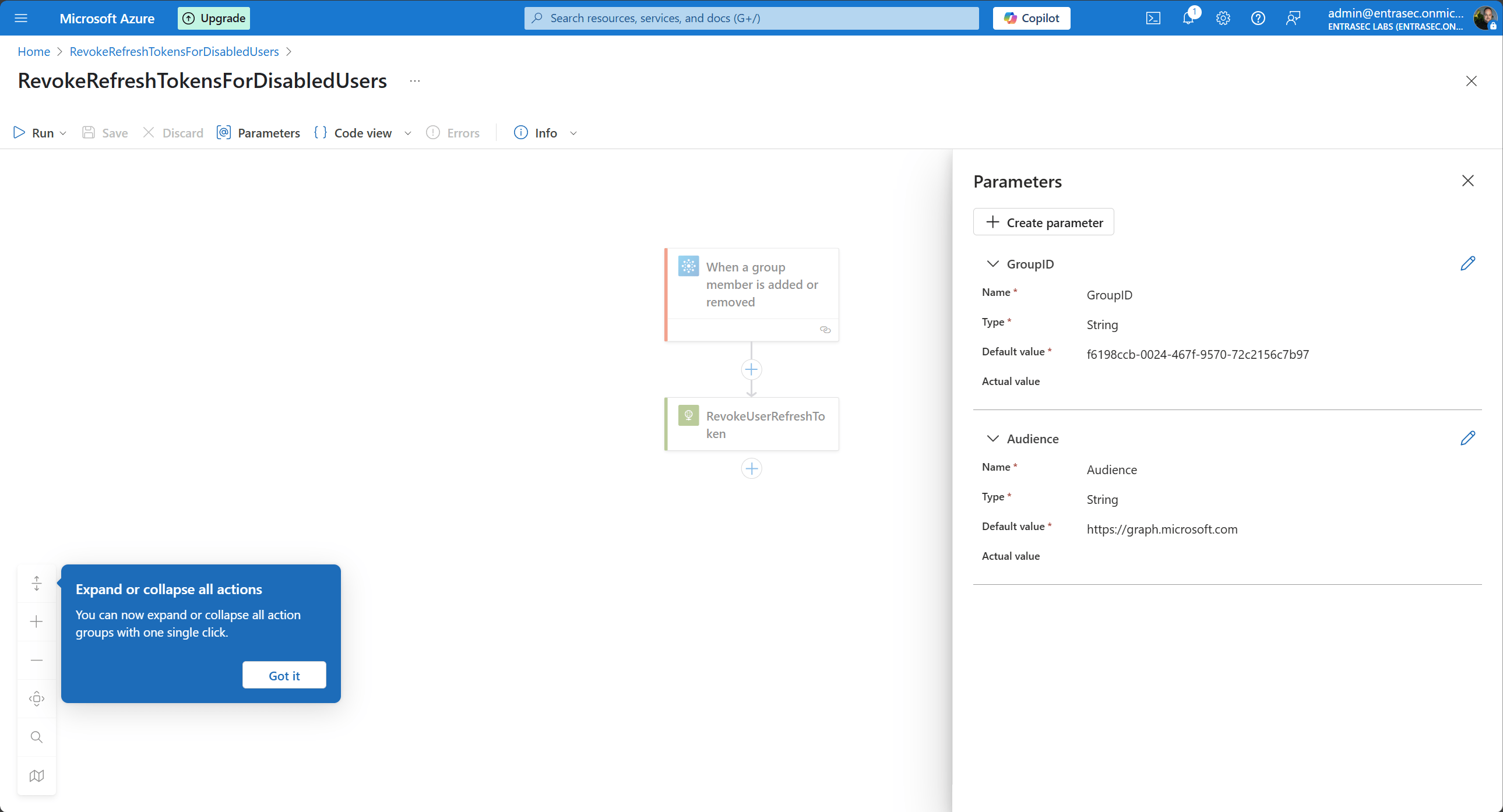
We will need these values in our next steps.
First, let’s create the trigger. We use the “When a group member is added or removed” trigger from the built-in Office 365 Groups connector. You can also set the trigger frequency by expanding the “How often do you want to check for items?” setting. By default, it is set to 3 minutes, which is fine for now.
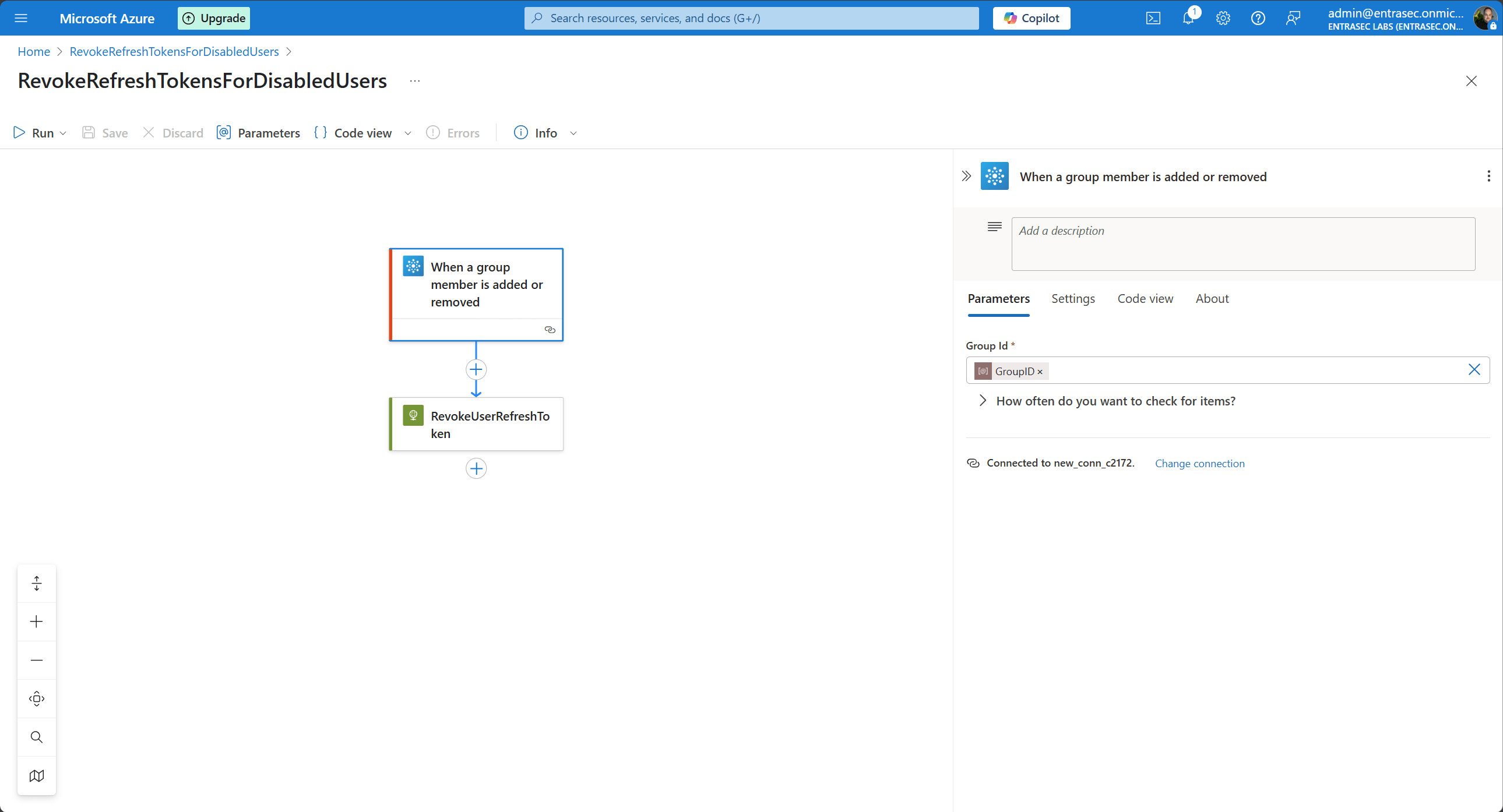
Here, we can put in the GroupID parameter as a dynamic value.
Since we only want to trigger this flow when a user is added to the group, we also set the trigger condition to:
@empty(triggerBody()?['@removed'])If you feel confused by this logic, please also read: Act on group membership changes in Azure Active Directory - JanBakker.tech
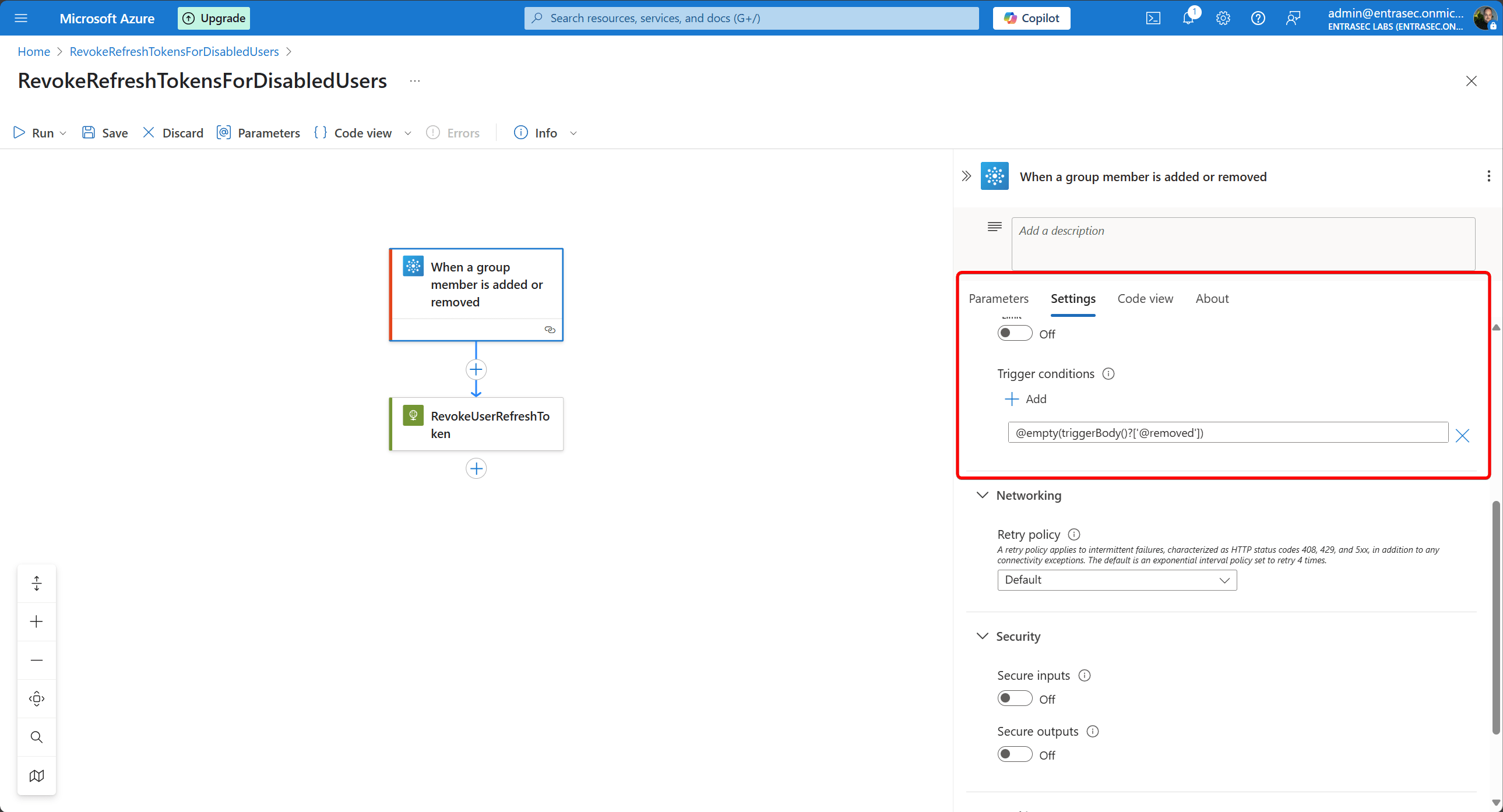
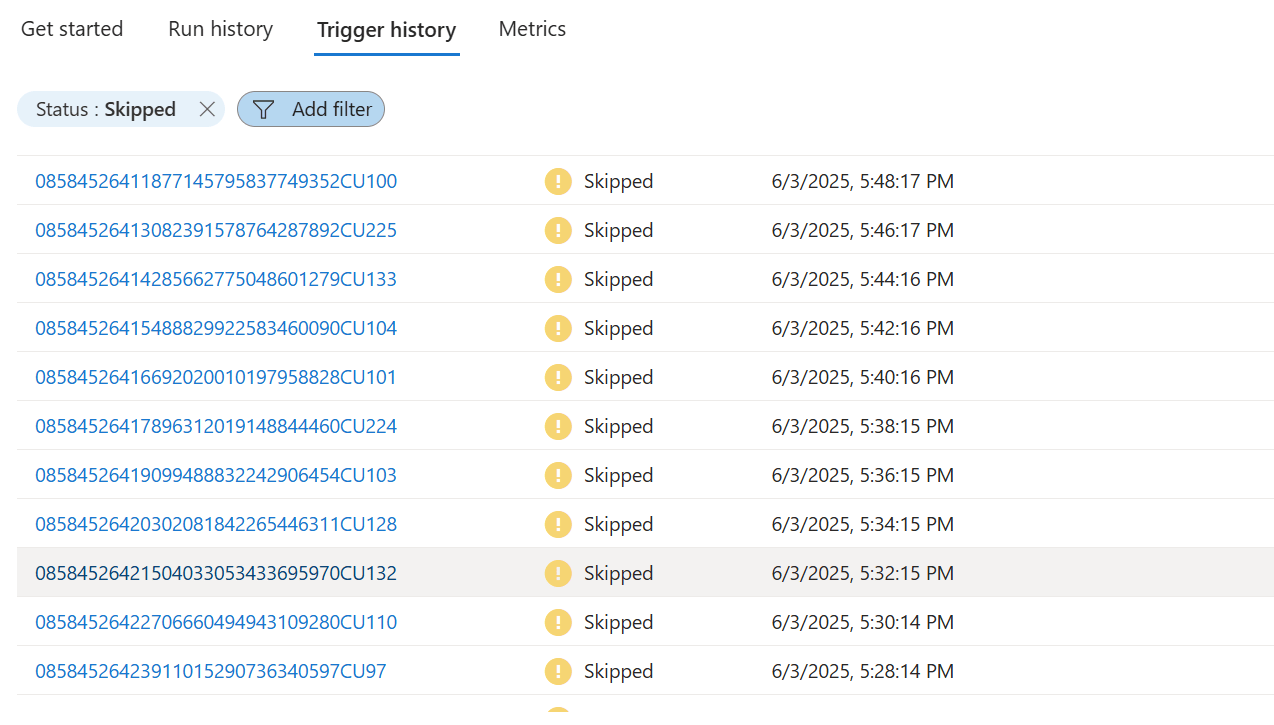
Setting the trigger condition will skip the trigger if there are no mutations in the group. That’ll also save us some money.
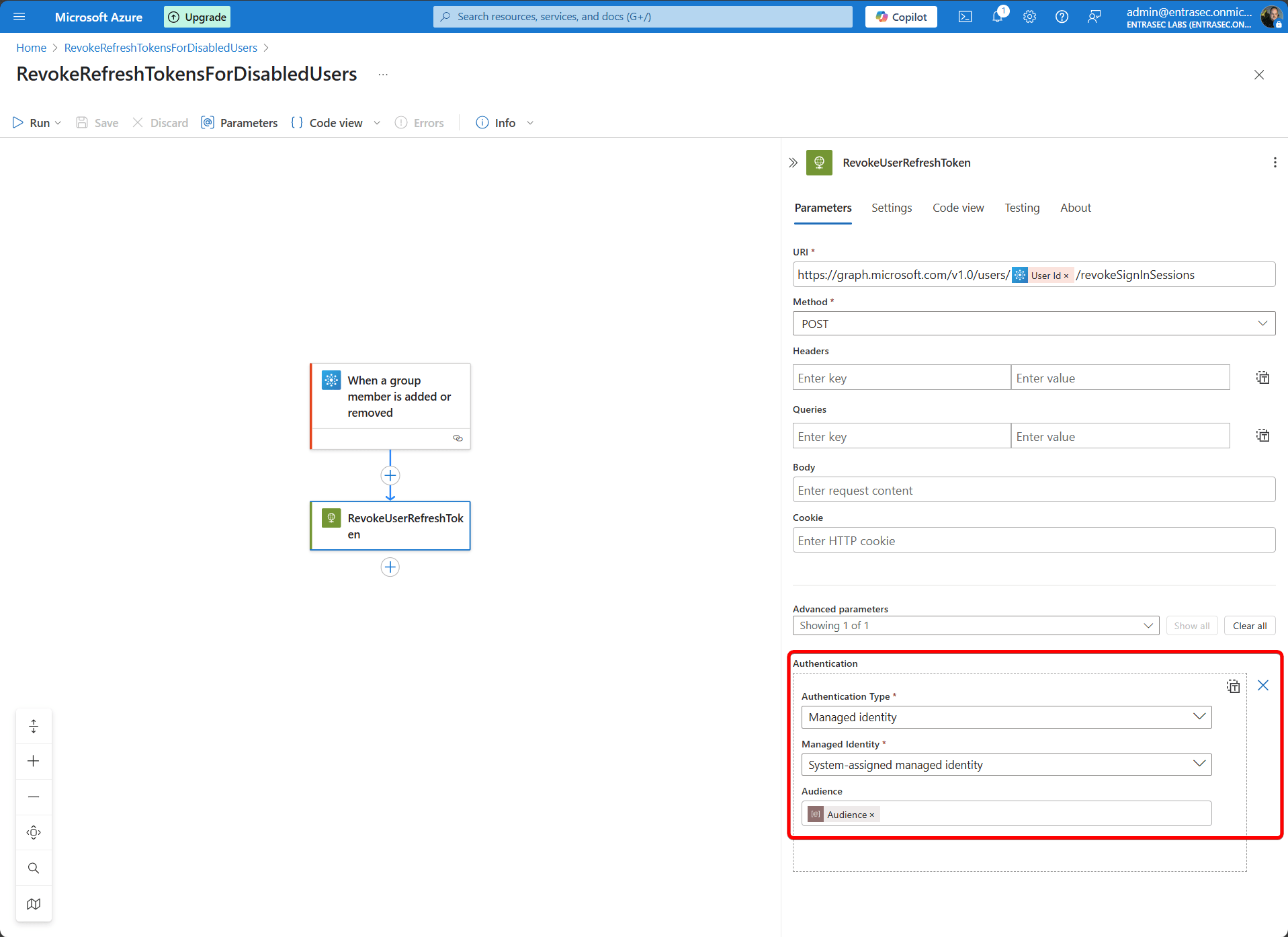
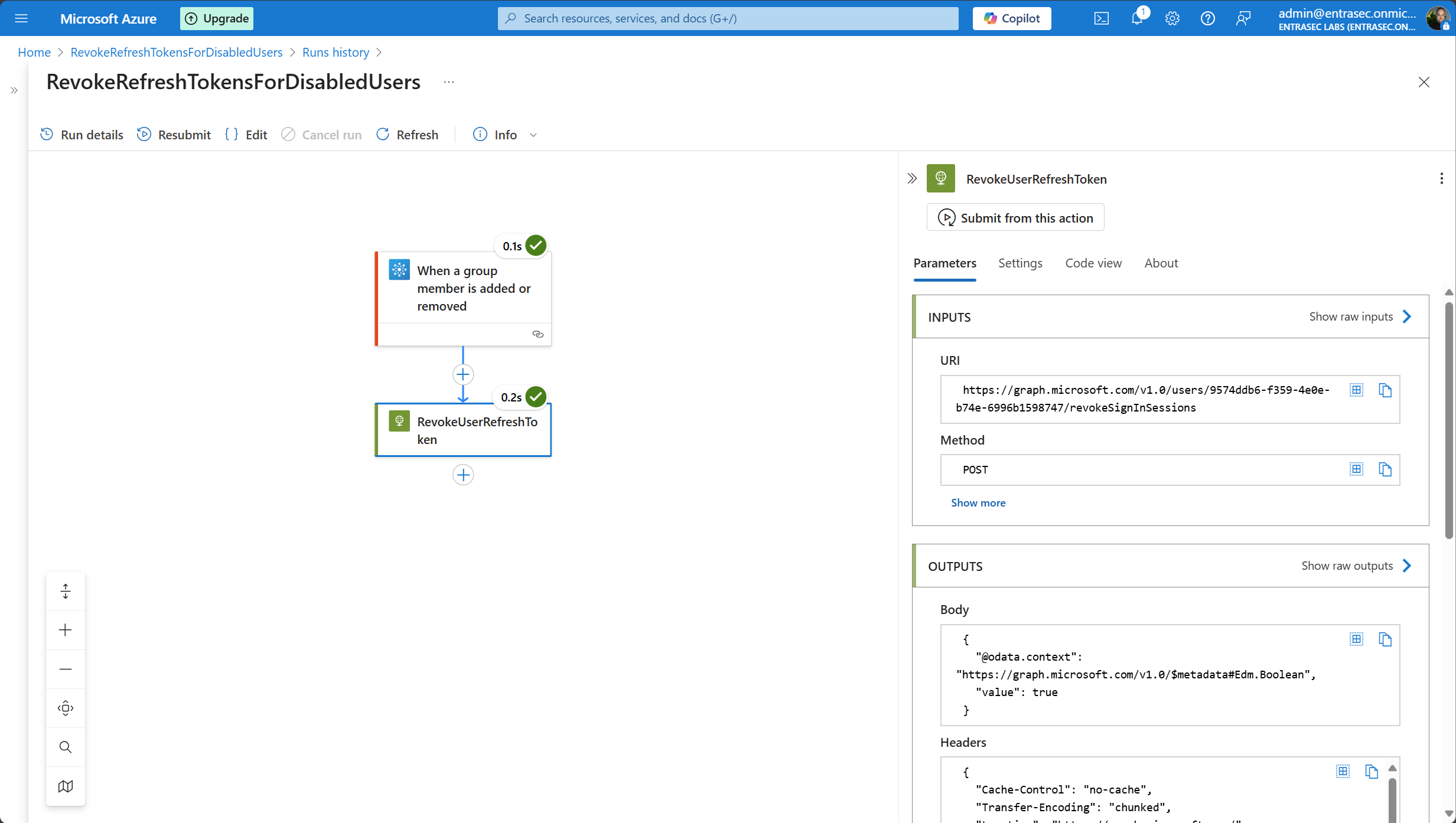
The next part of the Logic App is to revoke the token for the affected user. This is done by using the HTTP action.
https://graph.microsoft.com/v1.0/users/@{triggerBody()?['id']}/revokeSignInSessionsHere, we will use the user’s ID in the HTTP call to the Graph API. In the authentication section, we reference the managed identity and specify it in the Audience parameter.
The entire Logic App code view will look like this:
{
    "definition": {
        "$schema": "https://schema.management.azure.com/providers/Microsoft.Logic/schemas/2016-06-01/workflowdefinition.json#",
        "contentVersion": "1.0.0.0",
        "triggers": {
            "When_a_group_member_is_added_or_removed": {
                "type": "ApiConnection",
                "inputs": {
                    "host": {
                        "connection": {
                            "name": "@parameters('$connections')['office365groups']['connectionId']"
                        }
                    },
                    "method": "get",
                    "path": "/trigger/v1.0/groups/delta",
                    "queries": {
                        "groupId": "@parameters('GroupID')",
                        "$select": "members"
                    }
                },
                "recurrence": {
                    "interval": 1,
                    "frequency": "Minute",
                    "timeZone": "W. Europe Standard Time"
                },
                "conditions": [
                    {
                        "expression": "@empty(triggerBody()?['@removed'])"
                    }
                ],
                "splitOn": "@triggerBody()"
            }
        },
        "actions": {
            "RevokeUserRefreshToken": {
                "type": "Http",
                "inputs": {
                    "uri": "https://graph.microsoft.com/v1.0/users/@{triggerBody()?['id']}/revokeSignInSessions",
                    "method": "POST",
                    "authentication": {
                        "type": "ManagedServiceIdentity",
                        "audience": "@{parameters('Audience')}"
                    }
                },
                "runAfter": {},
                "runtimeConfiguration": {
                    "contentTransfer": {
                        "transferMode": "Chunked"
                    }
                }
            }
        },
        "outputs": {},
        "parameters": {
            "GroupID": {
                "defaultValue": "f6198ccb-0024-467f-9570-72c2156c7b97",
                "type": "String"
            },
            "Audience": {
                "defaultValue": "https://graph.microsoft.com",
                "type": "String"
            },
            "$connections": {
                "type": "Object",
                "defaultValue": {}
            }
        }
    },
    "parameters": {
        "$connections": {
            "type": "Object",
            "value": {
                "office365groups": {
                    "id": "/subscriptions/cf90be6d-b1a0-42a9-a904-660cc0c40c7f/providers/Microsoft.Web/locations/westeurope/managedApis/office365groups",
                    "connectionId": "/subscriptions/cf90be6d-b1a0-42a9-a904-660cc0c40c7f/resourceGroups/IAM-LCM/providers/Microsoft.Web/connections/office365groups",
                    "connectionName": "office365groups",
                    "connectionProperties": {
                        "authentication": {
                            "type": "ManagedServiceIdentity"
                        }
                    }
                }
            }
        }
    }
}
Let’s see it in action!#
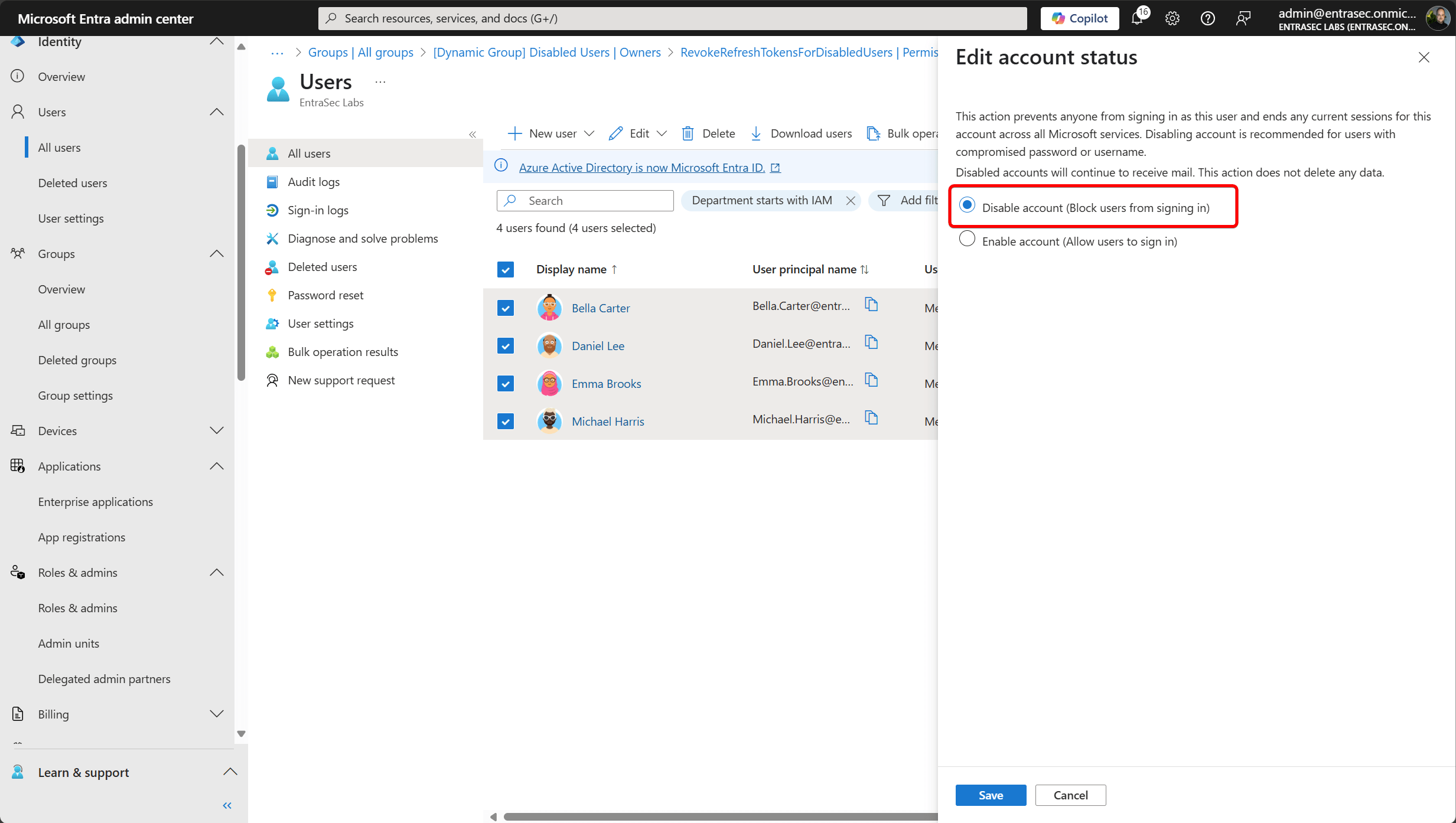
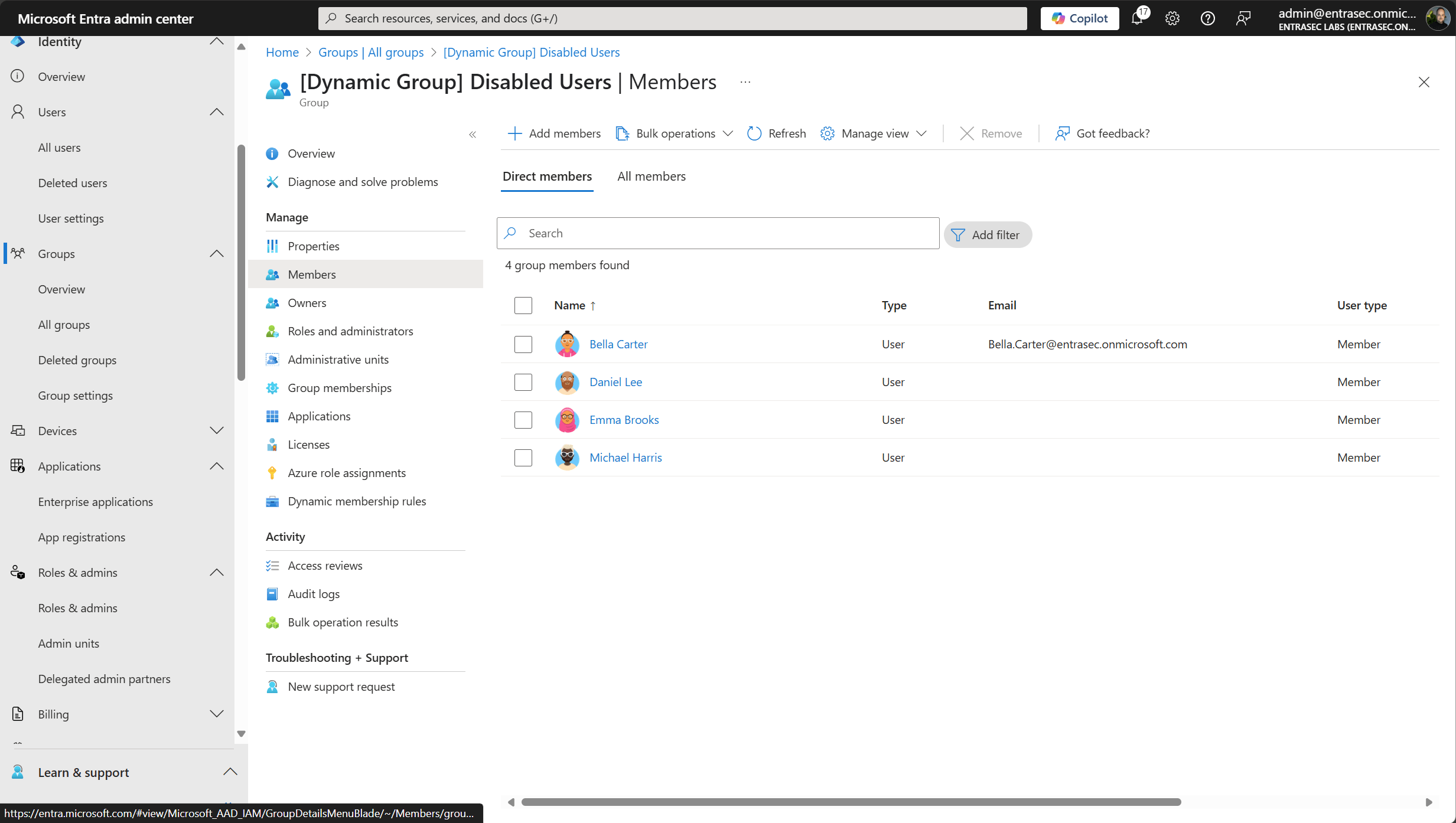
Okay, that was all the prep work. Let’s see if it works. For my test, I’ll disable a few user accounts in my test tenant. They will be picked up by the dynamic group, and if the Logic App runs, the session tokens will be revoked.
Disable the accounts:
Picked up by the group:
Logic App is kicked off:
The audit logs will tell the entire story:
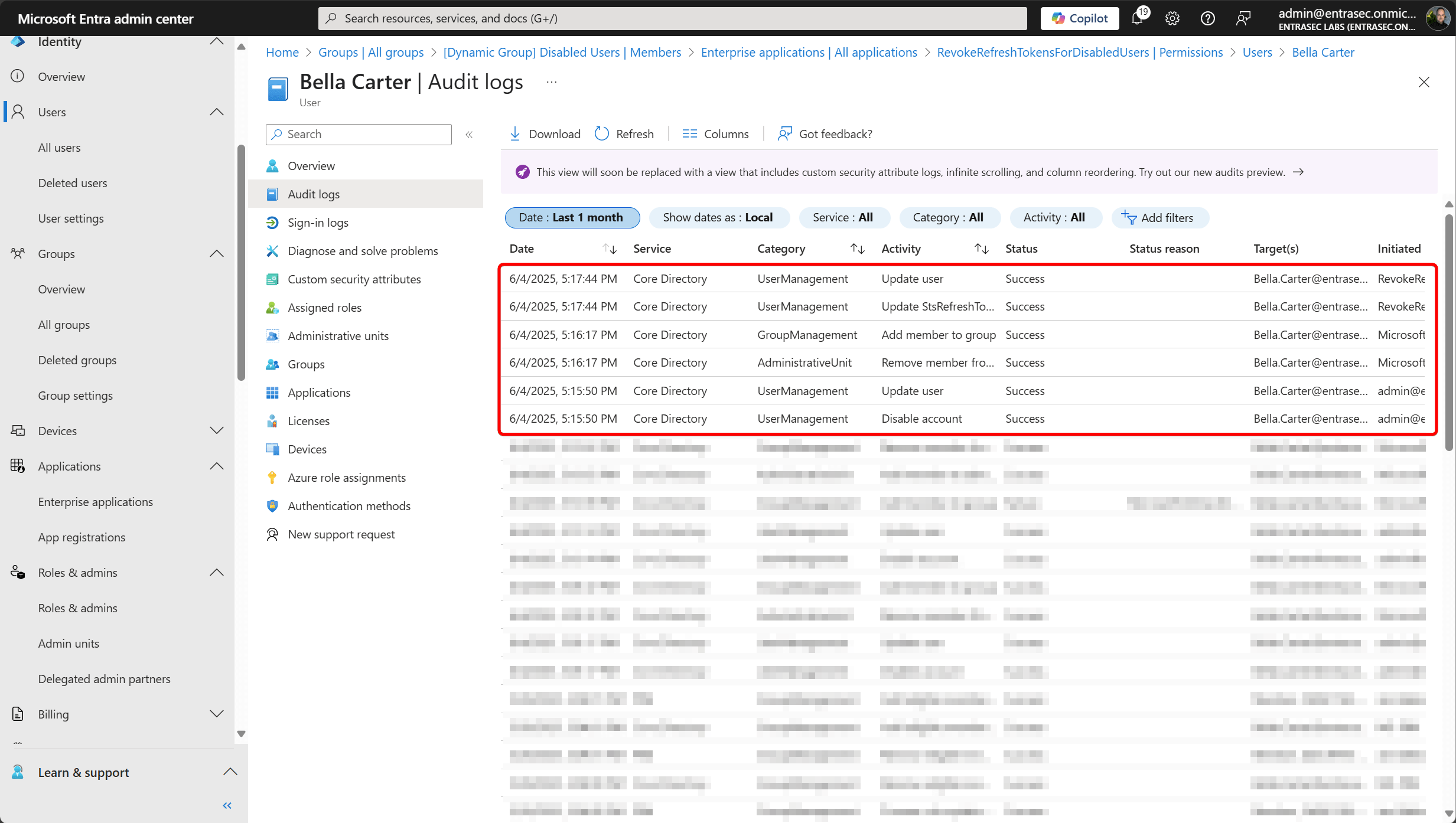
It’s pretty impressive, as the user is disabled at 5:15:50 PM and the token is revoked at 5:17:44 PM. In larger tenants, this might take (a bit) longer.
Let’s wrap up#
If you’ve made it this far, you probably wonder why it’s still so cumbersome to assign permissions to managed identities these days.
Anyway, this was the first part of the poor man’s IGA series, and I hope you’ve learned a thing or two.
Stay tuned for the next one!
Comments
Comments load when you scroll here.