
Poor man’s IGA: Monitor and clean up stale guest accounts
On this page
This post is part of the “Poor Man’s IGA” series. The idea is simple: we pick one feature from the Entra ID Governance stack, and think of an alternative, cheap(er) way to get it done. Why?
- Every organization deserves proper IAM tools.
- Entra ID Governance is excellent, but too expensive for most organisations.
- Get the most out of your existing license and built-in features.
Most of all, making solutions as outlined in the post is like playing with LEGO. You will have different building blocks that can also be (re)used in other processes. Working with Logic Apps, managed identities, and Graph API will give you great flexibility to create your own creative solutions.
That being said, this post does not offer free services. I assume most organisations will have at least Entra ID Plan 1 licenses and are willing to spend a couple of dollars on Azure resources per month.
Here’s the full list of items that have been previously published:
- Poor man’s IGA: Revoke all refresh tokens for user
- Poor man’s IGA: Generate Temporary Access Pass for joiners
- Poor man’s IGA: Monitor and clean up stale guest accounts
- Your idea here (let me know!)
Today’s challenge#
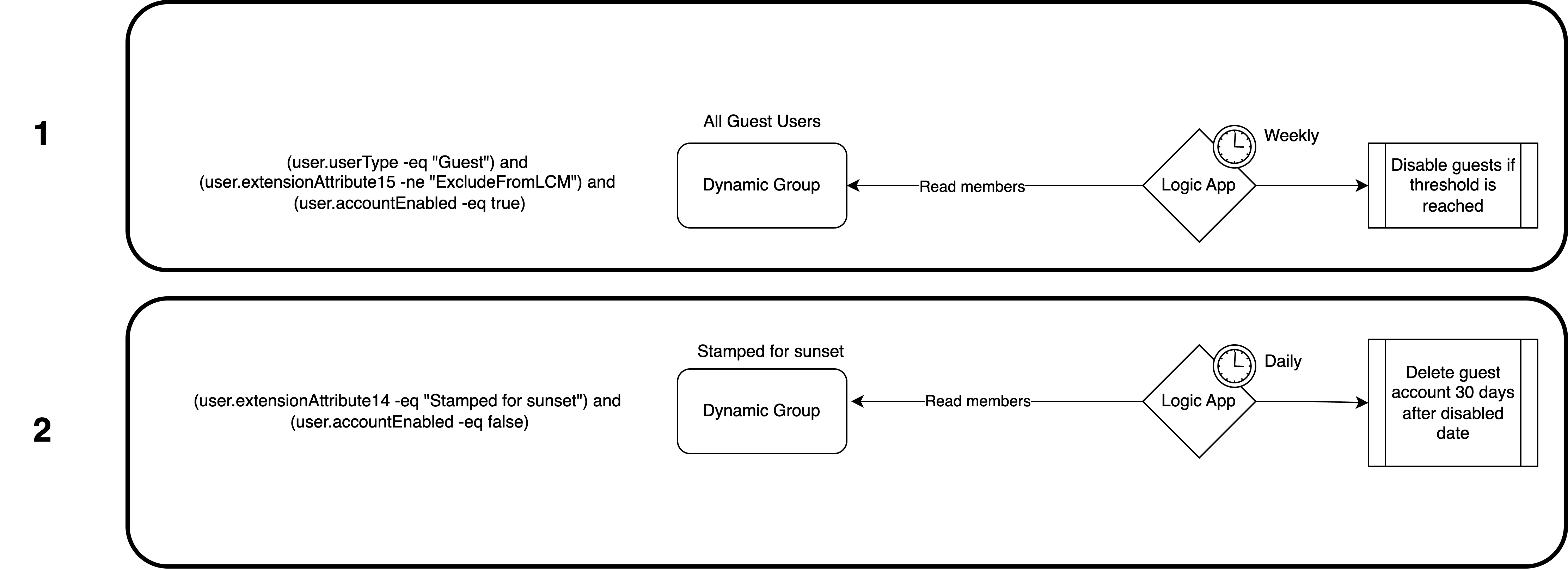
Today, we are dealing with inactive or stale guest users in a tenant. Entra ID Governance has several ways to solve this, but if you had those licenses, you wouldn’t be here. For today’s challenge, I built two Dynamic Groups and two Logic Apps.
Process 1#
The first process involves a Dynamic Group that holds all enabled guest accounts in your tenant. This group will be pulled in by the Logic App, to check their sign-in activity.
The group query can be modified, but I’ve included an escape if you want to exclude certain guest accounts from this process. Simply add “ExcludeFromLCM” in the extensionAttribute15.
The dynamic membership rule looks like this:
(user.userType -eq "Guest") and (user.extensionAttribute15 -ne "ExcludeFromLCM") and (user.accountEnabled -eq true)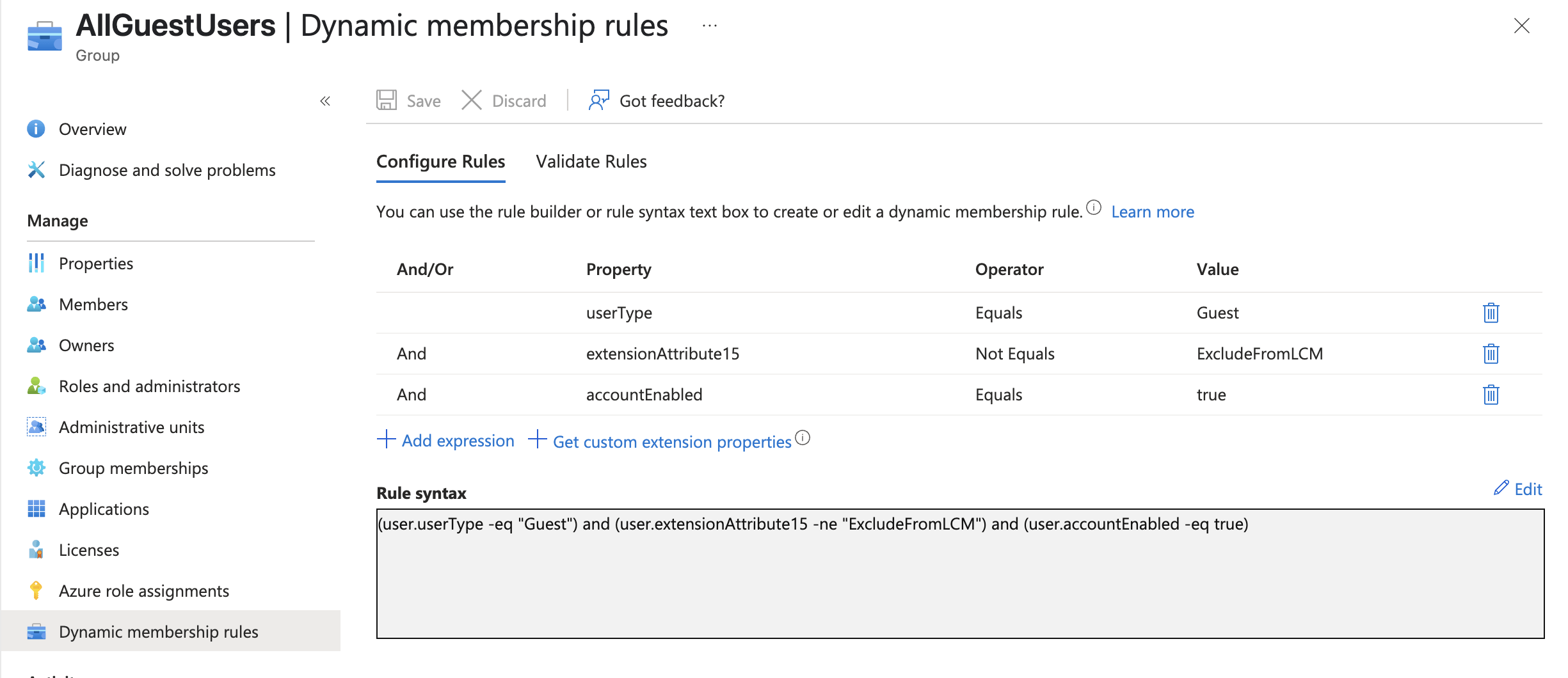
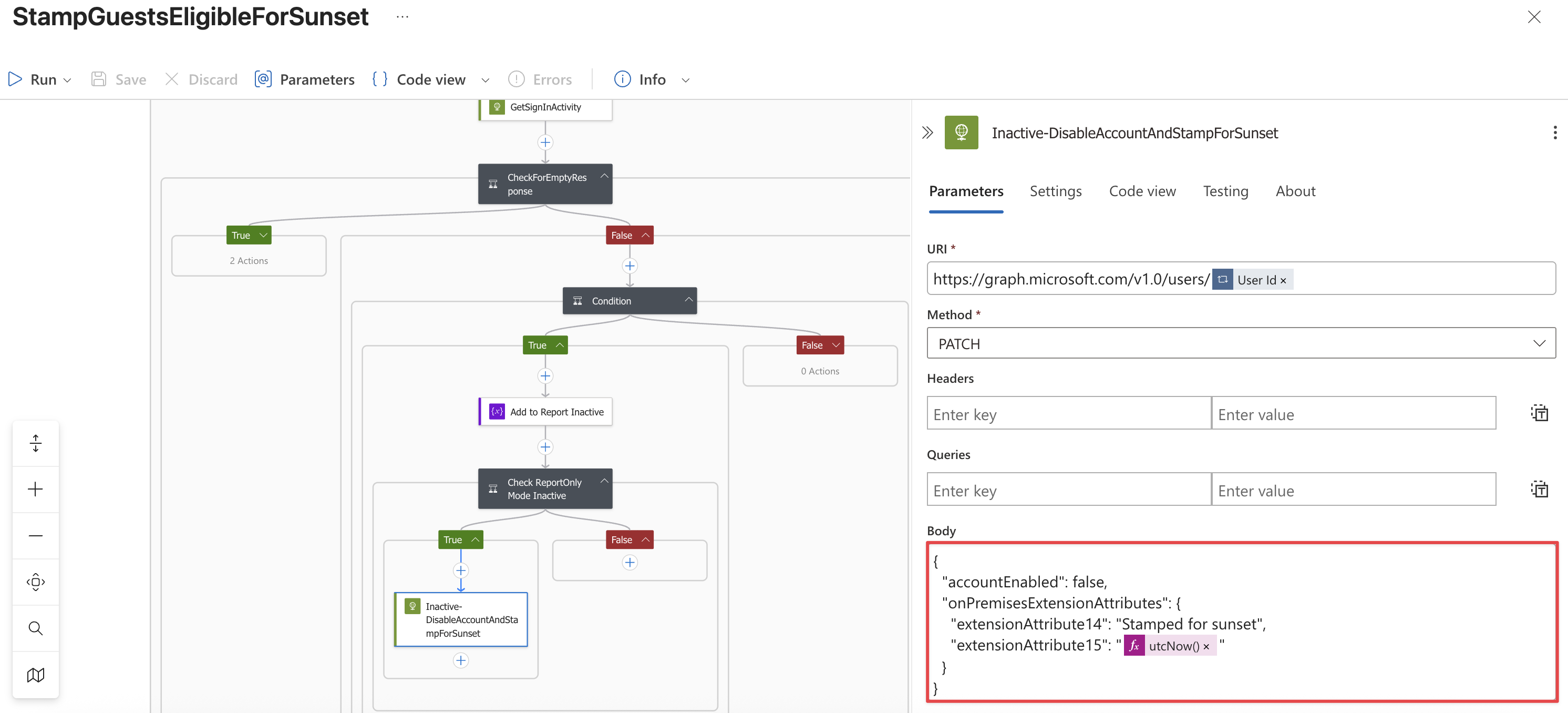
The Logic App will run weekly. It will pull all members from the group and loop through each one to check their last sign-in date. When it reaches the threshold (default 180 days), it will disable the account and stamp the current date and time in extensionAttribute15.
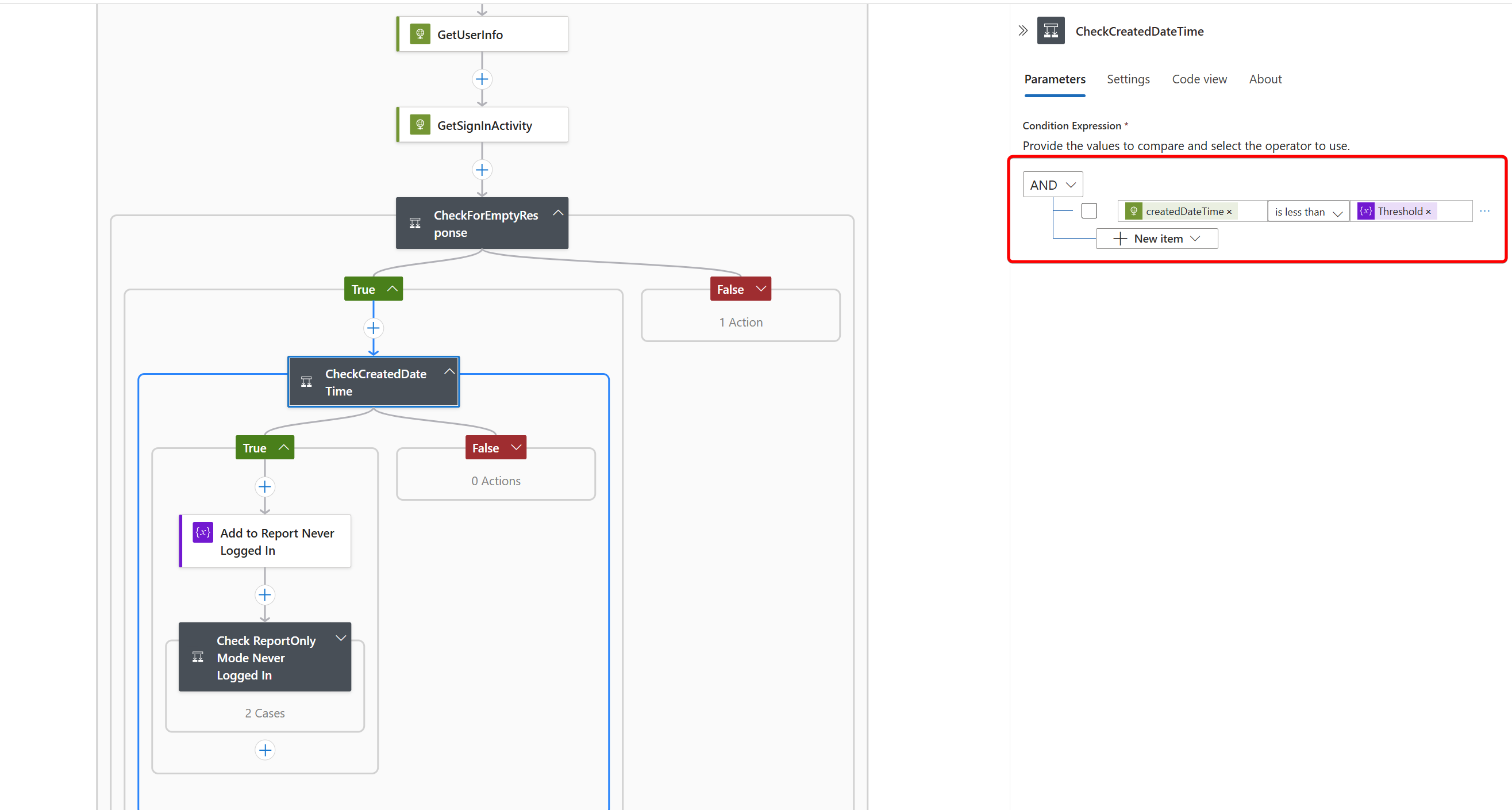
Guest users who never signed in (for whatever reason) do not have a sign-in property associated with them, so in this use case, the creationdate of the account is compared to the threshold.
Report-only#
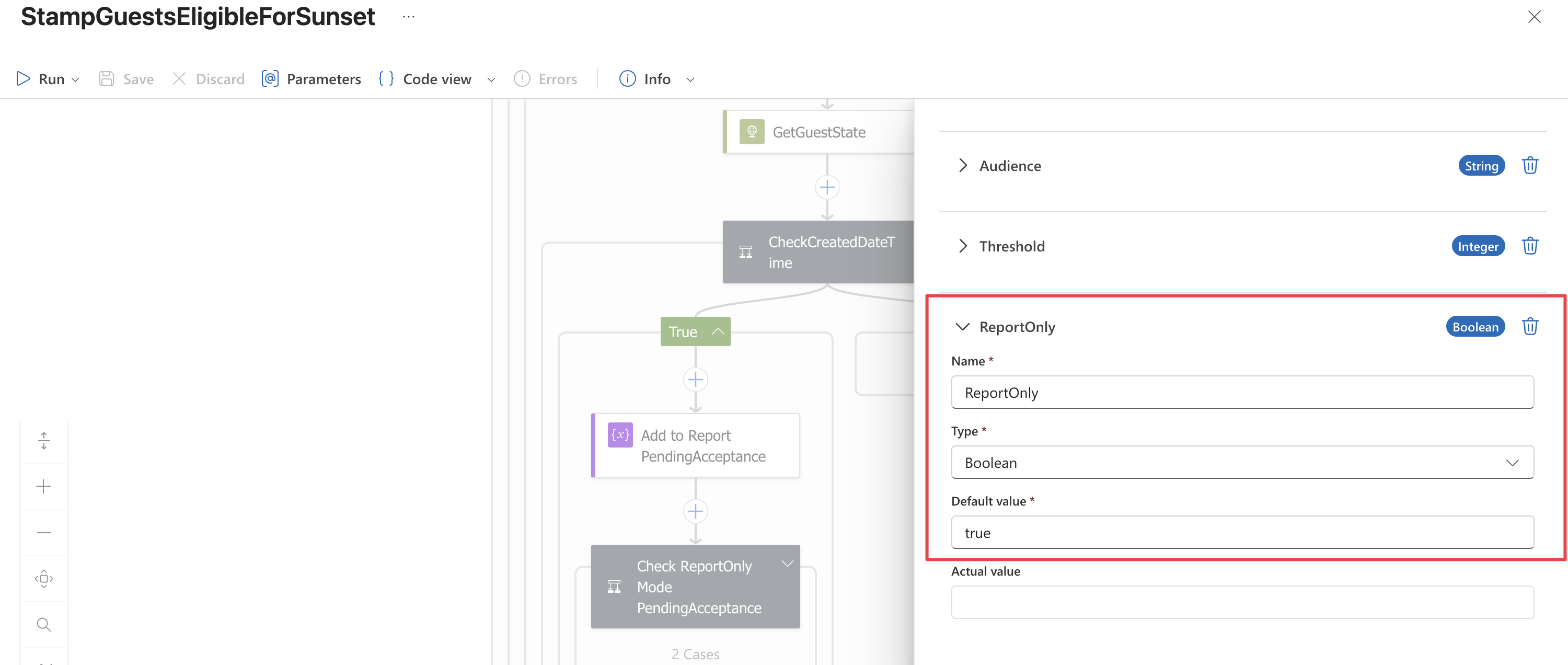
The Logic App has a report-only parameter that can be set to simulate the process before putting it into production. By setting this parameter, the Logic App will run through all the steps, but the actual actions will be prevented from executing. You can use the JSON report to see the results and potential impact.
Process 2#
The second process will lean on a second Dynamic Group that holds all the disabled guest accounts, stamped by the first Logic App. Users in this group are put on sunset, and have a 30-day grace period before their account is permanently deleted from the tenant. The membership rule of this group is:
(user.extensionAttribute14 -eq "Stamped for sunset") and (user.accountEnabled -eq false)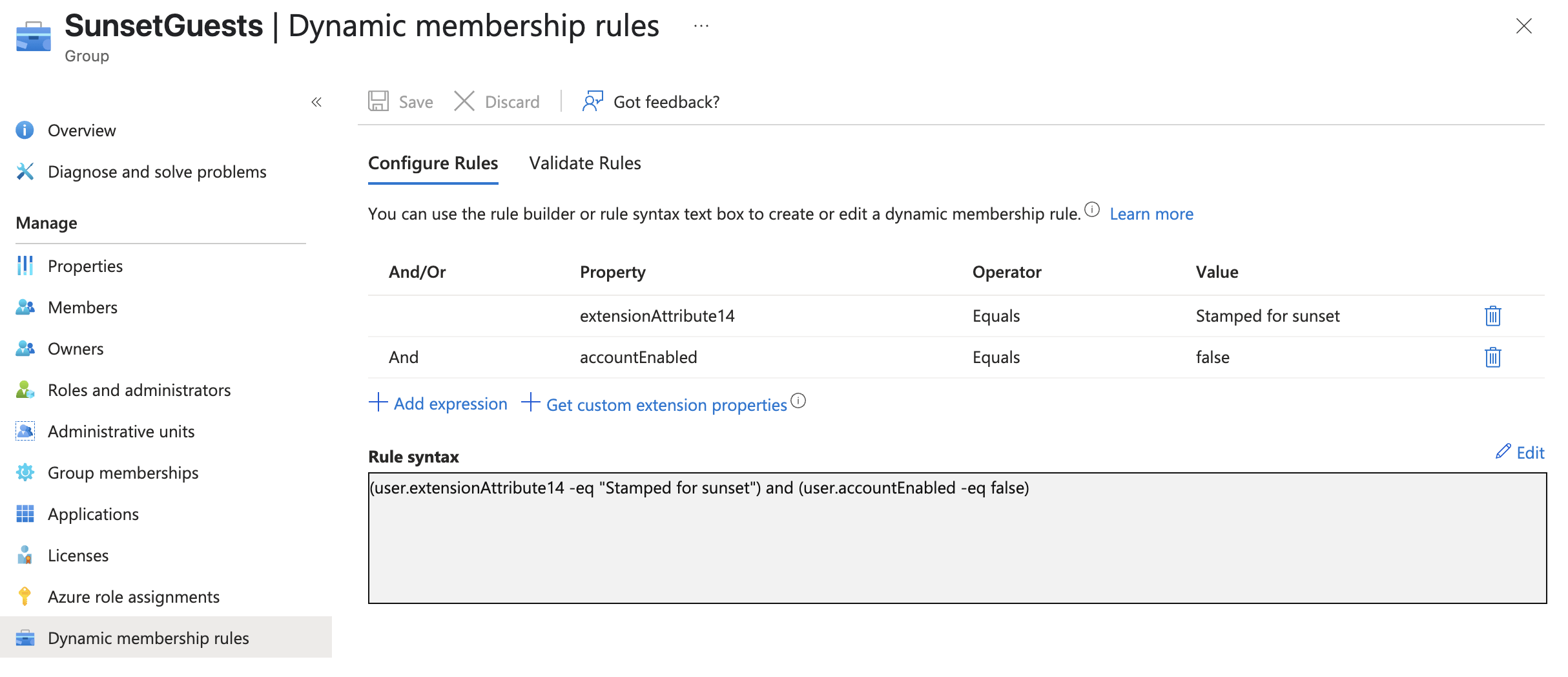
This group is read by a second Logic App that runs every day. It will list all the users and compare the timestamp with a 30-day threshold. The threshold can, of course, be changed to any number that fits your requirements.
The entire process follows a similar approach to that of Access Reviews, where you can use the “Block user from signing in for 30 days, then remove user from the tenant” option in the ‘upon completion settings’.
That said, this approach has a few disclaimers:
- Every organisation is different. This is a proof of concept, but it might not exactly fit your requirements. See this as the baseline that you can adjust to your needs.
- The Logic Apps uses both user.extensionAttribute14 and user.extensionAttribute15. Feel free to adjust to any available attribute if these are already in use by another process.
- This only works for cloud-only guest accounts. If you sync guest accounts from Active Directory, consider using (user.dirSyncEnabled -eq false) as extra expression in your dynamic group.
- As far as I could test real world scenario’s, this Logic App works for both internal and external guest accounts.
- I could not test this concept with a large volume of guest accounts. If the Logic App is running too long, you can always limit the scope of your dynamic group.
- There are several variables that can be adjusted, such as the rules of the dynamic group and the steps in the Logic App. Please exercise caution and use the report-only parameter to assess the impact before making significant changes.
Logging#
Both Logic Apps have minimal logging enabled. I did not want to add a fancy HTML report, but of course, that can be added at a later point, if you need it. For now, I’d like to keep things clean and straightforward, so a JSON summary is provided that gives just enough info:
{
    "reportMetadata": {
        "runDate": "2025-07-07 20:36:54",
        "runDateISO": "2025-07-07T20:36:54.7869798Z",
        "mode": "Report Only",
        "thresholdDays": -180,
        "thresholdDate": "2025-07-07T20:35:47Z",
        "totalUsersProcessed": 46,
        "usersAffected": 18,
        "guestSourceGroup": "7d32dcc3-a9c9-46f9-9f81-5d709ad57589"
    },
    "summary": {
        "totalAffectedUsers": 18,
        "accountsDisabled": 0,
        "reportOnlyMode": true
    },
    "affectedUsers": [
        {
            "userId": "78e74c58-4526-41df-a3c1-99f6ab1d8a78",
            "displayName": "Devon Davis",
            "userPrincipalName": "devon.davis_demobusiness.net#EXT#@entrasec.onmicrosoft.com",
            "reason": "PendingAcceptance - Created before threshold",
            "createdDateTime": "2024-07-06T13:33:31Z",
            "externalUserState": "PendingAcceptance",
            "lastSignInDateTime": null,
            "lastSuccessfulSignInDateTime": null,
            "lastNonInteractiveSignInDateTime": null,
            "daysSinceCreated": 365,
            "daysSinceLastSignIn": null,
            "actionTaken": "REPORT ONLY - Would disable account and stamp for sunset",
            "timestamp": "2025-07-07T20:36:48.7174615Z"
        }
    ]
}
How to set up?#
This solution consists of a couple of parts that need to be set up.
- Create a dynamic group that contains all the guest users in scope for lifecycle management. I used “(user.userType -eq “Guest”) and (user.extensionAttribute15 -ne “ExcludeFromLCM”) and (user.accountEnabled -eq true)” as my membership rule. When you are dealing with a lot of guest accounts, I suggest starting by narrowing down the scope of the group to specific domains or departments first.
- Create a second dynamic group that will contain all the guests who are stamped for sunset. I used “(user.extensionAttribute14 -eq “Stamped for sunset”) and (user.accountEnabled -eq false)” as my membership rule. This group will remain empty untill the first Logic App has run in production, and guests are stamped for sunset.
- Download the templates from Github and import the Logic Apps into your Azure subscription by using the custom template deployment.
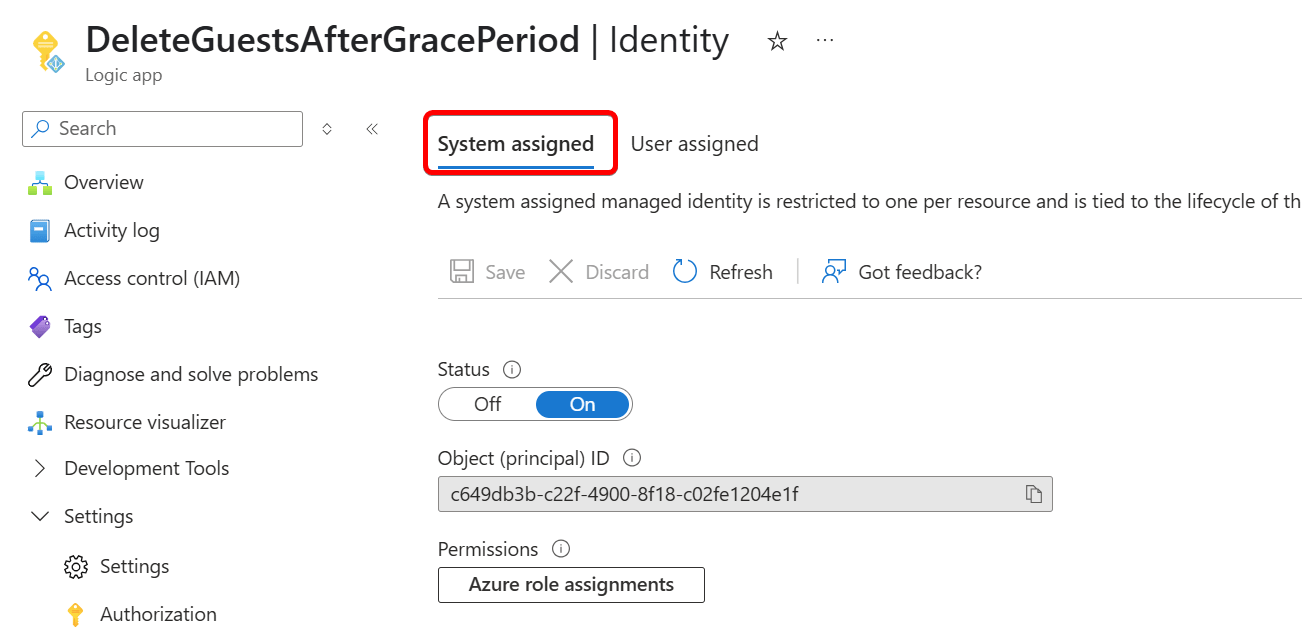
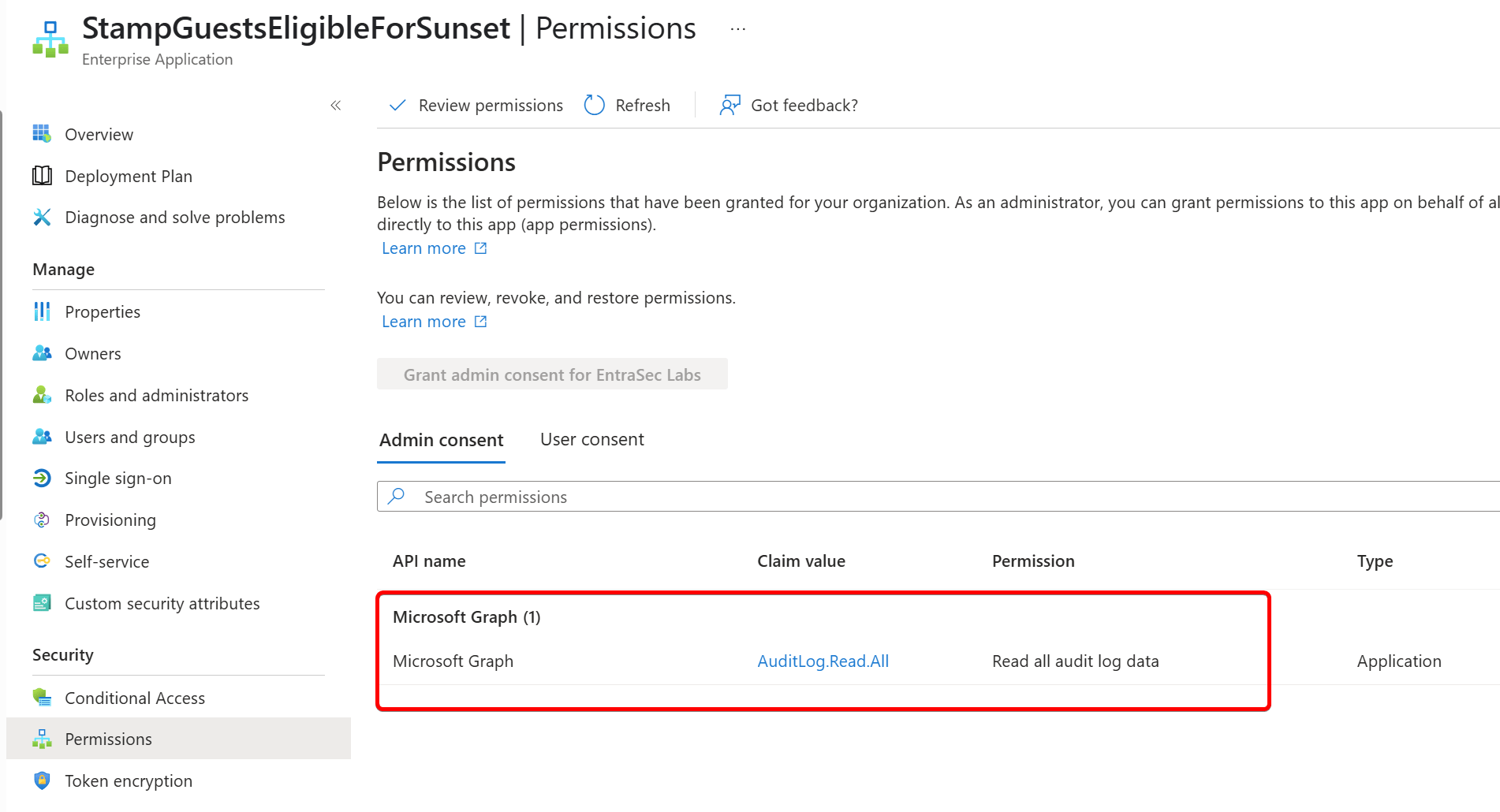
- Make sure, system-assigned identity on both Logic Apps is enabled, and assign the proper permissions.
- StampGuestsEligibleForSunset:
- AuditLog.Read.All application permissions.
- User Administrator role. For least privileged access, create an Admin Unit with the similar logic as the Dynamic Group, and assing the role to the admin unit, instead of the entire directory.
- DeleteGuestsAfterGracePeriod: User Administrator role. For least privileged access, create an Admin Unit with the similar logic as the Dynamic Group, and assing the role to the admin unit, instead of the entire directory.
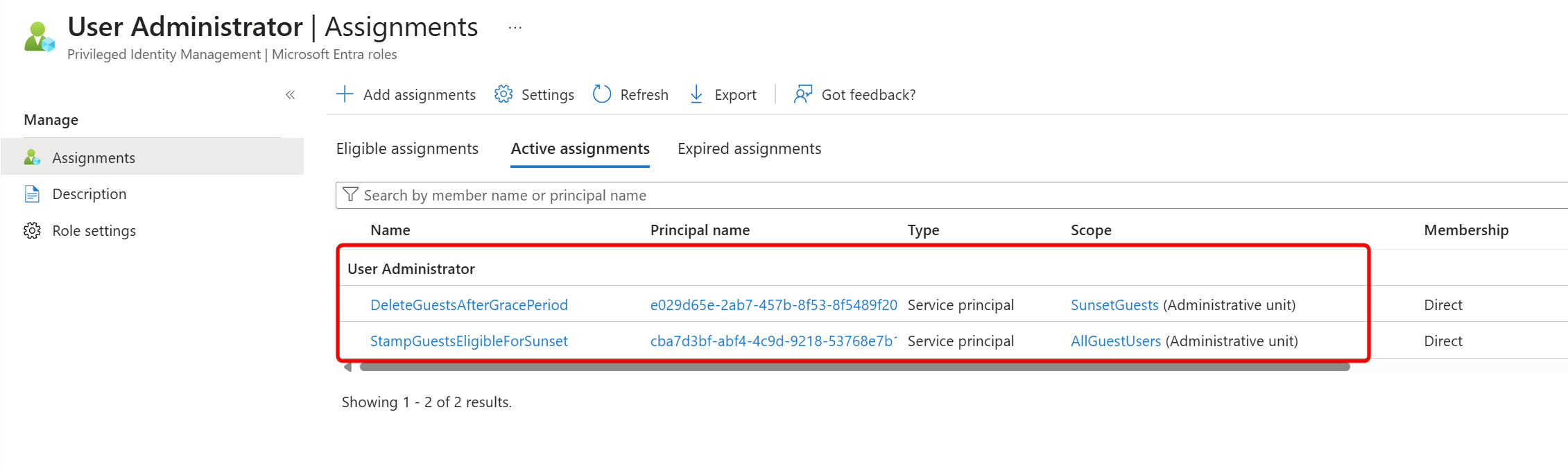
After you created the Entra groups, imported the Logic Apps, and set the permissions, it’s time to configure and test the Logic App.
Logic App 1- StampGuestsEligibleForSunset
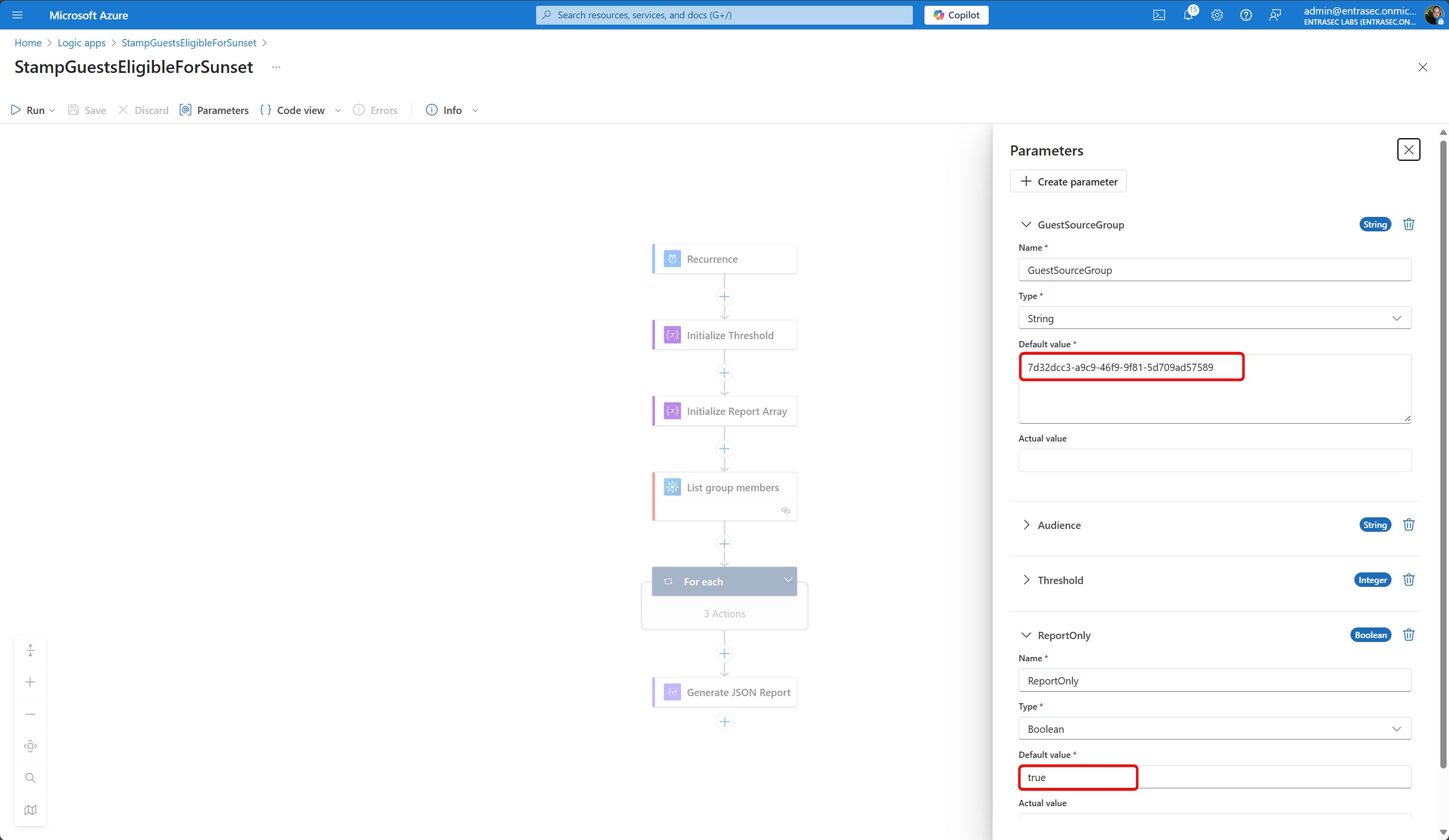
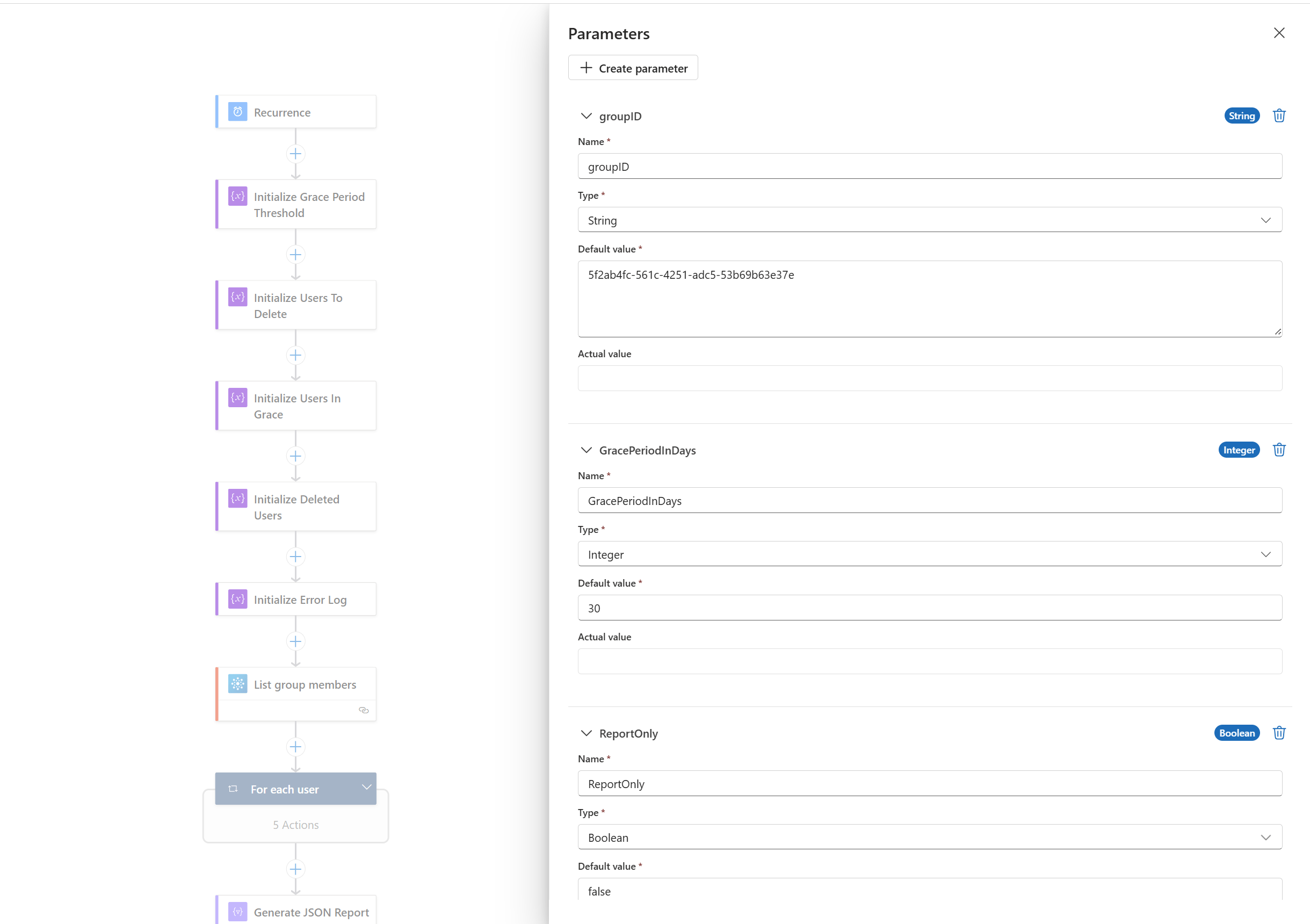
Start by setting the parameters on StampGuestsEligibleForSunset Logic App. Replace the groupID with the groupID of your dynamic group that contains all guest users in scope. Make sure you always start in report-only mode!! You can also start with a small(er) group with test-users.
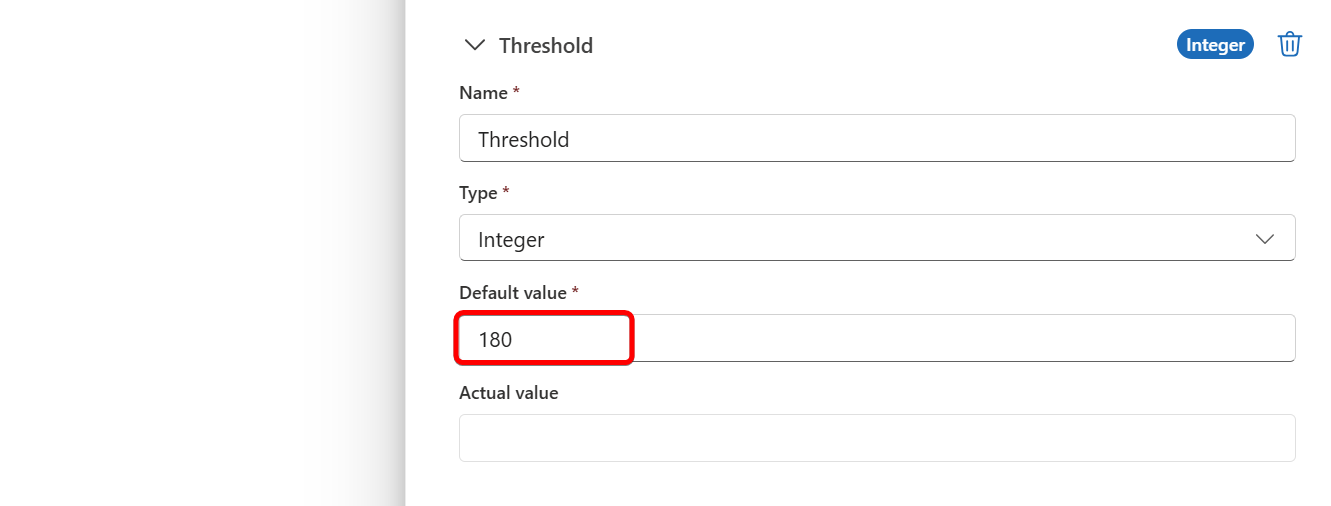
Next, set the Threshold value. By default, this is set to 180. This means all users who have not signed in for 180 days or more will be put to sunset.
Important note: The threshold is compared to the lastSuccessfulSignInDateTime stamp, since it has the date and time of the user’s most recent successful interactive or non-interactive sign-in.
Keep in mind that, when you use a higher threshold (365+), the lastSuccessfulSignInDateTime might not be fully populated for all users, as this is a relatively new attribute. Consider using lastSignInDateTime instead if that’s the case.
With the parameter set, it’s time to run the first Logic App. Investigate the outcome to check for unwanted changes.
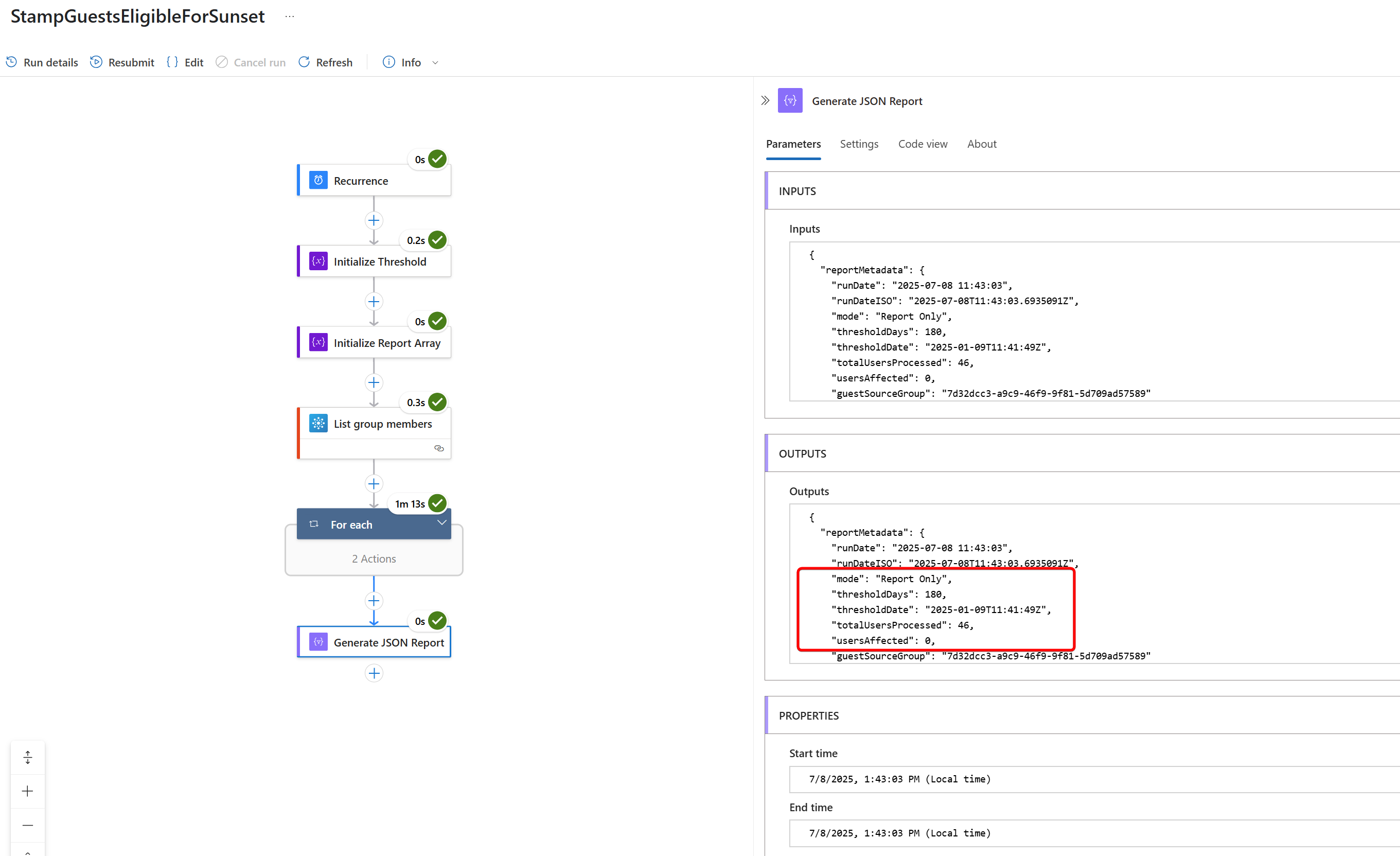
If all is good, switch report-only mode off by setting the parameter to false.
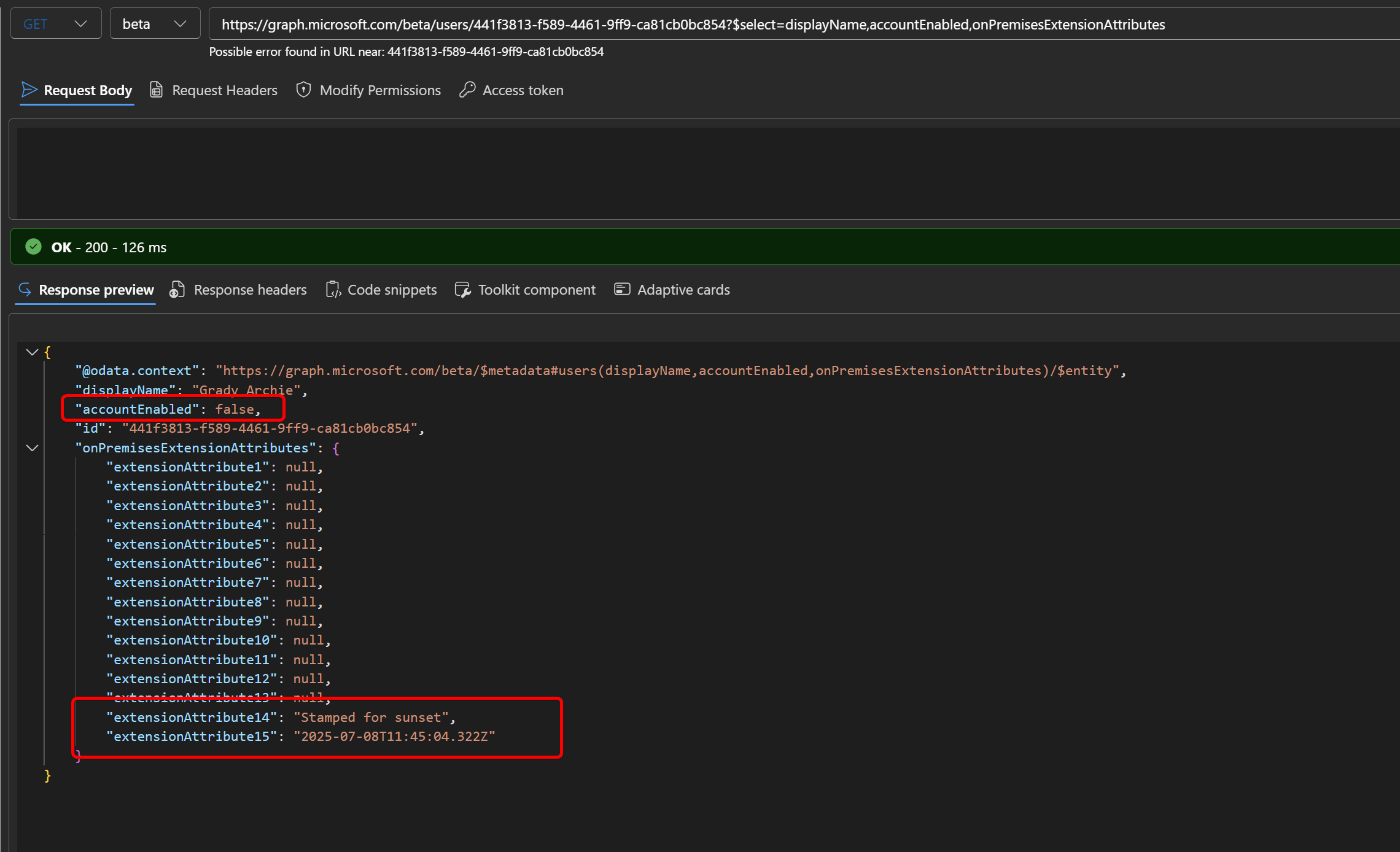
Then run the Logic App again, and look at the report to see which guest users where disabled and stamped for sunset. You can use Graph Explorer or Entra Admin center to check the attributes.
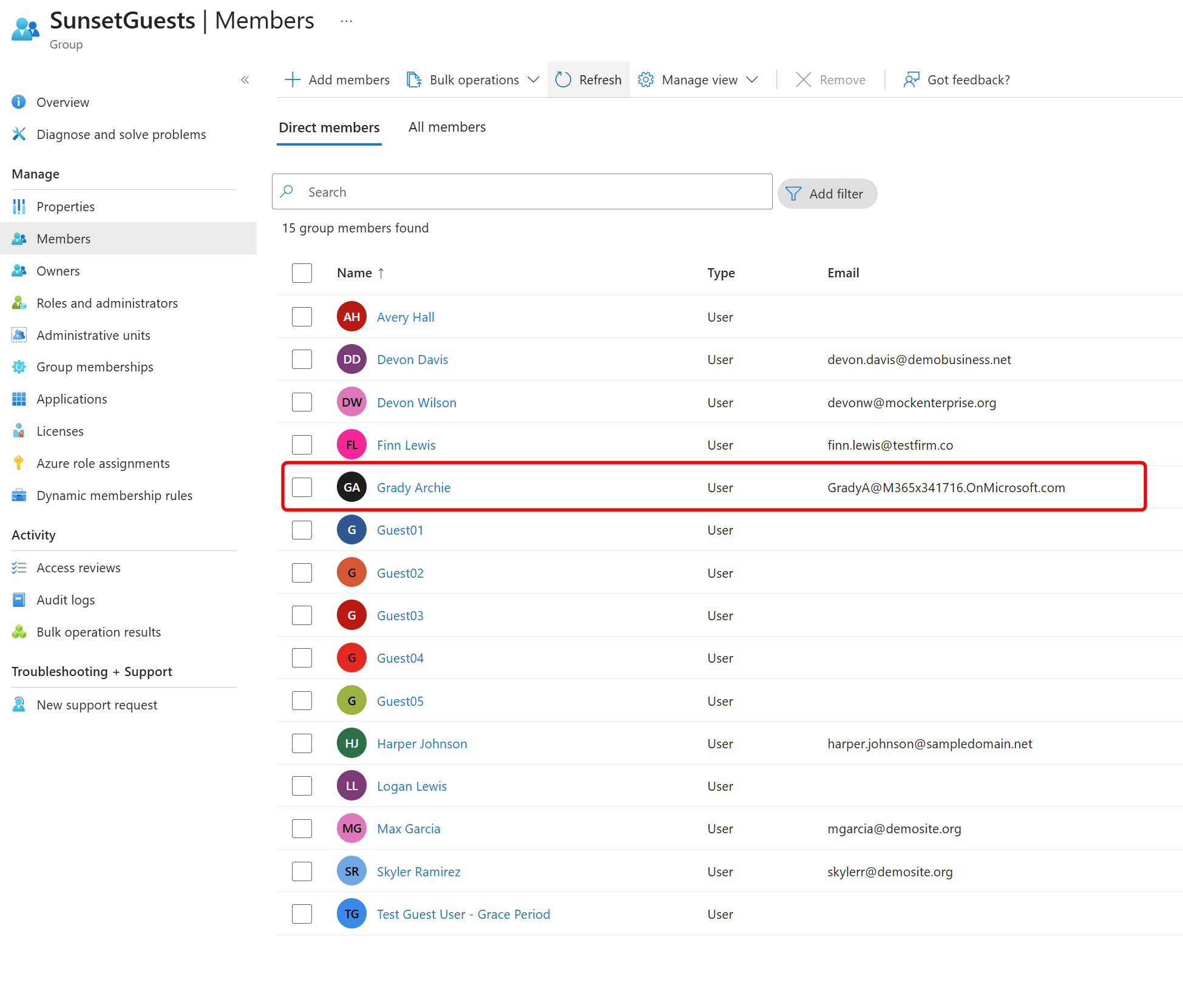
Within a few minutes, the users should be deleted from the first group, and added to the second one, ready for cool-off.
Logic App 2 - DeleteGuestsAfterGracePeriod
Now it’s time to test the second Logic App. This one works as follows:
- All members from the dynamic group are read.
- The timestamp from extensionAttribute15 will be compared to the threshold. The default is 30 days.
- If the threshold is met, the guest account is deleted.
Configure the parameters, so it will pick up the right dynamic group (the one with disabled guest users, and stamped for sunset). The threshold can also be changed, and you can run the Logic App in report-only mode as well.
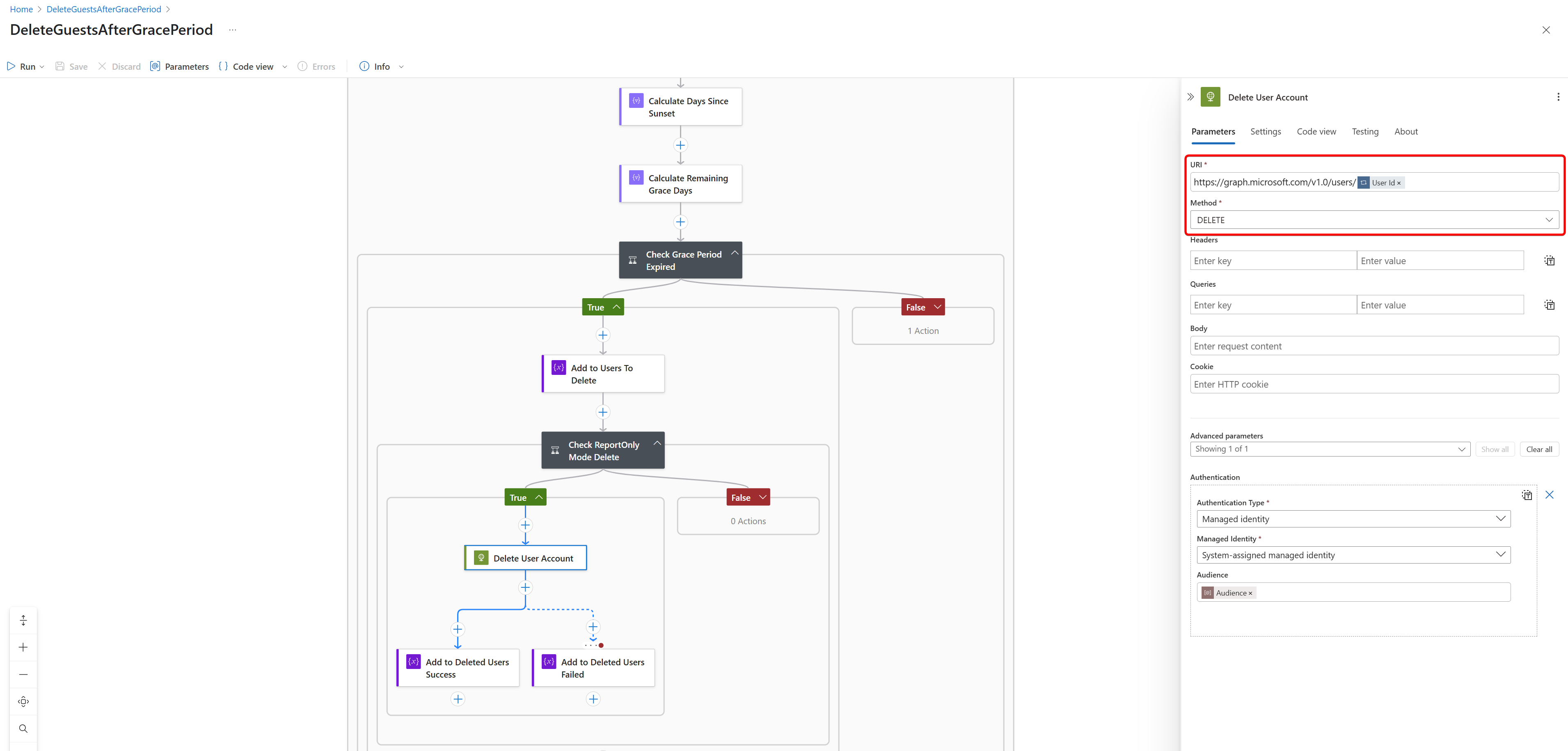
The logic is fairly simple: it will delete the guest accounts from the group once the threshold is reached.
Remove guest user from sunset state#
If a guest user is disabled and stamped for deletion, you can restore the account by cleaning the extension attributes, enable the account, and make sure the user signs in before the next cycle.
PATCH https://graph.microsoft.com/beta/users/{user-id}

{
    "accountEnabled": true,
    "onPremisesExtensionAttributes": {
        "extensionAttribute14": null,
        "extensionAttribute15": null
    }
}
To exclude the guest user from your lifecycle management completely, set the extensionAttribute15 to “ExcludeFromLCM” so the user is no longer picked up by the dynamic group.
PATCH https://graph.microsoft.com/beta/users/{user-id}

{
    "accountEnabled": true,
    "onPremisesExtensionAttributes": {
        "extensionAttribute14": null,
        "extensionAttribute15": "ExcludeFromLCM"
    }
}
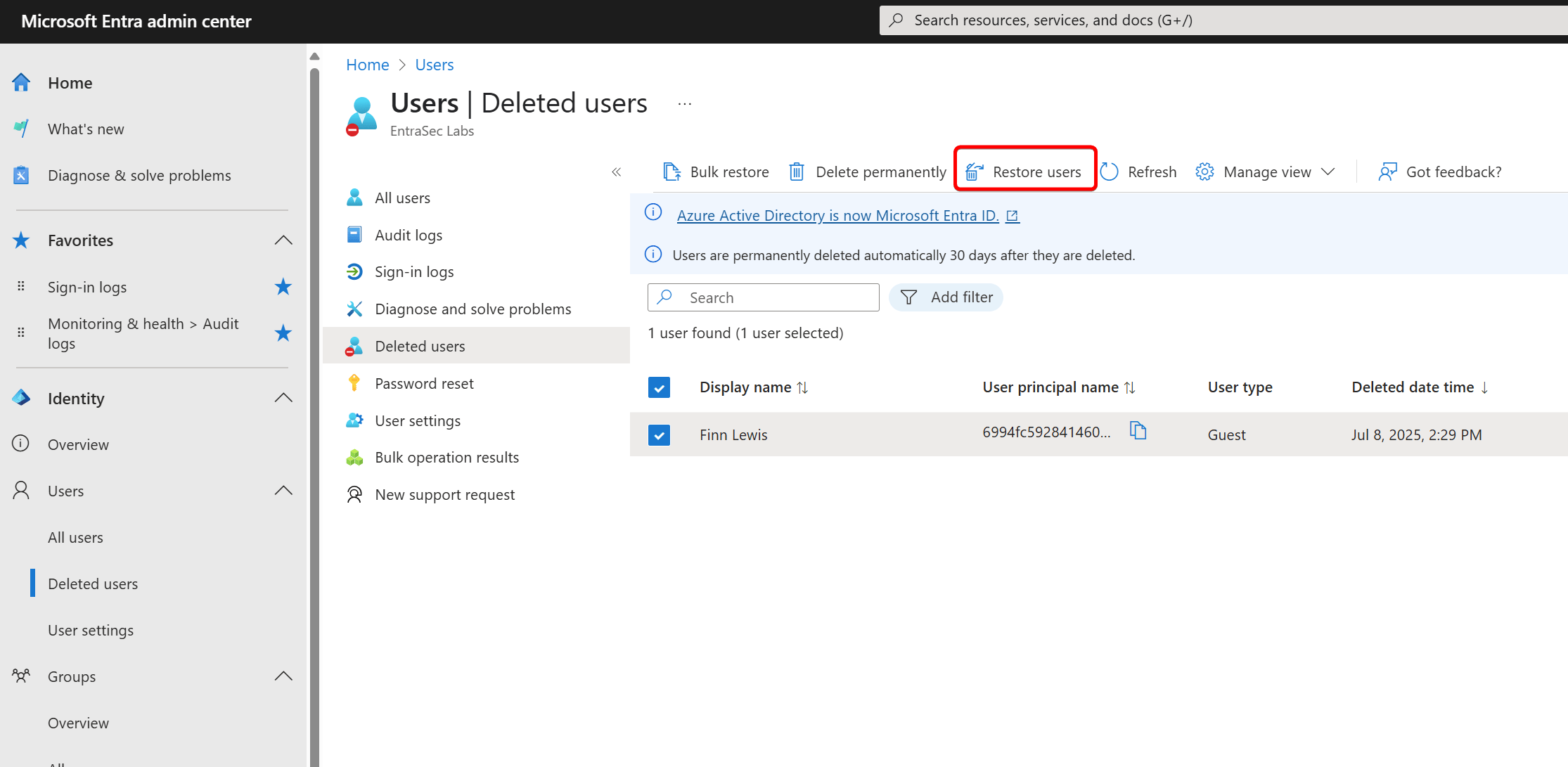
If the guest users are deleted after the grace period, you can restore it from the Entra deleted users section for another 30 days. Restore or permanently remove recently deleted user - Microsoft Entra | Microsoft Learn
Schedule#
It’s entirely up to you how to schedule these Logic Apps, but my suggestion would be:
StampGuestsEligibleForSunset: Run weekly at 1AM
DeleteGuestsAfterGracePeriod: Run daily at 10AM
Running it more frequently might cause issues, as the dynamic groups or Admin Units might not keep up when a large amount of guest users are present in your tenant.
Wrap things up#
I hope this post is giving you some pointers in how to handle inactive guest users in your organization. The Logic Apps are ready to use, but require a few parts to set up.
That said, please provide feedback on how it runs in your org, so I can finetune the Logic Apps to any unforeseen errors or glitches. If you need help setting this up, feel free to ask for help. Happy to help out!
Stay safe!
Comments
Comments load when you scroll here.