
No, your NHIs can't use passwords either!
For human identities, going passwordless is becoming pretty standard these days. It looks like passkeys are getting some good traction, and more and more organisations are moving towards passwordless solutions for their workforce.
But with the rise of NHI (non-human identities), it’s time to fight the battle of passwords in this corner of the field. If we look at Entra ID, a lot of applications and service principals are still relying on passwords, while other alternatives are left aside.
Microsoft launched App Management policies a while back, where admins could now control the use of passwords/secrets for applications, but it was pretty complex to set up using just the API. While I was struggling with this setup myself, I stumbled upon a new piece of documentation that introduced an interface for these settings in the Entra admin center. A more than welcome addition, as now admins can configure these policies fairly easily.
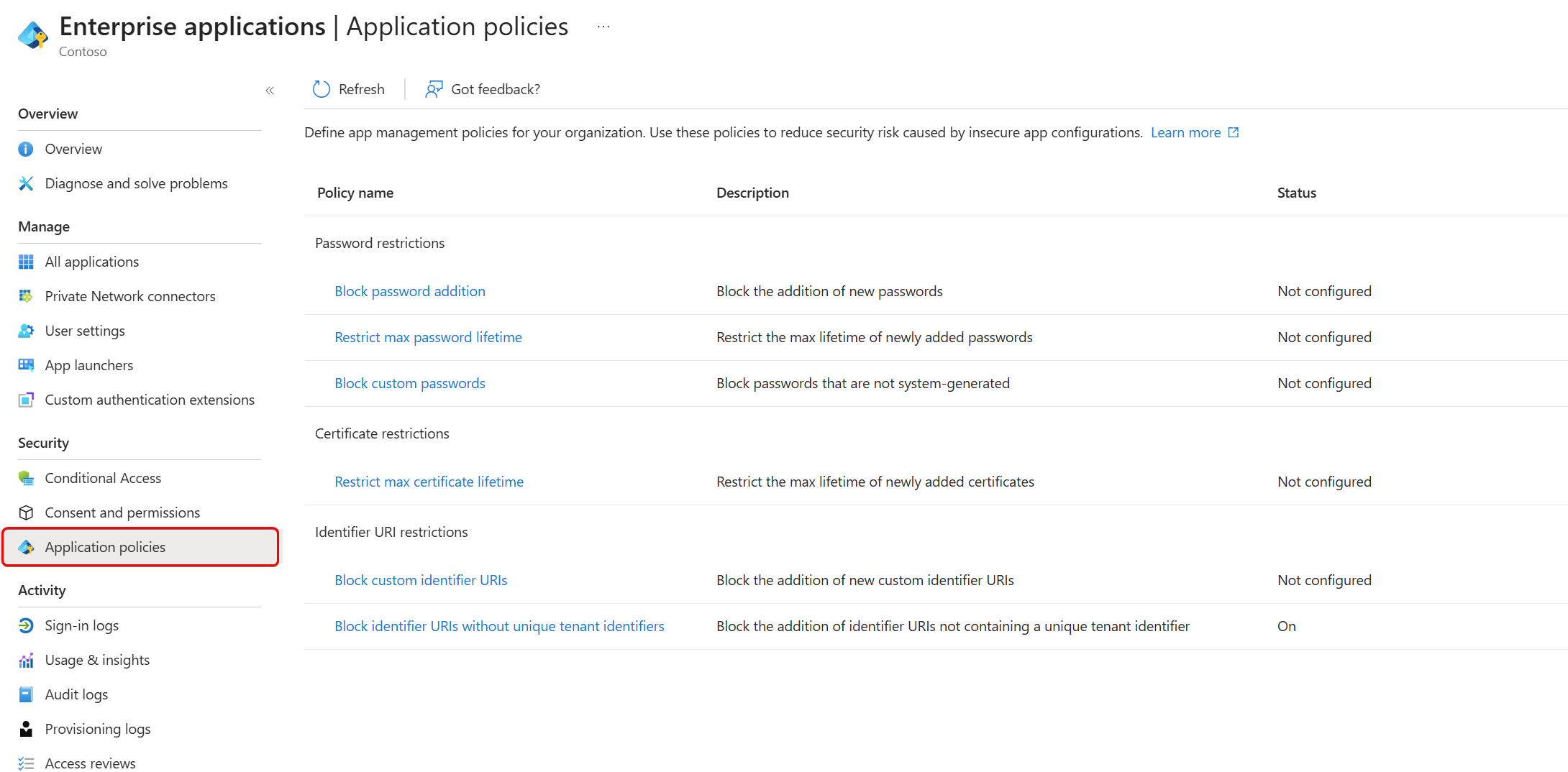
That said, it is still recommended to learn the API, as you might still need it for the more complex scenarios. For that reason, I would suggest reading the API documentation to fully understand how these policies work. Microsoft Entra application management policy API overview - Microsoft Graph beta | Microsoft Learn
To give a quick summary:
- Tenant Default Policy (
tenantAppManagementPolicy)- Single object, always exists, disabled by default
- Applies to ALL apps/service principals in tenant
- Two restriction types:
applicationRestrictions: Tenant-owned applicationsservicePrincipalRestrictions: External applications
- App Management Policies (
appManagementPolicy)- Individual policies with custom restrictions/enforcement dates
- One policy max per application/service principal
- Can override tenant default policy
Precedence Rules:
- App management policy overrides tenant default when both define same restriction
- If app policy is disabled: restriction ignored (regardless of tenant default)
- If app policy is enabled: restriction enforced
- If app policy is undefined: falls back to tenant default behavior
Important note:
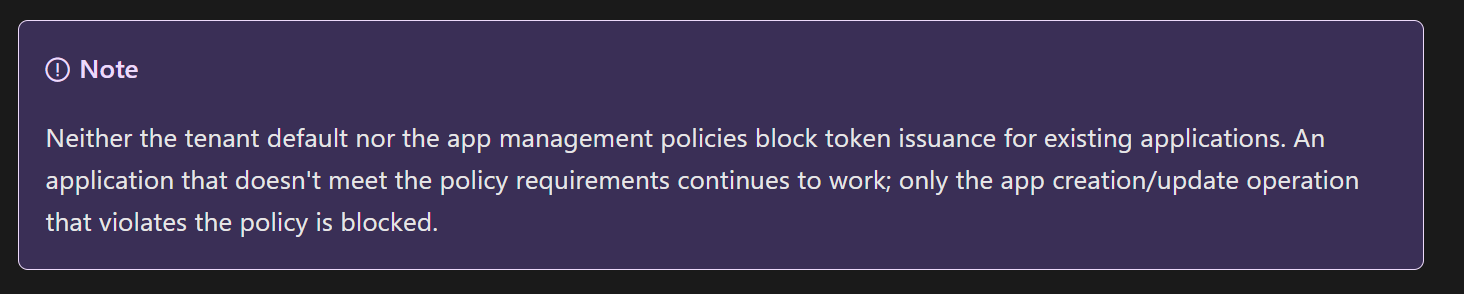
The policy will not block existing use of credentials, only new ones. It basically blocks all calls to the /addPassword endpoint.
Time to configure#
Now that we have a basic understanding of the policies, let’s see it in action.
For this demo, we want to restrict the use of passwords/secrets on all applications and service principals that are created from today onwards. You could, of course, enforce it on all existing applications as well, but that might cause a significant impact. Our goal:
- Block secrets for all apps, as a baseline
- Restrict the password lifetime for excluded apps
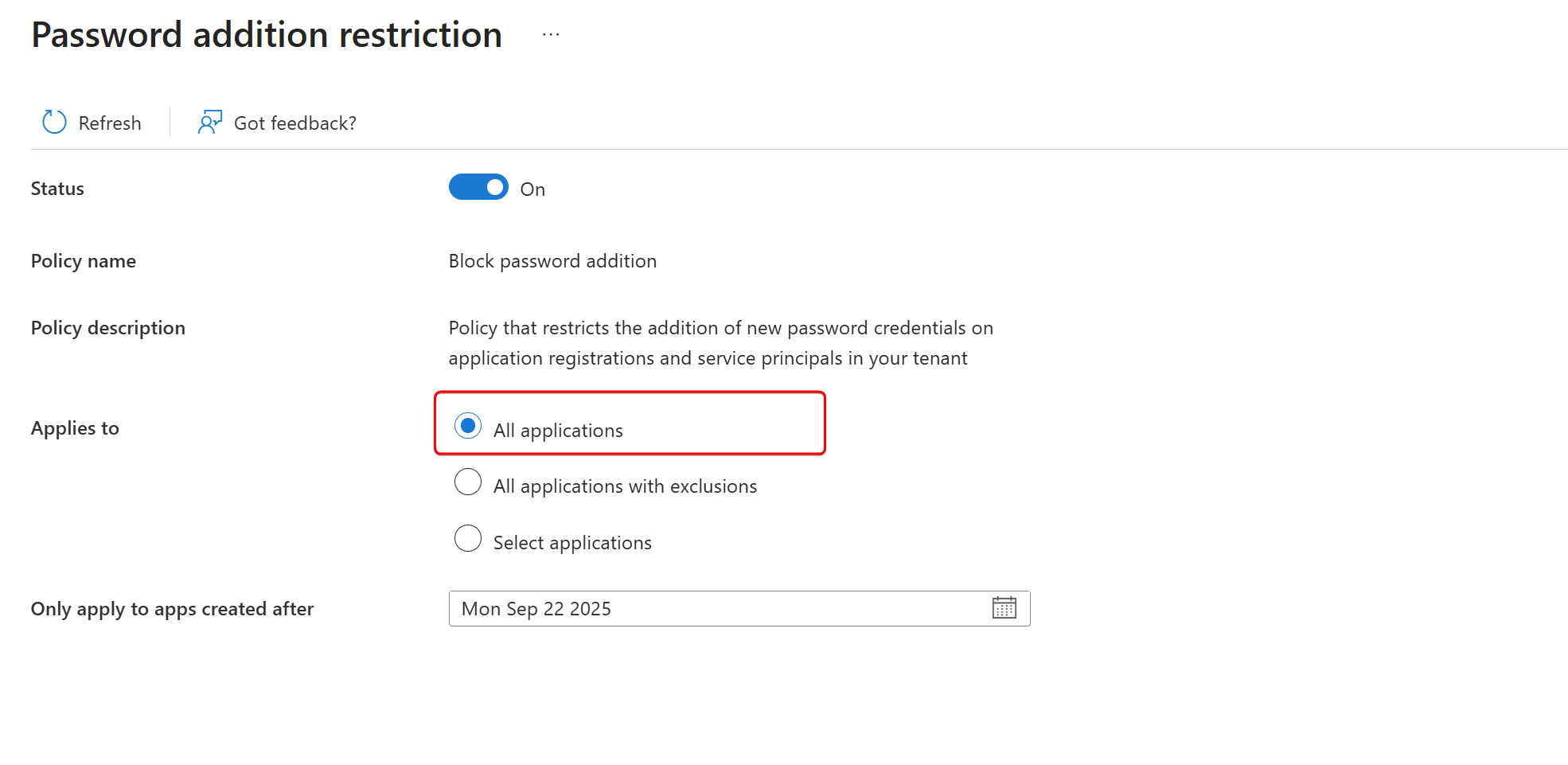
To configure the policy, navigate to the Application policies blade in the Entra Admin center. Then open the Block password addition policy.
Set the status to On, and select “All Applications”. From the date picker, choose today’s date.
When applied, let’s see what this does to our default policy using Graph Explorer.
GET https://graph.microsoft.com/beta/policies/defaultAppManagementPolicy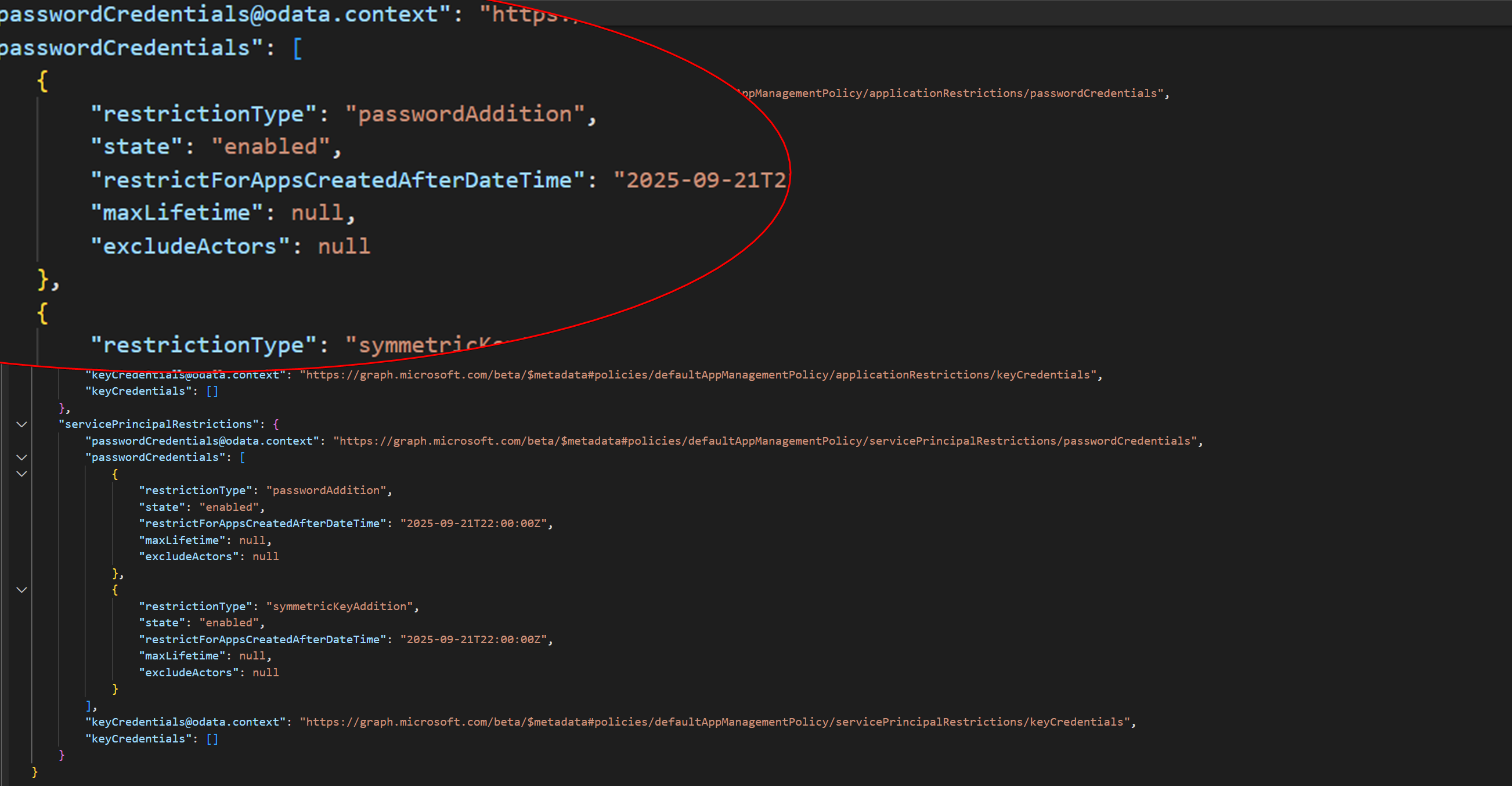
Note that the default policy for both servicePrincipalRestrictions and applicationRestrictions is updated to block passwords and symmetric keys. The restrictForAppsCreatedAfterDateTime holds the date that we just selected from the date picker.
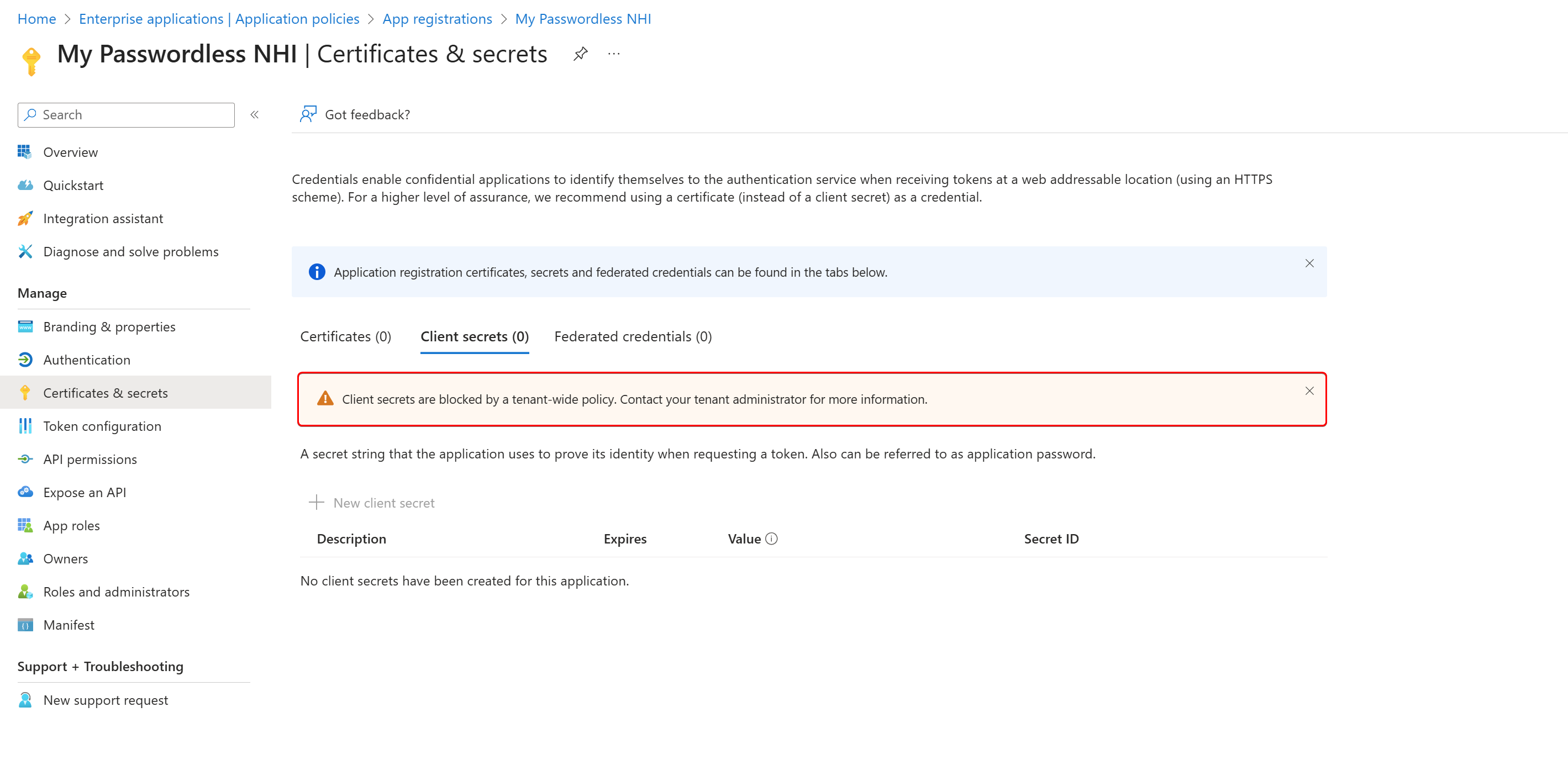
Let’s see if our policy was effective by creating a new app registration and secret. As expected, it is not possible to create a secret for this application.
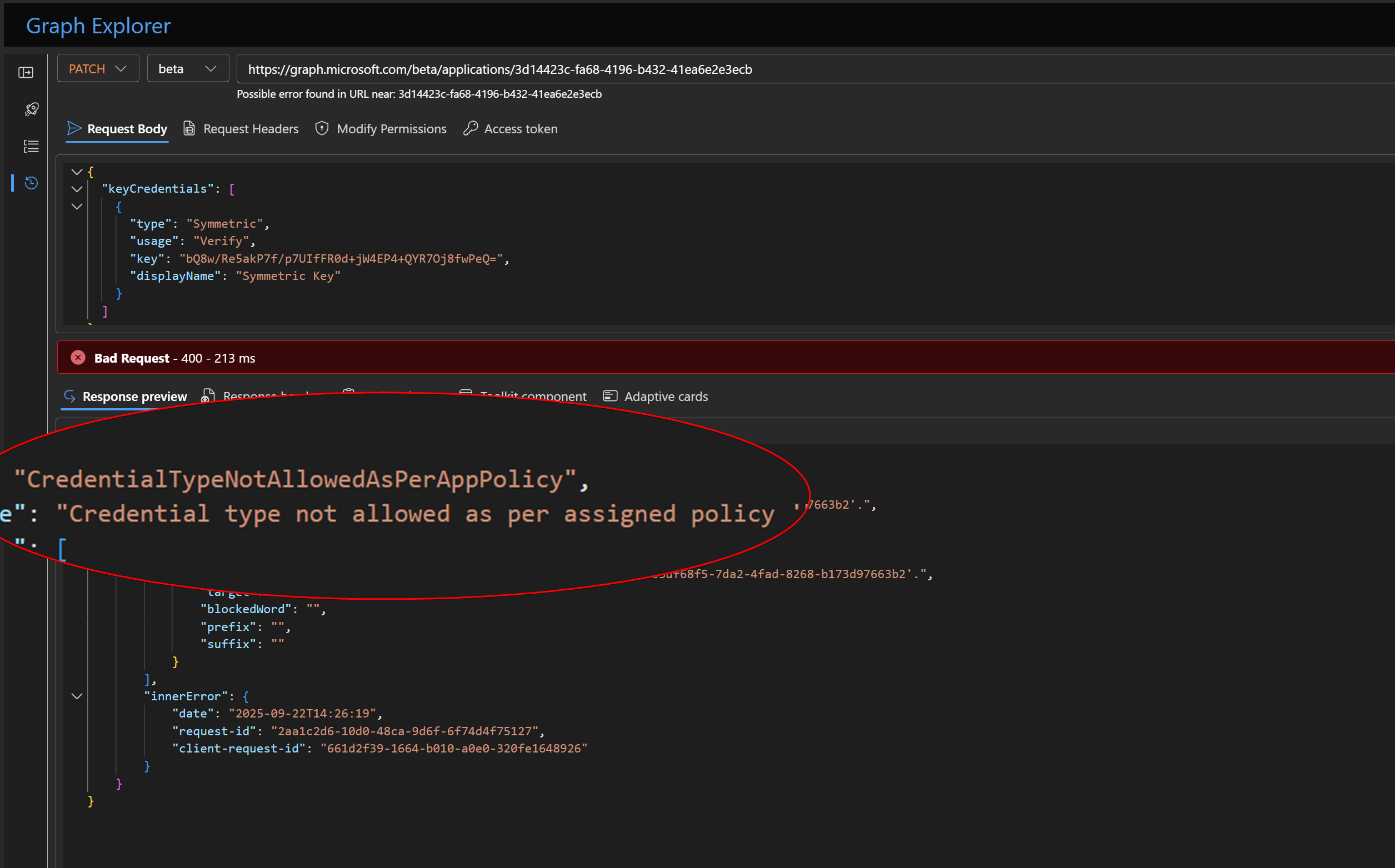
Adding secrets or symmetric keys using Graph API is also blocked.
Exclusions#
Now watch closely what happens when you add exclusions to your policy. Let’s update the policy and exclude our newly created app registration.
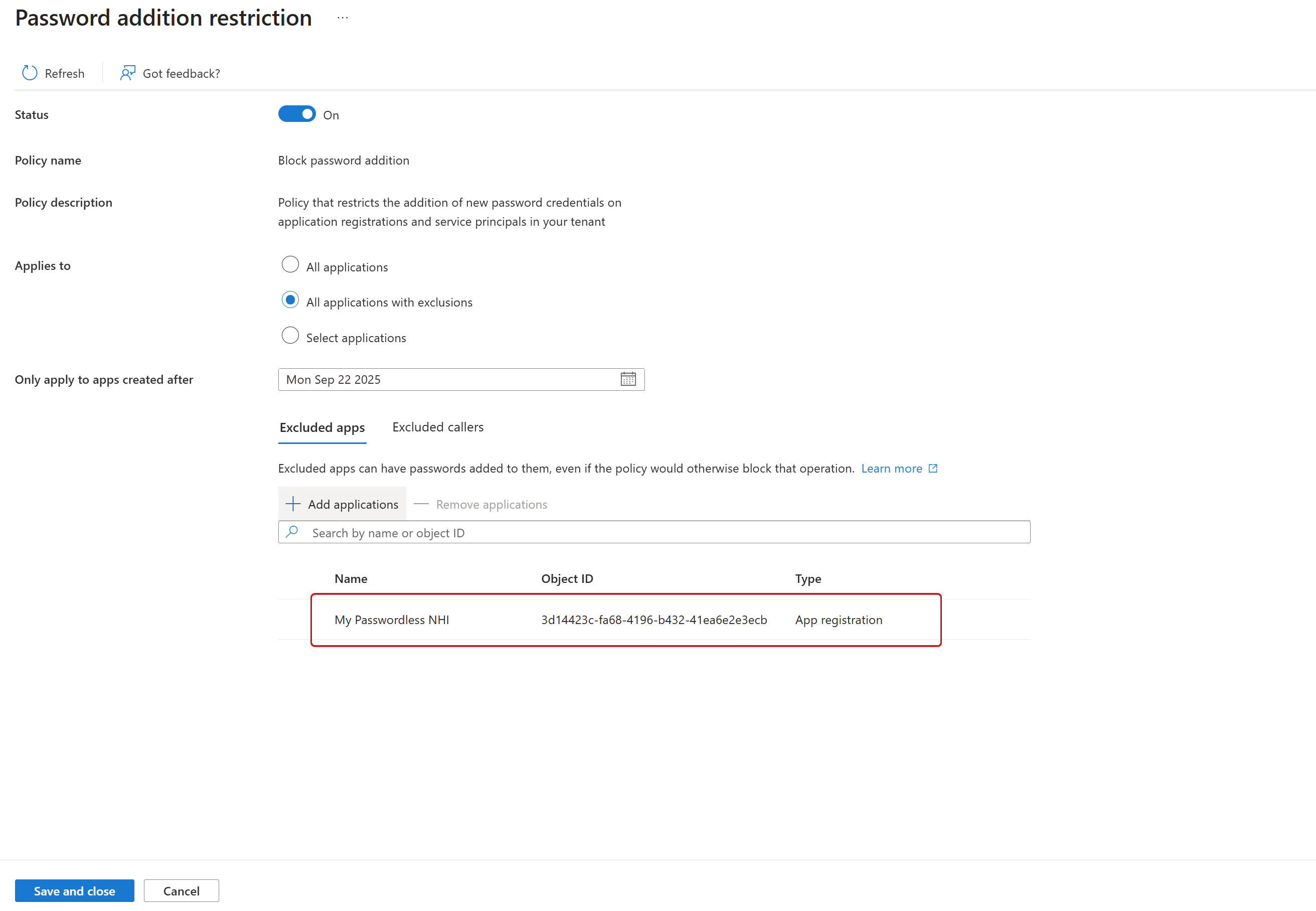
You’d expect that the default policy is now updated with exclusions, but in fact, a new policy is created, contradicting the default policy values, and then assigned to the excluded app.
GET https://graph.microsoft.com/beta/policies/appManagementPolicies?$expand=appliesTo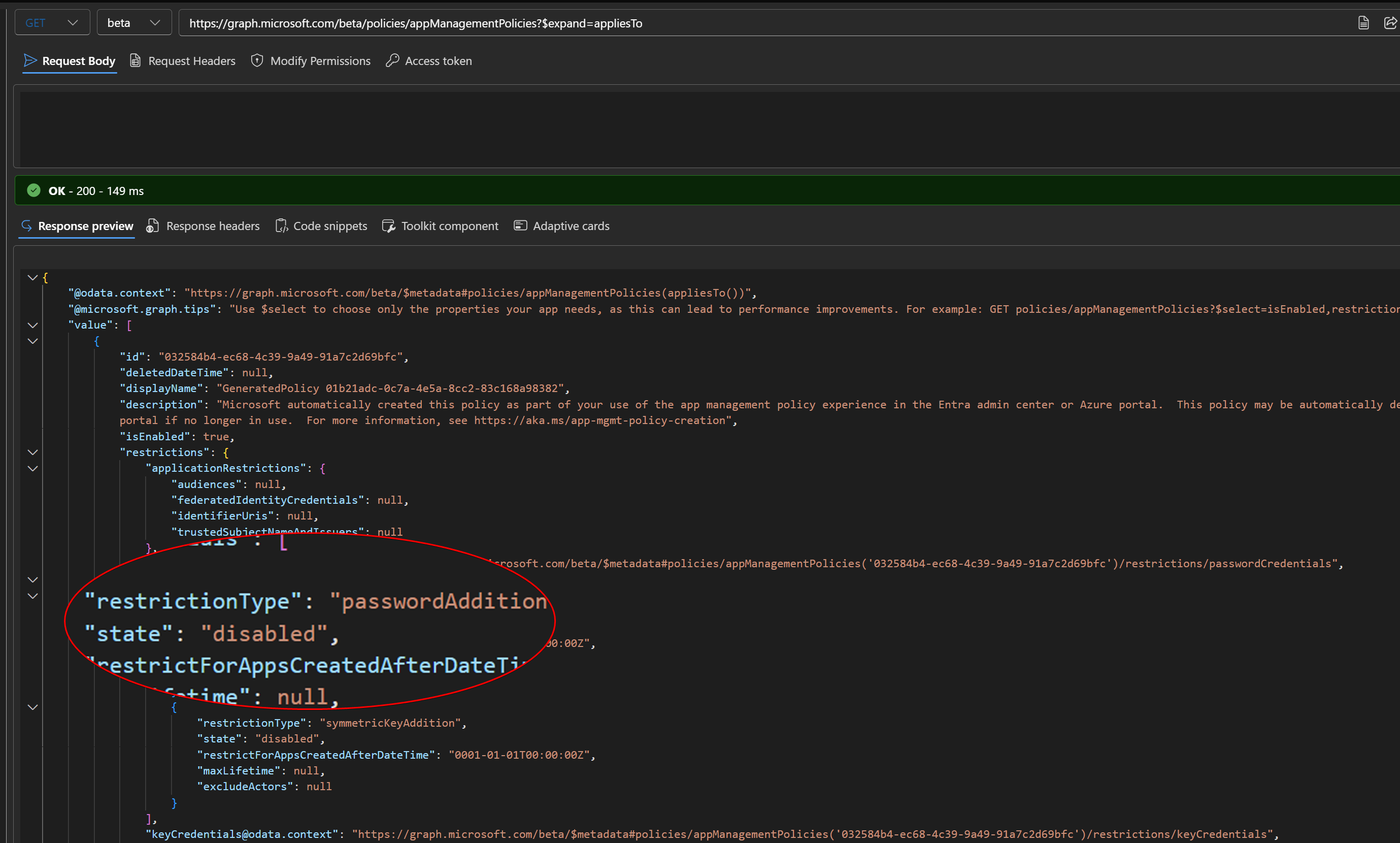
Restrict secret lifetime#
When adding a new secret to an application, the default lifetime is 730 days.
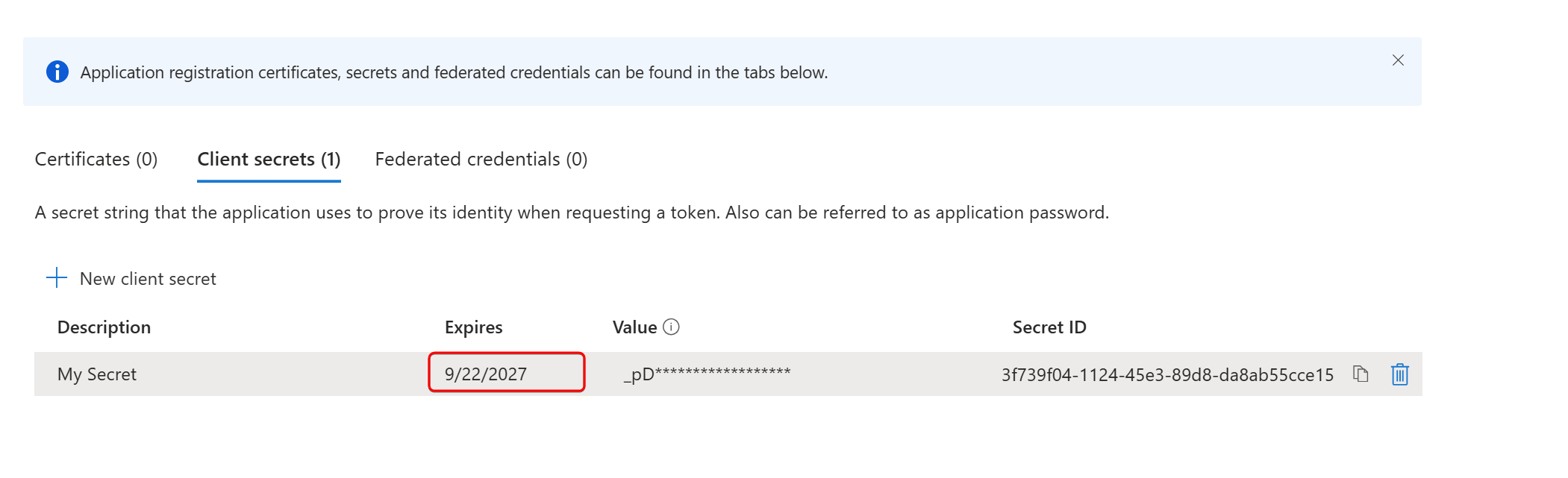
Now, when you configure the policy for all apps, it updates the default policy; however, this gives a weird user experience.
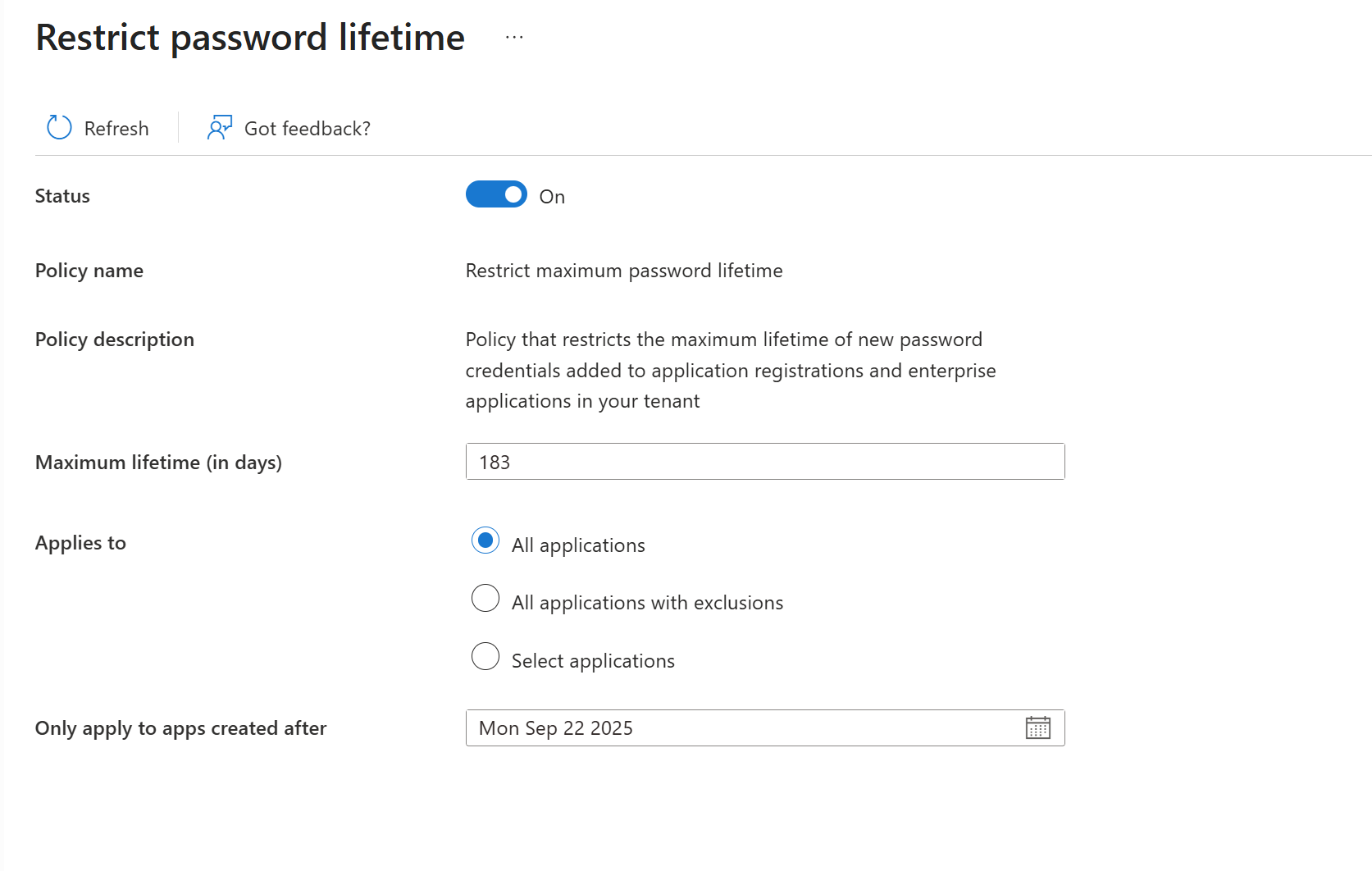
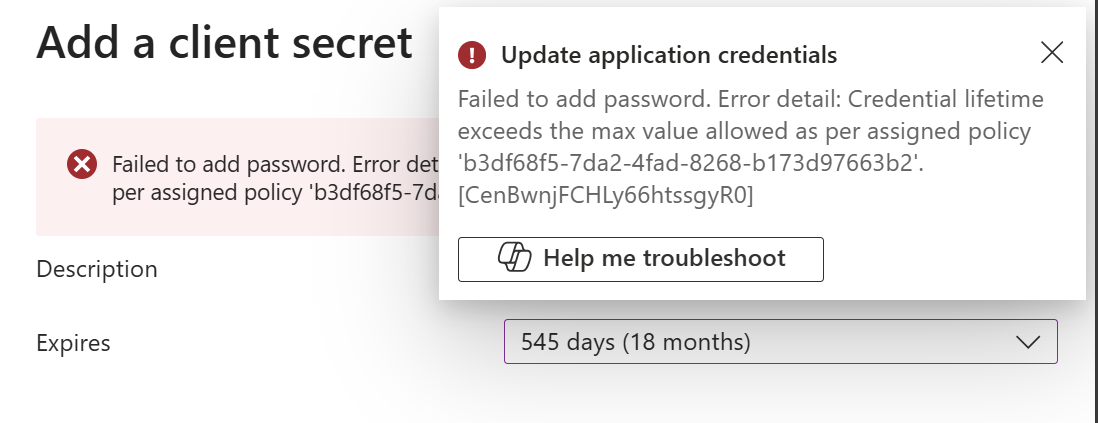
When I configure this policy for all apps, the error in the portal does not tell me the maximum lifetime allowed.
So, to get this right, we craft a new “Restrict max password lifetime” policy for specific apps. You can define a lifetime per app, if needed.
💡By doing this, it will allow the use of secrets, so you can remove the exception from the “Block password addition” policy that we configured earlier.
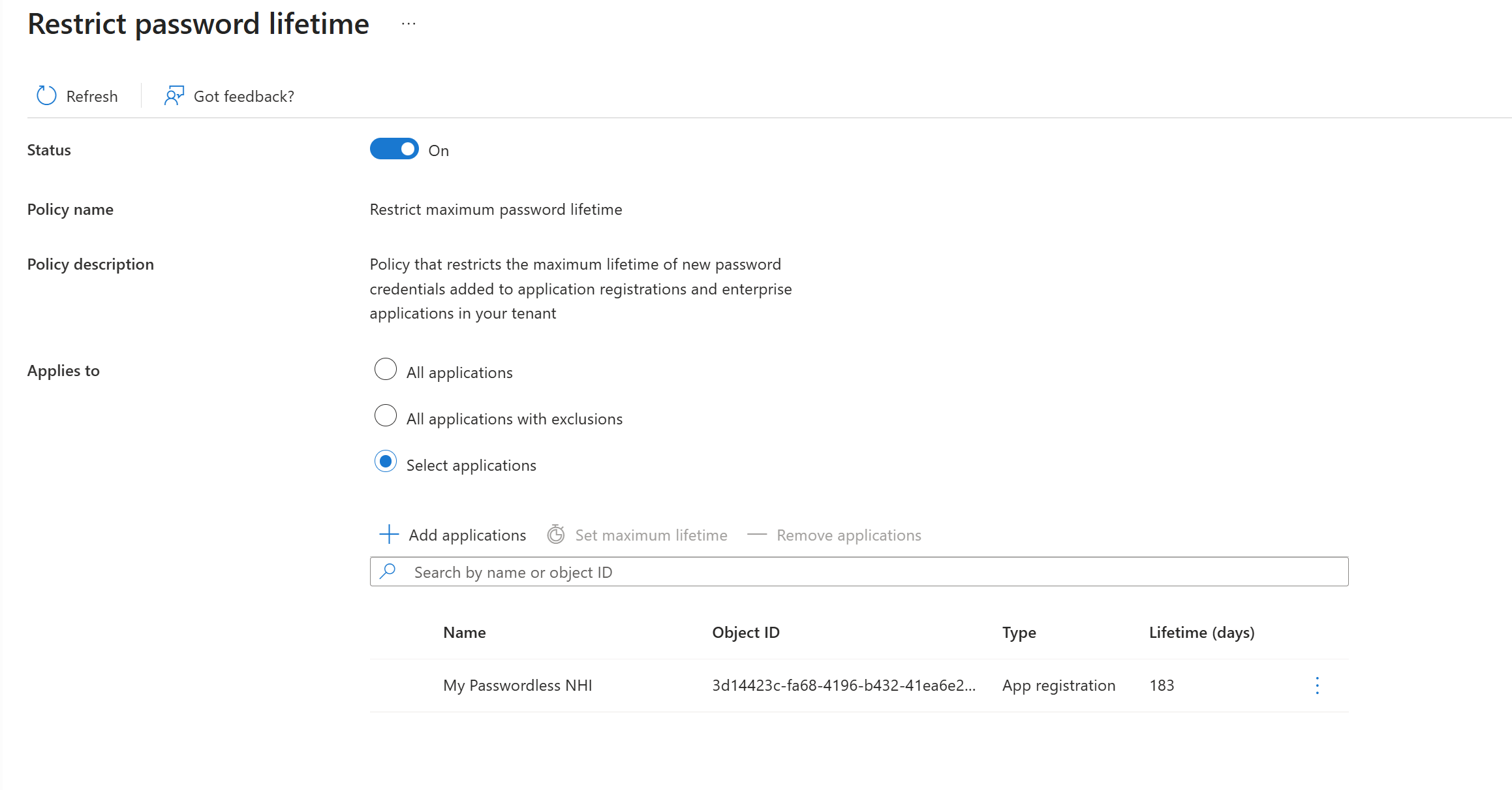
Caveat: when you configure 180 days of lifetime, the option will be greyed out in the portal. That’s because 6 months time is not exactly 180 days. Change it to 183 instead, to have the correct option selectable in the portal.
The same goes for any other value.
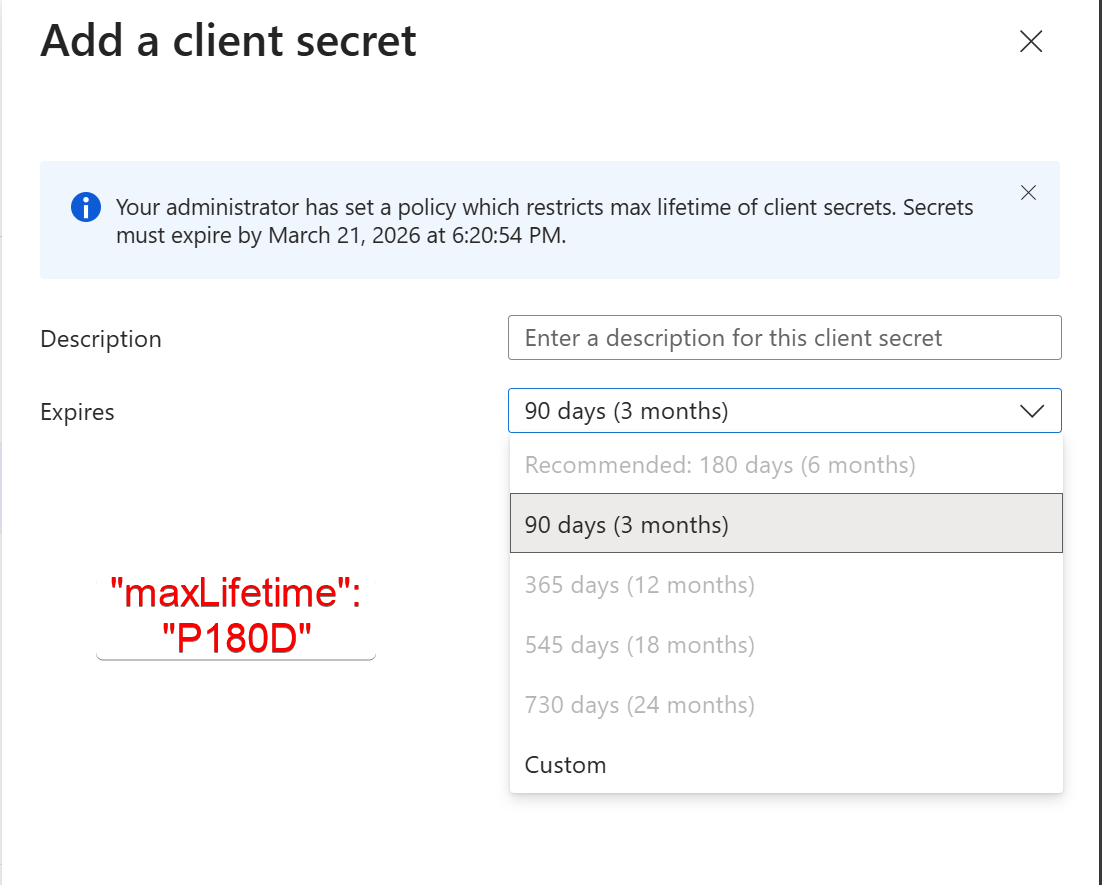
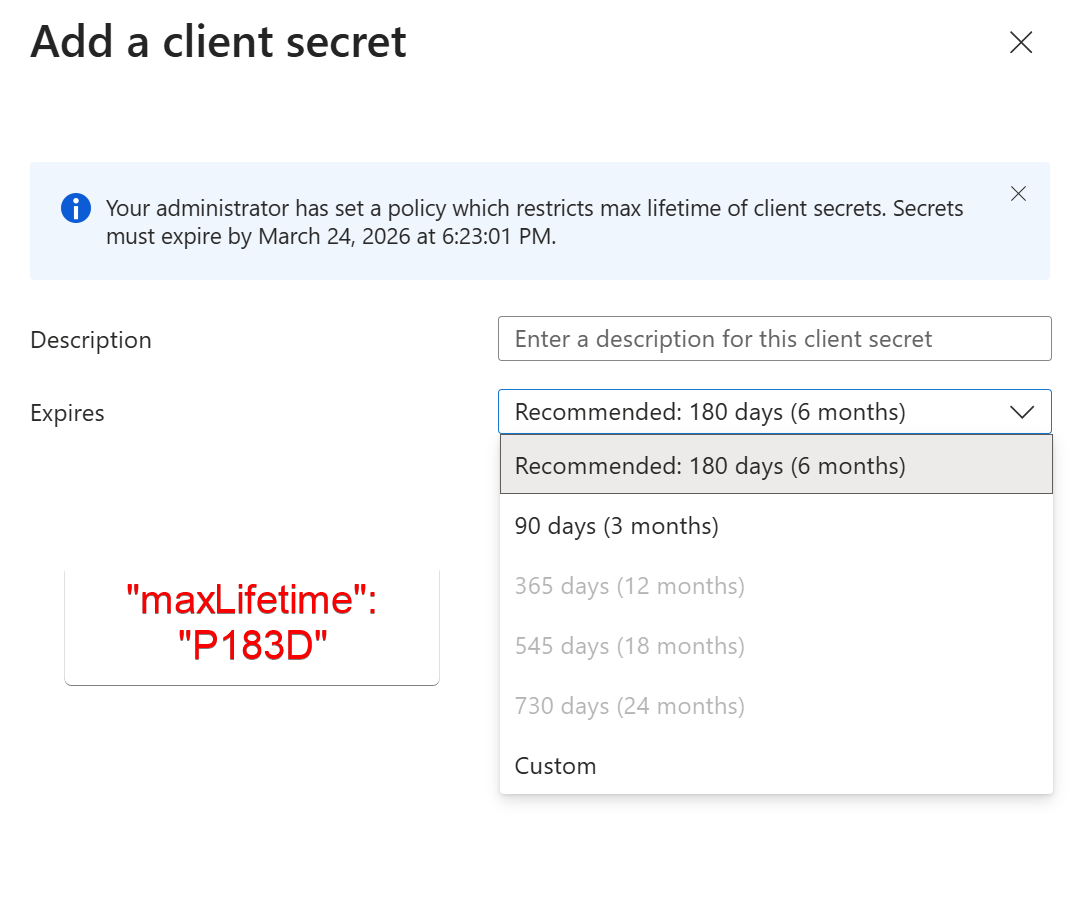
If you want to check which policies apply to your application, you can also check the devtool and search for “AppManagement”. This is also a good way to learn and understand the underlying API.
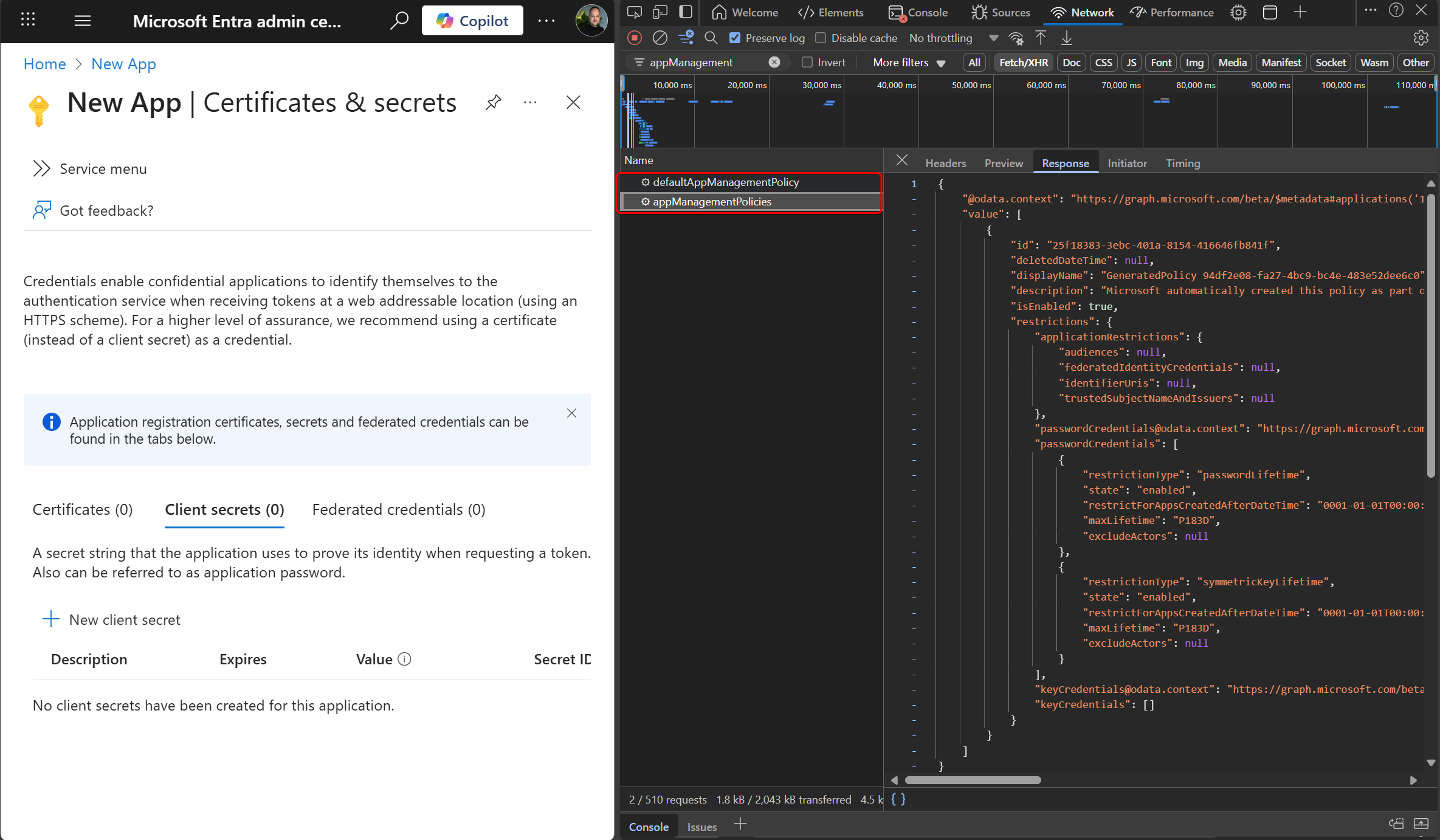
The same can be done from the Graph Explorer by using:
GET https://graph.microsoft.com/beta/applications/{id}?$expand=appManagementPoliciesLet’s wrap up#
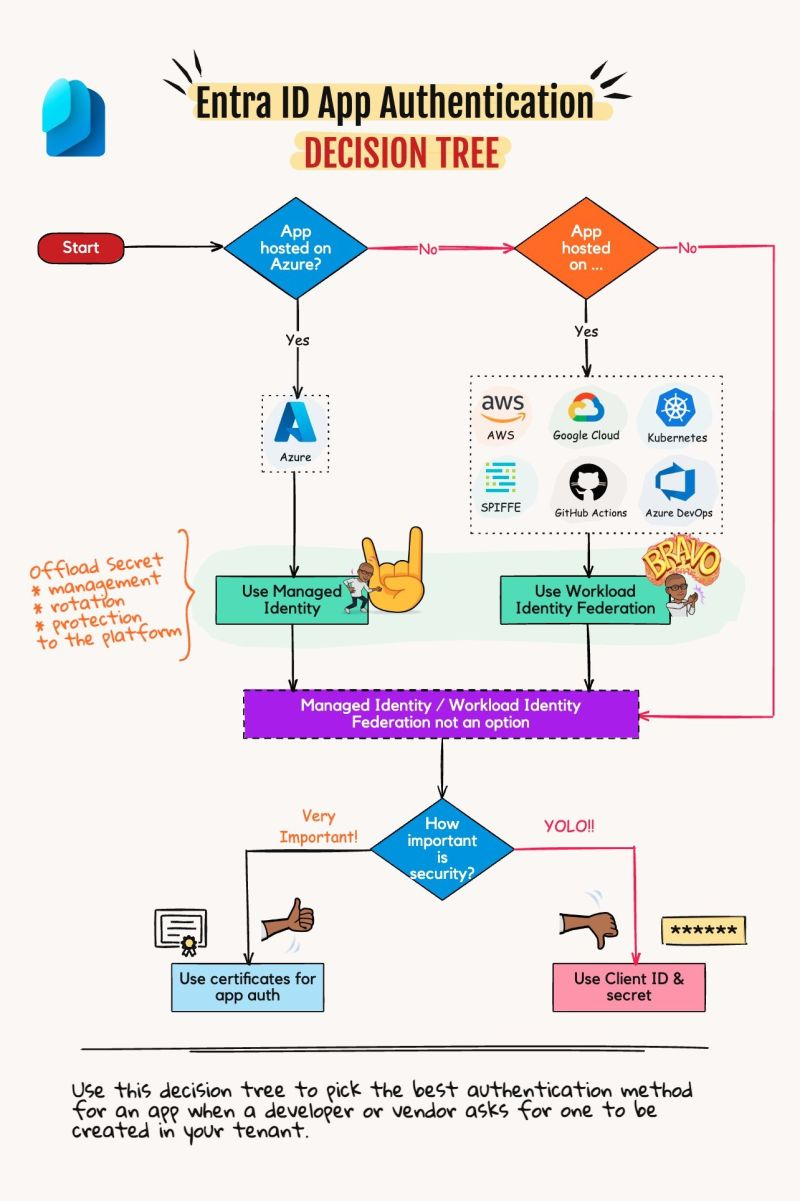
It is highly recommended to configure these new application policies to at least reduce the use of passwords/secrets for your applications. I really like this decision tree from Merrill Fernando, which advocates alternatives such as managed identities and workload identity federation. Using secrets should be your very last resort. Do know that you can also control the use and lifetime of certificates with these new policies.
Resources:
appManagementPolicy resource type - Microsoft Graph beta | Microsoft Learn
Configure restrictions on how applications can be configured - Microsoft Entra ID | Microsoft Learn
Entra ID Application Management Policies | by Brian Veldman | Medium
michaelmsonne/EntraIDApplicationPolicyManager
Comments
Comments load when you scroll here.