
Least privilege for Temporary Access Pass creation
Today, giving out Temporary Access Passes for Microsoft 365 is a very common task. And attackers love them as well, since they bypass some security policies, including MFA. With Zero Trust in mind, we should always strive to use ‘just-in-time’ and ‘just-enough’ permissions. So whether you do this task manually or have it fully automated, both scenarios need to follow least privilege.
In this post, we look at how we can improve security by limiting the permissions of users or managed identities that can create Temporary Access Passes.
Entra admin roles (directory-wide)#
According to the documentation, the following least privileged roles are supported for Temporary Access Pass creation:
Both roles are considered privileged: the Authentication Administrator can add authentication methods (such as TAP) for all users except admins, and the Privileged Authentication Administrator can manage authentication methods for all users, including Global Administrators.
When these roles are granted directory-wide, they are very powerful and should be considered Tier0. For delegated scenarios, custom roles are not supported, so we’ll have to stick with the built-in roles.
When using roles like this on the directory level:
- Enforce phishing-resistant MFA for these roles
- Assign just-in-time and tightly controlled access by using Privileged Identity Management
- Limit the role to compliant devices or trusted locations only
Entra admin roles (Admin Units)#
When directory-level permissions are not an option, we can limit the scope of the built-in roles by using Admin Units. Admin Units are basically containers that can include users, groups, and devices. When assigning an Entra role, you can grant it on the Admin Unit level, so the permissions will only apply to the objects in the specific Admin Unit.
Admin Units can be dynamic, so in this example, I created one for all Office Workers in the Amsterdam Office.
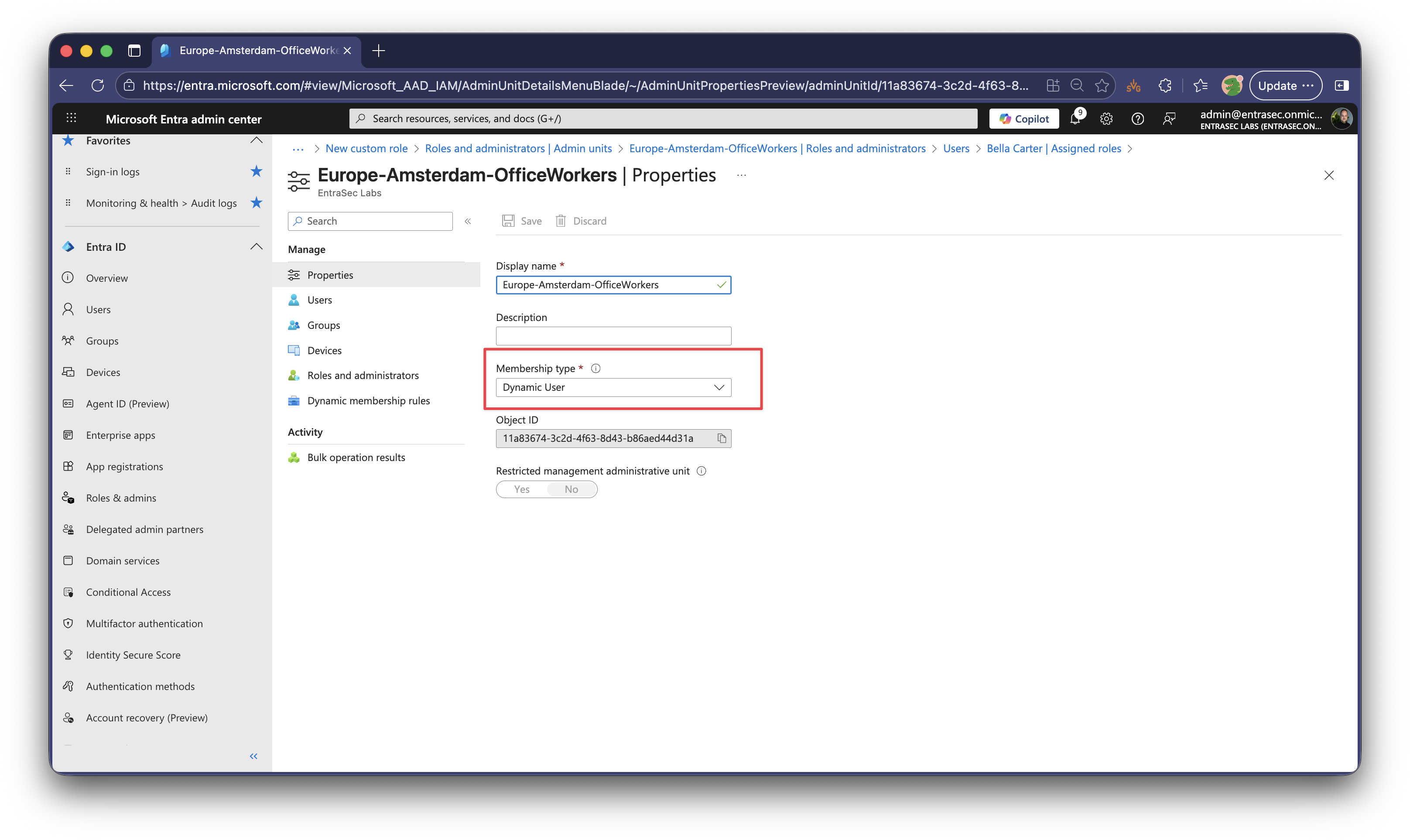
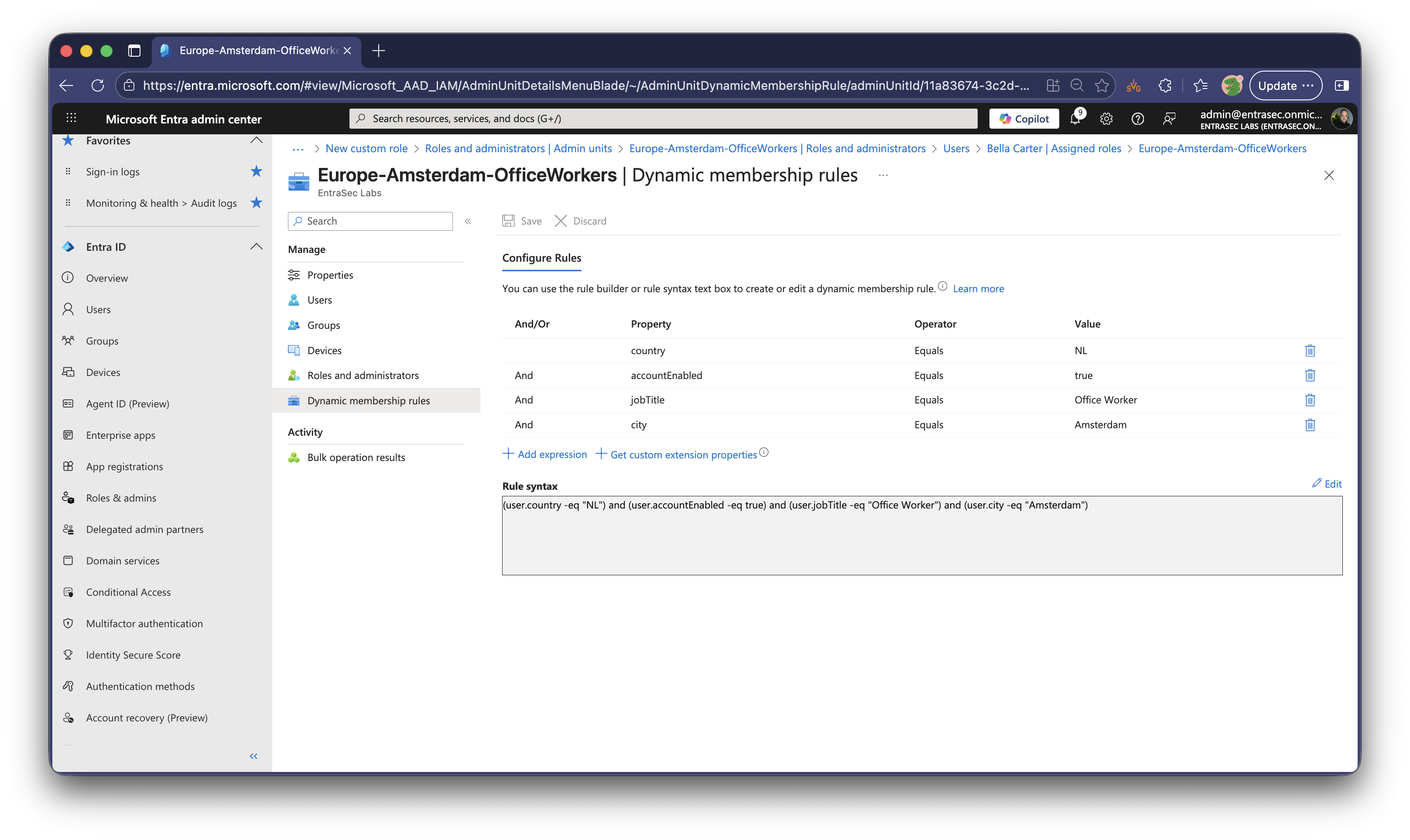
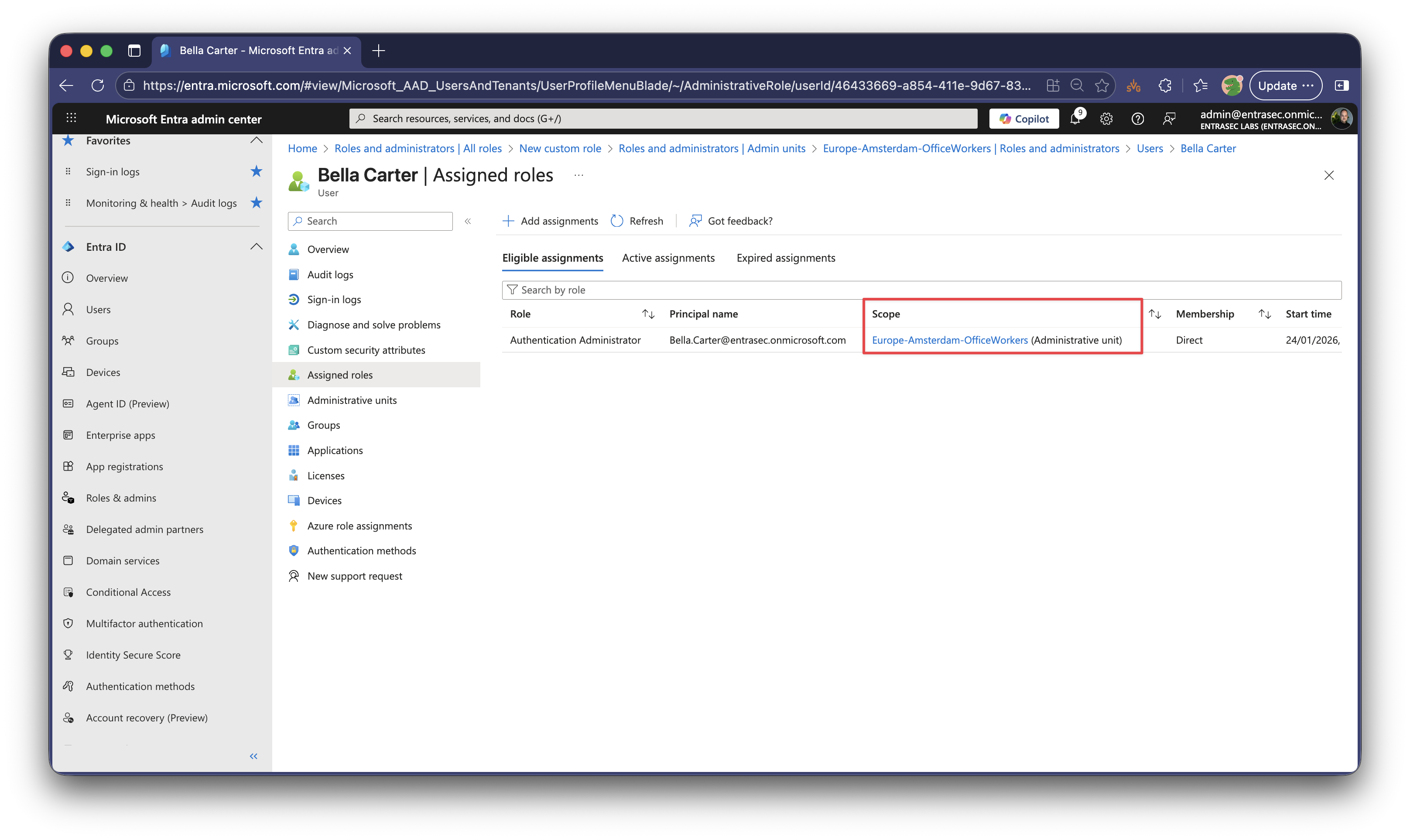
As Bella’s role is scoped to the Europe-Amsterdam-OfficeWorkers Admin Unit, she can manage authentication methods for a specific set of users only. Also, the role is eligible, so Bella first needs to activate the role using Privileged Identity Management.
Managed Identity using Entra roles#
When using automation with a managed identity, we can also leverage Entra admin roles. Entra admin roles can also be granted to managed identities, and they also support Admin Units.
In this example, I use a Logic App with a system-assigned managed identity.
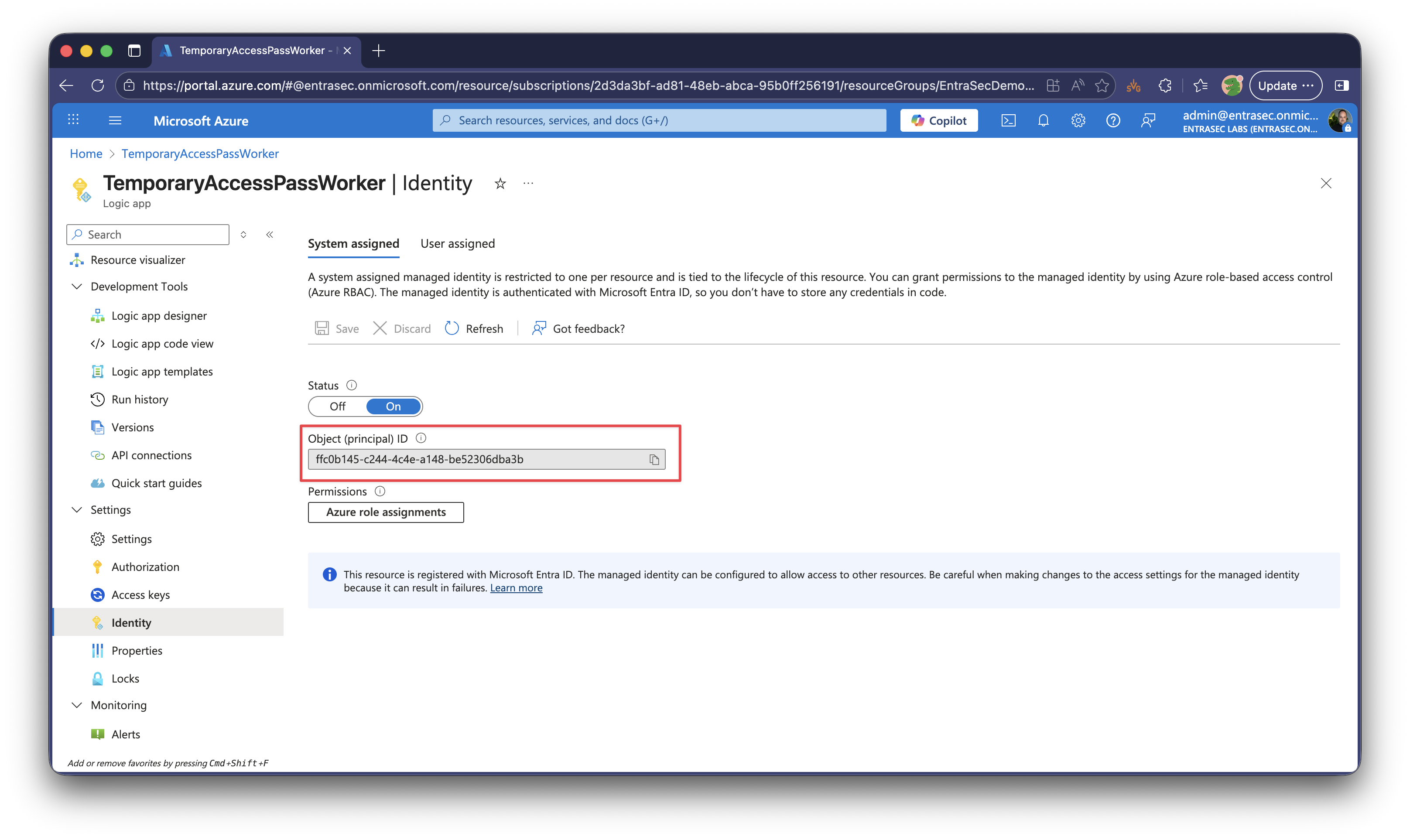
Just like user accounts, we can also assign Entra roles to managed identities (service principals/enterprise applications).
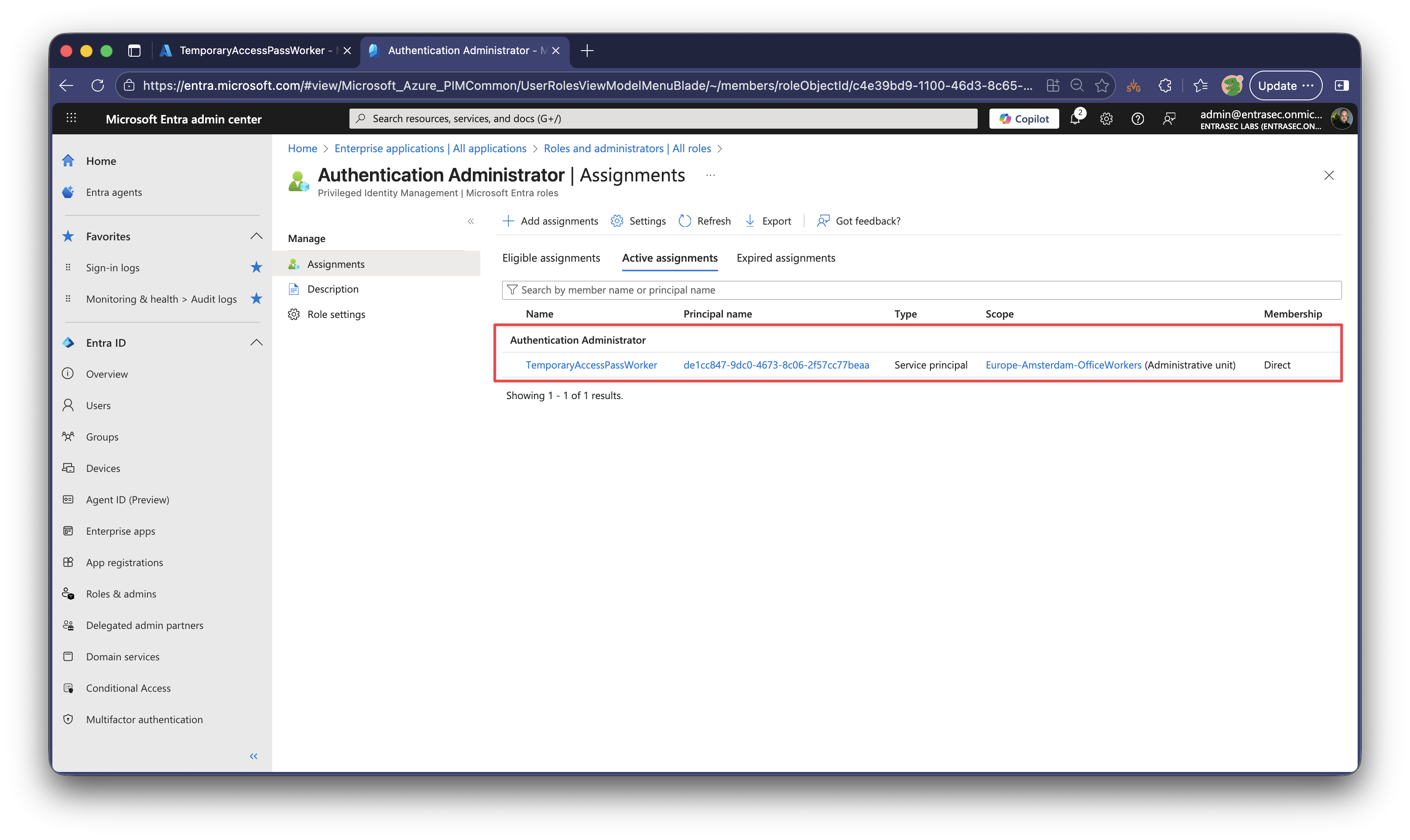
For this use case, the assignment is likely active, since managed identities cannot activate their roles via Privileged Identity Management.
Managed Identity using Graph API application permissions#
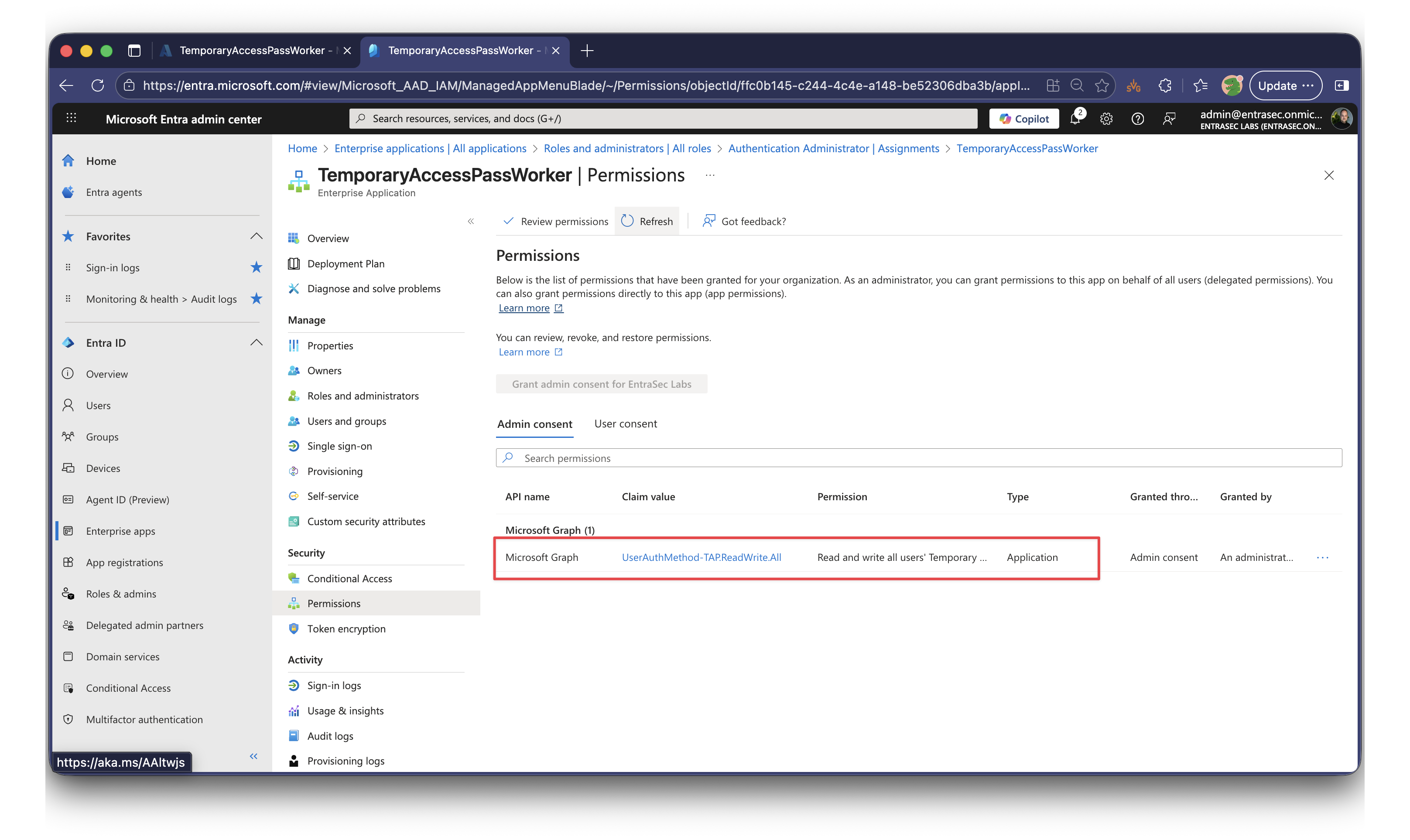
For application permissions, using the Graph API, we can be more fine-grained, since we have permissions per authentication method. To create a new Temporary Access Pass, we need UserAuthMethod-TAP.ReadWrite.All
Allows the application to read and write Temporary Access Pass authentication methods of all users in your organization, without a signed-in user. This does not allow the app to see secret information like passwords, or to sign-in or otherwise use the authentication methods.
Unfortunately, this method does not support scoping, so these permissions apply to the entire directory. That means you can also add a Temporary Access Pass for Global admin and other highly privileged roles.
Granting Graph API permissions to a managed identity is still not possible through the Entra admin center (looking at you, Microsoft), so we can either do it using the Graph Explorer or use tools like Lokka.
POST /servicePrincipals/{managedIdentityId}/appRoleAssignments

Body:
{
  "principalId": "ffc0b145-c244-4c4e-a148-be52306dba3b",
  "resourceId": "a3772e93-583a-41cd-9ec0-dc362febb0f8",
  "appRoleId": "627169a8-8c15-451c-861a-5b80e383de5c"
}
Where:
principalId= Your managed identity’s object IDresourceId= Microsoft Graph service principal IDappRoleId= The specific permission you want to grant
List of permissions can be found here: https://aka.ms/AppNames
Let’s wrap up#
I hope this post was helpful. With so many options available, it might not always be clear for administrators which method to pick, and why. Personally, I would use managed identity with scoped Entra roles for easy management and better scoping, where possible. For more advanced scenarios, you could go for Graph API application permissions, but that might require additional skills, since granting those permissions is a craftmanship on its own.
Stay safe!
Comments
Comments load when you scroll here.