
KB- Windows 11 Advanced passkey settings
To whom it may concern.
Since Windows 11 is capable of storing passkeys, protected by Windows Hello, the Windows Security screen looks like / can look like this these days:
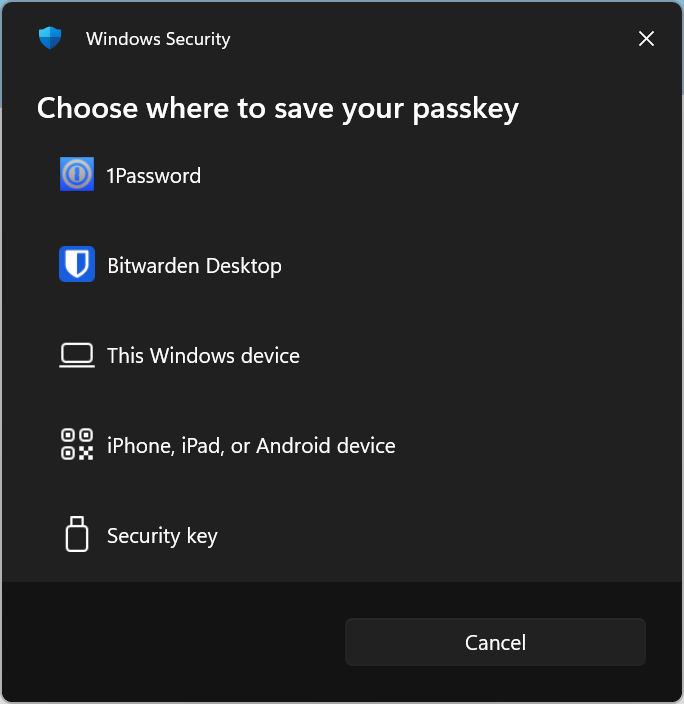
So, next to the default options iPhone, iPad, or Android device and Security key, there can also be 3rd party providers who can store passkeys. They use the new plugin credential manager API plugin support for passkey providers on Windows, and 1Password and Bitwarden are the first ones that shows up. It can be different for you.
Windows 11 expands passkey manager support - Windows IT Pro Blog\
This post is about how to enable or disable the option “This Windows device”, which can be toggled from the Windows 11 advanced passkey settings blade: Settings > Accounts > Passkeys > Advanced options using a registry key. This may be used to prevent your users from storing all kinds of passkeys on their corporate devices.
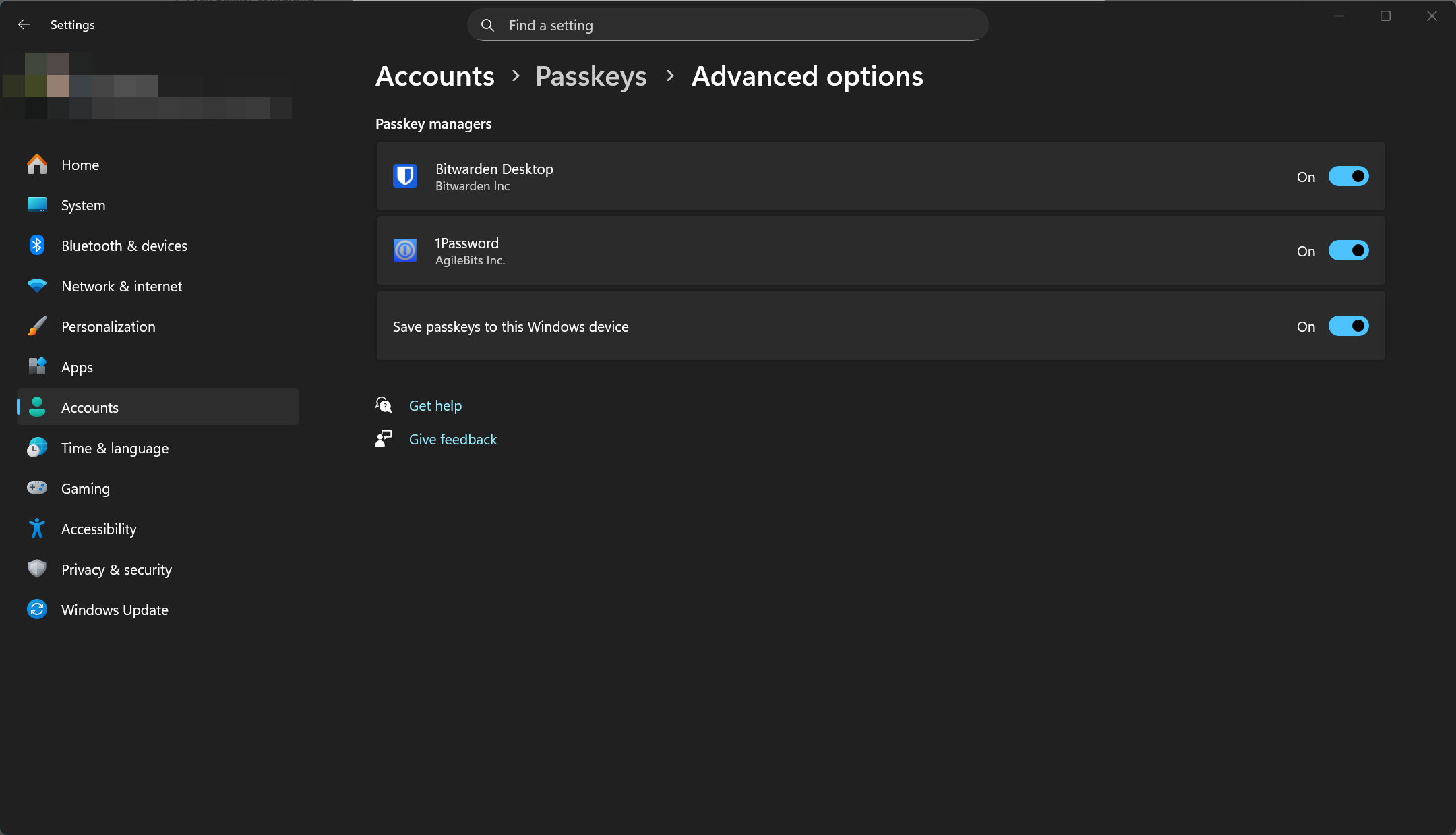
Here are the registry keys I found that control this setting:
Computer\HKEY_CURRENT_USER\Software\Microsoft\Passkeys -> LocalToggleStatus
0=Disabled
1=Enabled
1Password can also be toggled, but the path contains the user SID and the plugin has a dynamic ID.
Computer\HKEY_LOCAL_MACHINE\SOFTWARE\Microsoft\FIDO\S-1-12-1-3820111707-1238462131-2028047274-2549727959\Plugins{A1B0203F-8F26-4D45-88D0-AD1DC75B1DE7} -> State
To find all passkey providers, use this PowerShell script:
$userSid = [System.Security.Principal.WindowsIdentity]::GetCurrent().User.Value
$pluginsPath = "HKLM:\SOFTWARE\Microsoft\FIDO\$userSid\Plugins"

Get-ChildItem -Path $pluginsPath -ErrorAction SilentlyContinue | ForEach-Object {
    $props = Get-ItemProperty -Path $_.PSPath
    [PSCustomObject]@{
        Name = $props.Name
        AAGUID = $props.AaGuid
        ProviderGUID = $_.PSChildName
    }
} | Format-Table -AutoSize
Bonus.
Windows 11 also keeps track of the last used provider

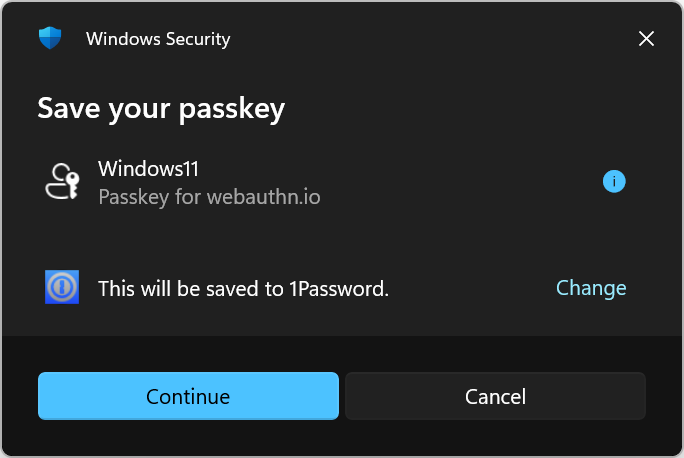
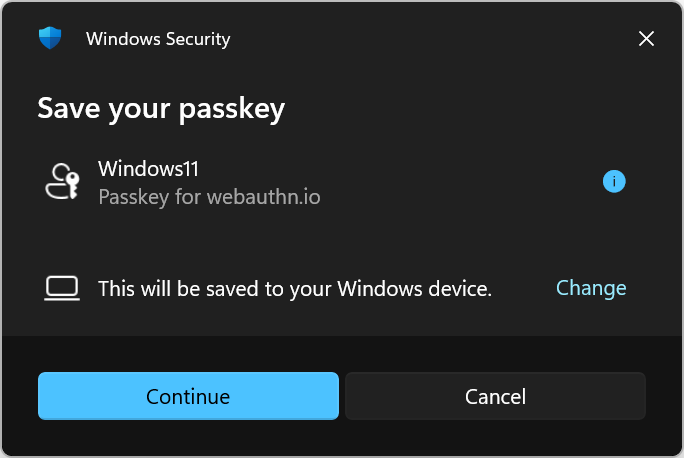
It’s easy to test this using WebAuthn.io
Cheers.
Comments
Comments load when you scroll here.