
KB - Entra Private Access Session persistence
This is a knowledge base item. I hope it will help you someday.
**Update:**This setting can also be set from the Entra admin center now.
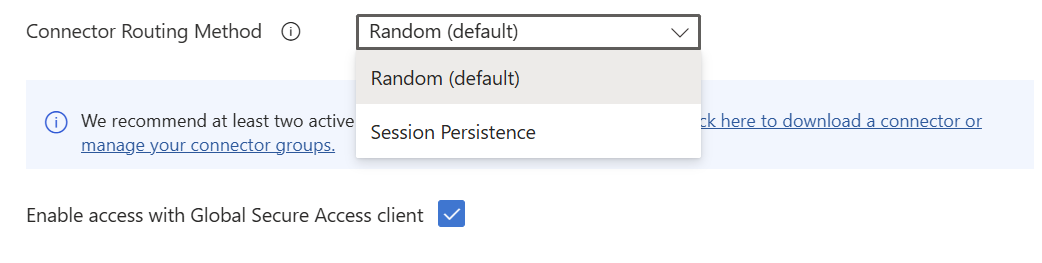
It can be set under the Network access properties of the Enterprise Application.
When working with Entra Private Access, some applications are not happy with multiple private connectors and require session persistence.
As recommended
here, there are a few options to fix this:
Option 1: Base the session persistence on a session cookie set by the load balancer. This option is recommended because it allows the load to be spread more evenly among the back-end servers. It requires a layer 7 load balancer with this capability and that can handle the HTTP traffic and terminate the TLS connection. You can use Azure Application Gateway (Session Affinity) or a load balancer from another vendor.
Option 2: Base the session persistence on the X-Forwarded-For header field. This option requires a layer 7 load balancer with this capability, and that can handle the HTTP traffic and terminate the TLS connection.
Option 3: Configure the back-end application to not require session persistence.
Most of these options depend on a layer 7 load balancer.
But now we also have option 4: Enable session persistence on the application itself, by setting the trafficRoutingMethod property.
As of today, there is no UX setting for this, so you’ll need to use the Graph API. Graph Explorer is the easiest tool for this.
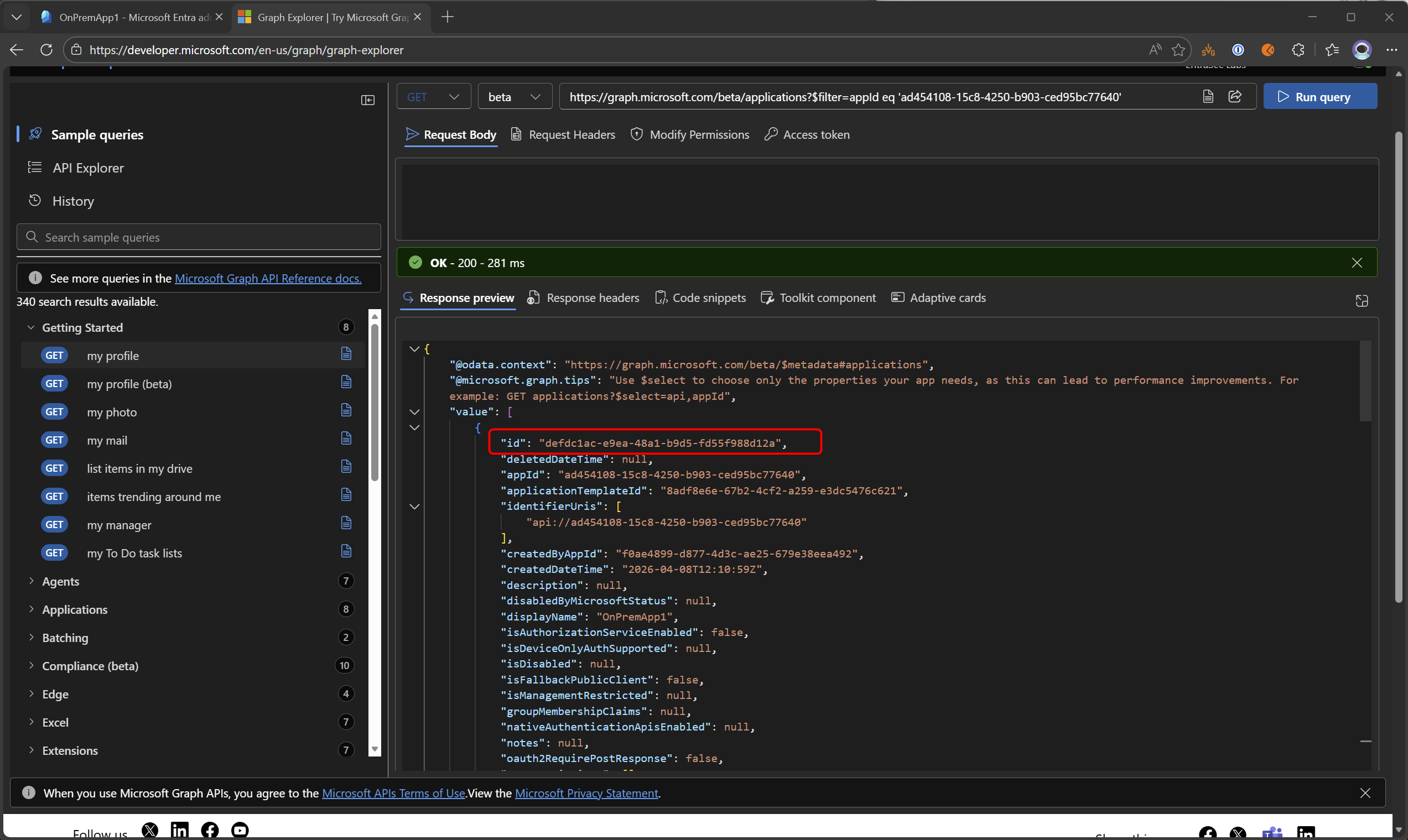
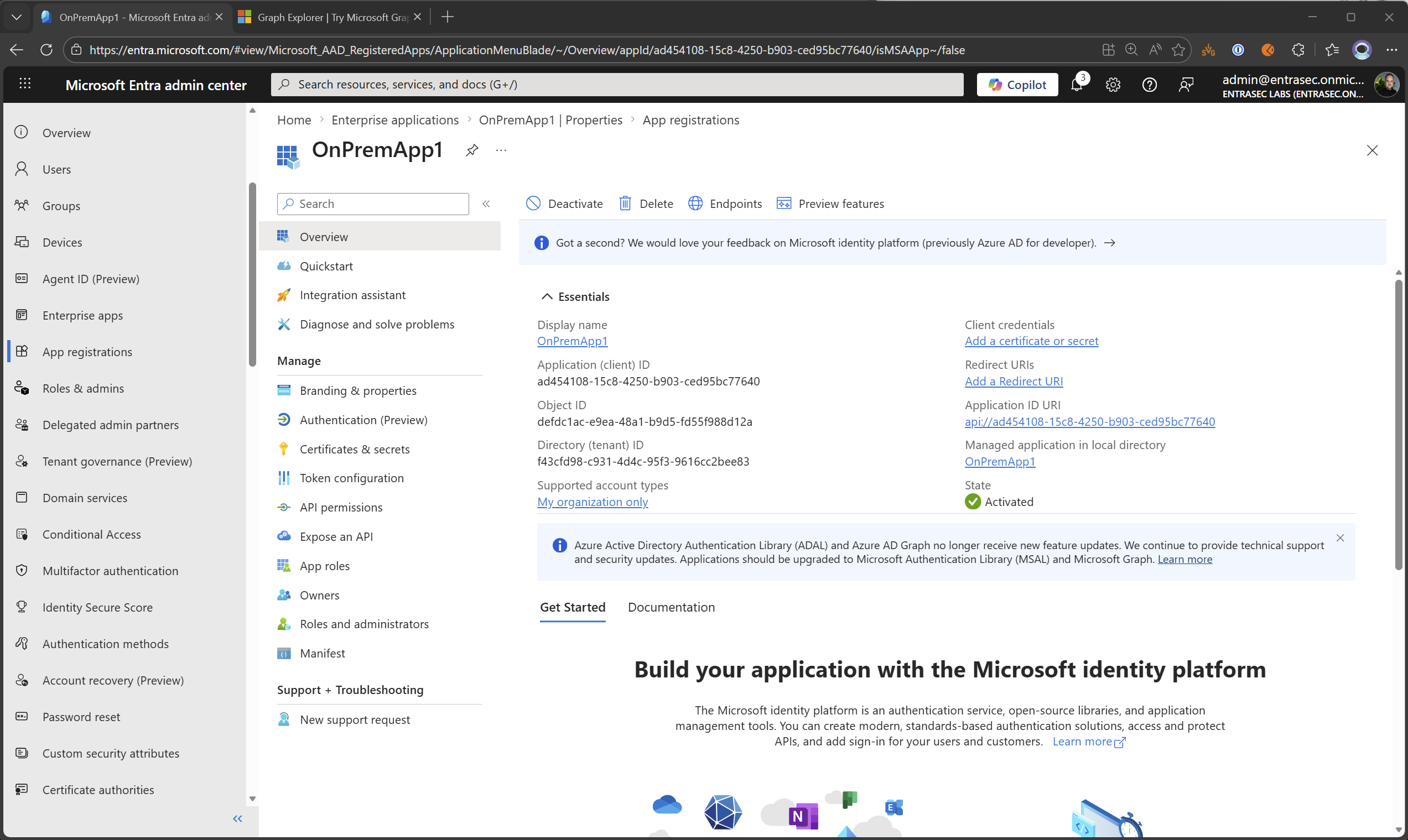
First, you’ll need to find the correct application ID, as this property needs to be set at the service principal level.
Method 1:
GET https://graph.microsoft.com/beta/applications?$filter=appId eq 'ad454108-15c8-4250-b903-ced95bc77640'Where appID is the Application ID from the Global secure access application (pick it from here)
Method 2: Find the ObjectID using the App registration blade.
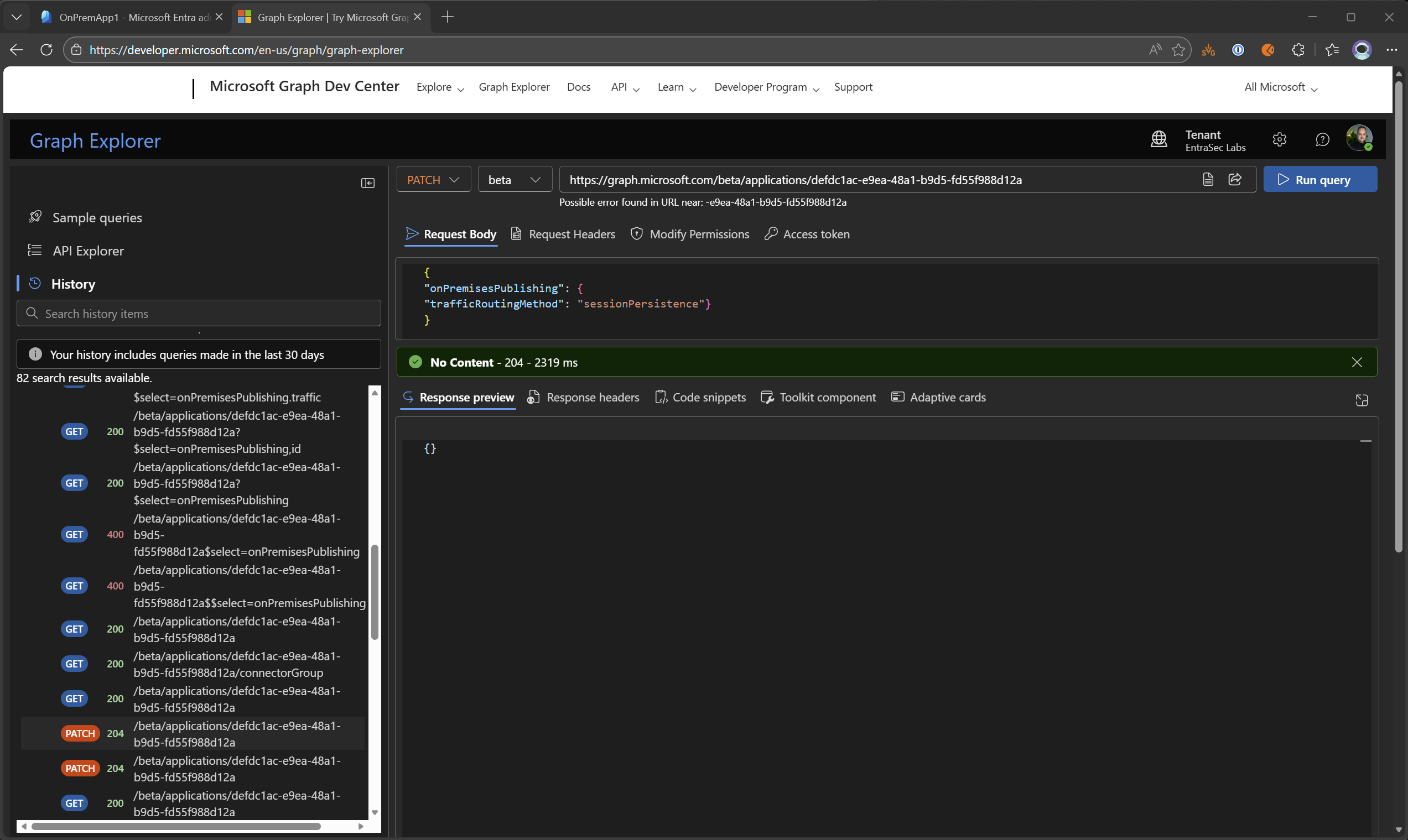
With the correct ID at hand, update the application using the Graph call:
PATCH https://graph.microsoft.com/beta/applications/defdc1ac-e9ea-48a1-b9d5-fd55f988d12a

{
"onPremisesPublishing": {
"trafficRoutingMethod": "sessionPersistence"}
}
To check whether the property is set, use:
GET https://graph.microsoft.com/beta/applications/defdc1ac-e9ea-48a1-b9d5-fd55f988d12a?$select=onPremisesPublishing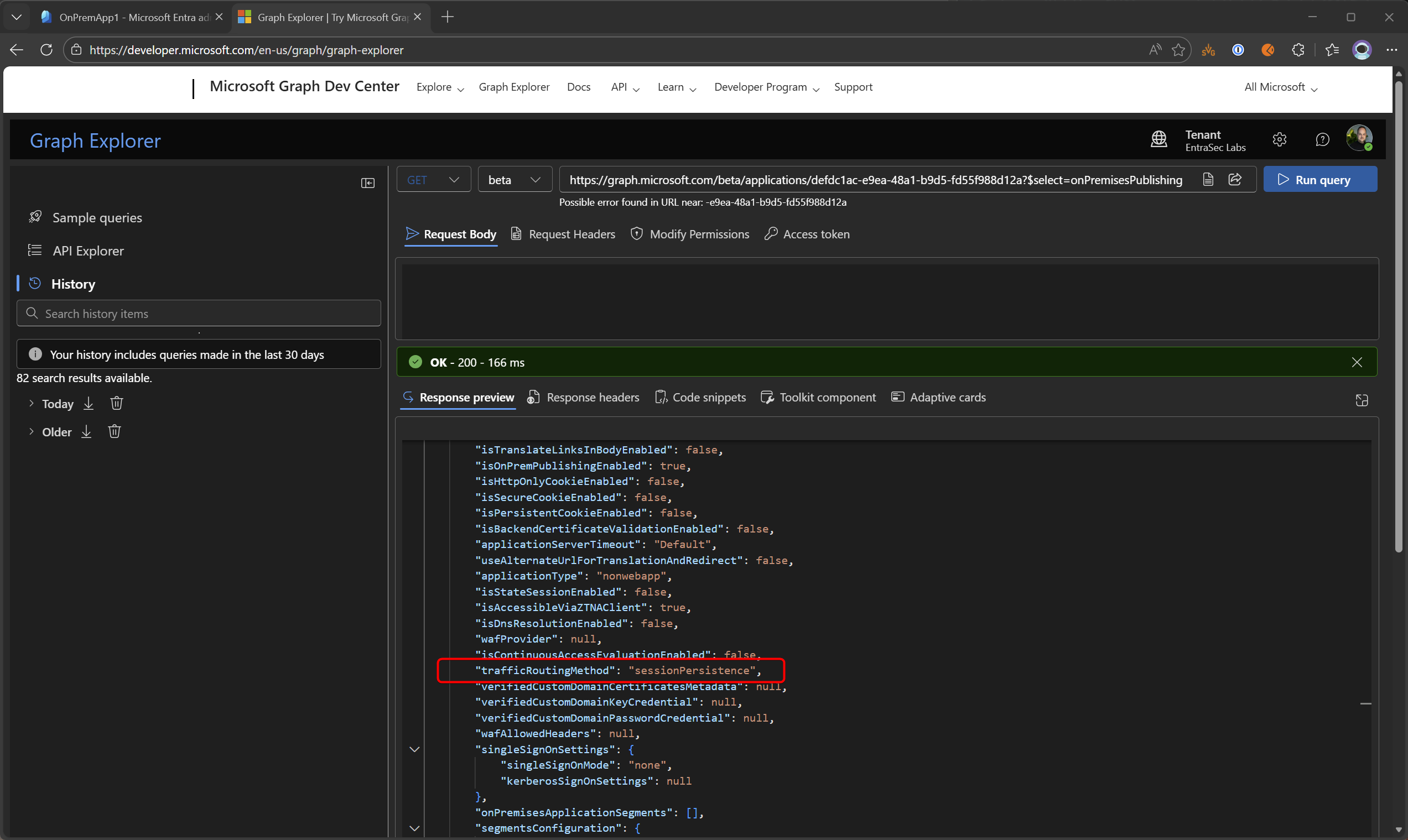
More info:
Configure application proxy using Microsoft Graph APIs - Microsoft Graph | Microsoft Learn
Microsoft Entra Private Network Connector Groups - Global Secure Access | Microsoft Learn
High availability and load balancing in Microsoft Entra application proxy - Microsoft Entra ID | Microsoft Learn
Stay safe!
Comments
Comments load when you scroll here.