
How to secure passkey registration in Entra ID
MC1450133 will have a big impact on Entra ID. I got several responses when I posted about it on LinkedIn. This change has two sides:
- It will massively improve the passkey registration flow, especially for new joiners and recovery scenarios, resulting in more users with phishing-resistant credentials.
- It will remove a security boundary, so attackers can (and will) abuse it.
What will happen?#
Microsoft Entra will allow users to register passkeys or passwordless sign-in as their first multifactor authentication method, removing the prior requirement to set up alternate MFA methods first. The phased rollout begins in November 2026, aiming to simplify strong authentication adoption and reduce registration friction.
First, I need to correct something. The MFA requirement was just a small speed bump and is a risk today if you don’t take proper action. Without a Conditional Access policy in place that targets the Security Info Registration Action, an attacker could still register a passkey with just a plain password. Today, the only thing they need to do is register another MFA method first. So the attack path is:
Get the password -> Register MFA with Auth app or similar -> Register/upgrade to passkey.
After the MC1450133 change, the path will be:
Get the password -> Register a passkey.
So nothing new here. Time to address the important part: you need to secure the passkey registration flow.
What it takes#
In Conditional Access, it is recommended to create one or more policies to secure the Security Information Registration action. You have a few options, and you can pick one or more, depending on your needs:
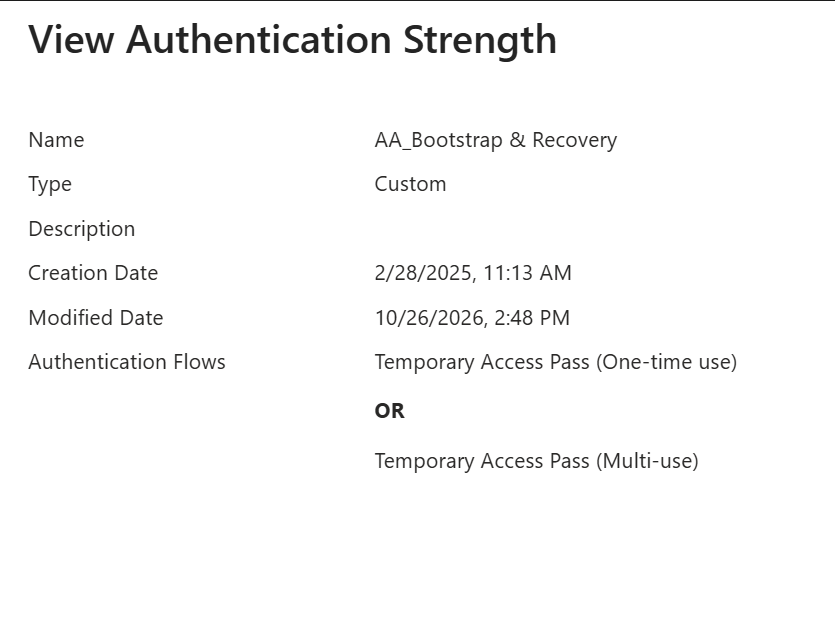
- Enforce an authentication strength that allows only Temporary Access Pass.
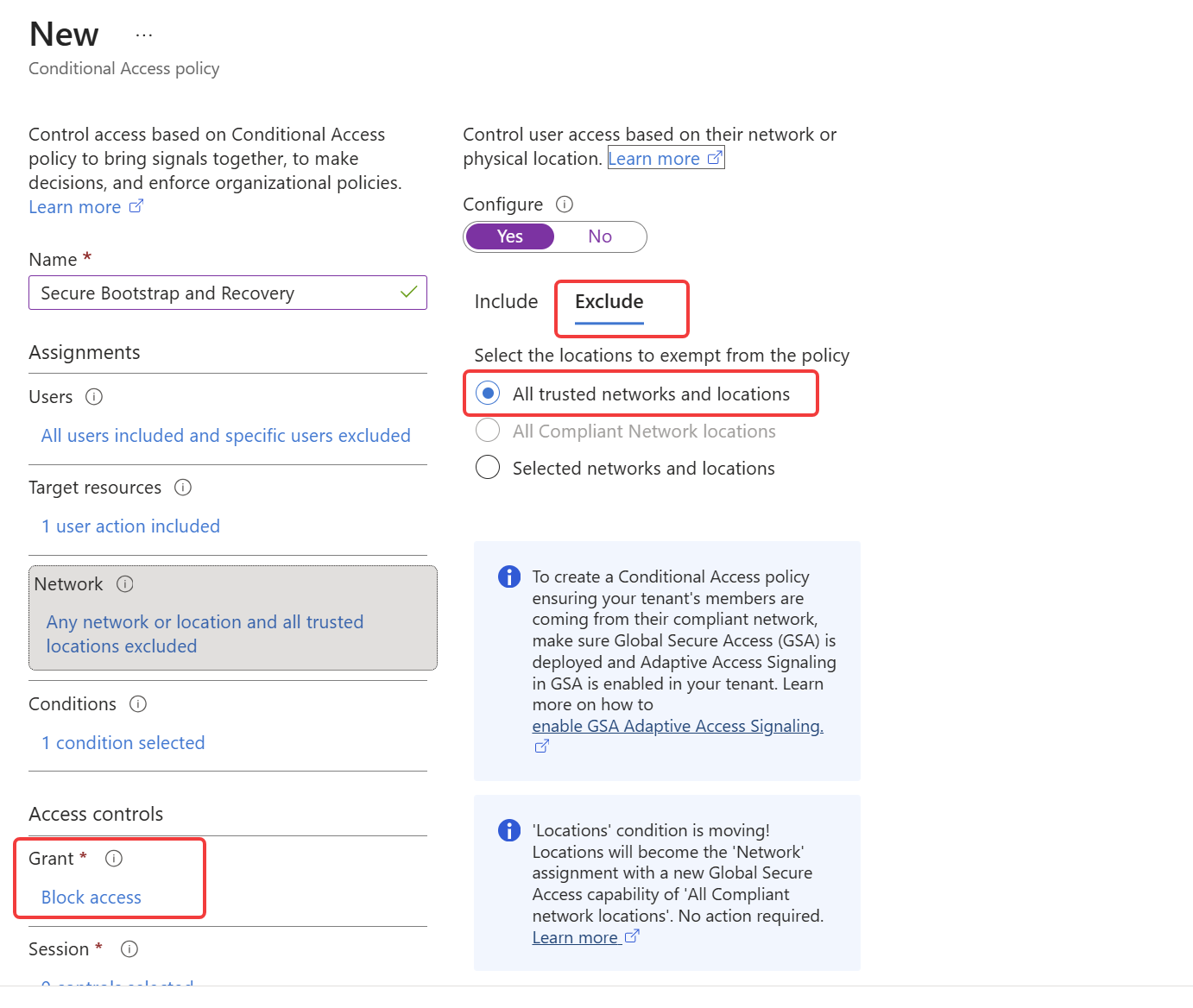
- Enforce named locations; block access if you are not in a trusted or known location.
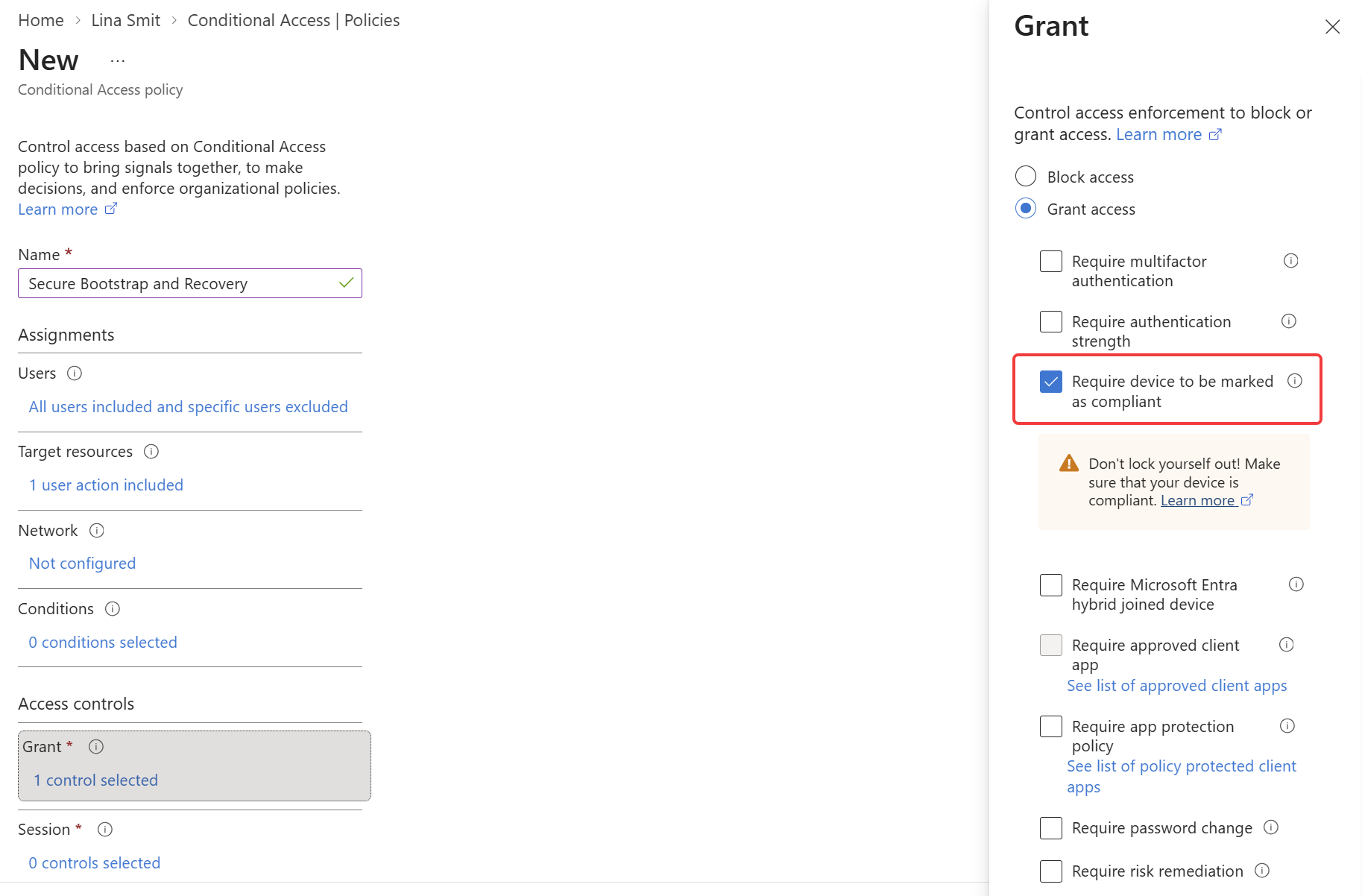
- Enforce a compliant device; block access if you are not on a managed or compliant device.
All policies will have the same target: Register security information.
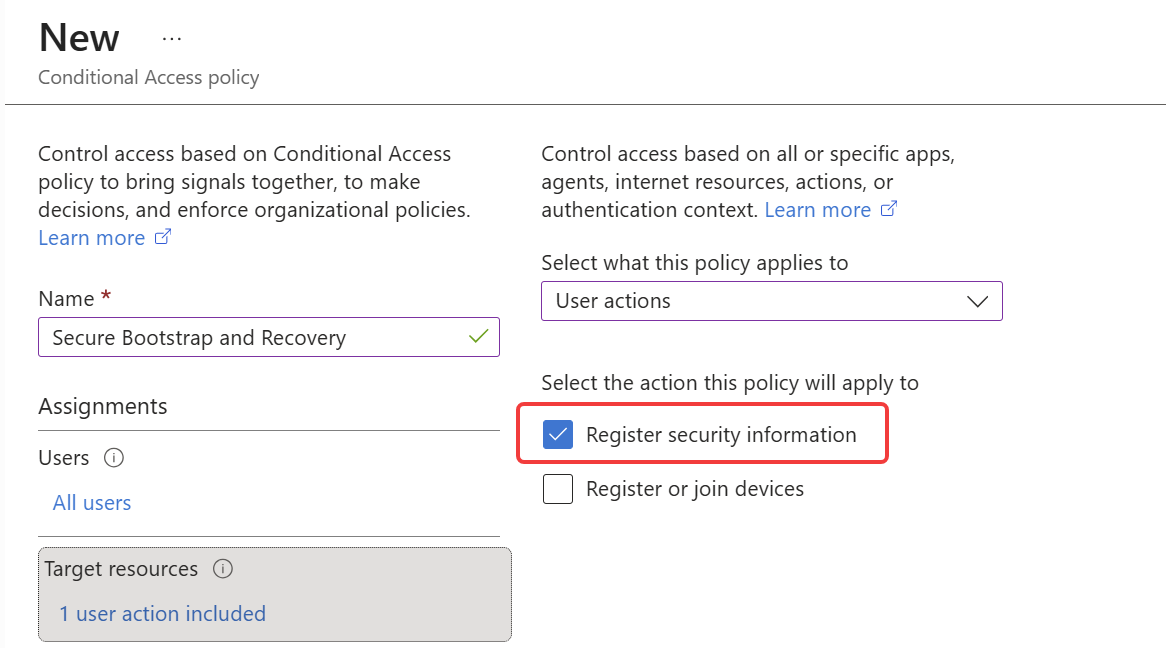
Make sure to exclude your break-glass accounts, and test with a small group of users before putting the policies into production.
Enforce authentication strength#
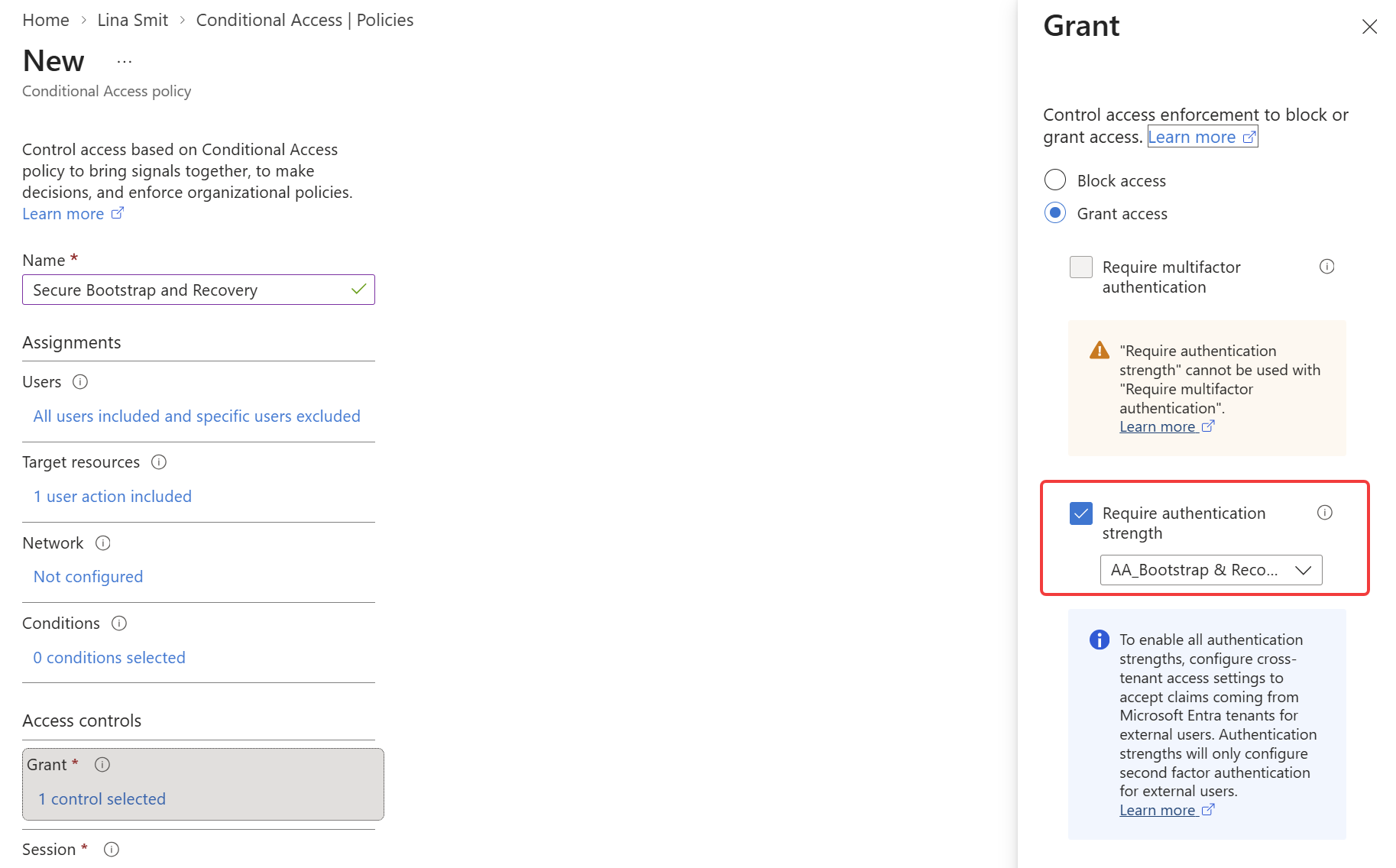
For this policy, you need to create a new authentication strength to use only for bootstrap and recovery. Only add Temporary Access Pass. You can also add other phishing-resistant MFA methods, so you can register a new passkey when using Windows Hello or certificate-based authentication, for example. Don’t put weak methods in there.
Link the authentication strength to your policy:
Enforce named locations#
In this policy, you will simply block the action if you are not at a trusted (or named) location. You can also consider a compliant network if you are using Global Secure Access. Users need to be in the office or connected via VPN to register and recover credentials.
Enforce a compliant device#
Similar to the authentication strength policy, but here you enforce a compliant device. This should block passkey registration if your device is not compliant. This will break passkey registration if you also support BYOD.
What you should not do#
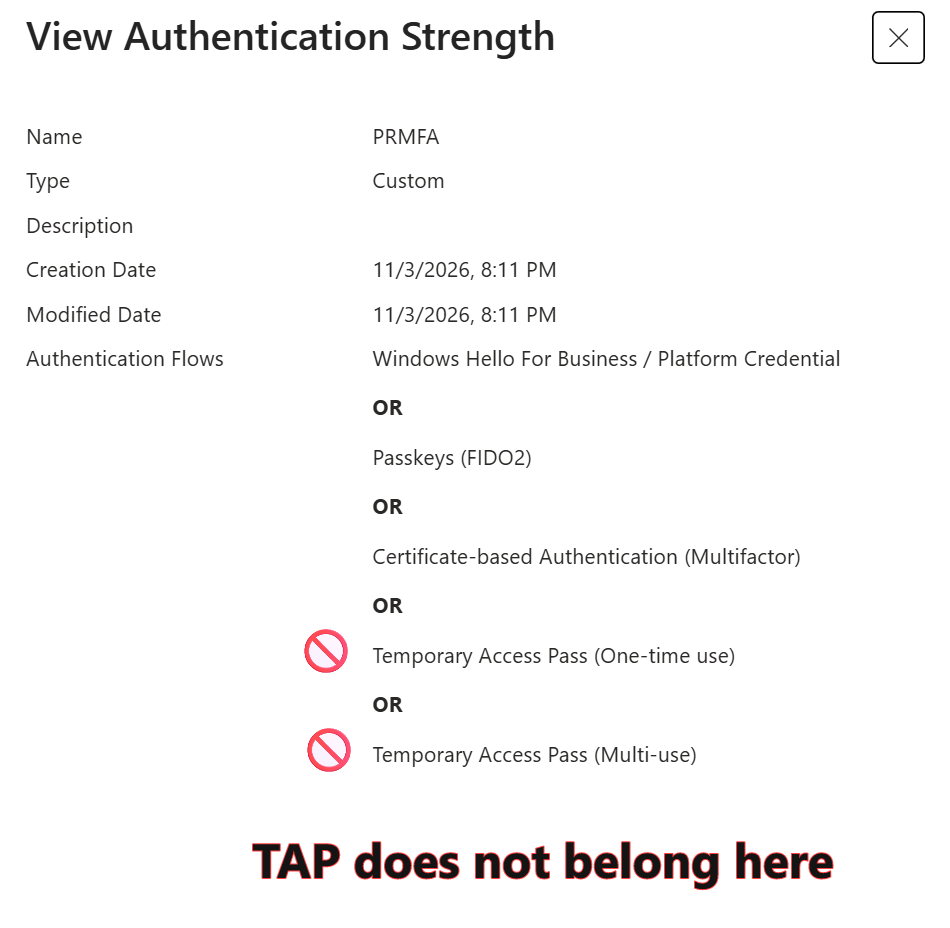
A quick and easy action to fix all passkey-related registration issues is to add Temporary Access Pass to the authentication strength used to protect all resources. You MUST avoid that.
Exclusions#
Strict policies can be challenging, so you might need exclusions once in a while. For that, I recommend using PIM for groups. See this post on how to do that: temporary exclusions for Conditional Access using PIM for groups.
Let’s wrap up#
Securing your bootstrap and recovery paths is an important step, as we see many attacks targeting this process. Hopefully, this post will give you some inspiration to (further) secure your Entra ID tenant.
Stay safe!
Comments
Comments load when you scroll here.