
How to restrict Device Code Flow in Entra ID
On this page
For good reasons, device code flow in Entra ID is getting a lot of attention. Attackers heavily use it to get access to Microsoft 365 accounts and data. Device code phishing is very effective, as phishing-resistant MFA, like passkeys, are not helping here. The victim will simply hand over an access token to the attacker. The attacker does not care how authentication is being done.
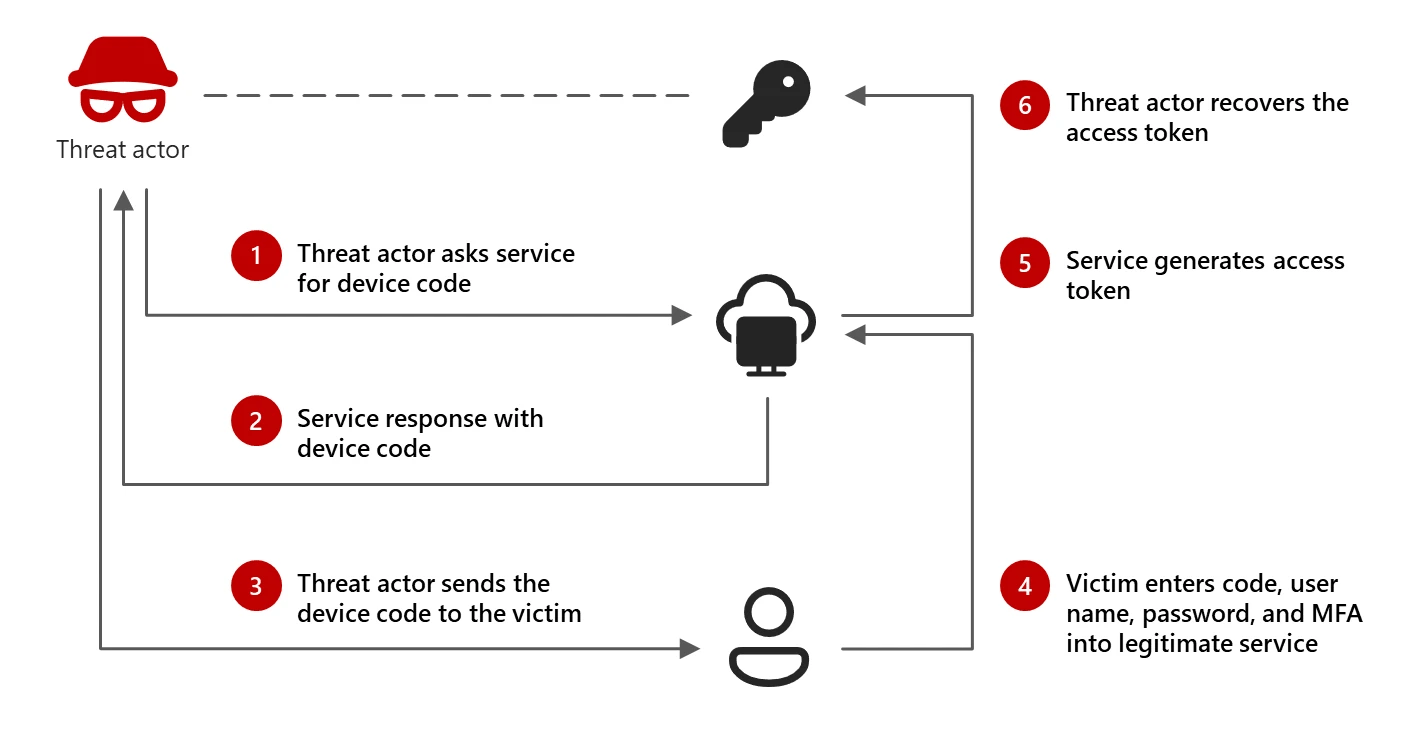
Microsoft recommends blocking device code flow wherever possible and allowing it only where necessary. And that’s exactly where this post will fit in. The purpose of this post is to restrict device code flow and make it available only for those who need it.
Device code flow on itself is a very neat feature that serves many use cases. So, blocking it for everyone might not be the best approach. In my opinion, it should at least be blocked for frontline workers, who will most likely fall for this type of attack if it lands in their email or chat. Next, think about your admins, especially when they are not working from a separate admin device like a PAW. I see device code flow mainly used by Teams Room devices, and by developers and administrators who need to authenticate on devices and services without interfaces.
For legitimate use cases, device code flow can be allowed but restricted to trusted locations.
To build that, we need two Conditional Access policies:
Block Device Code Flow for All Users, except an exclusion group
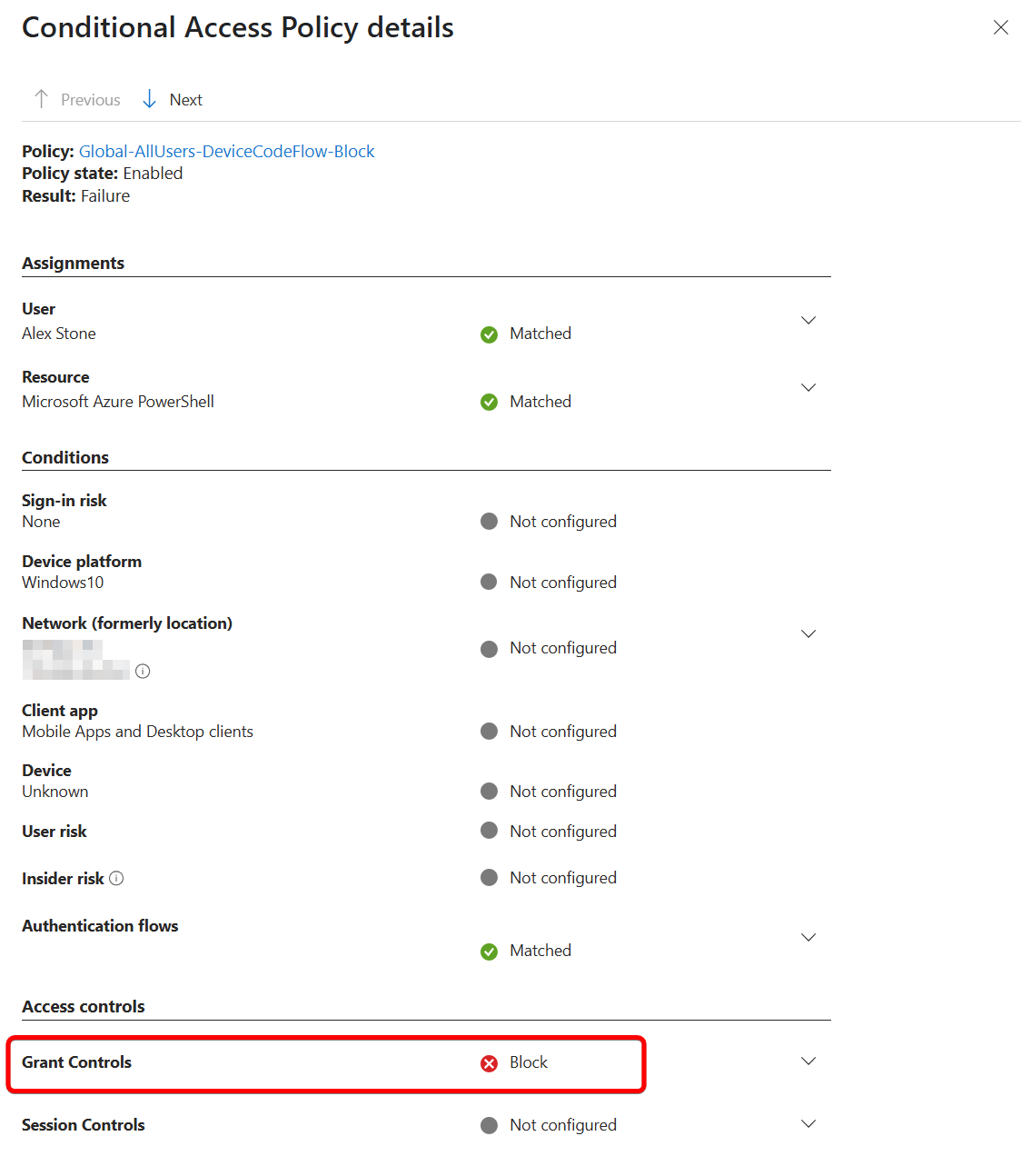
Name: Global-AllUsers-DeviceCodeFlow-Block
Users: Include: All Users
Users: Exclude: Your Exclusion Group
Target Resources: All resources (formerly ‘All cloud apps’)
Conditions: Authentication flows > Device Code Flow
Grant: BLOCK
Block Devoce Code Flow for All Users, except Trusted Locations
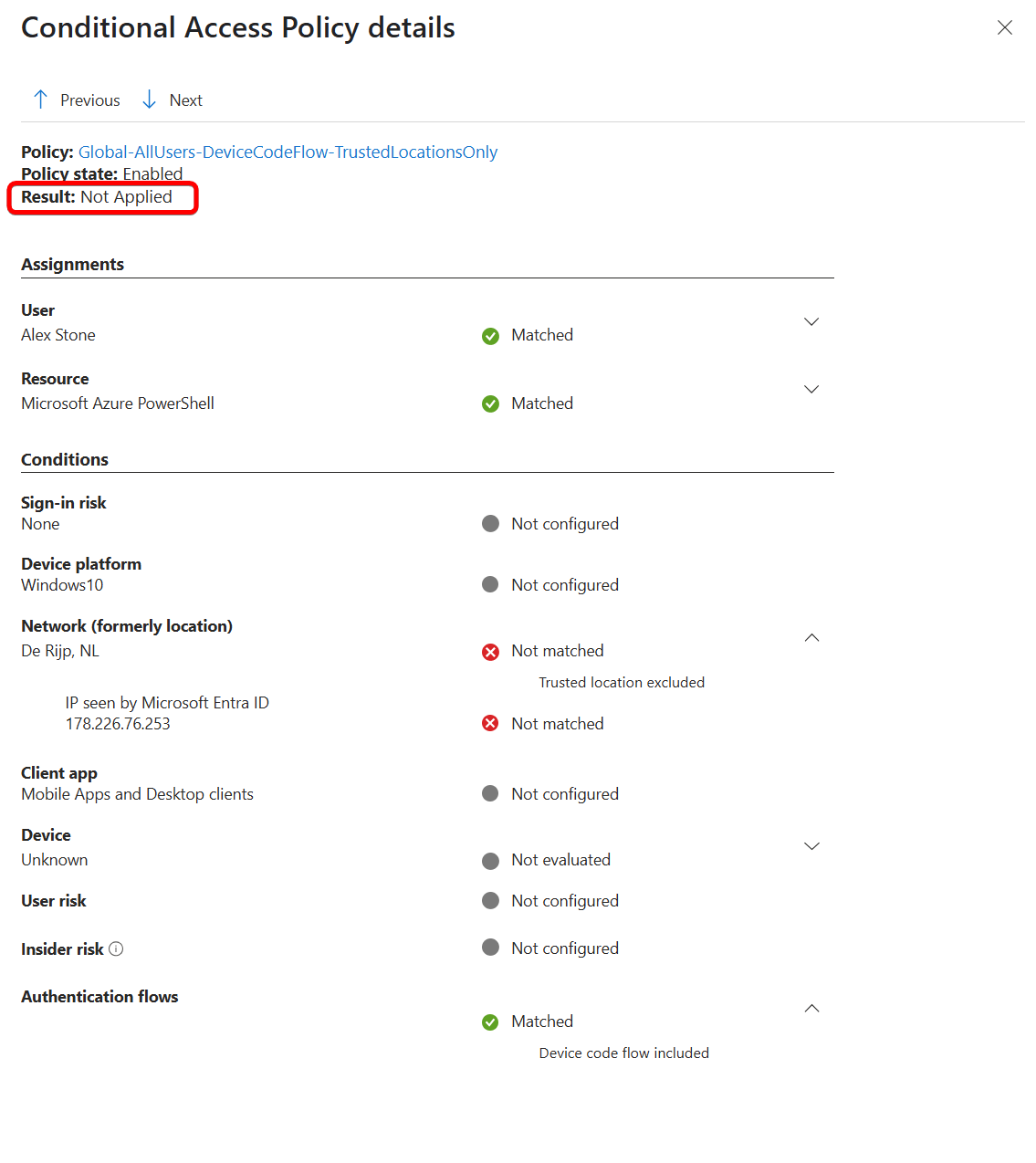
Name: Global-AllUsers-DeviceCodeFlow-TrustedLocationsOnly
Users: Include: All Users
Target Resources: All resources (formerly ‘All cloud apps’)
Conditions: Authentication flows > Device Code Flow
Conditions: Locations: Include: Any network or location
Conditions: Locations: Exclude: All trusted networks and locations (or select specific networks)
Grant: BLOCK
This gives us two controls over the device code flow feature:
- Who can use it? (Exclusion group).
- From where can they use it? (Named Locations).
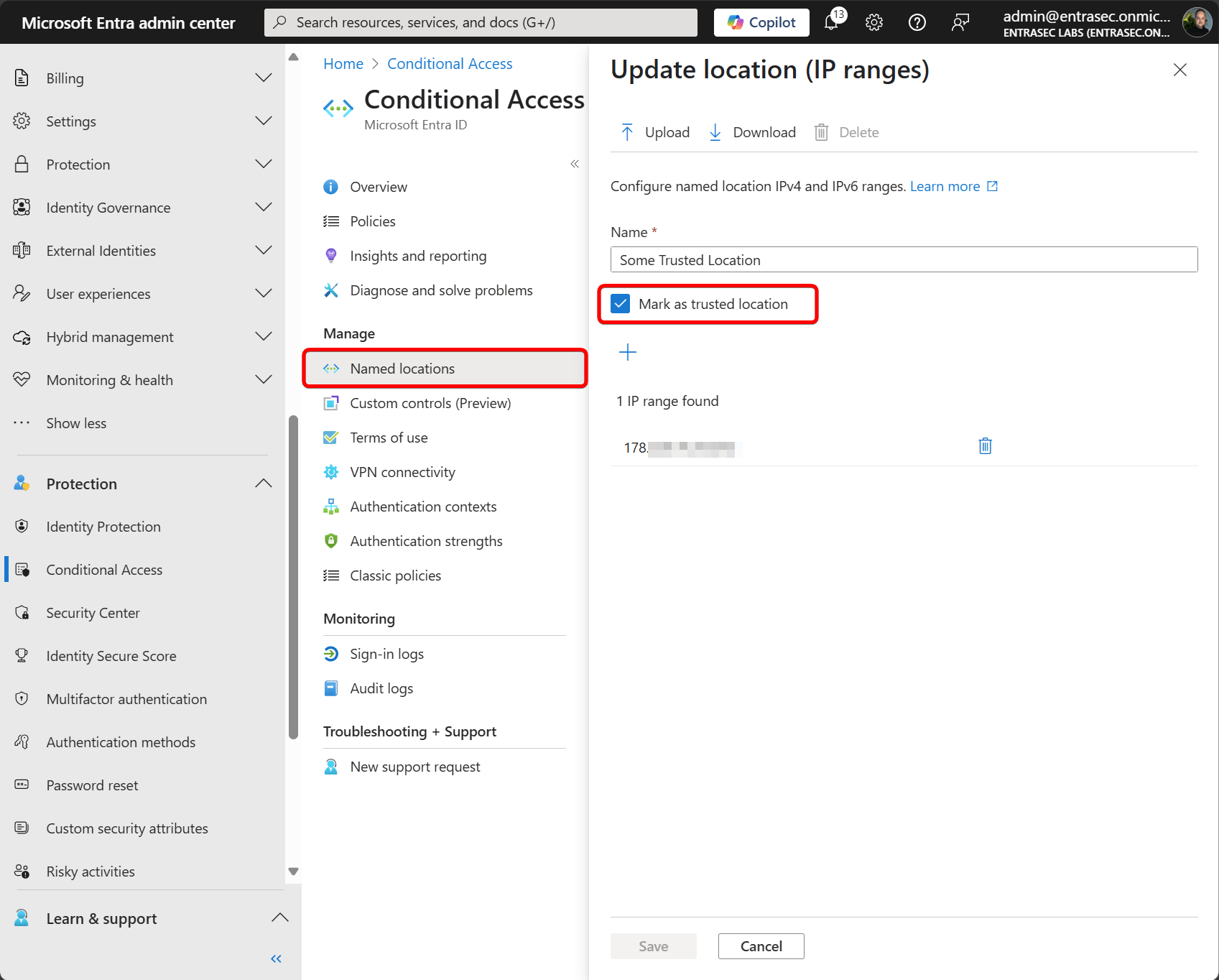
Members of the exclusion group can use Device Code Flow from Trusted Locations only, while all other users are blocked. Trusted/Named Locations can be defined here and marked as trusted.
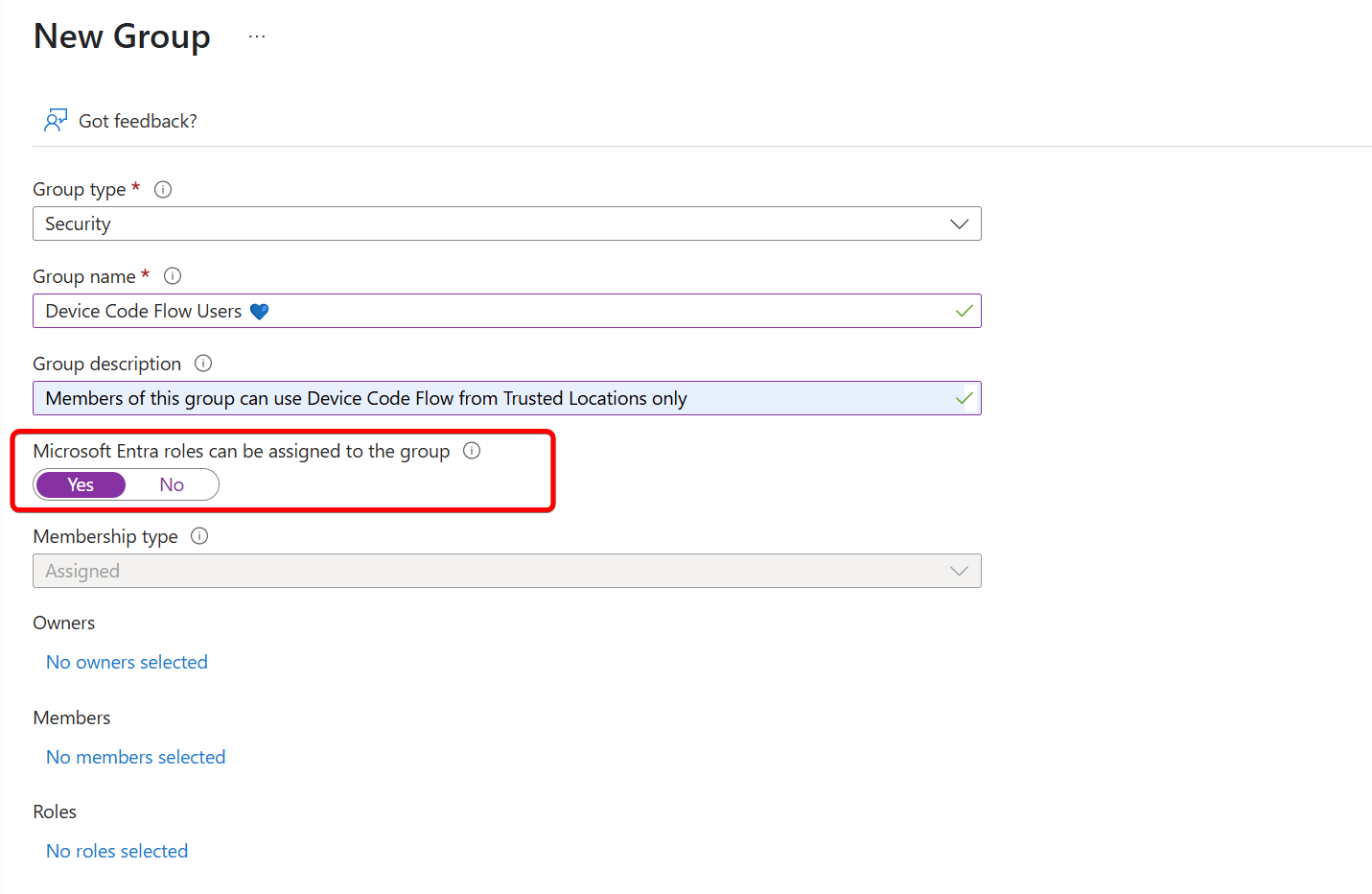
If you want strict control over this group, I suggest making it a role-assignable group to protect it from unwanted membership. Alternatively, you can add the group to a Restricted Management Administrative Unit ( RMAU) to allow only explicitly assigned admins to control membership. Users can request the IT helpdesk, and are then (manually) added to the group.
How to manage the exclusion group?#
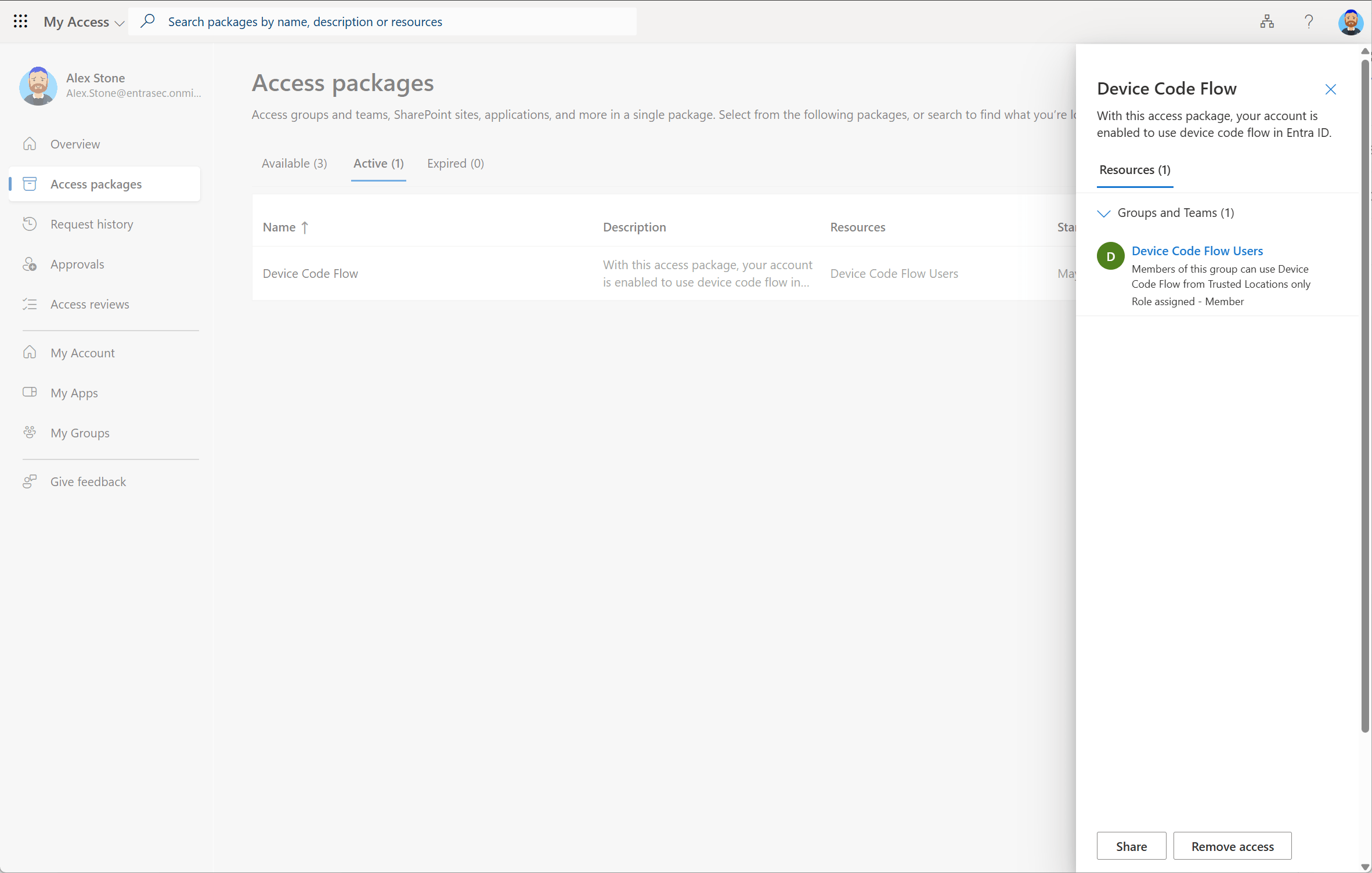
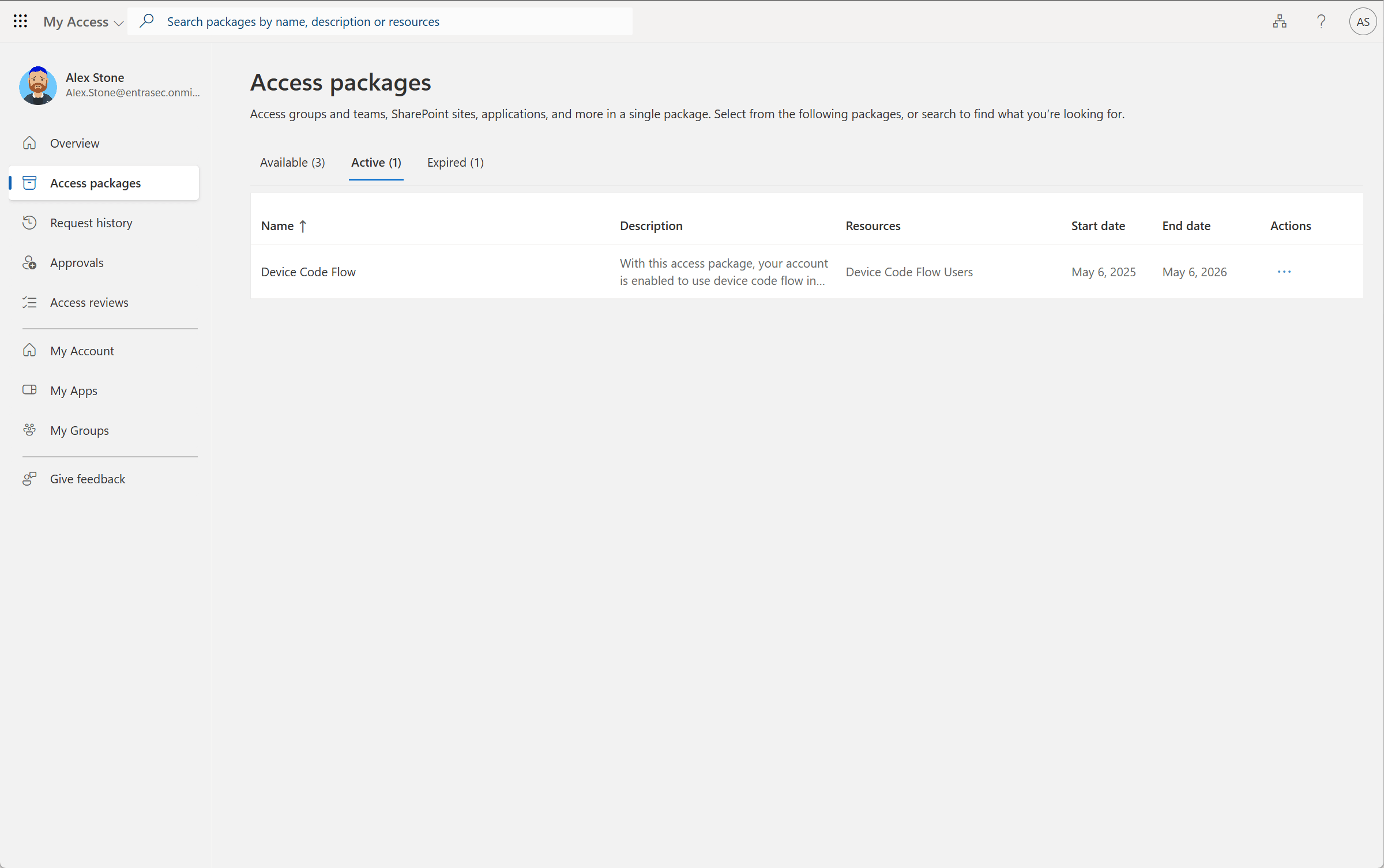
The key to the device code flow feature is the exclusion group in Entra ID. There are several ways to manage the membership of that group, depending on your needs. The easiest way is to make it available as an access package within Entra ID Governance. You can use approvals, access reviews, notifications, and features like ‘requests on behalf’ if needed. The user can request (active) membership in the group via the My Access portal. Depending on your settings, this package will be available for the configured time, and can be extended if needed. Access reviews can also be handled via self-service reviews.
Another way to support self-service is to use PIM for Groups. This can be done by onboarding the group into Privileged Identity Management and making it eligible for all or specific users only. This is perfect to support just-in-time access to device code flow.
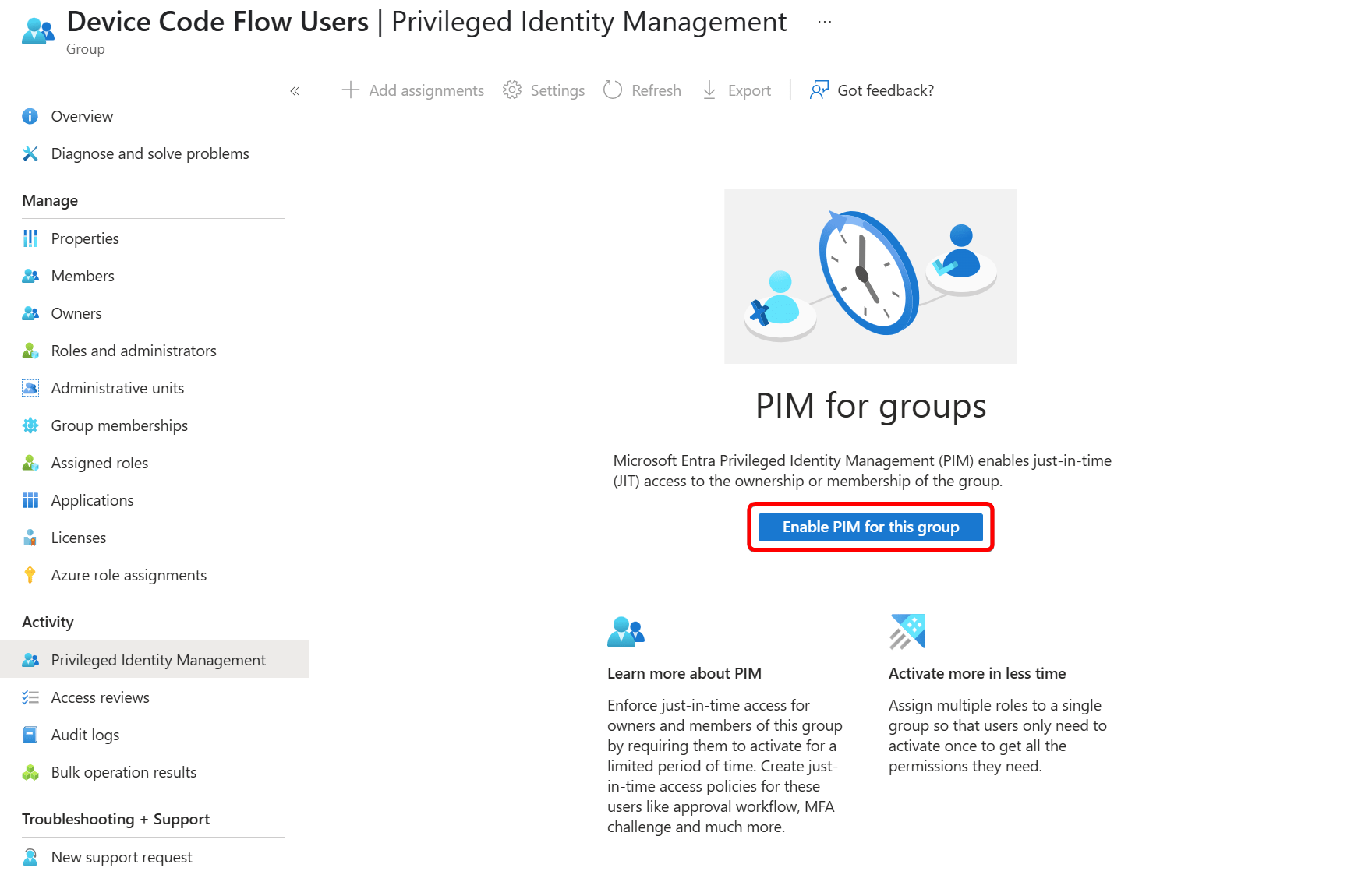
Your users can request access to the exclusion group using Privileged Identity Management. The lifetime can be limited to 1 or 2 hours, for example. Additional features like approval and notifications are also available in PIM for Groups.
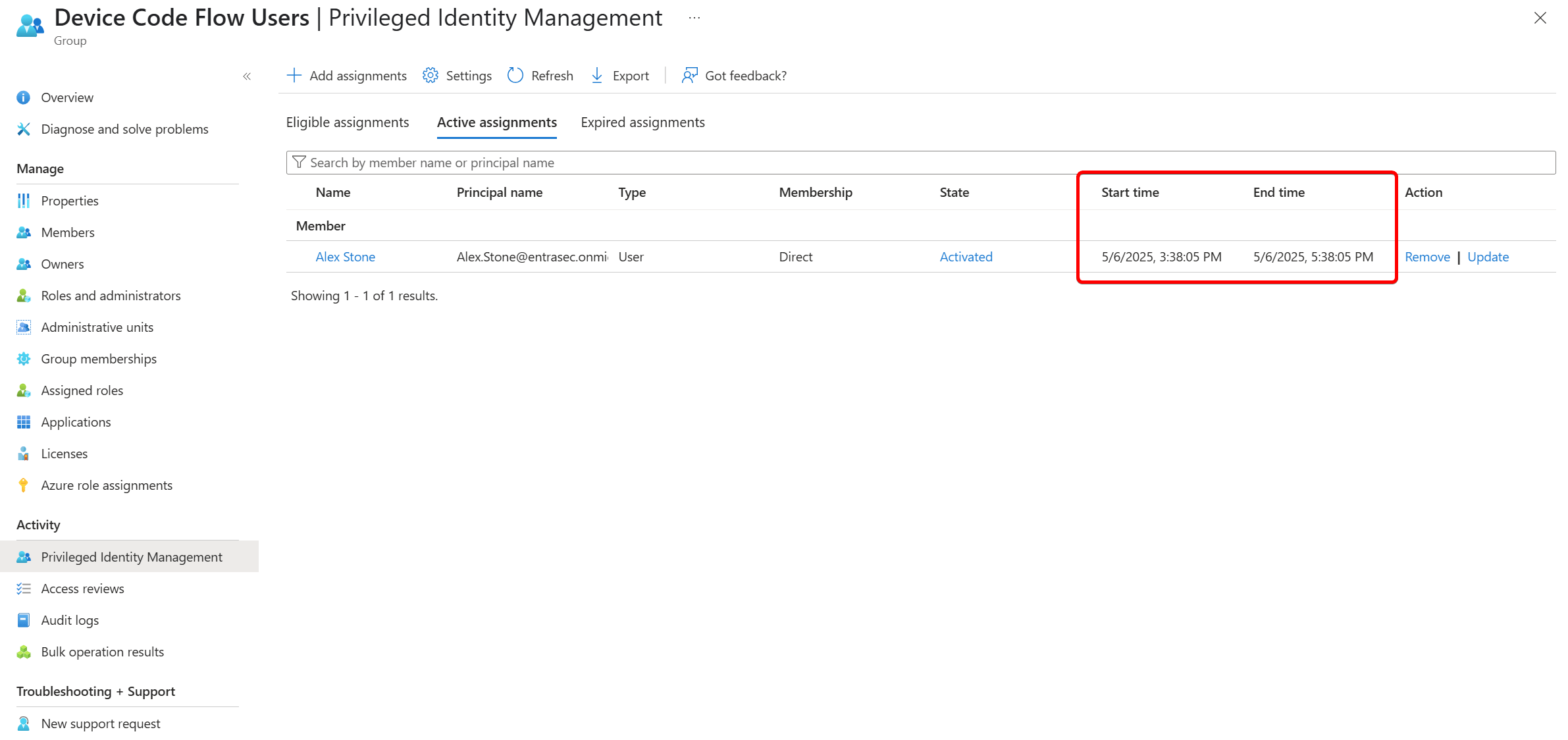
Both Identity Governance and Privileged Identity Management require additional licenses, so if you are looking for options, you can also consider some alternative ways to add users to groups:
- Use Microsoft Forms that will trigger Power Automate or Logic Apps ( example)
- Set up self-service group management in Microsoft Entra ID (requires Entra P1)
- Use Graph API integration to add users to Entra ID Groups ( example)
End user experience#
Device code flow is blocked for the regular end user due to the Conditional Access policy. To simulate this, we initiate the device code flow using GraphSpy.
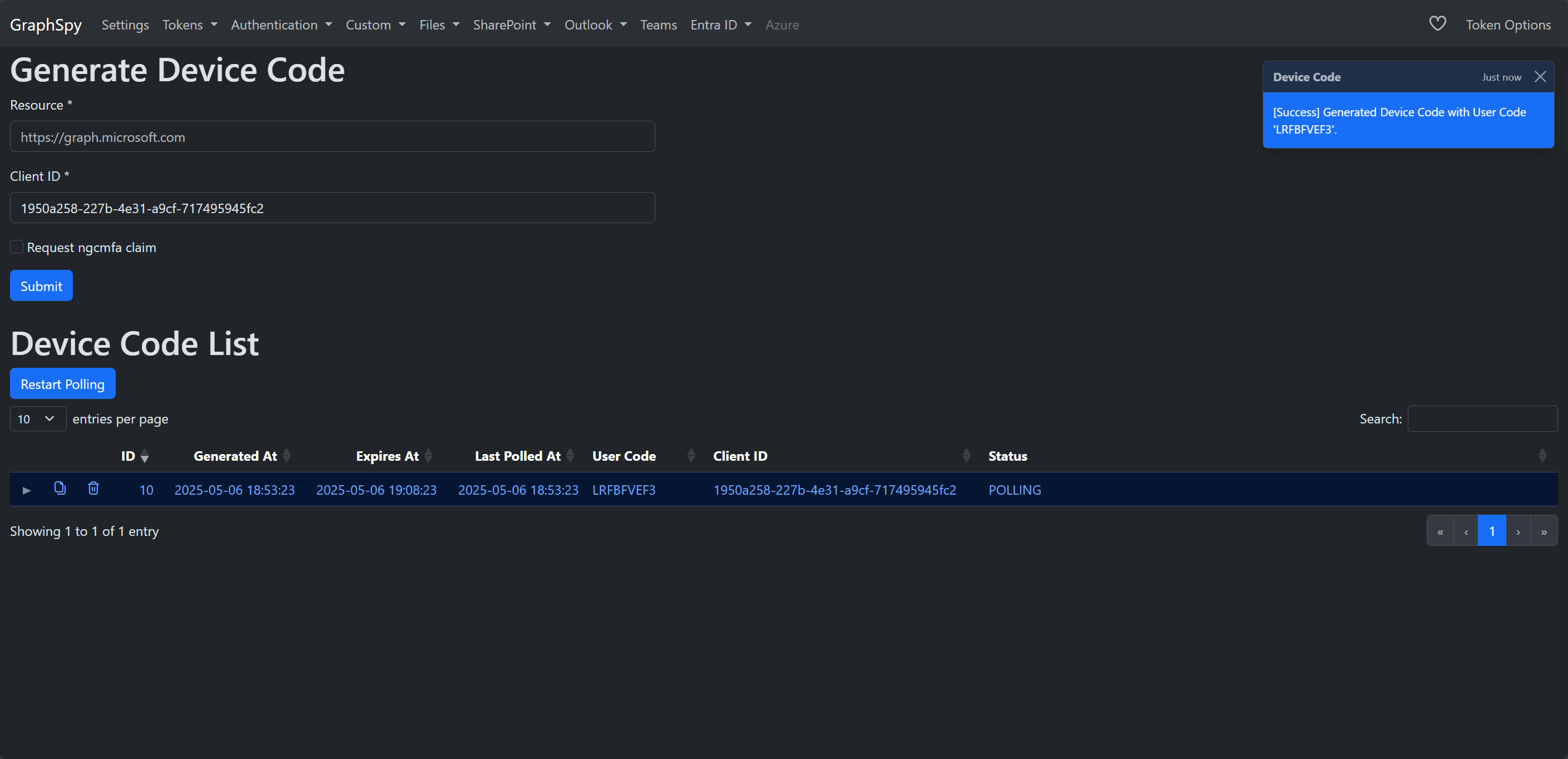
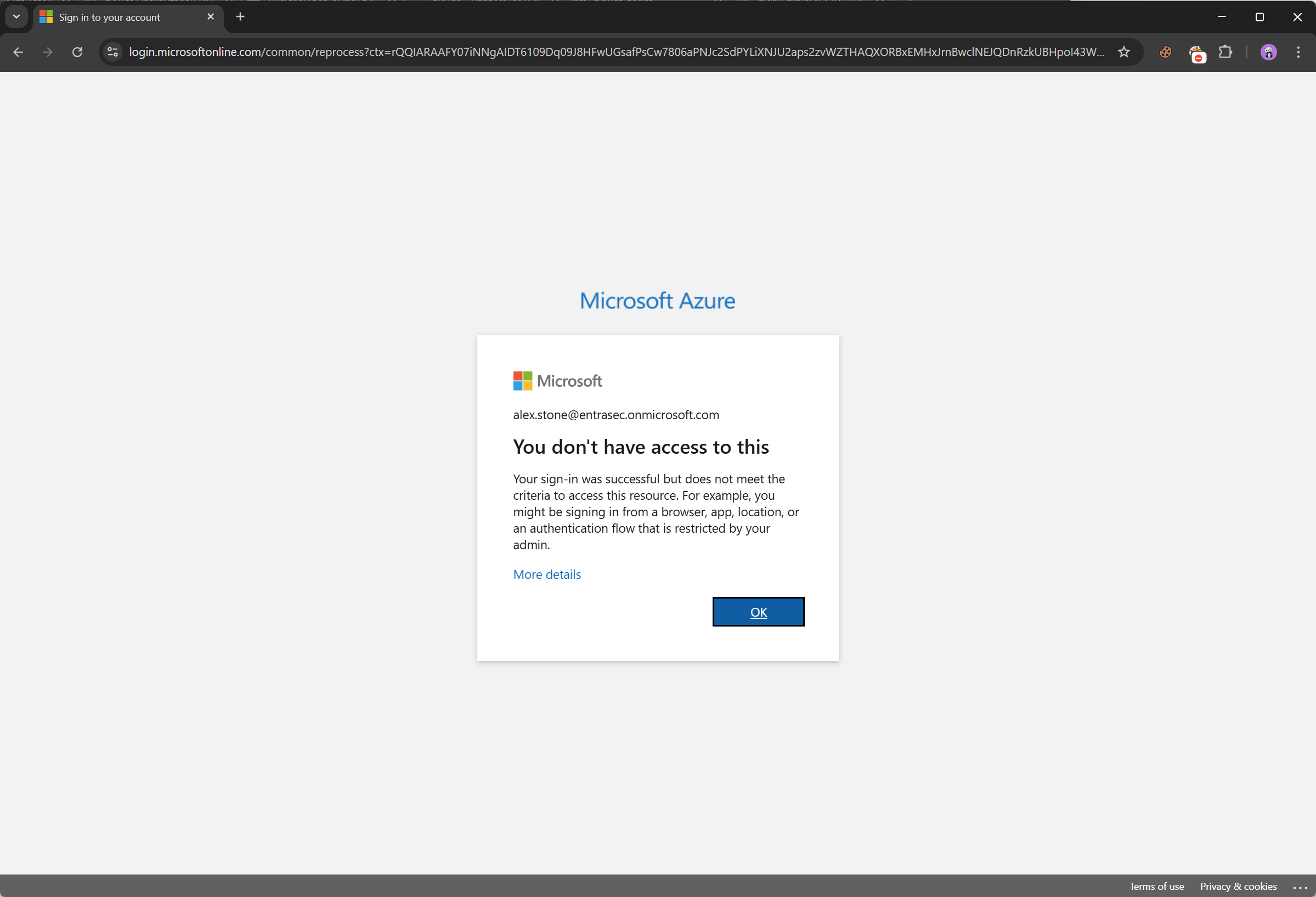
As Conditional Access kicked in, authentication was successful, but the session was blocked.
Now Alex is adding himself to the exclusion group by requesting the access package in My Access.
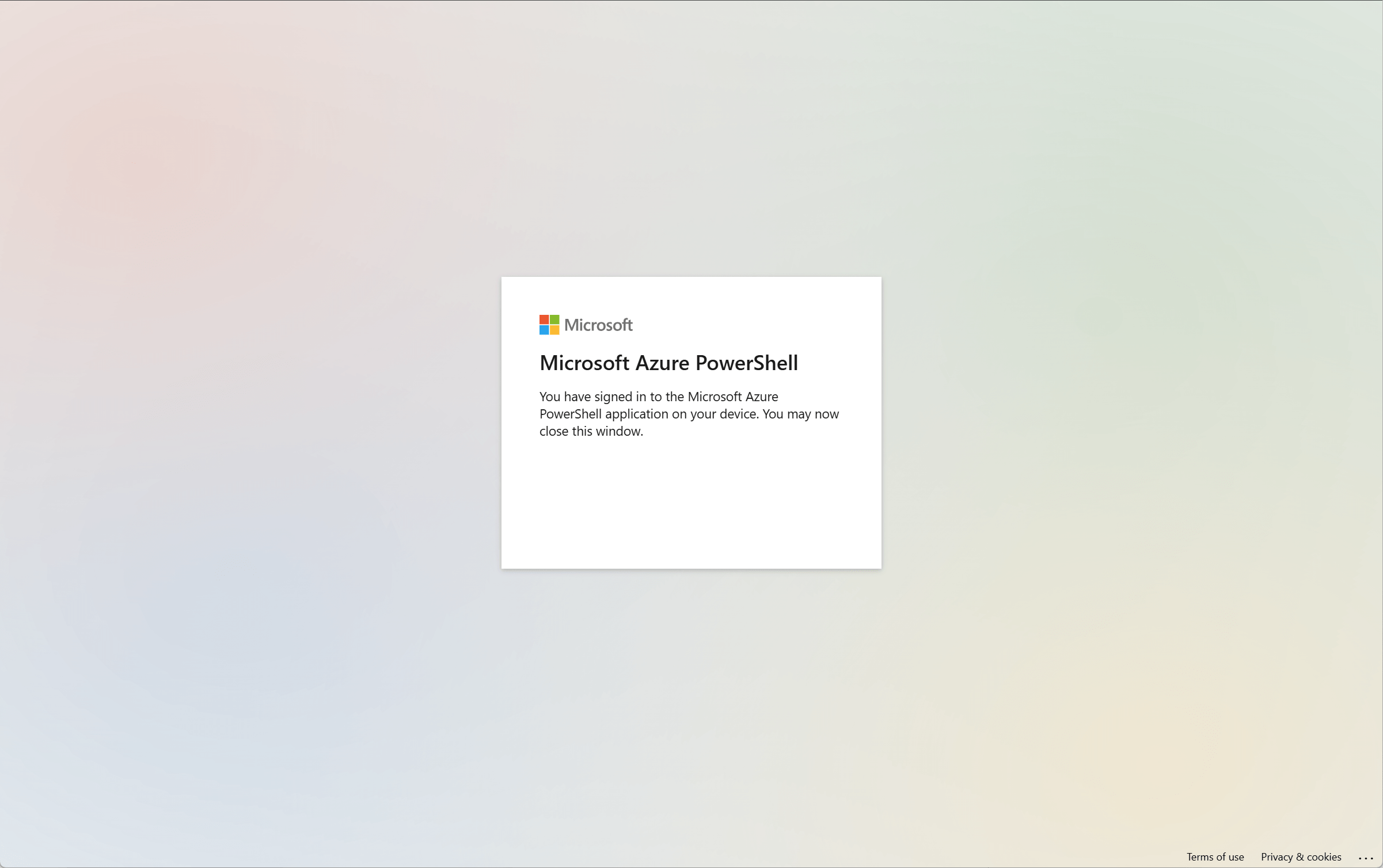
Upon retry, the device code flow is successful, as Alex works from a trusted location. The Conditional Access policy will not block device code flow.
In the Entra ID sign-in logs, we see the session being blocked and granted, respectively.
Let’s wrap up#
In general, it is highly recommended to simply block device code flow for all users. However, as in many organizations, there are always exclusions. As these types of exclusions almost always lower the security bar a little bit, it’s good to have proper control over the exclusions as you design them. Products like PIM for Groups and Entra Entitlement Management help govern those exclusions but come with additional costs. If you manage exclusions manually, don’t forget to review them at least once a year.
Learn more:
OAuth 2.0 device authorization grant - Microsoft identity platform | Microsoft Learn
Privileged Identity Management (PIM) for Groups - Microsoft Entra ID Governance | Microsoft Learn
Tutorial - Manage access to resources in entitlement management - Microsoft Entra ID Governance | Microsoft Learn
Stay safe!
Comments
Comments load when you scroll here.