
How to get better with Graph API - Part one
As you might know, Graph API is an important part of Microsoft 365. Everything (or most) of the things you see in the Entra admin center or Microsoft Admin portal is pulled from the Graph API. Every button you click pulls data from or pushes data to the Graph API.
An easy way to get to know the Graph API is to use your browser’s developer tools. Using the Network tab, you can spot any call to the Graph API. Let’s put it to the test.
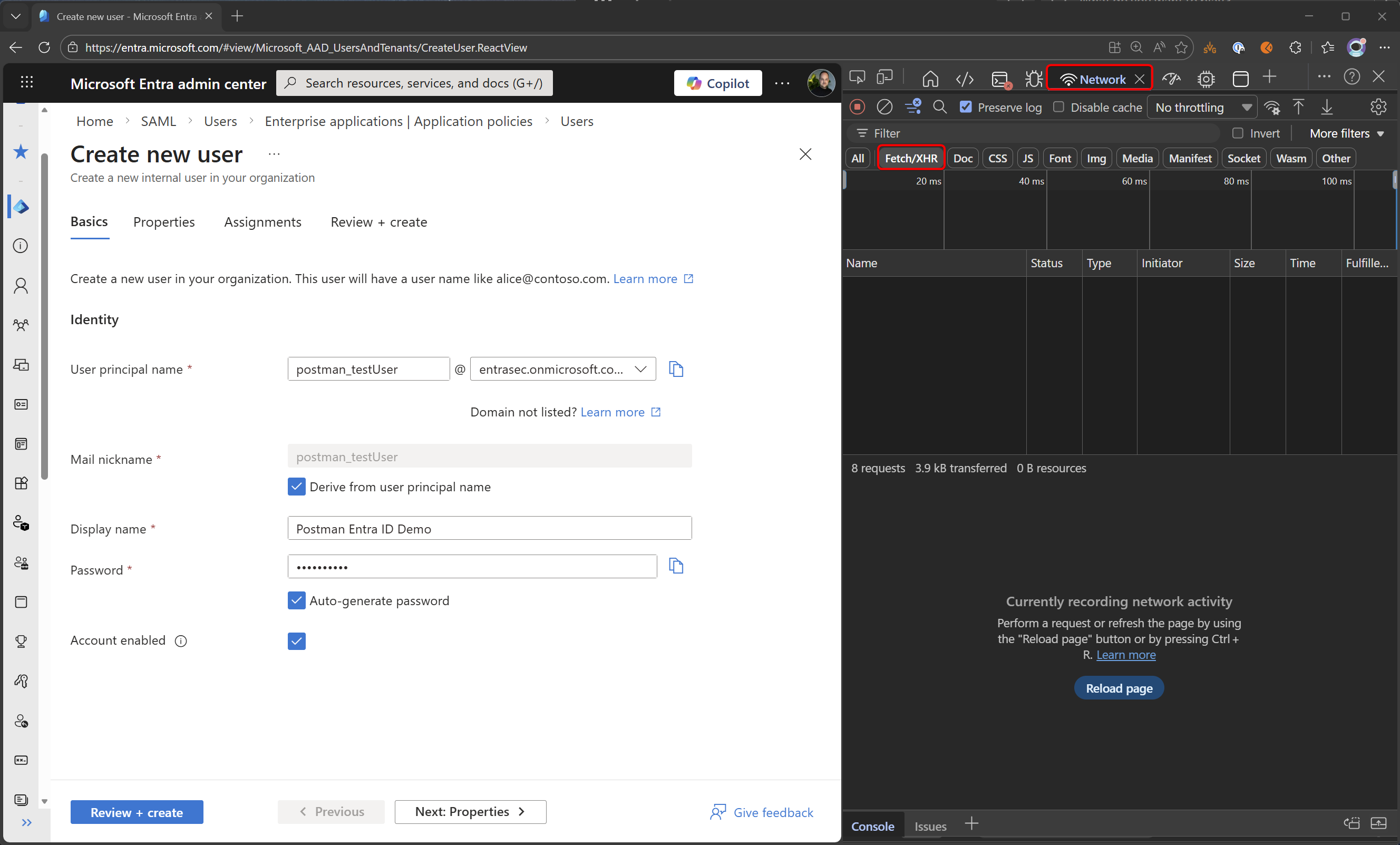
We are going to create a new user and investigate what happens behind the curtains. Open the development tools, click the Network tab, and set the filter to Fetch/XHR. It will automatically record all network traffic.
With the development tools open, create a new user.
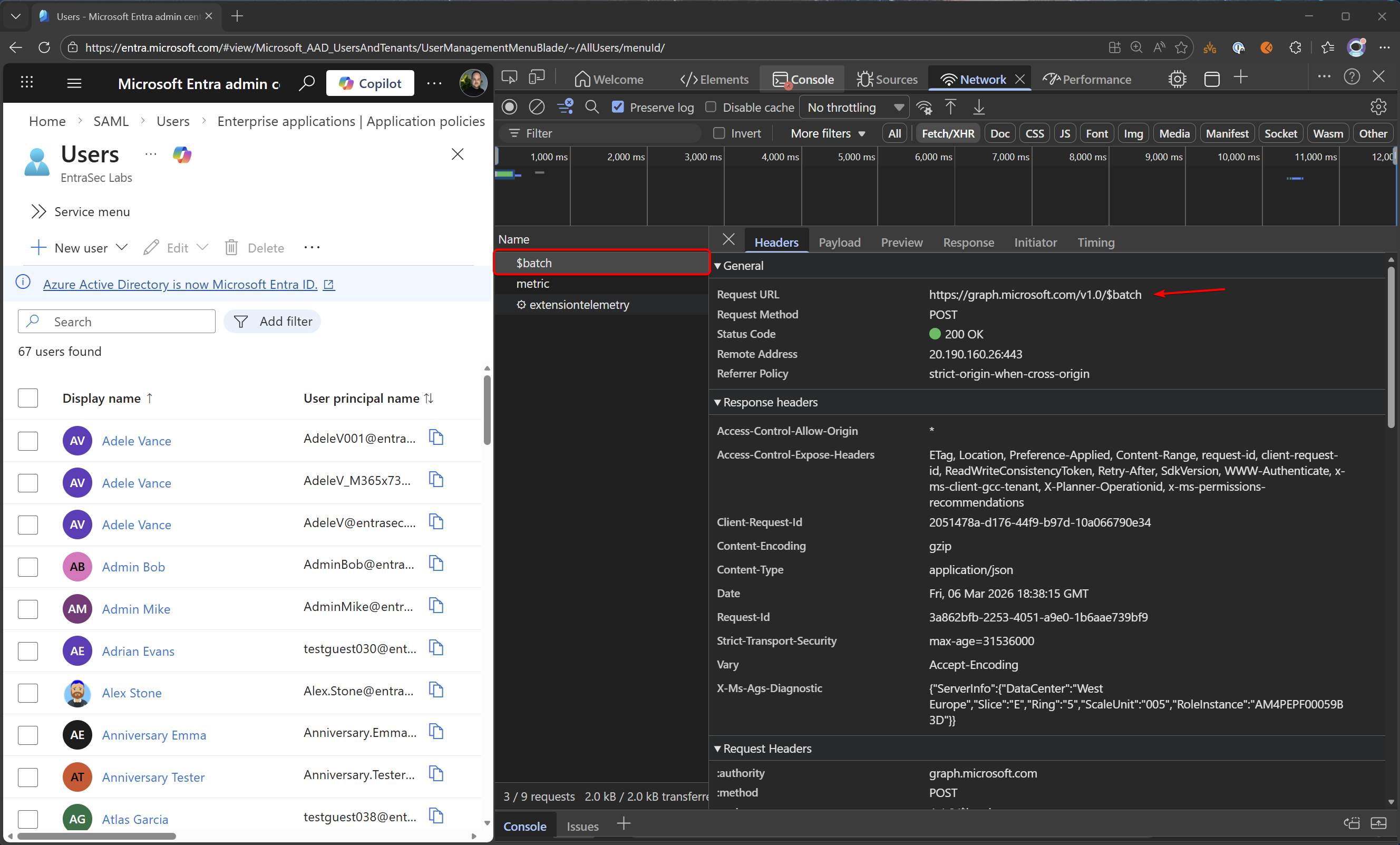
Now, most of the API calls from the Entra admin center are put into batch commands. Instead of pushing API calls one by one, a batch API call is made, which can contain several API calls. Some calls are done independently, some are done in batch.
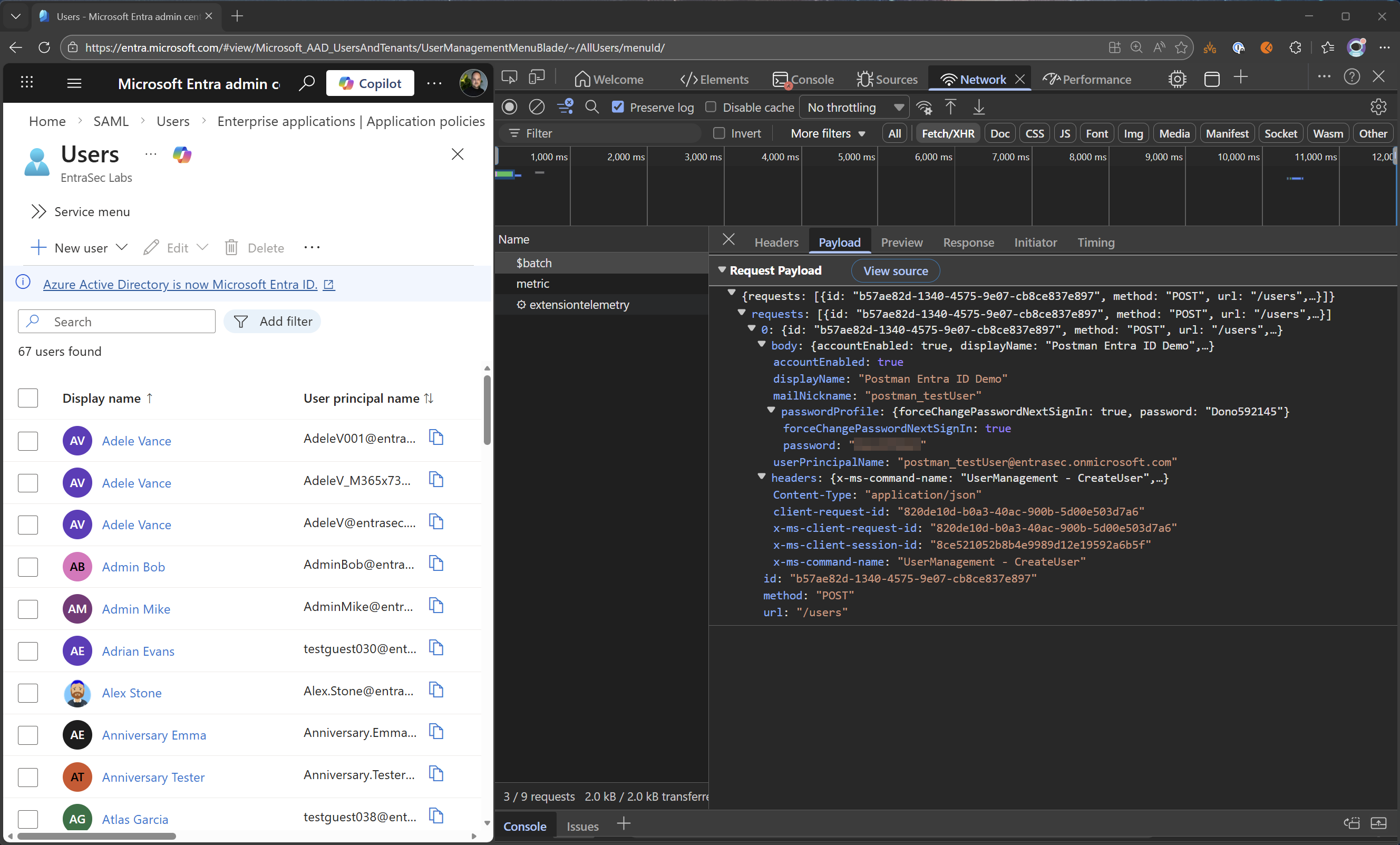
To see what API calls are made, we need to explore the body (payload) of the API request. With batch calls, the payload is divided into an array, starting with 0,for the first call. When you expand that, you can look into the body and see what data was sent to the Graph API.
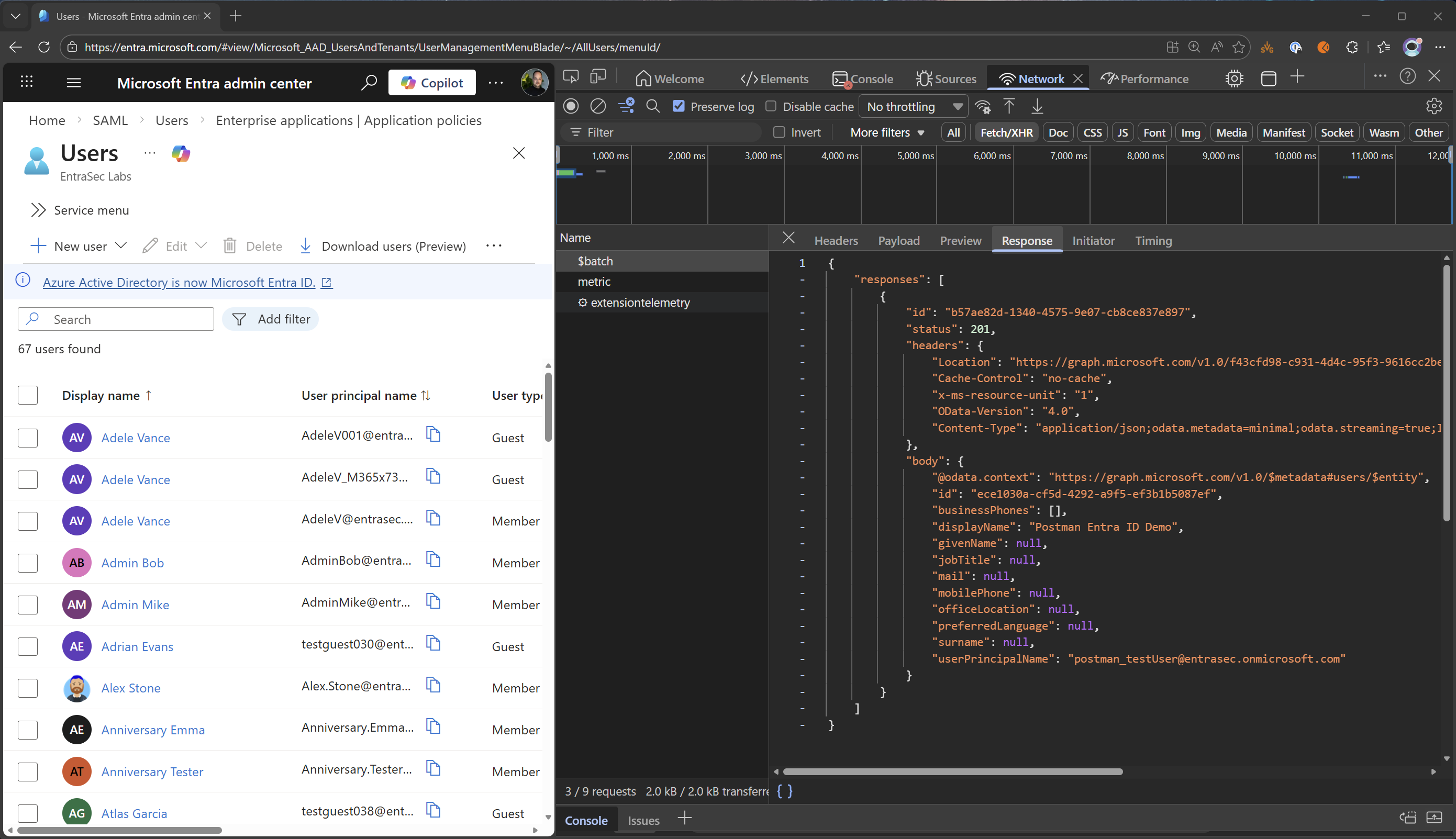
The response tab will show you the response from the Graph API. This can be really handy for troubleshooting, as the information here is often not shown in the interface.
The timing tab shows the call duration. This can be handy when you encounter a slow portal, for example.
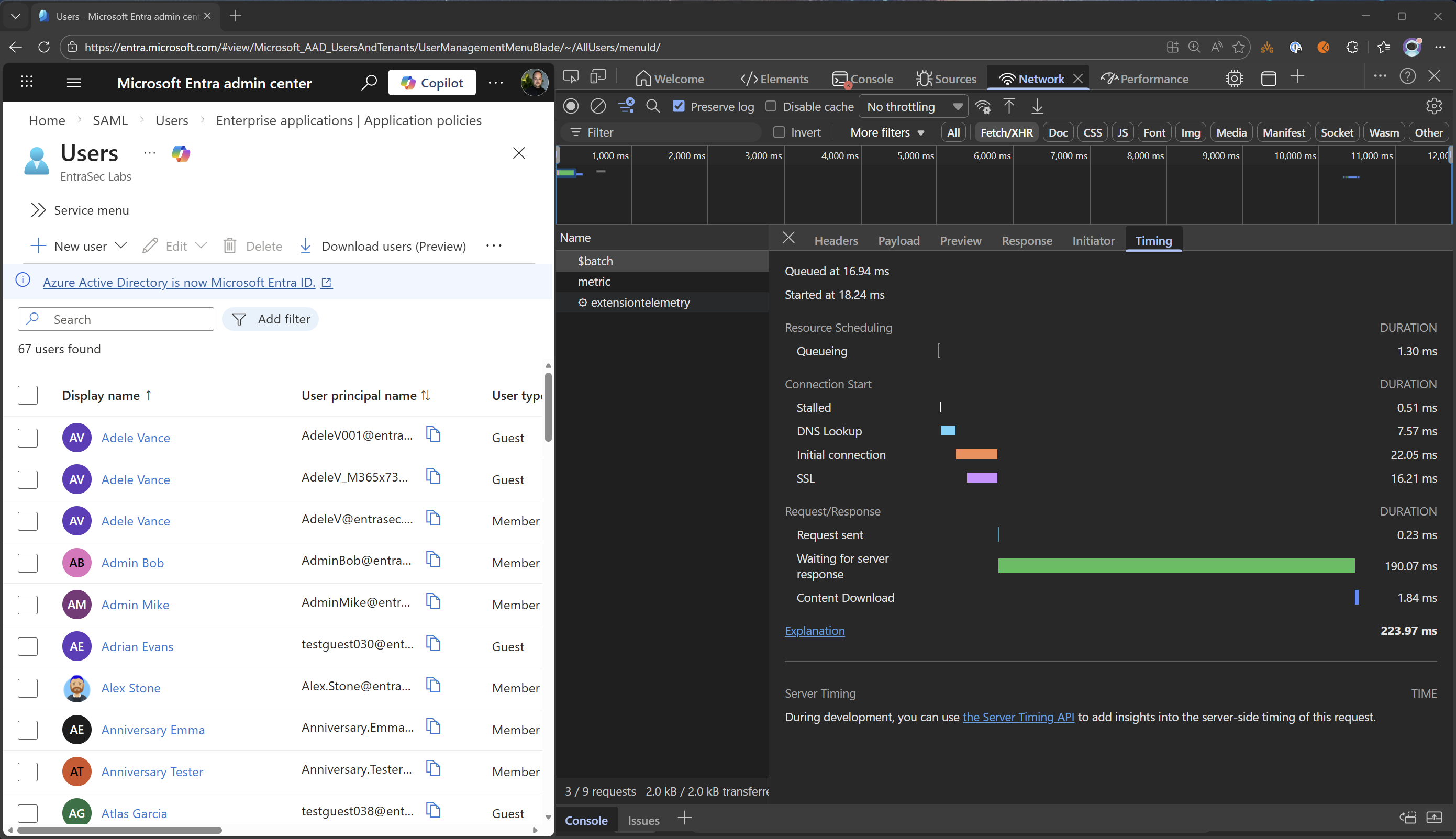
Now, let’s go a step further. The devtools are great, but if you really want to dig deeper into the Graph API, you can export your call (including your token) to tools like Postman.
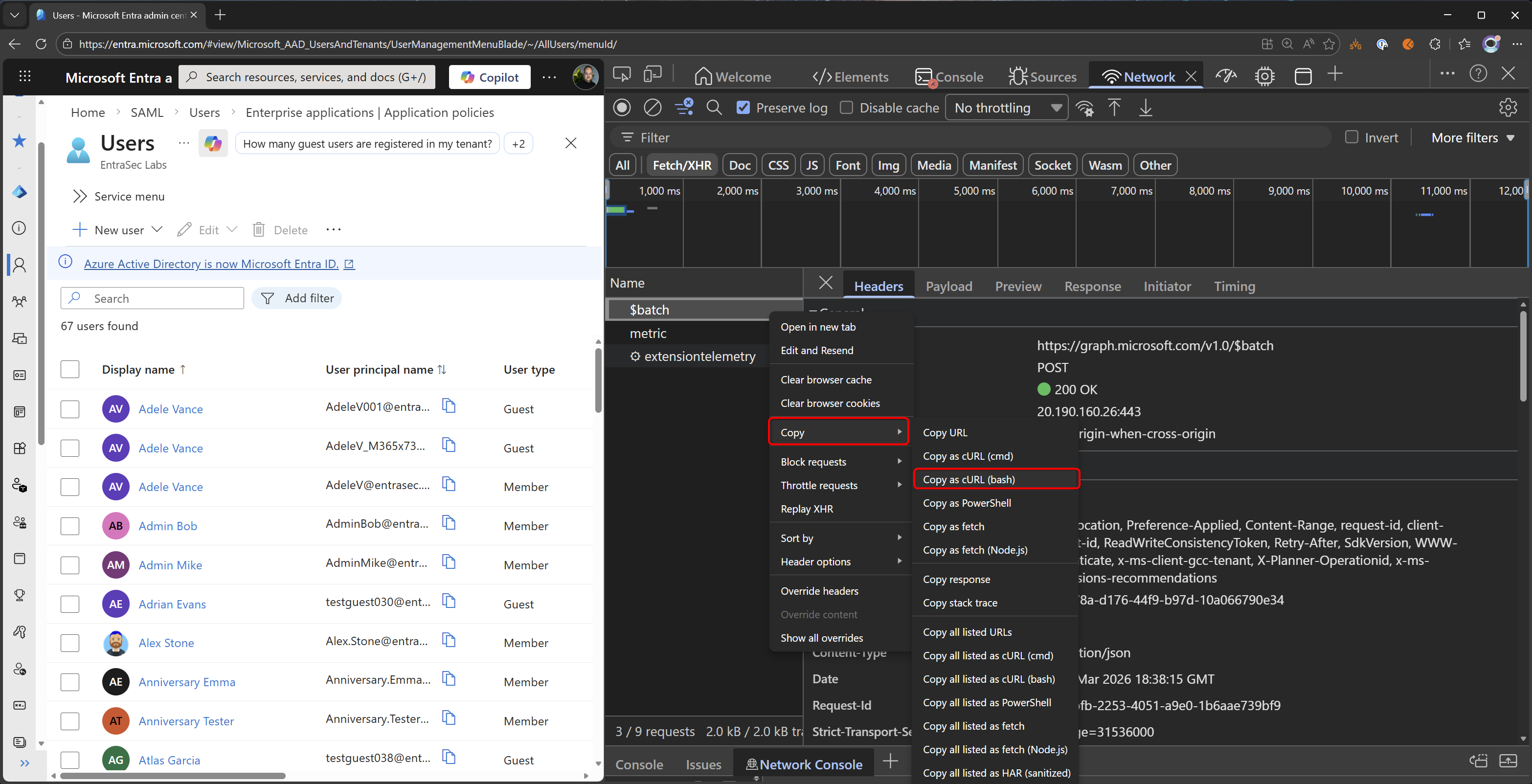
Right-click on the batch (or any other) call, and click Copy -> Copy as cURL (bash).
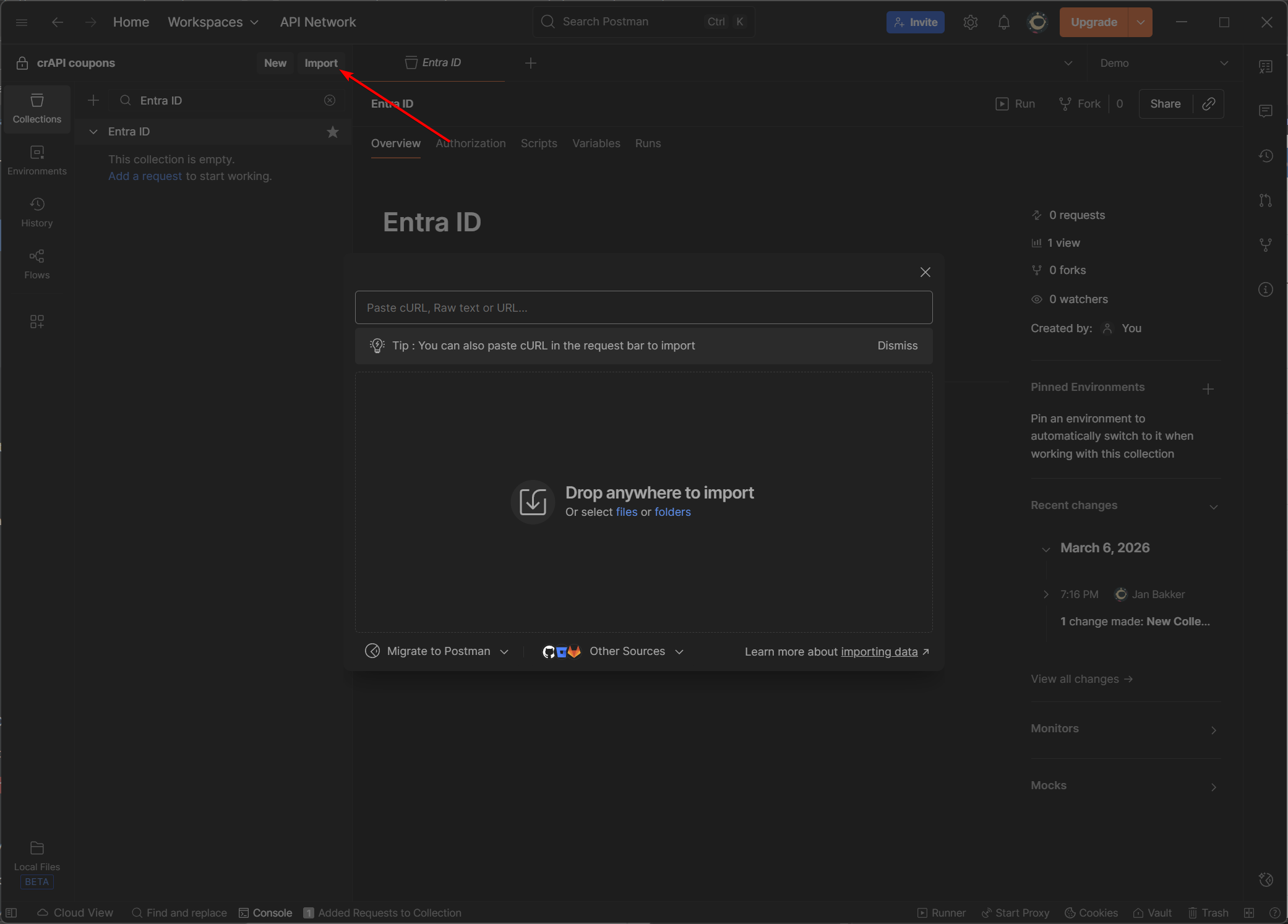
Now, from Postman, import the API call. Paste your copied cURL into Postman.
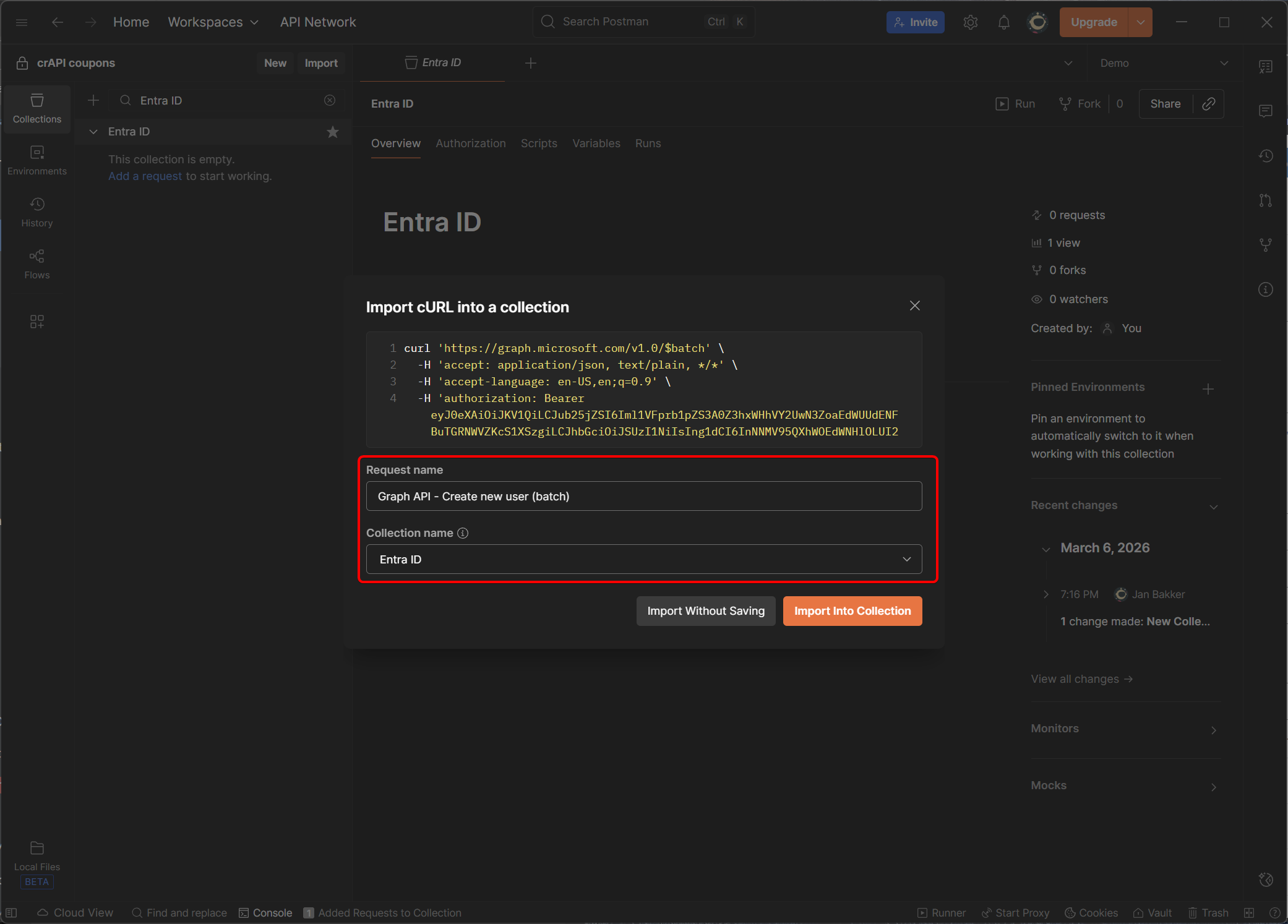
Next, give it a name, and pick your collection of choice.
Be careful! You have now copied a valid Entra session into Postman, so the API calls will be done in the context of the user from which you copied the request. When the bearer token is still valid (typically one hour), any new requests can be done from Postman without authentication. In this case, also the password of the new created user is copied, as it was stored in the body.#
You can now see the API endpoint, headers (including the bearer token), and the body.
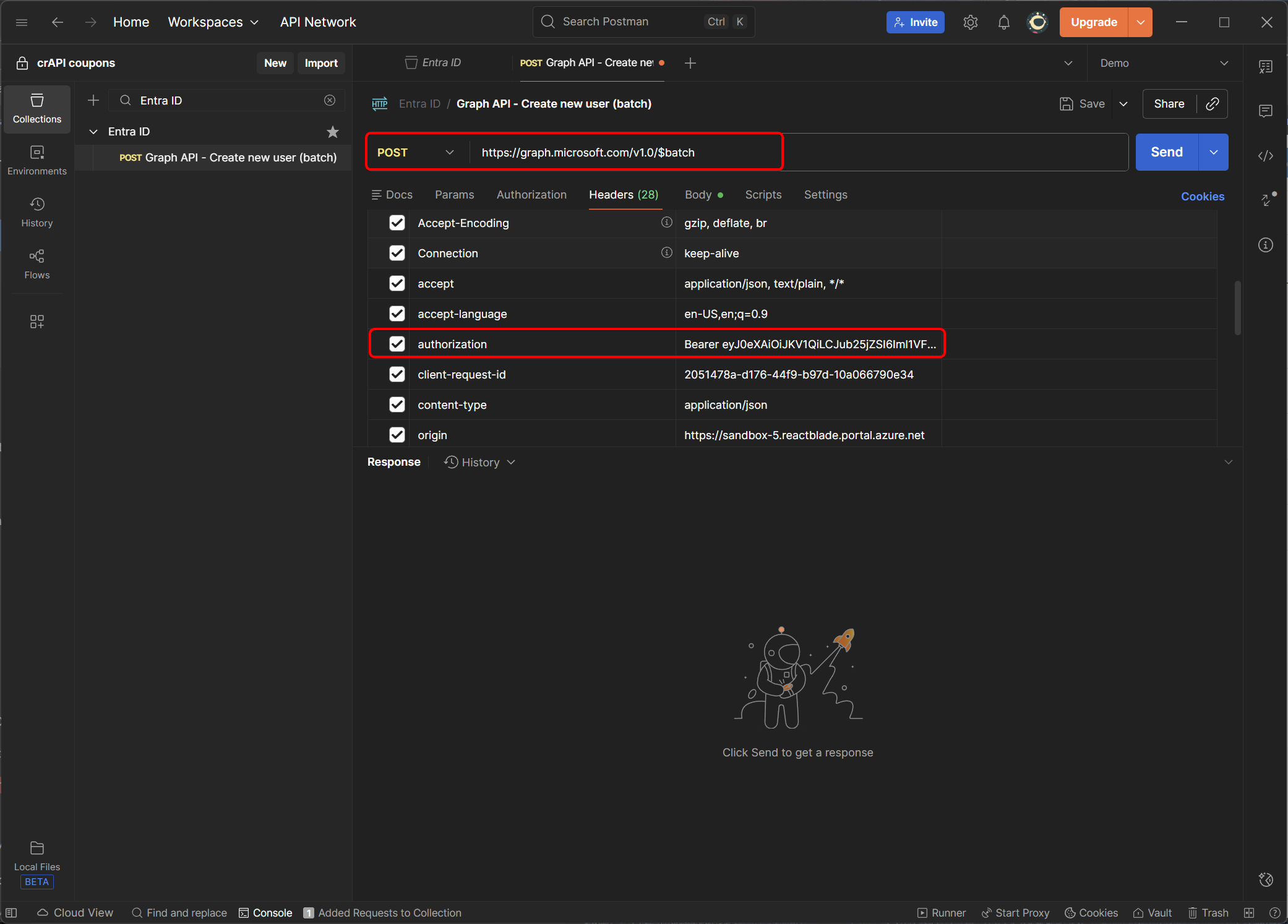
To make sense of the body, make sure you hit “Beatify”.
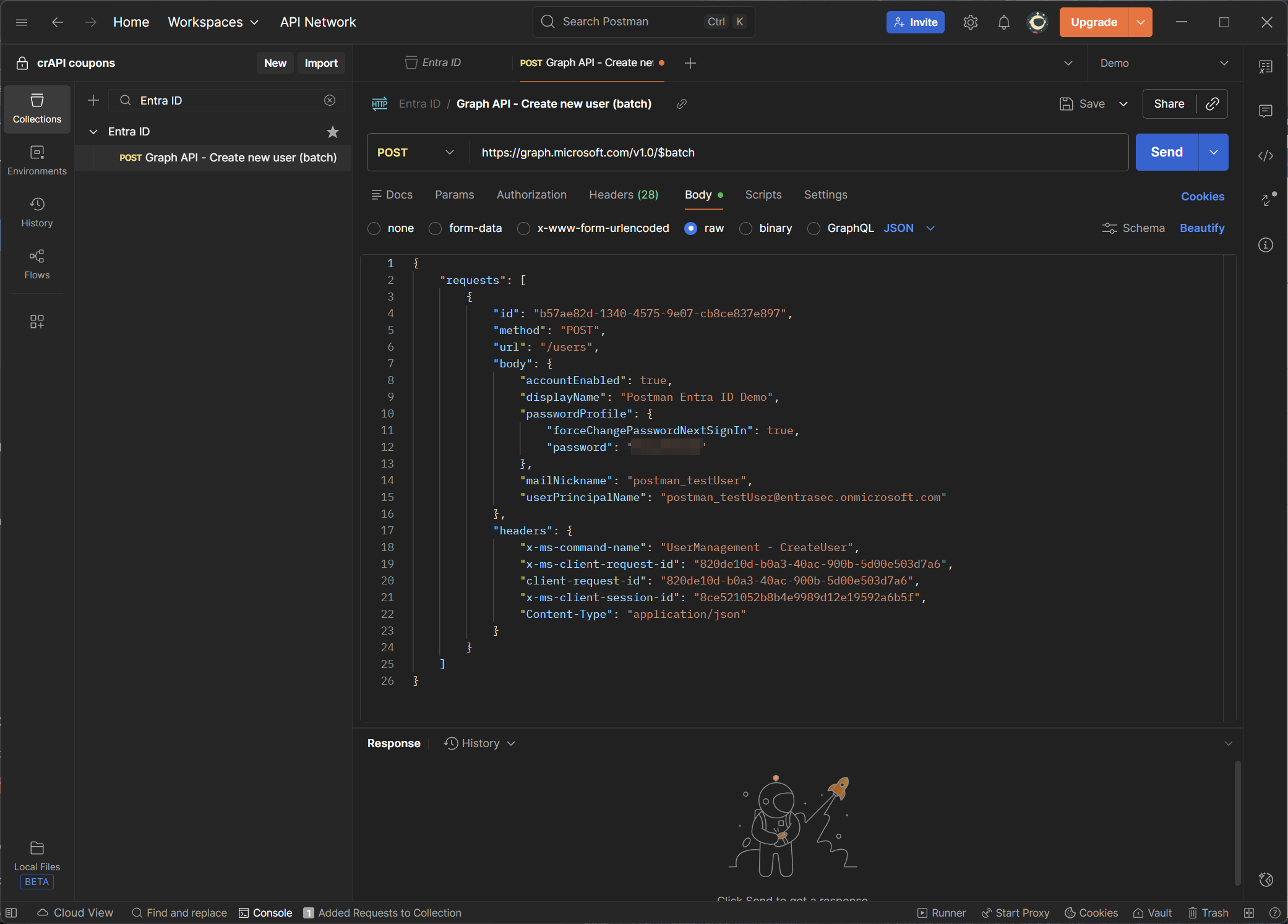
So, let’s now create a new user in Postman by modifying the request body.
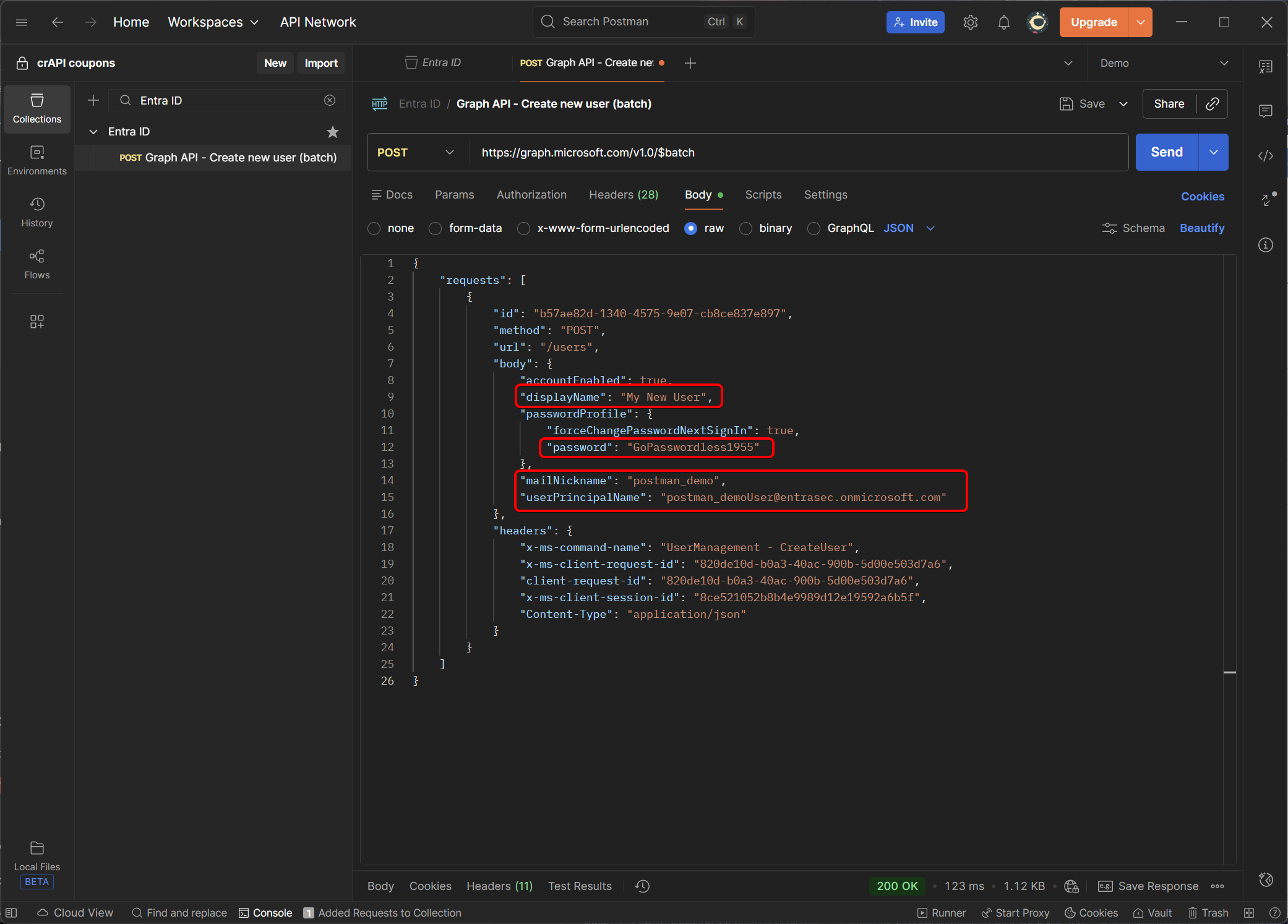
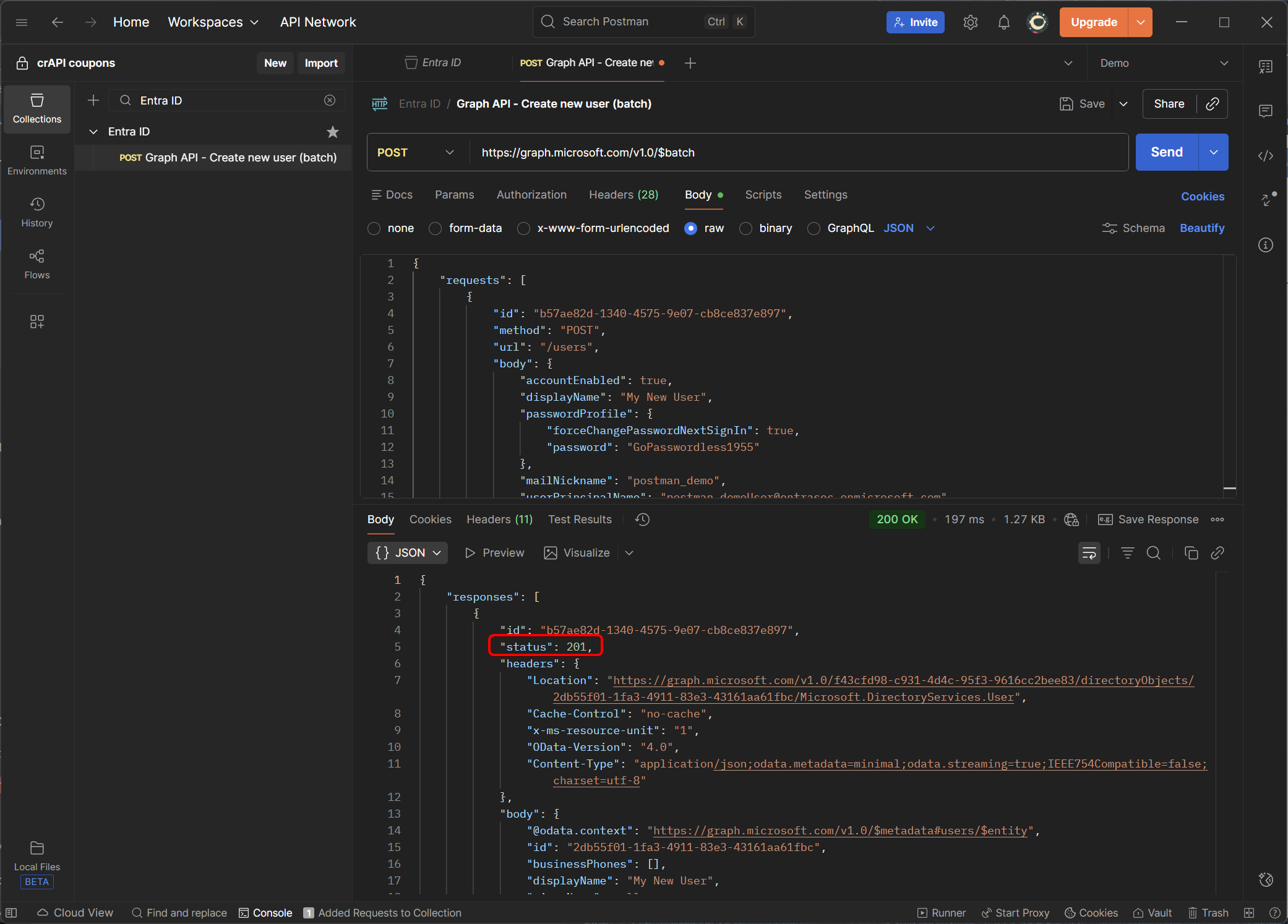
Hit send, and see if the user is created successfully.
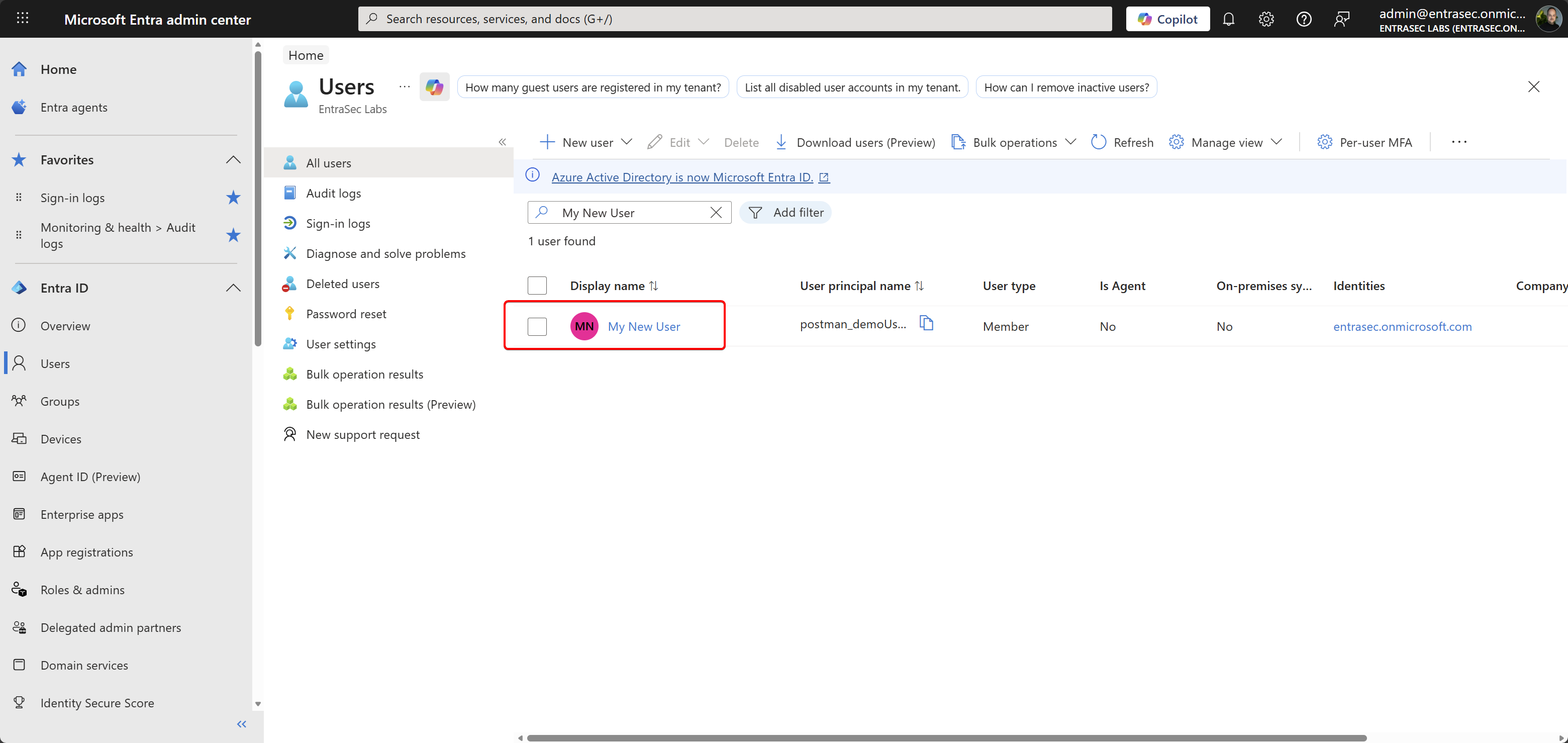
We can also see the user reflected in the portal.
That’s it for today.
I hope you learned some new tricks today, and see that studying the API calls can make you a better admin. Once you open up DevTools, a whole new world opens up. Stay tuned for part two, where we will intercept all API calls to Postman using a browser extension.
Stay safe.
Comments
Comments load when you scroll here.