
How to add granular amr claims to your SAML apps in Entra ID
In my
last post, I covered how Entra ID now automatically sends the amr and acr claims for Salesforce, so its phishing-resistant MFA check finally has something to check. That part is automatic, no config needed.
Every other SAML app doesn’t get that automatically. Per Microsoft’s own
optional claims reference, the app administrator still has to add the optional amr claim, with the include_granular_amr additional property, before authnmethodsreferences shows up in the assertion at all.
This is the quick follow-up: how to actually turn that on, three different ways.
What you need#
- Application Administrator or Cloud Application Administrator role.
- The app registration’s Object ID — not the Application (client) ID. Both the manifest editor and Graph key off the object ID, and it’s an easy one to mix up.
- Five minutes.
Throughout this post, replace <app-object-id> with your own app registration’s object ID.
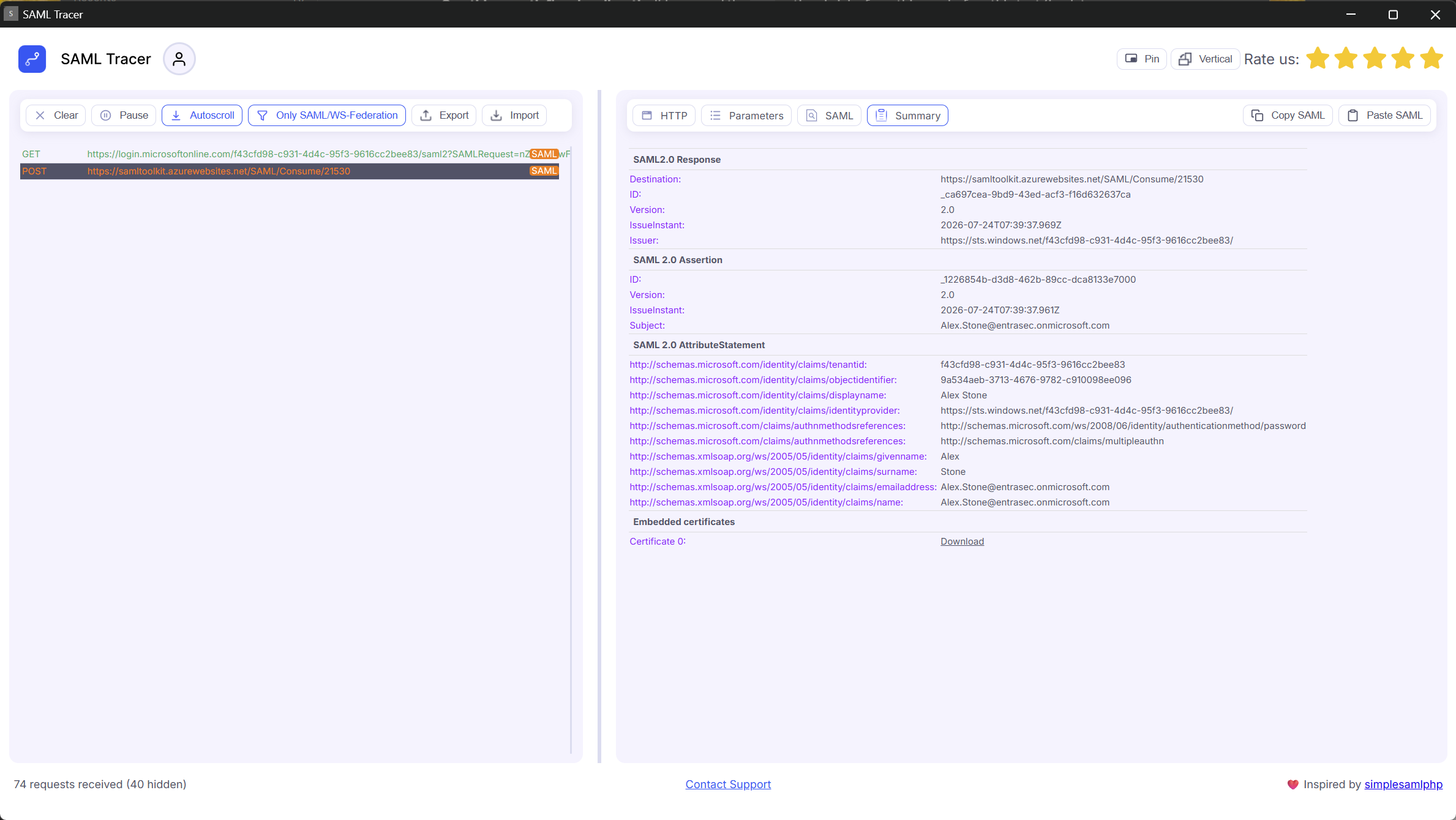
Here is a SAML-tracer capture of the assertion’s AttributeStatement before adding the claim. No authnmethodsreferences attribute present.
Option 1: the manifest editor#
The quickest path if you’re already in the portal.
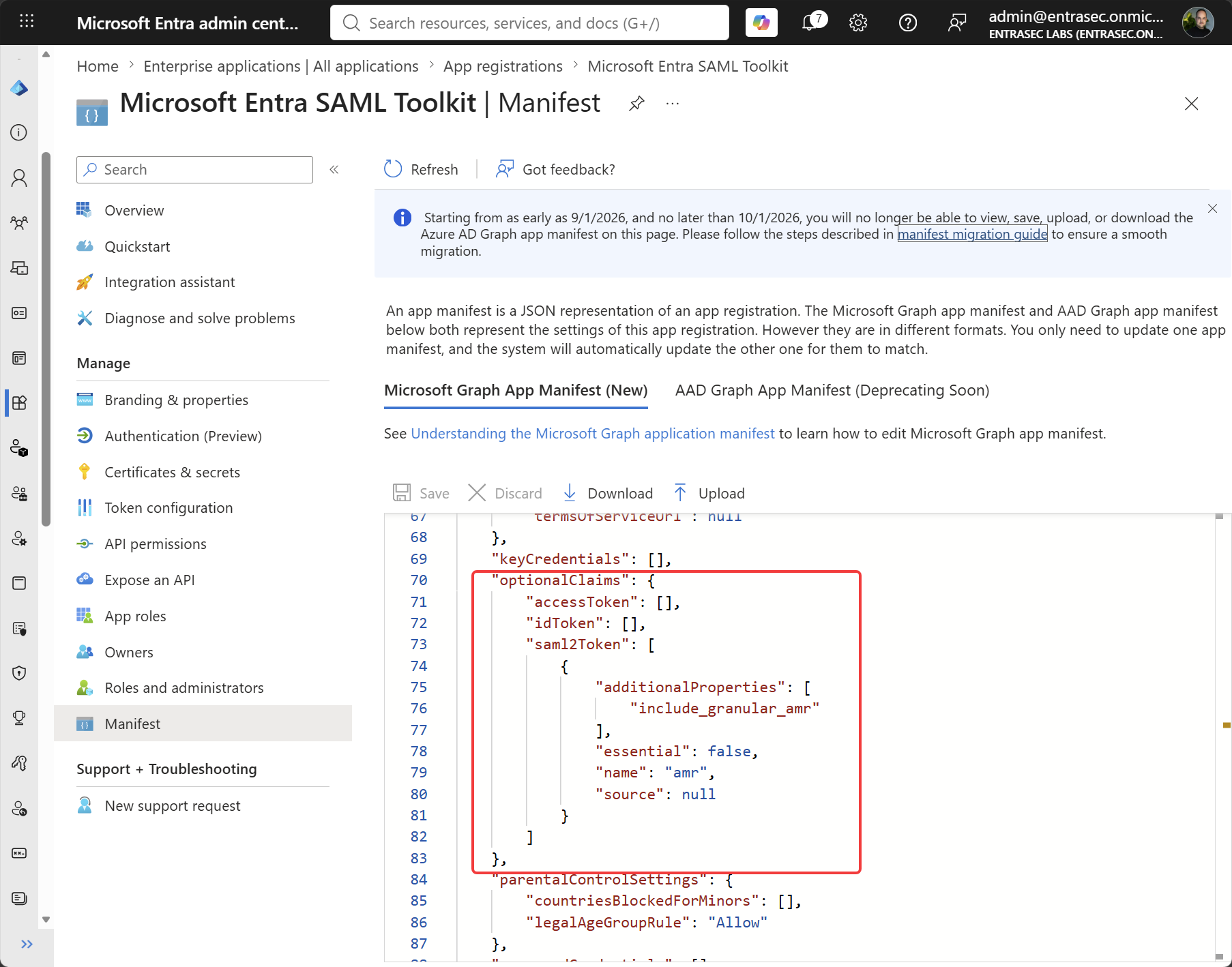
- Entra admin center → App registrations → your app → Manifest.
- Find the
optionalClaimsproperty and add anamrentry undersaml2Token:
"optionalClaims": {
  "saml2Token": [
    {
      "name": "amr",
      "essential": false,
      "additionalProperties": ["include_granular_amr"]
    }
  ]
}- Save.
Option 2: Graph Explorer#
Useful if you’d rather not touch the manifest directly, or you’re doing this against an app you don’t have portal access to but do have Graph permissions for.
- Open Graph Explorer and sign in with an account that holds Application Administrator (or equivalent).
- Under Modify permissions, consent to
Application.ReadWrite.Allif it isn’t already granted. - Use this URL and body to patch the application:
PATCH https://graph.microsoft.com/v1.0/applications/<app-object-id>

{
  "optionalClaims": {
    "saml2Token": [
      {
        "name": "amr",
        "essential": false,
        "additionalProperties": ["include_granular_amr"]
      }
    ]
  }
}
For an OpenID Connect (OIDC) v2.0 application, add the amr optional claim to the token types that your application requires:
"optionalClaims": {
    "idToken": [
        {
            "name": "amr",
            "essential": false
        }
    ],
    "accessToken": [
        {
            "name": "amr",
            "essential": false
        }
    ]
}
Option 3: PowerShell#
For when you’d rather script it, or roll it out across more than one app.
Connect-MgGraph -Scopes "Application.ReadWrite.All"

$params = @{
    optionalClaims = @{
        saml2Token = @(
            @{
                name                 = "amr"
                essential            = $false
                additionalProperties = @("include_granular_amr")
            }
        )
    }
}

Update-MgApplication -ApplicationId "<app-object-id>" -BodyParameter $params
What changes afterward#
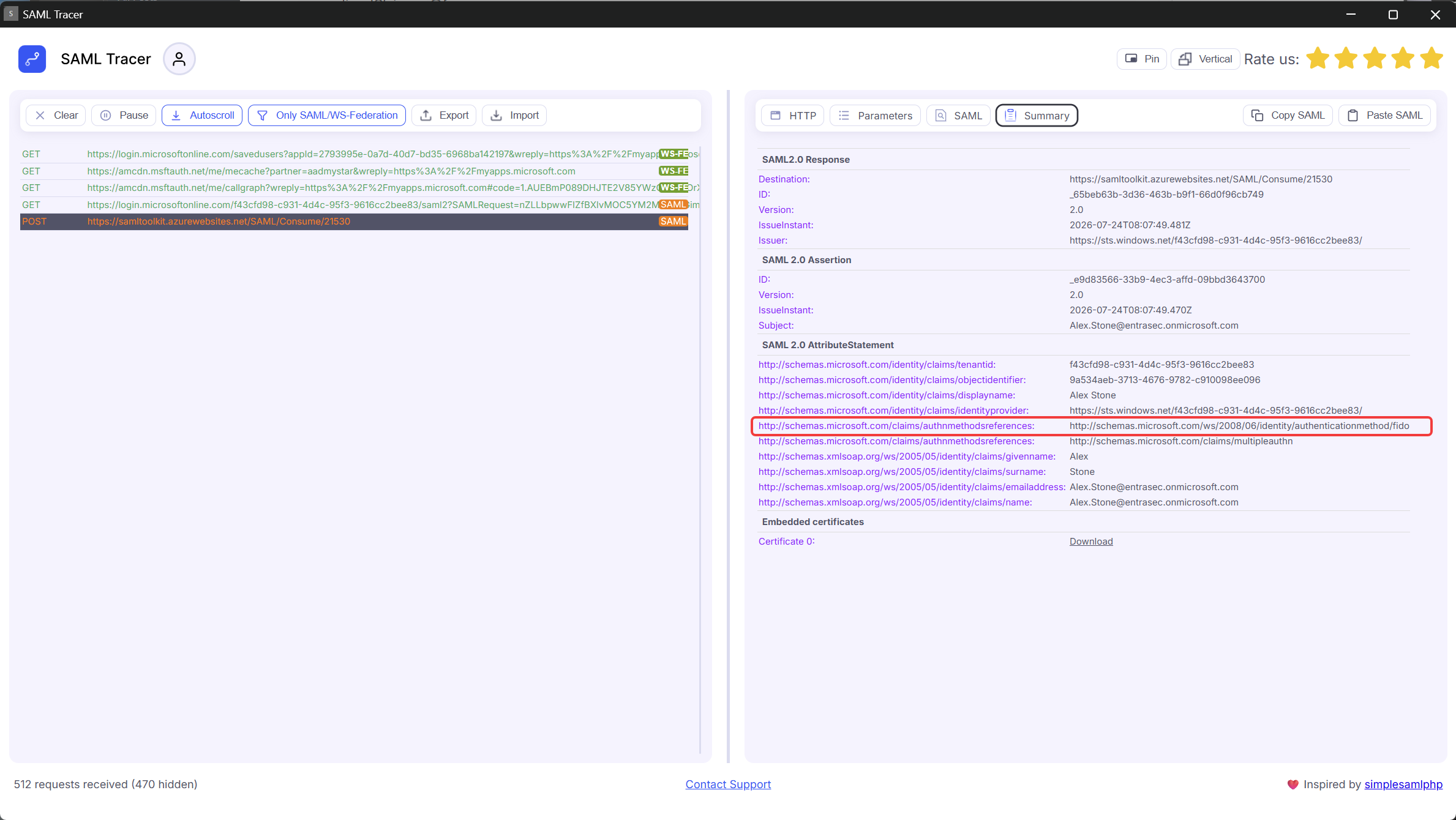
Once the claim is in place, sign in again and pull a fresh assertion. You should now see an authnmethodsreferences attribute in the AttributeStatement, with values depending on how the user actually authenticated — fido for a FIDO2 key or passkey, hwk for Windows Hello for Business, multipleauthn once MFA is actually satisfied, and so on. The full value list can be found
here.
Wrap up#
Salesforce gets this automatically; everything else needs the optional claim added by hand, one config change, three ways to make it. Once it’s there, you can build the same kind of phishing-resistant checks for your own SAML apps that Salesforce now does out of the box.
Resources#
- Entra ID SAML authnmethodsreferences (AMR) now supports phishing-resistant MFA
- Optional claims reference – AMR values for Microsoft Entra authentication methods
- Single sign-on SAML protocol – authnmethodreferences
- https://learn.microsoft.com/en-us/entra/identity-platform/optional-claims?tabs=appui#amr-claim
Stay safe!
Comments
Comments load when you scroll here.