
Finally a smooth(er) passkey onboarding experience in Microsoft 365!
On this page
Microsoft is doing a lot to enhance the onboarding of passkeys. The three major changes behind this are:
MC1440968 - Microsoft Entra ID: Optimizations for passkey registration experience
Although most changes do not require any admin actions, I strongly suggest paying close attention, as these settings can make or break your user experience.
These changes might not have reached your tenant (yet) but I’ve seen significant changes to the experience in production environments, so I believe it is time to write about this topic. That said, it’s impossible to cover all the different configurations, ecosystems, passkey types, and use cases, but I try to be as inclusive as possible. If you need any specific advice, please reach out to me directly.
What’s changing?#
A few important things are changing, so let me break down the behavior before and after the change.
| Change | Before | After |
|---|---|---|
| MC1450133 – Passkey/passwordless as first MFA method | Users had to register a weaker MFA method (e.g. SMS, Authenticator App) before they could add a passkey or passwordless sign-in. In most cases, this was covered with a Temporary Access Pass. | Users can register a passkey (FIDO2, Windows Hello for Business, macOS Platform SSO) or Authenticator passwordless sign-in directly as their first MFA method. |
| MC1440968 – Passkey registration experience optimizations | Registration logic could guide users to passkey types that didn’t comply with the org’s configured passkey profile and didn’t prioritize device-local passkeys, resulting in a lot of failed registrations. | Registration more consistently aligns with configured passkey profile restrictions and prioritizes a passkey local to the user’s current device. |
| MC1469555 - Microsoft Entra: Optimized passkey registration campaign experience | The Entra registration campaign was not not prompting the users when attestation was enforces, or specific AAGUIDs where blocked. It had a lot of unsupported scenarios. | Registration becomes more predictable, and enhancements to the Microsoft Entra registration campaign help organizations increase passkey registration and adoption. |
So, let’s say you have never touched passkey settings, and Microsoft enabled them for you. So, both synced and device-bound passkeys are allowed, attestation is off, and no specific key restrictions (AAGUID) are configured. That means you can store your passkey wherever you want. Your setup looks something like this:
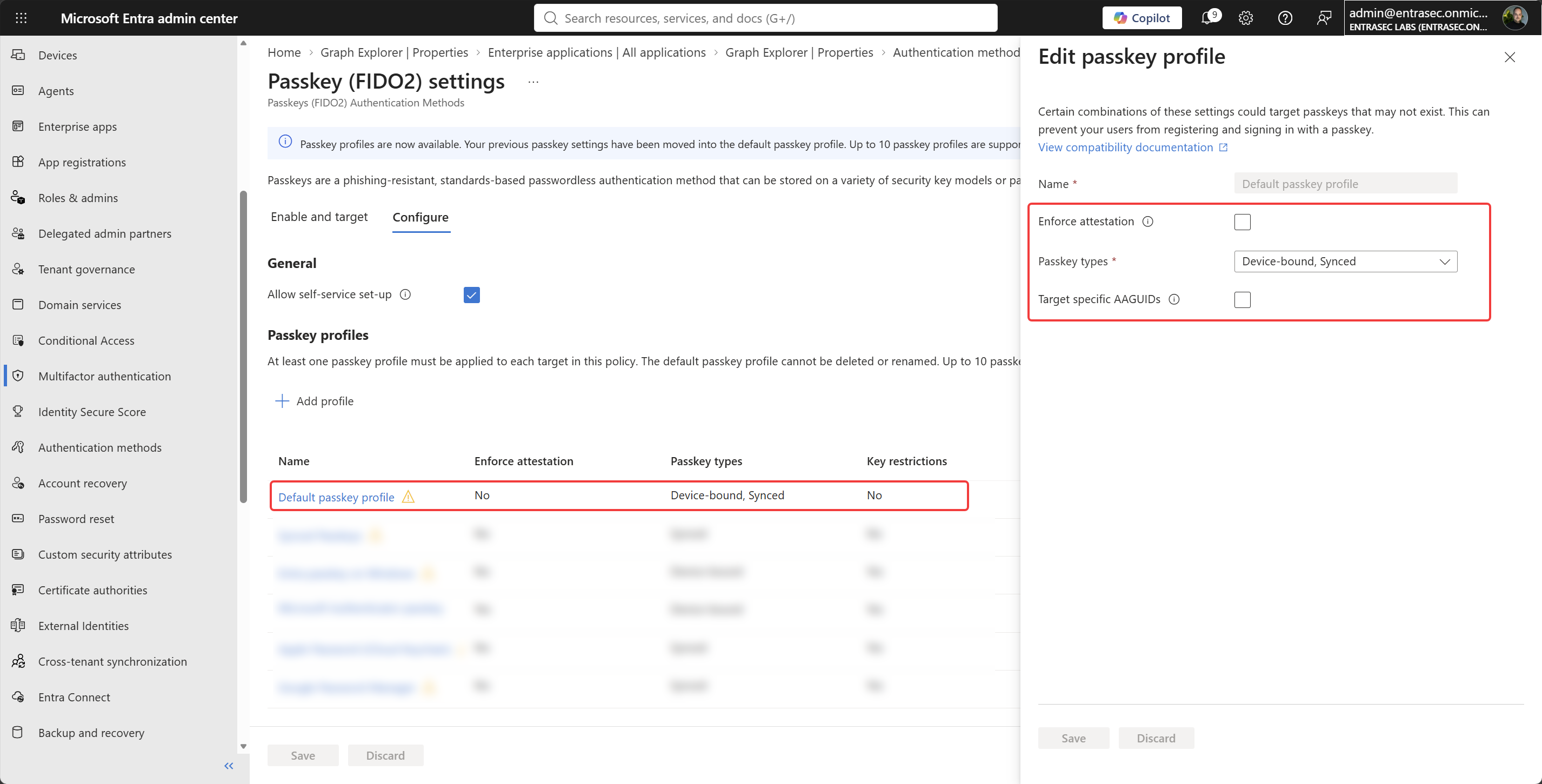
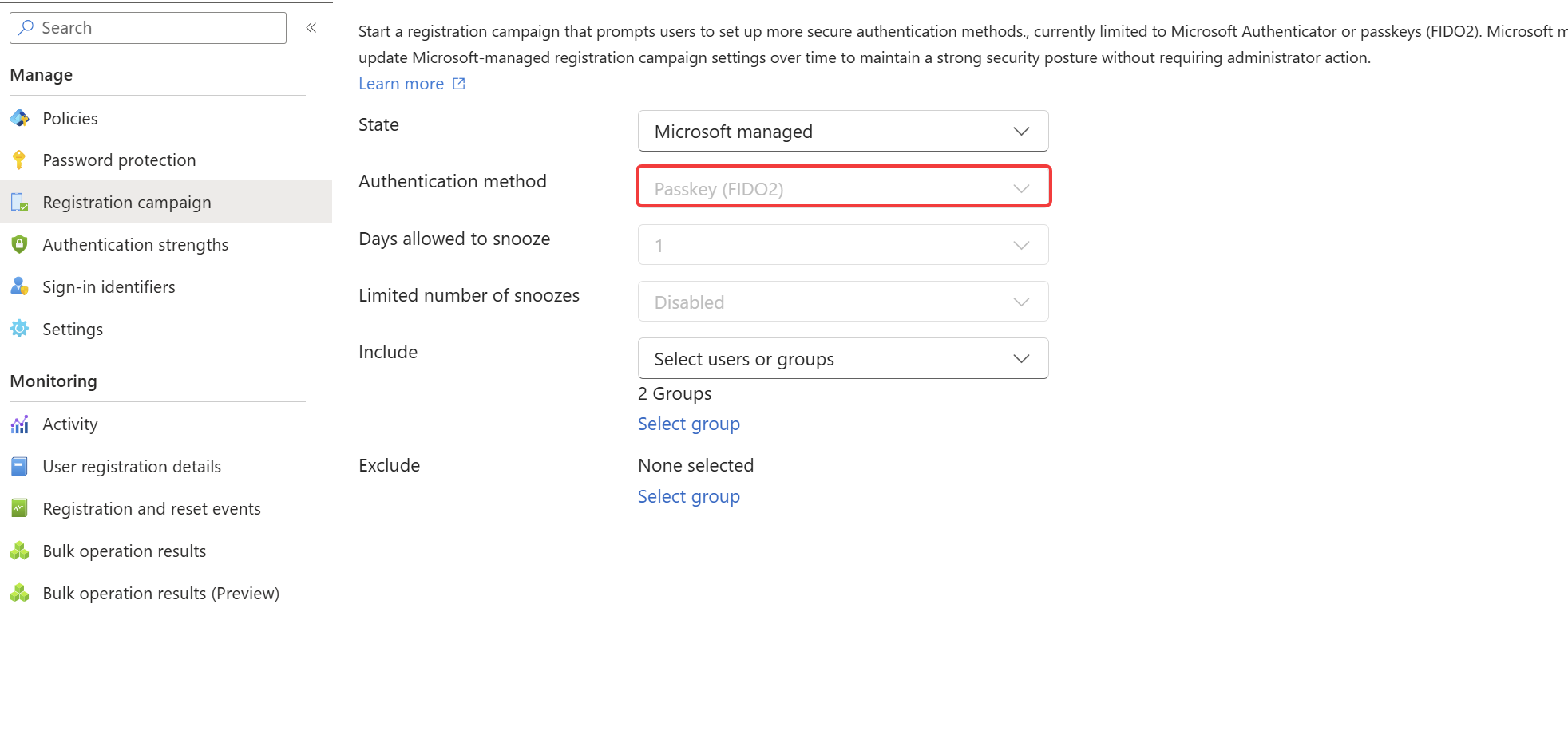
Also, your registration campaign is set to Microsoft Managed, so your users were already prompted to register for passkeys.
That might already be the case, as some of these changes are rolling out as we speak.
But for more regulated organizations, passkey registration flows might be far from optimal. That might be because not all passkey providers are allowed. For example, some organizations might have a device-bound passkey-only policy in which synced passkeys are not allowed.
Today, this results in a bad user experience, as users will find out the hard way. They are flooded with prompts, and only if they click the right buttons and do the right steps in the right order will they succeed. These are the most common types of issues I see with passkey enrollment:
- Passkeys cannot be registered as the first MFA method. Existing MFA or Temporary Access Pass needed.
- Most users are used to cross-device registrations, but attestation will break that flow.
- WebAuthN can only do so much. FIDO2 protocol needs to hand over to the browser/operation system at some point and has very little control over what happens next. Flows are not aware of the allowed passkeys of the user.
- End users are unaware of the passkey capabilities of their native credential providers, such as Apple Password and Google Password Manager. They don’t see the relationship between a passkey and a vault because they don’t understand the underlying components. Even if they successfully register a passkey, they have no idea where it went.
- There is not always one passkey that can rule them all. Some organizations enforce a single type of passkey and expect users to perform cross-device sign-in. I hate that experience, and so will your users.
- Conditional Access is poorly designed, causing failed registrations, loops, and bad user experience.
With the upcoming changes, Microsoft is pushing more towards local passkeys. So your users will likely end up with more than one passkey.
Let’s wrap up.
Here’s a visual of the current options for storing a passkey in Microsoft 365, so you have an idea of what it will require from your organization.
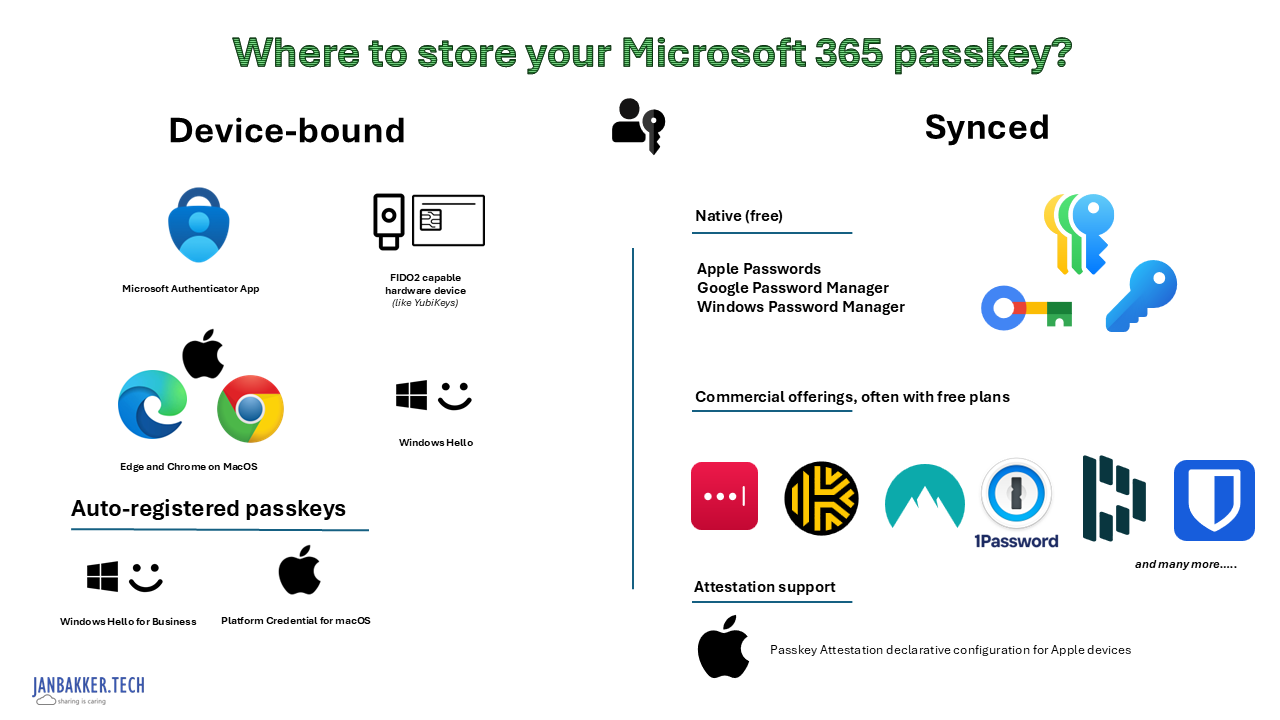
This is not just a setting in Entra. All your teams need to step up the game:
- Security teams need to mandate strong authentication organization-wide and decide which passkey types they will allow.
- IAM teams need to support decision-making and create solid policies that meet requirements while keeping user experience in mind.
- Adoption teams should start testing all types of passkeys across different devices and aim for the best possible user experience.
- Support teams should familiarize themselves with passkeys, passkey managers, and recovery flows.
Passkeys will become the new standard over passwords, but it might take some time to get there. Microsoft is pushing hard and is making the necessary changes to make it as smooth as possible. I’m confident this will not be the last change around passkeys, so keep an eye on the message center.
Stay tuned for deep dives on each change later. For now, I just wanted to give you this heads-up. Passkeys in Microsoft 365 are moving fast!
Stay safe!
Comments
Comments load when you scroll here.