
Entra ID SAML authnmethodsreferences (AMR) now supports phishing-resistant MFA
If you’ve been following the Salesforce phishing-resistant MFA (PRMFA) requirement story, you know the clock has been ticking. Salesforce has been pushing organizations to enforce phishing-resistant MFA for Salesforce administrators. The tricky part? Until now, Microsoft Entra ID has not always sent enough information in the SAML assertion for Salesforce to verify how the user authenticated, only that they authenticated.
That’s changing now.
What Salesforce requires#
Salesforce requires phishing-resistant MFA for all Salesforce administrators. When using SSO, Salesforce looks at the SAML assertion to verify the authentication method used. Specifically, it checks:
- AuthnContextClassRef (
acr) – the authentication context class reference, indicating the overall assurance level - AuthnMethodsReferences (
amr) – the actual authentication methods used during sign-in
For a sign-in to qualify as phishing-resistant, Salesforce expects one of these claims to be present and contain the right values. Without AMR, Salesforce couldn’t confirm which authentication method was used, even if the user authenticated with a FIDO2 security key or passkey.
What Microsoft is doing#
Starting June 29, 2026, Microsoft Entra ID will automatically include both amr (Authentication Method References) and acr (Authentication Context References) claims in tokens for:
- SAML 2.0 applications
- OIDC applications using the Microsoft identity platform v2.0 endpoint
No configuration changes are required in Microsoft Entra ID for the Salesforce SSO integration. Microsoft is rolling this out automatically.
What the SAML assertion will look like#
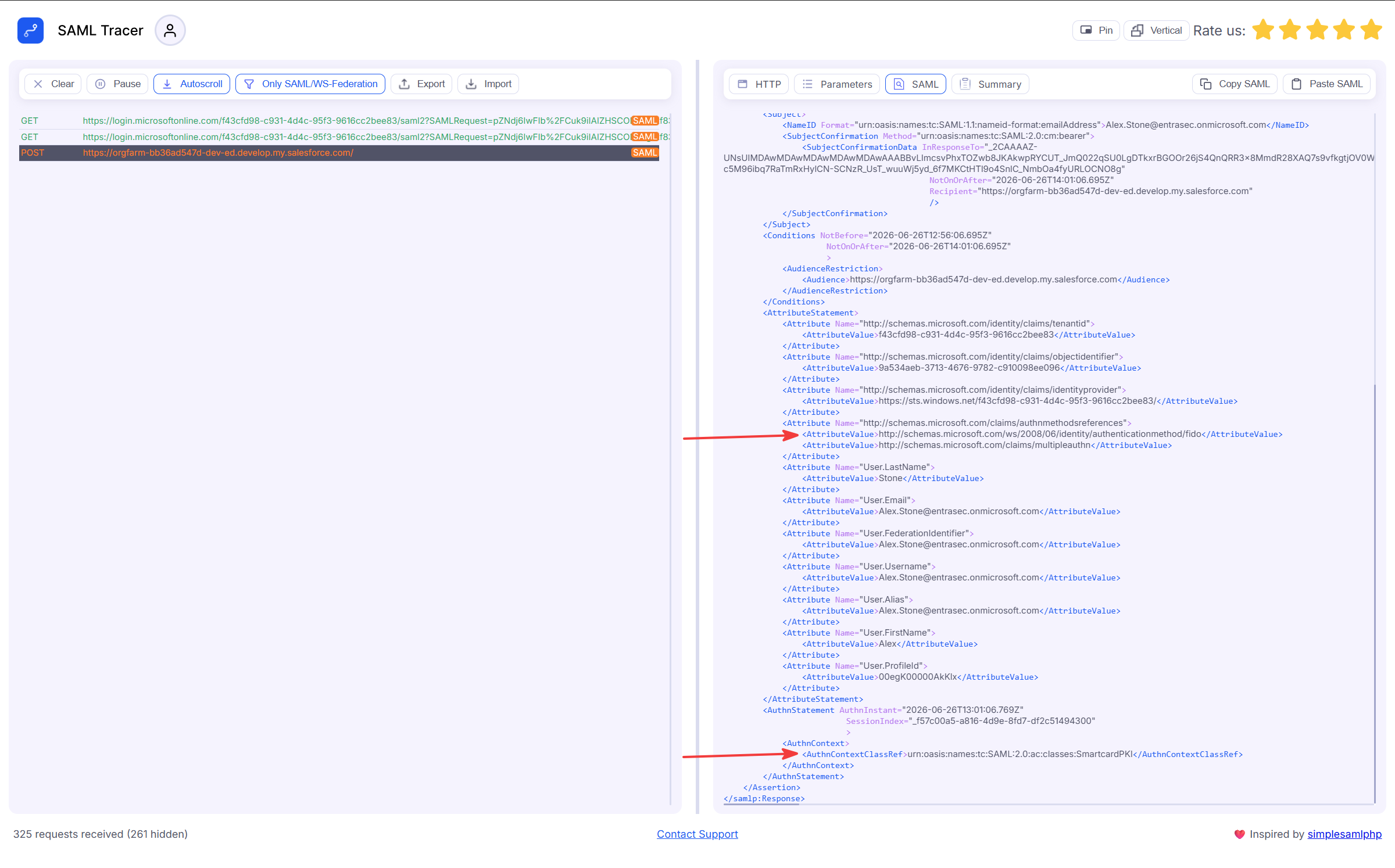
When a user authenticates with a FIDO2 security key or passkey, the SAML assertion sent to Salesforce will now include:
- AuthnContextClassRef:
urn:oasis:names:tc:SAML:2.0:ac:classes:SmartcardPKI - AuthnMethodsReferences:
fido,multipleauthn
Here’s an example:


Salesforce first checks the AuthnContextClassRef to determine the assurance level, then validates the AuthnMethodsReferences to confirm the details. A FIDO2 authentication with these values satisfies the Salesforce PRMFA requirement.
Previously, the AuthnMethodsReferences The element was not always included in the SAML assertion, leaving Salesforce without the details it needed to validate phishing-resistant MFA compliance.
Here’s an overview of the Salesforce policy. To satisfy the requirement, the Entra ID must send at least one value that matches an entry in the appropriate AMR or ACR column for the required tier.
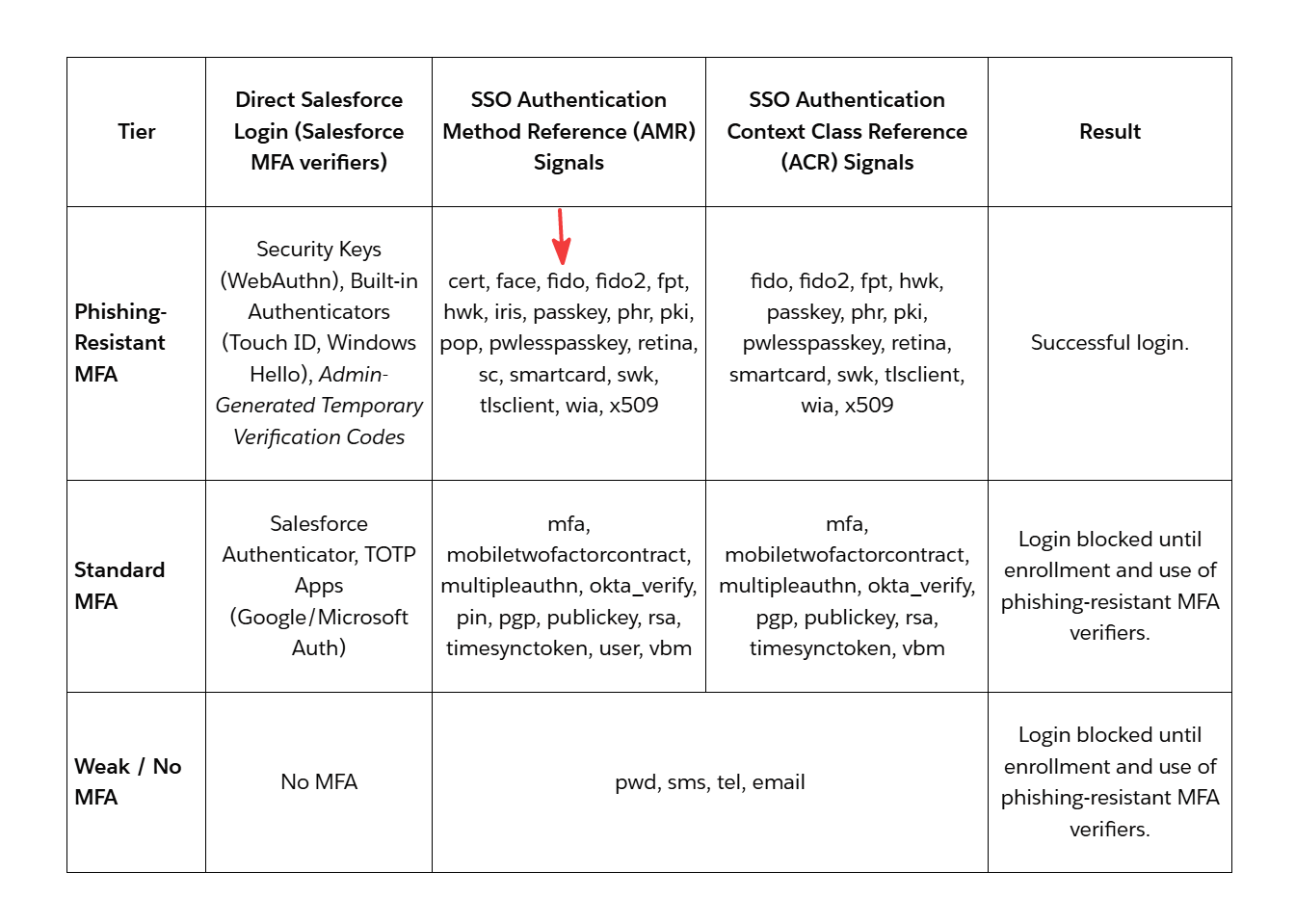
From an Entra perspective, the following methods will satisfy the policy:
| Microsoft Entra authentication method | AuthnContextClassRef class name | Description |
|---|---|---|
| FIDO2 security key (phishing-resistant MFA) | SmartcardPKI | A FIDO2 security key, reported as a smartcard-backed certificate with a private key and PIN. |
| Passkey - device-bound (phishing-resistant MFA) | SmartcardPKI | A device-bound passkey. |
| Passkey - synced | SoftwarePKI | A synced passkey, reported as a software-based PKI credential. |
| Windows Hello for Business (phishing-resistant MFA) | SmartcardPKI | Windows Hello for Business. |
| Certificate-based authentication (phishing-resistant MFA) | SmartcardPKI when used as MFA; X509 for single-factor CBA | Certificate-based authentication (CBA). |
Needless to say, a Temporary Access Pass will not satisfy the Salesforce policy. It will be
The full list can be found here: Single sign-on SAML (Security Assertion Markup Language) protocol - Microsoft identity platform | Microsoft Learn
What you still need to do#
The token change is automatic, but that doesn’t mean you’re done. You still need to make sure users are actually authenticating with phishing-resistant methods in the first place. Microsoft’s guidance is clear:
Apply Microsoft Entra Conditional Access policies that require phishing-resistant authentication methods for Salesforce administrator sign-ins.
Without a Conditional Access policy enforcing phishing-resistant MFA, users might authenticate with a push notification or TOTP, and those aren’t phishing-resistant.
Here’s how to set that up:
- In the Entra admin center, go to Protection → Conditional Access → Policies.
- Create a new policy targeting your Salesforce application.
- Scope it to Salesforce administrator accounts (use a dedicated group).
- Under Grant, select Require authentication strength and pick Phishing-resistant MFA.
- Set the policy to On and save.
Make sure your admins have phishing-resistant credentials registered (FIDO2 security key, passkey, or certificate-based authentication) before enabling this policy. Otherwise, they might be prompted to set up a passkey in Salesforce, splitting the federated authentication layer. You don’t want that.
If the claims are still not showing, you can always enforce it by configuring the application in Entra ID. I’ve written a separate post about that. How to add granular amr claims to your SAML apps in Entra ID
Wrap up#
The deadline for Salesforce PRMFA is real, and Microsoft is meeting the moment with an automatic update to SAML and OIDC token claims. If you’re running Salesforce SSO through Entra ID, the token side is taken care of. Your job is to make sure the Conditional Access policy is in place to enforce phishing-resistant authentication for your Salesforce admins.
Resources
- Salesforce phishing-resistant MFA requirement
- Authentication strengths in Conditional Access – Microsoft Learn
- SAML token claims reference – Microsoft Learn
- Configure Salesforce for Single sign-on in Microsoft Entra ID - Microsoft Entra ID | Microsoft Learn
- Single sign-on SAML (Security Assertion Markup Language) protocol - Microsoft identity platform | Microsoft Learn
Stay safe!

Comments
Comments load when you scroll here.