
Configurable token lifetimes in Entra ID
Today, a quick post about setting up token lifetime policies in Entra ID. In some use cases, organizations require a short access token for highly privileged apps or resources. That said, this is probably NOT needed for the typical apps we all use day-to-day.
With Entra token lifetime policies, you are able to manage the token lifetime of access tokens, SAML tokens, and ID tokens. It’s important to understand that it does not apply to refresh and session tokens. So, if you want to control refresh tokens, use Conditional Access Sign-in Frequency instead.
Also know that, when both the client and the resource support Continuous Access Evaluation (CAE), the token lifetime may be automatically extended to 24-28 hours, when it is safe to do so. These long-lived tokens will be revoked in near real time in response to critical events such as account disablement and password changes.
Create a new policy#
Let’s create a new policy and apply it to our test applications to see the results.
We are using Graph Explorer, but you can also use PowerShell instead.
POST https://graph.microsoft.com/v1.0/policies/tokenLifetimePolicies

{
    "definition": [
        "{\"TokenLifetimePolicy\":{\"Version\":1,\"AccessTokenLifetime\":\"00:10:00\"}}"
    ],
    "displayName": "Token Lifetime Policy - 10 minutes",
    "isOrganizationDefault": false
}
Careful here. Setting “isOrganizationDefault”: true can have a big impact. Only one policy can be set to tenant default. For token lifetime policies, an organization-level policy takes precedence over an application-level policy.
The minimum value is 00:10:00, and the maxium value is 24:00:00.
Assign the policy to a service principal#
With the new policy in place, we need the ID of the policy, so we grab that from the Graph API as well:
GET https://graph.microsoft.com/v1.0/policies/tokenLifetimePolicies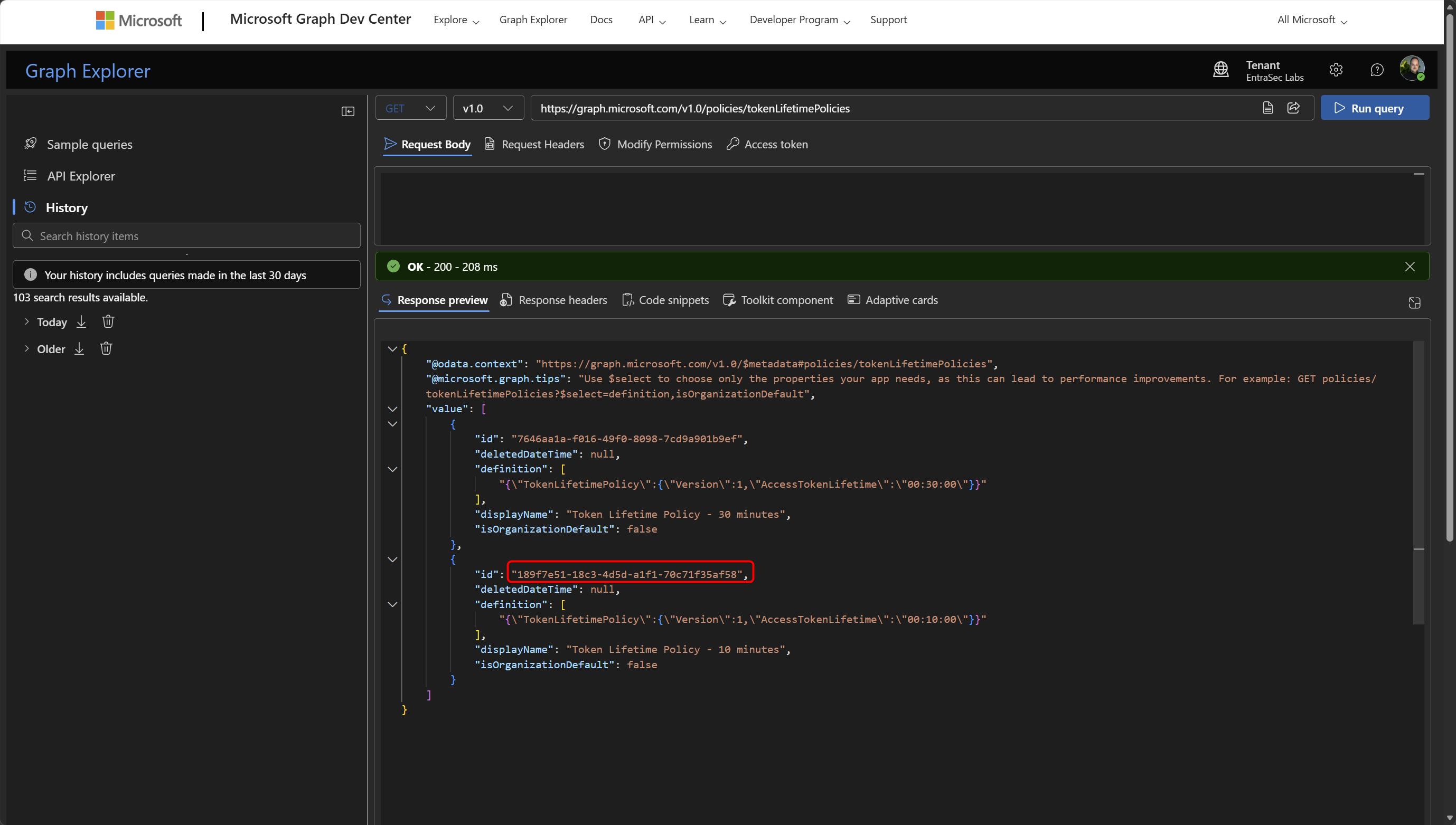
The last thing we need is the object ID of the service principal to which we want to apply the policy. In my case, I have to demo apps that
POST https://graph.microsoft.com/v1.0/servicePrincipals/e0e6d514-8b94-4141-8e7c-cb55d444b89f/tokenLifetimePolicies/$ref

{
  "@odata.id":"https://graph.microsoft.com/v1.0/policies/tokenLifetimePolicies/189f7e51-18c3-4d5d-a1f1-70c71f35af58"
}
e0e6d514-8b94-4141-8e7c-cb55d444b89f = your app (object ID of service principal)
189f7e51-18c3-4d5d-a1f1-70c71f35af58 = your policy ID
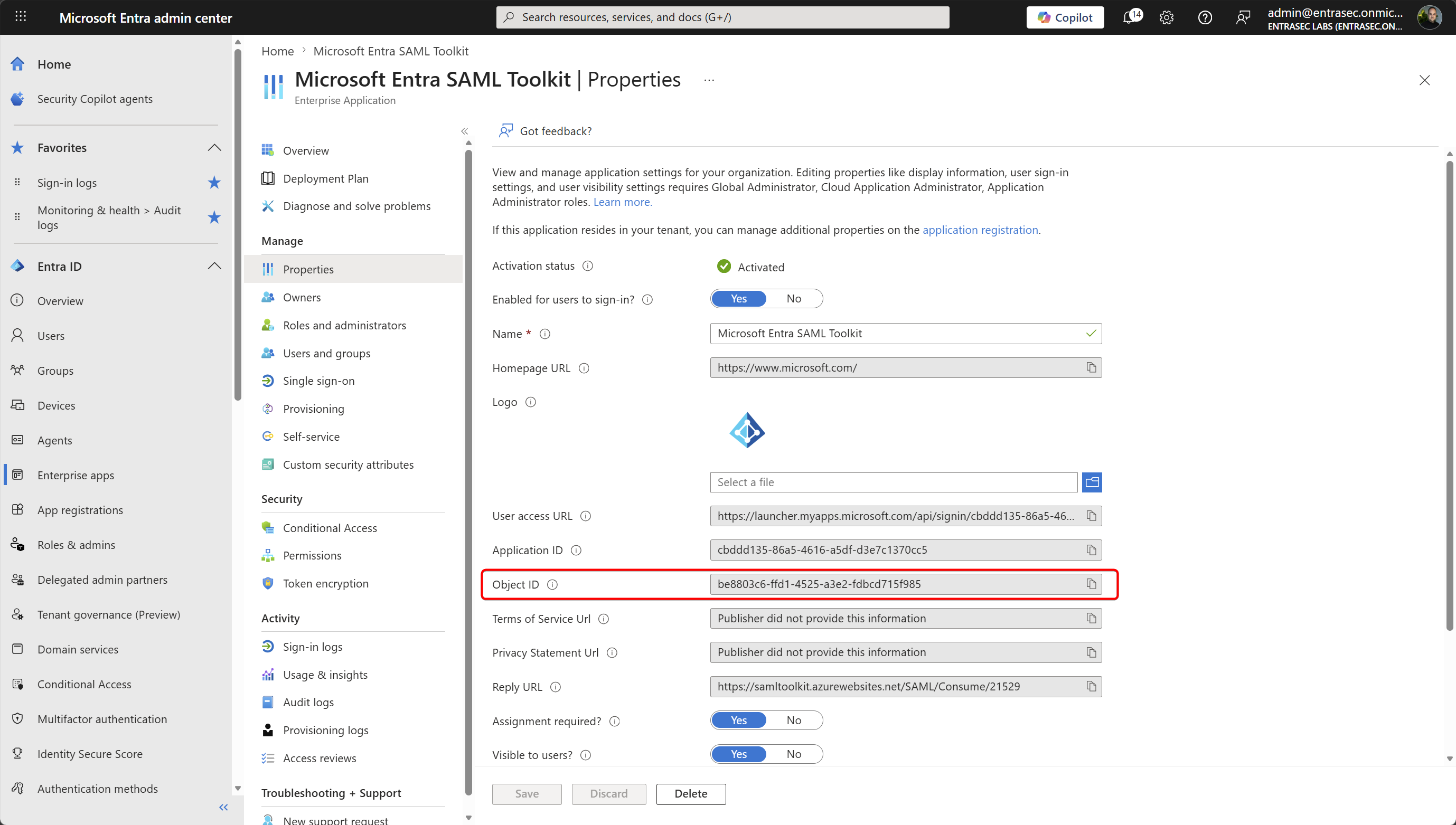
I applied the policy to both the Microsoft Entra SAML Toolkit and my JWT.ms application.
Test the policy#
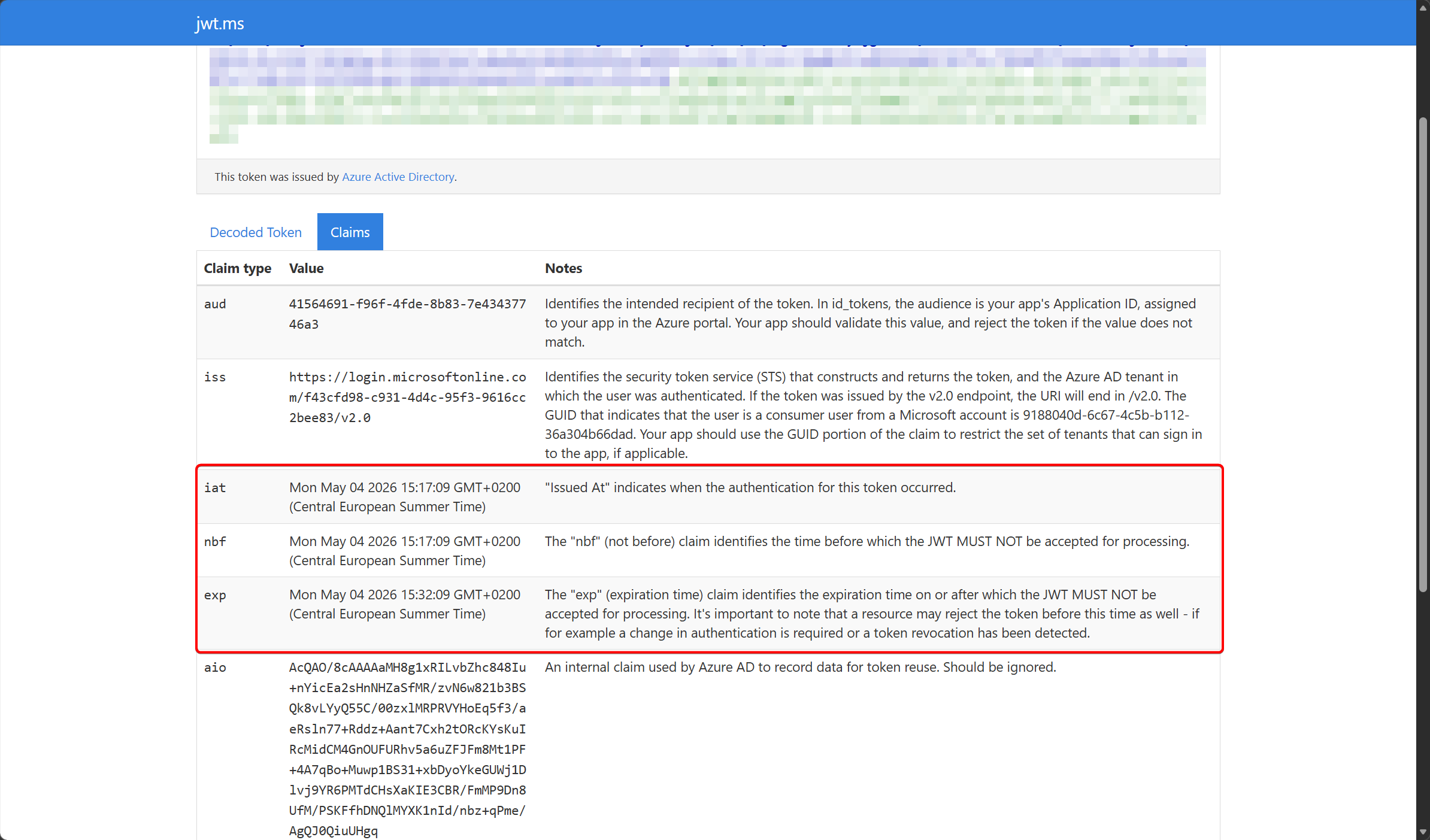
Let’s sign in with the applied policy and check the token lifetime.
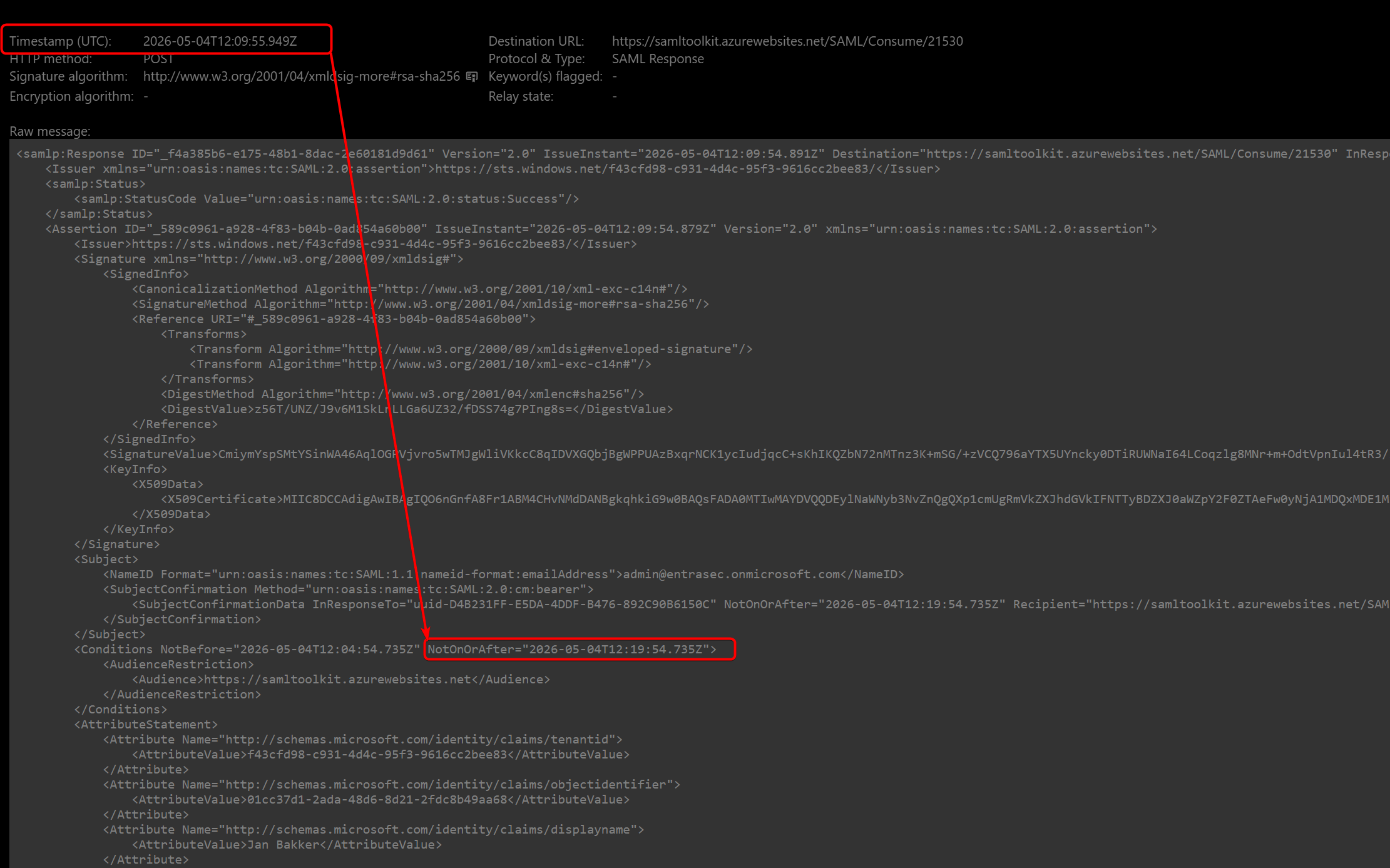
For my JWT app, the token is also valid for 10 minutes + the default clock skew of 5 minutes.
To delete the policy from the app, use:
DELETE https://graph.microsoft.com/v1.0/servicePrincipals/e0e6d514-8b94-4141-8e7c-cb55d444b89f/tokenLifetimePolicies/189f7e51-18c3-4d5d-a1f1-70c71f35af58/$refFor more detailed info on the Graph API, see: tokenLifetimePolicy resource type - Microsoft Graph beta | Microsoft Learn
More resources:
Set token lifetimes - Microsoft identity platform | Microsoft Learn
Configurable Token Lifetimes - Microsoft identity platform | Microsoft Learn
Comments
Comments load when you scroll here.