
Allow password change after secure sign-in
The use case#
Passwordless sign-in doesn’t remove every need for a password. Some users primarily sign in without a password but still need one for legacy applications. Microsoft Entra can let these users change their cloud password after a secure sign-in, without knowing or entering their current password.
Users can sign in with one of these methods:
- Microsoft Entra certificate-based authentication (CBA)
- A passkey (FIDO2)
- A Microsoft Authenticator passwordless phone sign-in notification
This experience is separate from self-service password reset (SSPR). Users don’t need to be registered for SSPR, and the number of authentication methods required by the SSPR policy doesn’t apply.
To use this feature, users need a Microsoft Entra ID P1 or P2 license. The feature is rolling out across all clouds starting in late October 2026, with rollout expected to complete by the end of November 2026. If the setting isn’t available in your tenant yet, the rollout might not have reached it.
Enable the setting#
You need at least the Authentication Policy Administrator role to enable this experience.
The setting isn’t available in the Microsoft Entra admin center yet. For now, enable it by updating the Password authentication method configuration with the Microsoft Graph beta API.
Graph Explorer#
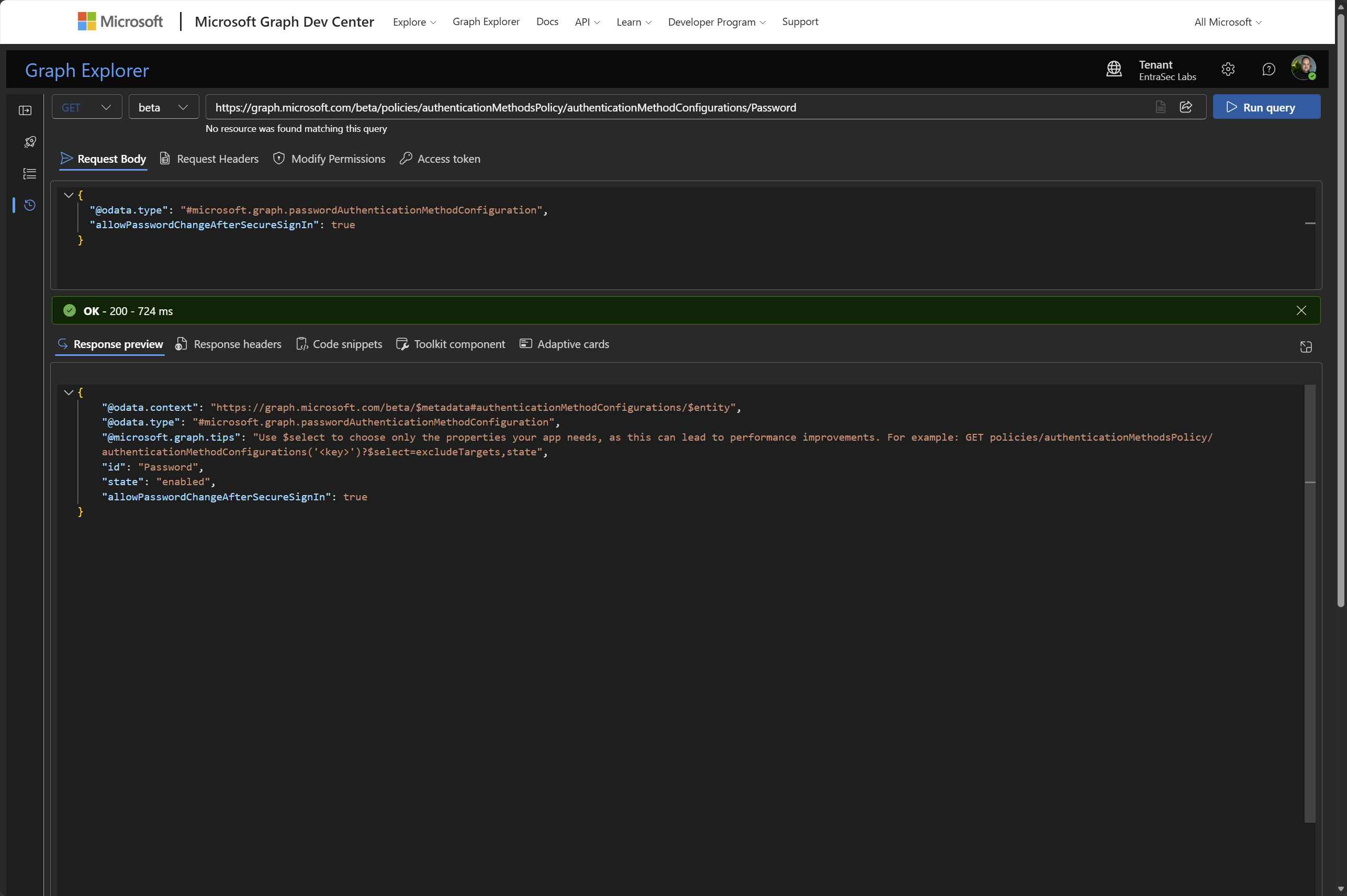
Send this request in Graph Explorer:
PATCH https://graph.microsoft.com/beta/policies/authenticationMethodsPolicy/authenticationMethodConfigurations/Password
Content-Type: application/json

{
	"@odata.type": "#microsoft.graph.passwordAuthenticationMethodConfiguration",
	"allowPasswordChangeAfterSecureSignIn": true
}
Microsoft Graph PowerShell#
Connect to Graph with the Policy.ReadWrite.AuthenticationMethod scope, then send the update:
Connect-MgGraph -Scopes "Policy.ReadWrite.AuthenticationMethod"

$body = @{
	"@odata.type" = "#microsoft.graph.passwordAuthenticationMethodConfiguration"
	allowPasswordChangeAfterSecureSignIn = $true
}

Invoke-MgGraphRequest -Method PATCH `
	-Uri "https://graph.microsoft.com/beta/policies/authenticationMethodsPolicy/authenticationMethodConfigurations/Password" `
	-Body ($body | ConvertTo-Json) -ContentType "application/json"
The setting applies to all users in the tenant. You can’t target or exclude individual users or groups.
User experience#
To change their password, an eligible user completes these steps:
- Go to Security info or use the direct password change link.
- Sign in with Microsoft Entra CBA, a passkey (FIDO2), or a Microsoft Authenticator passwordless phone sign-in notification.
- Select Change next to Password.
- Enter and confirm a new password, and then select Submit.
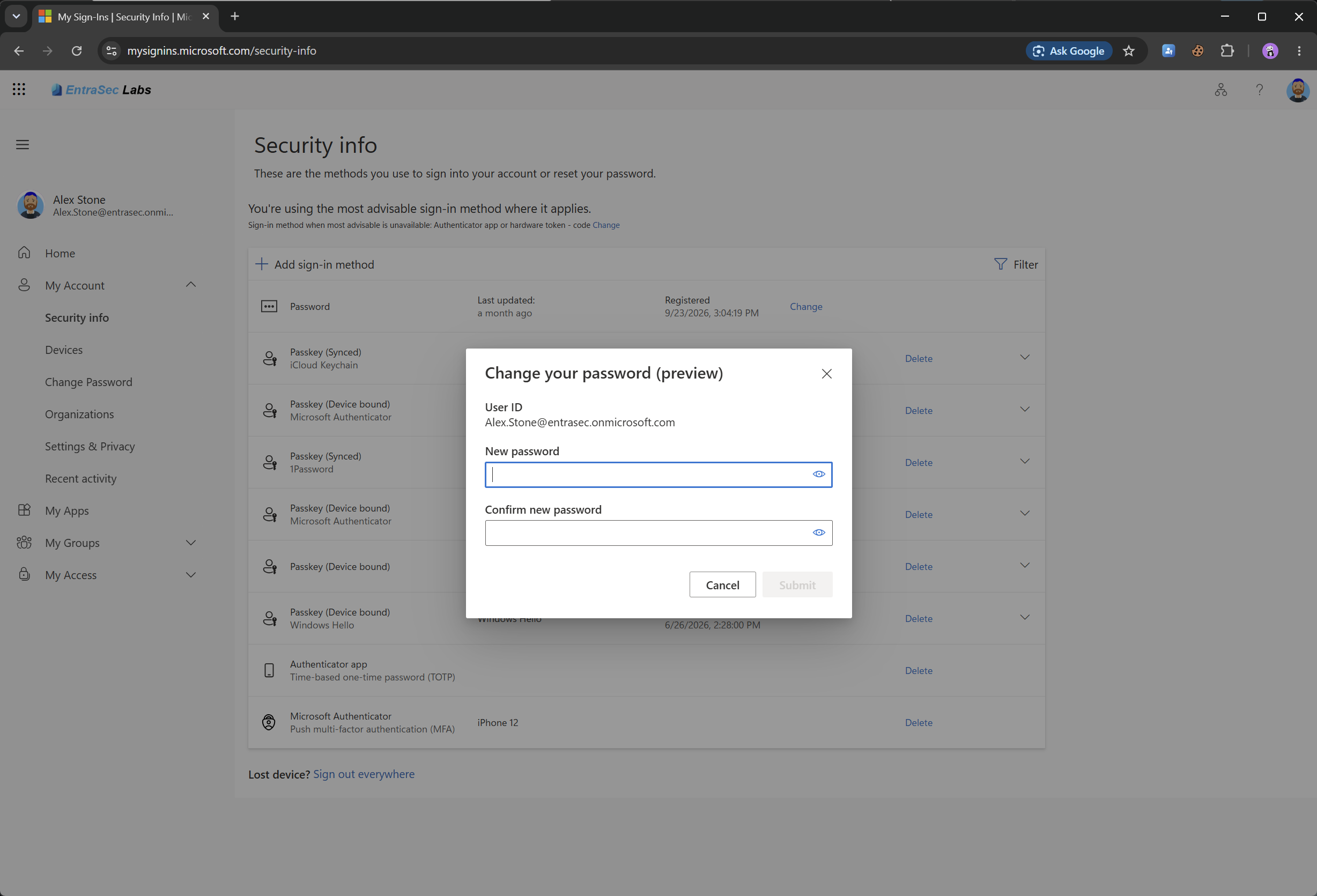
The user isn’t asked for their current password. If the setting isn’t enabled or a supported passwordless method isn’t available, they need to use another available password change or reset option.
Where the new password is stored depends on the identity environment:
- Cloud-only tenant: The password is updated in Microsoft Entra ID.
- Hybrid tenant with password writeback enabled: The password is updated in Microsoft Entra ID and written back to Active Directory.
- On-premises-only environment: My Sign-Ins can’t manage identities that don’t exist in Microsoft Entra ID.
For more information, see Microsoft’s guidance on self-service password reset.
Comments
Comments load when you scroll here.